


How to Customize & Download QuickBooks Online Invoice Template

- By Jonathan Browns
- Oct 29, 2026
- Accounting
- 7 min read
Creating professional invoices doesn’t have to be time-consuming. A QuickBooks Online invoice template helps the businesses in keeping their billing details organized, add your company logo, and make payment information easy to understand. In this guide, we will cover everything from how to customize an invoice template, add your logo, change invoice formats, and download invoices step-by-step.
What is a QuickBooks Online Invoice Template?
An invoice template in QuickBooks Online is a customizable layout that is used to showcase invoice information to your customers. This layout includes your business name, logo, customer details, invoice number, payment terms, item descriptions, prices, taxes, and total amount due.
Moreover, the QuickBooks Online also offers built-in invoice designs and customization options. Depending on the interface and subscription, you have the option to change colors, fonts, column labels, visible fields, and other layout settings.
How to Customize or Change an invoice template in QuickBooks Online
You can customize or change your QuickBooks Online invoice template from inside any invoice. It can also be customized from the settings.
Option 1: Edit while working on an invoice
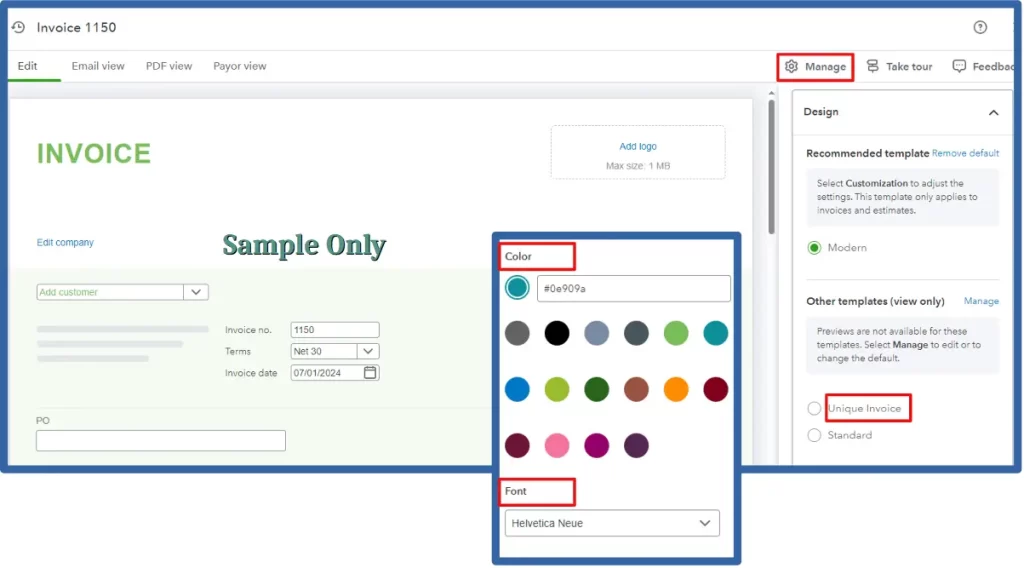
Start by opening a new or existing invoice. Then, choose Manage from the right side of the form. Furthermore, perform the following steps;
- Choose Customization to turn fields on or off.
- Click on Design option to select a template style, font, and color scheme.
- Select the Edit company option on the form to update your business name, address, or logo.
The changes you made will reflect after clicking the Print or download option to preview.
Option 2: Create or Edit a template in Custom Form Styles
- Move to Settings and click Custom form styles option.
- Choose New Style > Invoice option to create a new template.
- Tap on Edit menu beside the template that you want to edit.
- Select the Design tab to update the template name, color, font, layout, and logo.
- You can also adjust the header, body, and footer using the Content tab.
- Once done, click the Done option.
How to Change Invoice Template in QuickBooks Online
To change the invoice template, login to your QuickBooks Online account in a web browser. Then, perform the steps below to change the template in the QuickBooks app.
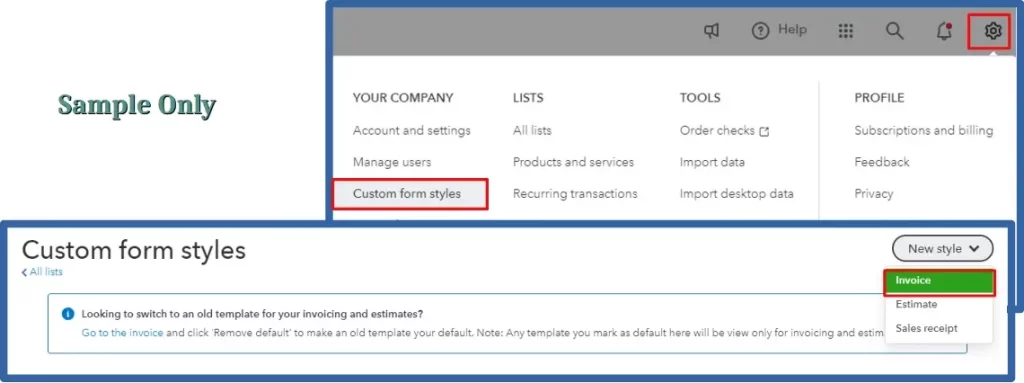
- Initially, click the Gear icon and choose Custom Form Styles.
- Select the New Style from the upper right corner.
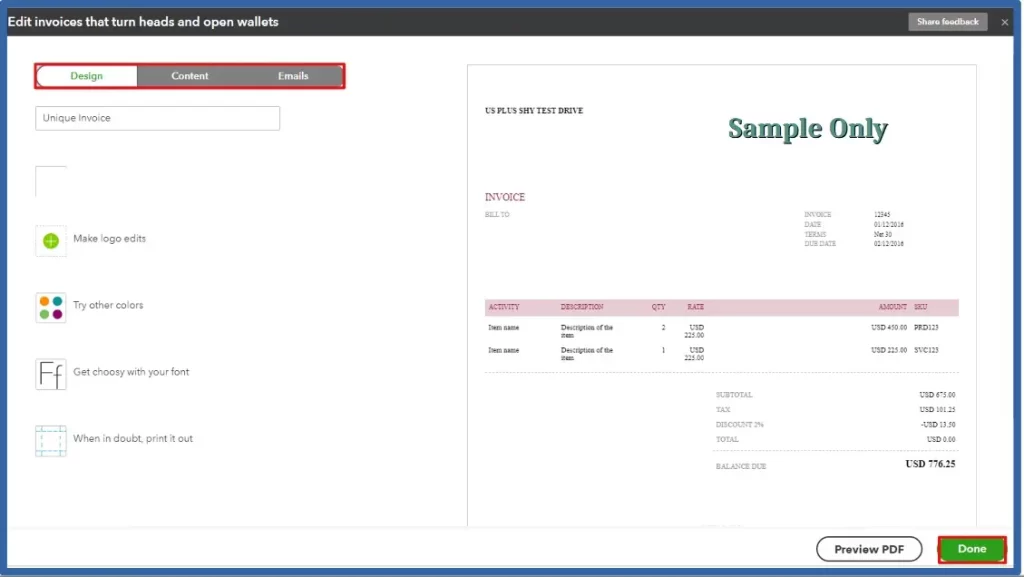
- Browse to the Invoice option and click the Design tab to change the template name, logo, font, and margins.
- Customize the content tab for adjusting the header, footer, and body.
- Once the changes are done, click Done.
- Ensure to select the template when creating an invoice. Furthermore, you can also customize it by adjusting the font and colors.
How to Get QuickBooks Invoice Template Download
There are two different ways to download a QuickBooks Invoice template. You can either download an invoice that you have created earlier or can download a blank template to fill in separately.
Option 1: Download an invoice as a PDF
If you created an invoice in QuickBooks Online earlier;
- At first, open the invoice and click Print or download option.
- Now, review the preview.
- After this, select the available Print or Download action.
- Finally, save the file as a PDF when asked.
This option is useful when you want a copy of a completed invoice for your records or need to share it outside QuickBooks.
Option 2: Look for a free invoice template
If you want a blank form, search for a QuickBooks Online invoice template free option that tallies with your requirements. After this, confirm whether the template is created for QuickBooks Online, Microsoft Word, Excel, or PDF before downloading it.
A blank Word document is not automatically a QuickBooks Online template. It may need to be completed separately, and its data will not automatically sync with your QuickBooks account.
How to Set a Default template in QuickBooks Online
The modernized template is considered as the default one in QuickBooks Online. However, to switch the default to the standard template;
- Launch a new invoice and then click Manage icon.
- Choose the Remove default option from the modernized template section.
- Click on Add/Edit on the standard template. Then, hit the Done option.
Note: You can only set the standard template as a default. Other custom templates can be selected per invoice by selecting the Design drop-down menu. But it doesn’t apply to every new invoice.
How to Adjust column widths and names
To adjust the column widths and names of the invoice, perform these steps;
- Move to the Settings menu and click Custom form styles.
- Choose the Edit option on an existing template. Then, tap on Content.
- After this, select the section of the form that shows a list of products.
- Click Edit labels and widths.
- Verify which columns to show and rename them as required using sliders to adjust column widths.
- Once done, click the Done option.
How to Add custom fields to your invoice
Adhere to the following steps to add custom fields to your invoice in QuickBooks Online;
- Move to the Settings icon and click Custom fields.
- Choose Add custom field, and for modifying an existing custom field, click on Edit.
- Name the field and pick a data type.
- Now, click Transaction and select the checkbox next to Invoice. Then, turn on Print on form.
- Once the changes are done, click Save.
How to update your logo and company info
- Select the Settings icon and tap on Account and Settings.
- Click on the Pencil logo icon to edit your company logo.
- Choose an image from your system and hit Open to update the logo.
- After that, select each field to update the company file details when required. Later on, click Done.
How to Create an Invoice in Microsoft Word
To create an invoice in Microsoft Word, perform these steps.
- Launch Microsoft Word and click on File > New option.
- After this, type “Invoice” into the search box. Microsoft Word will open all the available invoice templates.
- Now, decide which template you want to use. Then, double-click to open.
- Personalize the invoice by including business details. You can delete any fields that you don’t need any longer. If the template contains a logo place holder, you can insert your own company logo. For that, right-click on the logo and select “Insert” or “Change Graphic”.
- Type in the particular details for your invoice. It may include product and price information.
- Finally, review the invoice to confirm that all details are appropriate. Then, save the invoice by selecting the File > Save option.
Read More:- Delete Invoice in QuickBooks Online
How to Save Your Word Invoice as a Template
Creating a reusable invoice template in Microsoft Word will help save your time and ensure consistency. Follow these steps to set up and save your invoice as a template:
- Open Microsoft Word and create your invoice. Otherwise, open an existing invoice file.
- Confirm that all the important fields are included. It includes business name, contact details, total amount, due date, and itemised charges, etc.
- Click the File menu and click the Save As option. Then, select the folder to save the template. Furthermore, pick Word Template (.*dotx).
- Now, give your file a descriptive name like “Invoice Template”. Then, click Save to save the template.
- Open Microsoft Word again to create a new invoice. Then, select File > New > Personal or Custom to find your saved template.
How to Save Your Word Invoice as a PDF
After preparing the invoice, save it to your computer and then email it to your client as an attachment. Perform the steps given below to save your Word invoice in the form of a PDF.
- Open Microsoft Word and launch the invoice or any document you want to save in the form of a PDF.
- Next, choose the File menu at the top menu bar.
- After this, click Save As option and then save the folder you want to save the PDF file.
- Now, tap on the Save As Type drop-down menu to choose the PDF (*.pdf).
- Click Save and it will convert your Word document into a PDF file.
As a result, this method will ensure that your invoice maintains its formatting and can be shared easily with clients.
How to QuickBooks Online custom invoice design
You can create a custom invoice in QuickBooks Online without changing your standard invoice. Follow these steps to complete the process.
- To begin with, click the Gear icon at the top and choose Custom Form styles.
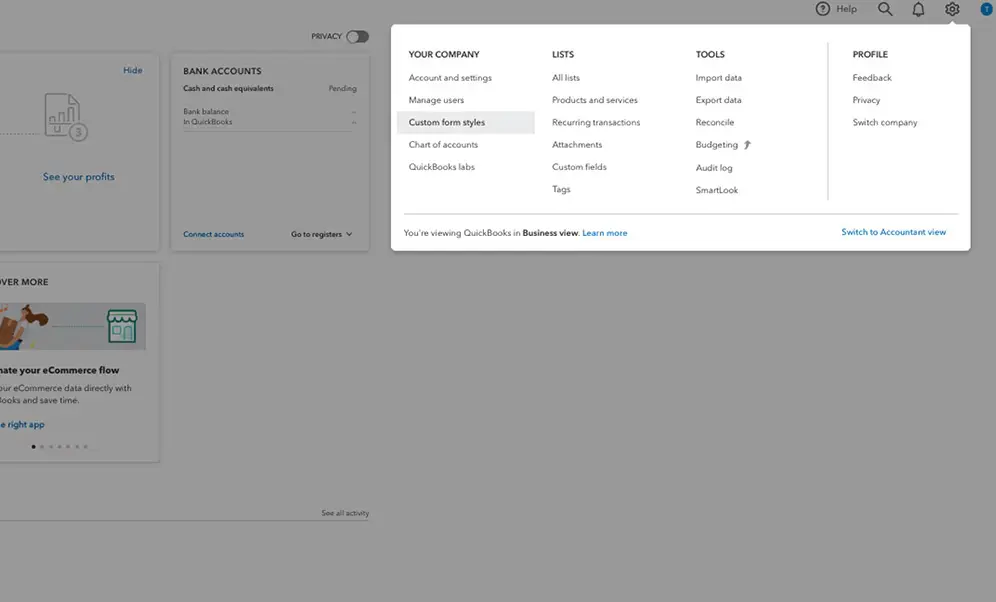
- Select New Style and then tap on Invoice.
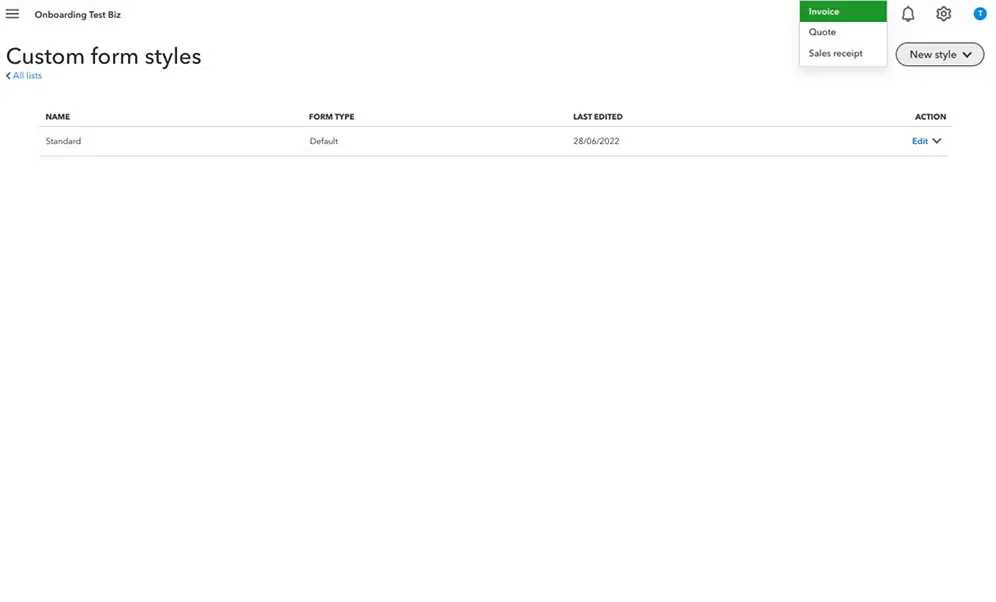
- Provide a name to your template and then select Make logo edits.
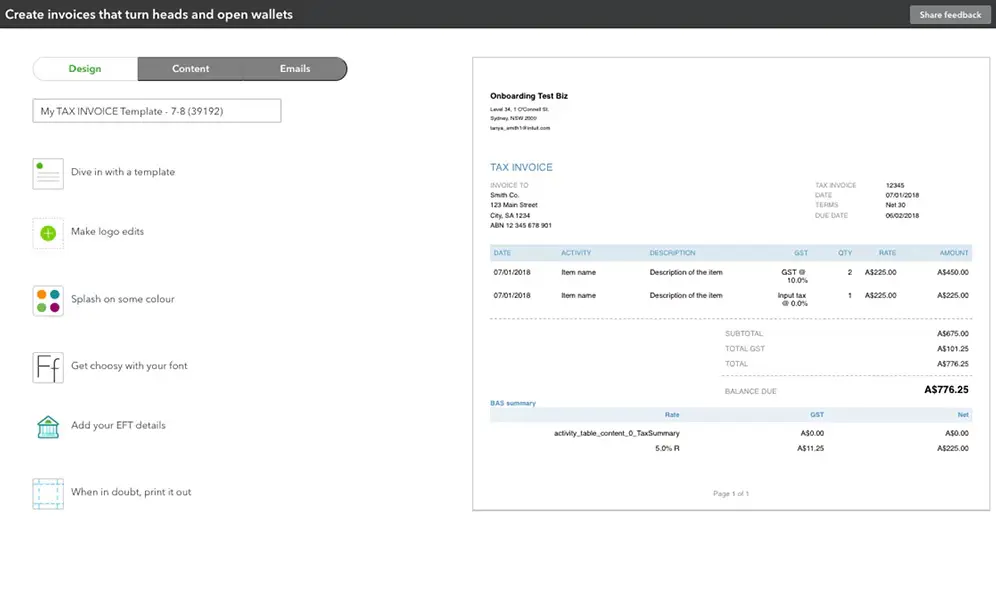
Click on the + icon on the image to change the logo. Then, select the logo you want to use.
- After making the changes, click Save.
Browse to the Email tab to change the email that your customers receive with each invoice. Then, select Done.
How to Choose the Best Invoice Templates for QuickBooks?
Ready-to-use invoice templates save precious time in creating professional invoices for businesses. Understanding the time invested in generating invoices will help you identify which solution is suitable for you.
The following are the major key factors that you must consider while selecting the ideal invoicing template solution for your business requirements.
- Invoice template file format- Make sure to select a proper template that is easy to send to your customers through email. and that can open and navigate easily such as Microsoft Word and Excel invoicing templates. Also, the file format that you can easily convert into PDFs.
- Built-in formulas- Another factor to consider is to select an invoice template with built-in formulas that will automatically calculate your data and totals. Excel invoicing templates must include built-in formulas, and online invoicing tools like QuickBooks free invoice generator automatically calculate your totals.
- Customizable designs- Editable templates lets you customize your invoice with your logos and brand colors that can match your brand identity. Then, you can create professional template.
- Scalability- Also, you must consider that while invoicing templates you need to invest in automated invoicing solutions such as online invoicing software to scale your invoicing as your business grows.
Summarizing the Above
A QuickBooks Online invoice template lets you create professional invoices while keeping your billing information organized. Moreover, you can create invoices that suit your business requirements by customizing the invoice design, adding your company logo, and adjusting columns. You can also download invoices as PDFs or use a Microsoft Word invoice template for manual billing.
Furthermore, when choosing the best invoice templates for QuickBooks, consider ease of use, customization options & your business needs. Select a format that keeps invoices clear, accurate, and easy for customers to understand. For any further guidance, you can connect with our BizBooksAdvice professionals.
Frequently Asked Questions
1. Is there a free QuickBooks Online invoice template?
QuickBooks Online offers built-in invoice layouts and customization options. The features available depend on your subscription & interface. If you need a blank template outside QuickBooks, see whether the download is a Word, Excel, or PDF file.
2. How do I change an invoice template in QuickBooks Online?
Open an invoice, select the Design menu and then choose an available template. Select Settings and click Custom form styles to edit a saved template in the older editor. Then, choose Edit beside the relevant invoice style.
3. Can I edit the invoice format in QuickBooks Online?
Yes, you can edit the invoice format, which may include the layout, font, colors, logo and visible fields. Some advanced options depend on the template editor & subscription. Preview the final invoice to confirm that your changes appear appropriately.
4. Can I use a Word invoice template with QuickBooks Online?
You can prepare invoices in Word separately, but a standalone Word file does not automatically sync with QuickBooks Online. If you use Word, make sure the invoice is also recorded correctly in your accounting records.
5. How do I download a QuickBooks invoice as a PDF?
To download QuickBooks Invoice, open the invoice and choose Print or download. After this, preview the document and select the available download or print option. Save it as a PDF if prompted.
About The Author

Jonathan Browns
Jonathan Brown is a trained QuickBooks professional with 10 years of experience in the accounting sector. Moreover, he is passionate about helping businesses reduce the stress of managing accounts. Also, he is proficient in assisting entrepreneurs and small business owners to use QuickBooks and enhance their accounting experience.
Recent Posts
-
QuickBooks Enterprise Gold: Features, Pricing, and How to Choose
-
How to Customize & Download QuickBooks Online Invoice Template
-
How to Export Chart of Accounts in QuickBooks Desktop & Online?
-
How to Delete Invoice in QuickBooks Online (Step-by-Step Guide)
-
How to Fix QuickBooks Error 6000 83: Step-by-Step Guide