


QuickBooks Merchant Services: Everything You Need to Know Before You Sign Up

- By Jonathan Browns
- Jun 19, 2026
- Bookkeeping
- 7 min read
If you’re running a small business, you’ve probably had this thought at least once: “Why am I using three different tools to get paid, track invoices, and reconcile my books?” That’s exactly the gap QuickBooks merchant services was built to close.
Whether you’re using QuickBooks Online, QuickBooks Desktop, or QuickBooks Point of Sale, accepting payments directly through your accounting software can save you hours of manual data entry every month. But before you connect your bank account and start swiping cards, you’ll want to understand how it actually works, what it costs, and how to manage it day-to-day.
Let’s walk through it together.
What Are QuickBooks Merchant Services, Exactly?
QuickBooks merchant services, officially branded by Intuit as QuickBooks Payments, is the built-in payment processing system that lets you accept credit cards, debit cards, ACH bank transfers, and digital wallets (such as Apple Pay) directly inside QuickBooks.
Instead of using a separate processor and then manually importing transactions into your books, every payment you accept gets recorded automatically. You send an invoice, your customer pays it online, and the money, minus the processing fee, shows up in your bank account, already matched to the right invoice in your books.
This isn’t a bolt-on third-party app. It’s an Intuit-owned service, and that is why it integrates so cleanly with QuickBooks Online, QuickBooks Desktop, and QuickBooks Point of Sale. You’re not stitching together two companies’ software; you’re using one ecosystem end-to-end.
How Merchant Services Work Inside QuickBooks Online
If you’re on QuickBooks Online, setting up payments is built right into the platform. Here’s the general flow Intuit walks you through:
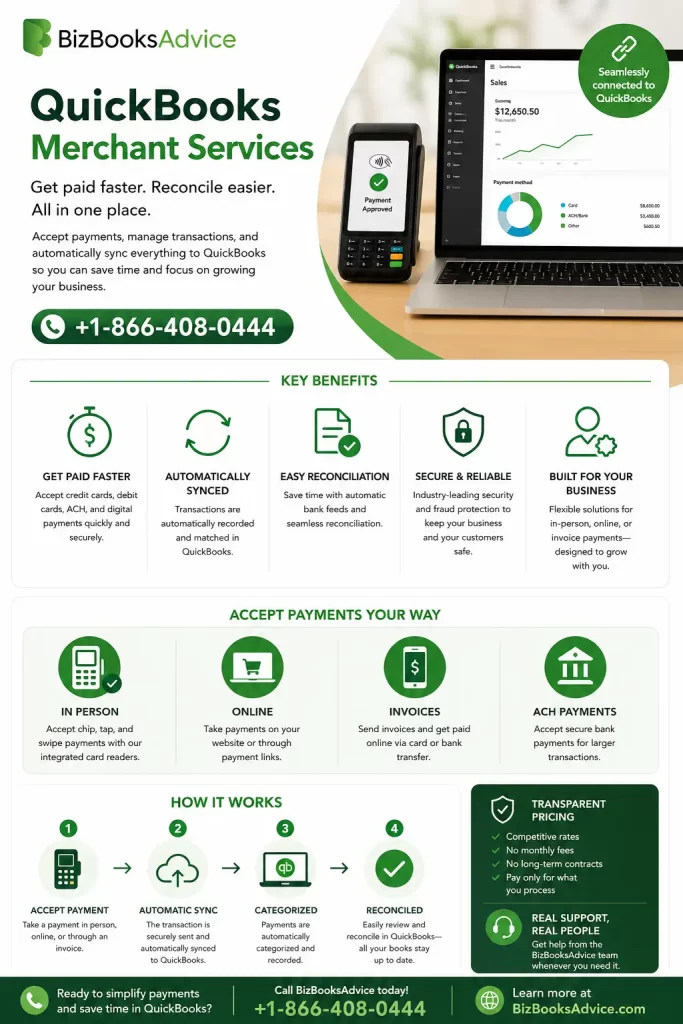
- Apply for a QuickBooks Payments account. You’ll go to the Payments tab inside QuickBooks Online and complete an application with your business details, banking information, and average transaction size. Intuit reviews this to set up your account.
- Get approved and connect your bank account. Once approved, you link the business bank account where you want deposits to land.
- Start accepting payments. You will now be able to add a “Pay now” button to invoices, take a card over the phone using the virtual terminal, or accept payments through QuickBooks GoPayment on your phone.
- Now, allow QuickBooks to do the matching. The payments you accept are automatically recorded against the right customer and invoice. Moreover, the processing fee is logged as an expense, so your books stay accurate without extra typing.
This is the version most freelancers, service businesses, and online sellers use, since QuickBooks Online merchant services are designed to work from any browser or the mobile app.
QuickBooks Desktop Merchant Services: What’s Different
If you’re still running QuickBooks Desktop, you’re not left out; Intuit supports QuickBooks Desktop merchant services too, though the experience is a little different.
With Desktop, you’ll:
- Set up your QuickBooks Payments account through the Customers menu, under Add Credit Card Processing.
- Process payments directly from a sales receipt or invoice screen.
- Use a card reader connected to your computer for in-person transactions, or key in card details manually.
- Sync deposits to your bank feed inside QuickBooks Desktop, where they’re matched against open invoices.
One thing worth knowing is that the deposit timing and fee structures can vary slightly between the Online and Desktop versions. This is why it becomes worth checking your specific plan details in your Merchant Service Center account. Do not make the mistake of assuming they’re identical, as that can hurt your books.
QuickBooks POS Merchant Services: Built for In-Person Sales
For retail businesses, restaurants, and anyone selling face-to-face, QuickBooks Point of Sale merchant services tie your physical checkout process to your accounting in real time.
Here’s what that looks like in practice:
- Every sale rung up at your POS terminal flows directly into QuickBooks, so your inventory counts and revenue numbers update automatically.
- You can accept chip cards, tap-to-pay, and swipe transactions using Intuit-compatible card readers.
- End-of-day reconciliation becomes far simpler, since you’re not manually entering register totals into your books later.
If you run a storefront, this is the option that saves you the most time, because it removes the gap between what happens at the counter and what shows up in your financial reports.
How to Access the QuickBooks Merchant Services Login
This trips up a lot of business owners, so let’s clear it up directly: your merchant services login is not always the same screen as your regular QuickBooks login.
Here’s how Intuit structures it:
- If you just need to see deposits or match transactions, you can usually do that right inside QuickBooks Online or Desktop using your normal sign-in.
- Suppose you need to manage your actual payments account. Things like changing your bank account, updating your business address, viewing detailed transaction history, processing a refund, or adjusting your rate plan. You’ll go to the Merchant Service Center, a separate portal Intuit maintains specifically for QuickBooks Payments accounts.
To reach the Merchant Service Center:
- Go to merchantcenter.intuit.com.
- Sign in using your Intuit account (your User ID, which is usually your email, and password).
- From the Account dropdown, you can access settings like Login & Merchant Accounts, where you’re able to update your sign-in info, manage user roles, and review transaction history.
It’s worth bookmarking that login separately, since you’ll use it any time you need to do something administrative with your payments account rather than your day-to-day bookkeeping.
A Common Point of Confusion
- If you’ve forgotten your merchant services login, don’t assume you need a brand-new account. Since the Merchant Service Center uses the same credential system as the rest of Intuit’s products, the standard “I forgot my password” recovery flow on the sign-in page will usually get you back in.
- If you’ve recently changed your email address or switched accountants, double-check which email is tied to the account before resetting anything; that’s the most frequent reason people get locked out.
- It’s also worth noting that if your business has multiple people who need access, say, a bookkeeper who reconciles payments and an owner who handles bank changes, you don’t have to share one login.
- The Merchant Service Center supports adding additional users with different permission levels, so you can give your bookkeeper visibility into transactions without handing over control of your banking details.
What Does QuickBooks Charge for Merchant Services?
Pricing is one of the first things business owners want to know, and Intuit is fairly transparent about it, but it does depend on how you accept payments.
Generally speaking, you’re looking at a few categories of cost:
- Card transactions keyed in or invoiced online typically carry a higher per-transaction rate, since there’s more fraud risk when a card isn’t physically present.
- Card-present transactions (swiped, tapped, or dipped through a reader) usually come with a lower rate.
- ACH bank transfers tend to be the cheapest option per transaction, since there’s no card network involved.
- There’s also usually a small flat fee per transaction in addition to the percentage rate.
Rather than publishing one number and calling it universal, Intuit adjusts pricing based on your QuickBooks subscription tier and processing volume. The most accurate way to see your specific rate is inside your QuickBooks Payments dashboard or your Merchant Service Center account, since rates are tied to your individual agreement.
How Fast Do You Get Paid?
This is the other big question business owners ask, and it makes sense: cash flow is everything.
With QuickBooks Payments, deposit speed depends on the type of transaction:
- Standard deposits for most card transactions typically land in your bank account the next business day.
- ACH transactions usually take a bit longer, since bank-to-bank transfers move on a different timeline than card networks.
- Instant deposit, where available, lets you access funds faster for an additional fee, useful if you need cash on hand the same day.
If a deposit seems delayed, it’s not necessarily a problem with your account. Intuit periodically reviews transactions to protect both you and your customers, which can occasionally put a deposit on short hold. If that happens, the Merchant Service Center will usually show you the reason and expected release date.
Setting Up Merchant Services for QuickBooks: A Step-by-Step Starting Point
If you haven’t signed up yet, here’s a simple version of the process to set expectations:
- Decide which QuickBooks product you’re using, Online, Desktop, or Point of Sale, since the setup screens differ.
- Gather your business information, including your EIN or SSN, bank account and routing number, and an estimate of your average transaction size and monthly volume.
- Apply directly inside QuickBooks through the Payments tab (Online) or the Customers menu (Desktop).
- Wait for approval. Intuit reviews applications within one to two business days, though it can vary.
- Connect your bank account once approved, so deposits know where to land.
- Start sending invoices or processing payments, and let QuickBooks handle the reconciliation from there.
There’s no need to overthink this part. Most of the setup is guided directly inside the software, and Intuit’s support team is available if a specific field on the application isn’t clear.
QuickBooks Merchant Services vs. Using a Separate Payment Processor
If you’ve been processing payments through a third-party provider and importing the results into QuickBooks manually, you’ve felt the friction this creates. It’s worth walking through the actual difference, since “it’s more convenient” doesn’t always tell the full story.
With a separate processor, you’re managing two relationships: one with your accounting software and one with your payment company. That usually means logging into two dashboards, downloading reports from one to import into the other, and manually matching deposits to invoices when the timing or amounts don’t line up exactly, which happens more often than you’d expect once fees are subtracted.
QuickBooks merchant services automates reconciliation. This is possible because the system knows which invoice a payment belongs to, what the fee was, and when the deposit should arrive. You’re not getting rid of the accounting work. You are removing a layer of manual cross-referencing that used to eat up your time at month-end.
The trade-off worth weighing is flexibility. A standalone processor might offer a feature you specifically need, say, a particular point-of-sale hardware setup or industry-specific tools that QuickBooks doesn’t replicate exactly. If your business has a niche requirement like that, it’s reasonable to compare both options side by side rather than assuming the integrated route is automatically better. For most general service and retail businesses, though, the time saved on reconciliation tends to be the deciding factor.
Is QuickBooks Merchant Services Right for Your Business?
If you’re already using QuickBooks for your books, merchant services are worth serious consideration simply because of how much manual work they remove. You’re not reconciling a separate payment processor against your accounting software. It’s already one system.
That said, it makes the most sense if:
- You send a meaningful number of invoices each month and want faster, trackable payments.
- You run a storefront or service business that takes in-person payments and want accurate, real-time books.
- You’re tired of manually entering payment data or matching deposits to invoices.
If your transaction volume is very low or you have a highly specialized processing need (for example, certain high-risk industries), it’s worth comparing rates with a standalone processor before committing. But for most small to mid-sized businesses already inside the QuickBooks ecosystem, the time saved on bookkeeping alone tends to outweigh the cost difference.
Tips for Getting the Most Out of QuickBooks Merchant Services
A few practical things that make a real difference once you’re up and running:
- Turn on automatic invoice reminders. Since payments and invoicing live in the same system, you can nudge customers to pay without leaving QuickBooks.
- Transactions sync automatically; a quick weekly glance catches any mismatched payment before it becomes a bigger cleanup job later. This is why you should reconcile weekly, not just monthly.
- Review your processing rate periodically. As your transaction volume grows, you may qualify for a different rate tier; it’s worth checking rather than assuming your original rate is permanent.
- Keep your Merchant Service Center login separate and secure. Since this account controls your banking details and payout settings, treat it with the same care as your business bank login.
Wrap Up
QuickBooks merchant services exist to solve a very specific, very common headache: the disconnect between getting paid and tracking that you got paid. Whether you’re logging in through QuickBooks Online, working inside QuickBooks Desktop, ringing up sales at a POS terminal, or managing your account through the Merchant Service Center, the goal is the same: fewer manual steps, faster access to your money, and books that stay accurate without extra effort on your part.
If you haven’t set it up yet, take a look at the Payments tab in your QuickBooks account. It might just save you the few hours a month you didn’t realize you were losing to spreadsheets and bank statements.
Frequently Asked Questions
Do I need a separate merchant account, or does QuickBooks provide one?
QuickBooks Payments functions as your merchant account. You’re not required to set up a separate one with a bank or third-party processor. Intuit handles the underwriting and processing relationship directly when you apply.
Can I use QuickBooks merchant services without a QuickBooks subscription?
QuickBooks Payments is built to work alongside QuickBooks Online, Desktop, or Point of Sale, so an active subscription to one of those products is required.
What happens if my application gets denied?
It’s not necessarily permanent. Applications are sometimes denied due to incomplete information, a poor credit history, or an inappropriate business type. If this happens, the Merchant Service Center or Payments support team can usually tell you the specific reason and whether you can reapply.
Is there a contract or cancellation fee?
QuickBooks Payments is generally structured as a pay-as-you-go service rather than a long-term contract, though it’s worth confirming current terms on your account, since offers and terms are subject to change.
About The Author

Jonathan Browns
Jonathan Brown is a trained QuickBooks professional with 10 years of experience in the accounting sector. Moreover, he is passionate about helping businesses reduce the stress of managing accounts. Also, he is proficient in assisting entrepreneurs and small business owners to use QuickBooks and enhance their accounting experience.
Recent Posts
-
QuickBooks Email Invoices Not Working: How to Fix It
-
How to Resolve QuickBooks Error 15214 (Step-by-Step)
-
OL and OLSU Bank Feeds Errors in QuickBooks Desktop: Causes and Fixes
-
QuickBooks Error 15212: Causes & How Can You Fix It
-
How to Recover Deleted Invoice in QuickBooks - Online & Desktop