


Resolve QuickBooks Error Code 6154 (Can’t Open Company File)

- By Jonathan Browns
- May 18, 2026
- QuickBooks Desktop
- 7 min read
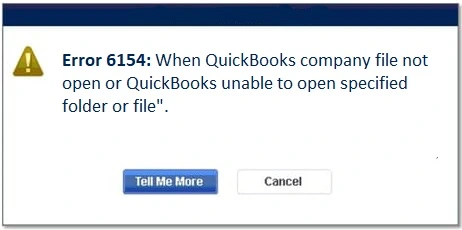
Are you seeing the error message “Error 6154: When QuickBooks company file not open or QuickBooks unable to open specified folder or file?”
This QuickBooks Error Code 6154 appears when QuickBooks fails to open your company file due to insufficient permissions, an incorrect file path, or file location issues. Other factors include a corrupt company file or network-related problems.
In this guide, we explain the common causes and provide the troubleshooting methods to resolve QuickBooks Desktop Error 6154 efficiently.
Why Does the User Experience QuickBooks Error Code 6154?
QuickBooks Error 6154 often interrupts users while trying to access the company file. This may happen due to insufficient folder permissions. Besides this, there are several other factors causing this error, which we have described below.
- Issues with the company file path may cause Error 6154 in QuickBooks.
- Using the damaged or corrupt company file.
- A missing file or an incorrect file location may also prevent you from opening the company file.
- There is a problem with the internet connection.
- Running the older version of the QuickBooks Desktop.
How do I Resolve QuickBooks Company File Error 6154?
If you are also stuck with the QuickBooks company file error 6154, try the following solutions to regain access to your company file.
Method 1: Sign In To your PC As Administrator
Proper administrative permissions are a must to access the QuickBooks company file without any hindrance. Lack of administrative permissions may prevent you from opening the file. Thus, it also helps you fix the QuickBooks Error 6154.
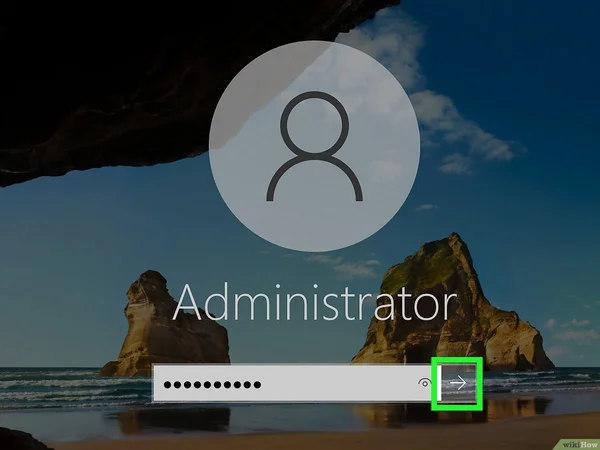
- Restart your Windows PC.
- Now, sign in to your computer as a System Administrator.
- After that, try to open the QuickBooks data file and see if the issue still occurs.
Method 2: Review Your QuickBooks Company File Location
An incorrect QuickBooks company file location is the major reason that causes QuickBooks Error 6154. So, to fix the issue, you must review the file location using the following steps.
- Initially, move to the company file location and click on the Start menu.
- Now, look for your company name and right-click on the company file.
- Choose the Properties option and then hit the Advanced tab.
- Make sure not to select the checkbox for Compress or Encrypt.
- When you are all set, click OK and then save the required changes.
Method 3: Reset Your Sync Manager Settings
At times, improper sync manager settings may cause the QuickBooks Desktop Error 6154. Therefore, to fix the issue, reset the sync manager settings.
- Firstly, sign in to your PC as a system administrator.
- After this, shift all data files before resetting the Sync Manager.
- Now, it’s time to move the entire folder from the last location to any other folder on your computer.
- Thereon, scan your computer and choose a new location to save the file.
- Create a new folder in the new location and copy the file from the old location.
- As a result, your file will be present in a new folder.
- Perform these steps to reset the Sync Manager.
- Choose the QuickBooks Help menu and then hit the Manage data Sync option.
- Browse to the Reset Sync Manager option.
- From the new screen, you may be prompted to enter the credentials. Provide them accurately.
- AT last, allow the Sync Manager to sync first.
Method 4: Sync the Company File Folder with QuickBooks
Error Code 6154 in QuickBooks may arise if your data file isn’t synced with QuickBooks. So, to fix the issue, you must sync the required files and folders along with QuickBooks.
- Sign in to your computer as the System Administrator.
- Move to the C:/ Drive.
- Locate and click on the Sync Now
- After this, the files and folders will be synchronized.
- Check the files and folders to match them in the QuickBooks application.
- Finally, run QB as administrator.
- Try opening the company file now and see if the error is resolved.
Method 5: Use the Quick Fix My Program Tool
QuickBooks Tool Hub helps in fixing the common issues related to company files or QuickBooks data. Therefore, to repair the damage or corruption with the QuickBooks program, you must run the Quick Fix My Program tool.
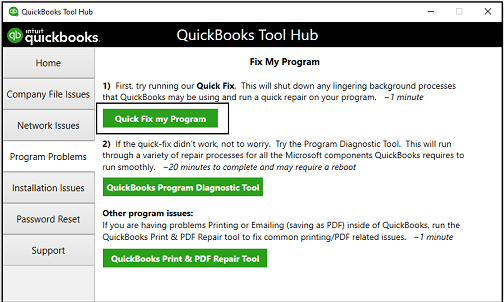
- Open the QuickBooks Tool Hub if it’s already installed. Otherwise, download and install the latest QuickBooks Tool Hub.
- Now, double-click on the QuickBooks Tool Hub icon to open it.
- Choose the Program Problems tab and then click the Quick Fix My Program tab.
- At last, launch the QuickBooks Desktop. Then, try to open your company file to see if the error is resolved.
Method 6: Update QuickBooks Desktop
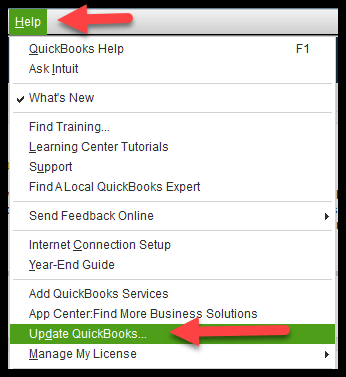
Keeping the QuickBooks Desktop application up-to-date will help prevent the company file error like QuickBooks Error 6154. So, by updating the QuickBooks to the latest version you can easily fix the issue and regain access to your company file.
Method 7: Repair & Reinstall QuickBooks Desktop
In case you fail to fix the QuickBooks Desktop Error 6154, then try to repair and reinstall QuickBooks. By repairing this software, you can run it smoothly and accomplish your ongoing business tasks.
Repair QuickBooks
- Launch the Control Panel on your computer.
- After this, go to the Programs and Features tab.
- Choose the QuickBooks program from the available list of options.
- Now, access the Repair/Uninstall option.
- Follow the steps provided on the screen and restart your computer.
Reinstall QuickBooks
- Go to the Control Panel and move to the Programs and Features option.
- After this, hit the Uninstall a Program option.
- You will get a new window, wherein you will locate the QuickBooks application.
- Now, right-click on the QuickBooks.exe file and click the Uninstall option.
- Restart your computer and then visit the official website of Intuit to download the latest QuickBooks Desktop.
- Once it’s downloaded, use the on-screen instructions to install QuickBooks on your computer.
Conclusion
By following this guide, you can now effeciently fix QuickBooks Error 6154 and regain access to your company filr. Also, verify that you are using the updated QuickBooks Desktop or Windows operating system and remain connected with a good internet connection.
If you still get stuck with this error, you can connect with our BizBooksAdvice professionals for quick resolution. You can talk to them by Call Us : +1-866-408-0444 or via the live chat facility.
Frequently Asked Questions (FAQ’s):-
Question 1: How to identify the occurrence of QuickBooks company file error 6154?
Ans. You can determine the occurrence of QuickBooks company file error 6154 with the help of the following signs and symptoms.
- You may experience that QuickBooks fails to launch or crashes during startup.
- The users may fail to open the company file despite making several attempts.
- Fails to sync or access data stored in the QuickBooks folder.
Question 2: How do I restore folder permissions to fix QuickBooks Error 6154?
Ans. To restore the folder permissions, search for the folder containing the QuickBooks company file. After this, right-click on the file and click Properties > Security tab. Thereon, verify that Full Control is granted to all the QuickBooks users.
Question 3: Can I open my company file on another computer if Error 6154 QuickBooks occurs?
Ans. Yes, you can copy the company file to another computer where QuickBooks is installed. If you are able to access the company file, it states that the issue is due to local permissions or network settings.
Question 4: Can antivirus or firewall settings trigger Error 6154 in QuickBooks Desktop?
Ans. The Error 6154 in QuickBooks Desktop may also appear due to the interference of antivirus software or Windows Firewall. So, to fix the issue, you must add QuickBooks as an exception in security settings.
Question 5: Is QuickBooks Error 6154 the same as Error 6000 series?
Ans. Yes, QuickBooks Error 6154 belongs to the 6000 series of errors, which may occur due to file corruption or network issues.
About The Author

Jonathan Browns
Jonathan Brown is a trained QuickBooks professional with 10 years of experience in the accounting sector. Moreover, he is passionate about helping businesses reduce the stress of managing accounts. Also, he is proficient in assisting entrepreneurs and small business owners to use QuickBooks and enhance their accounting experience.
Recent Posts
-
9 Proven Ways to Fix QuickBooks Migration Error-1009
-
QuickBooks Error 401 Authentication Error: Complete Fix Guide
-
How to Fix QuickBooks Freezing or Not Responding
-
Fix Your QuickBooks Online Sync Problems: A Step-by-Step Guide
-
QuickBooks Online Canada: Complete Guide for Canadian Businesses