


How to Download and Install QuickBooks Tool Hub 1.6.0.8

- By Jonathan Browns
- Sep 21, 2026
- Accounting
- 7 min read
Download QuickBooks Tool Hub from Intuit to troubleshoot common QuickBooks Desktop problems, including company file errors, network issues such as QuickBooks Error H202, program crashes, installation errors, and PDF or printing problems. Follow the steps below to download, install, and use the available tools on a compatible Windows computer.
QuickBooks Tool Hub: A Quick Overview
QuickBooks Tool Hub is a separate Windows application that brings together utilities for troubleshooting common QuickBooks Desktop problems. Its available tools help users investigate program issues, company file errors, network connectivity problems, installation issues, and printing or PDF errors. You must download and install QB Tool Hub separately before using these utilities.
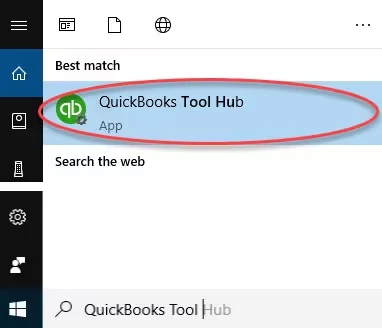
Common Errors Resolved by the QuickBooks Tool Hub
Here is the table that lists various errors that can be fixed with the help of QuickBooks Tool Hub:
| Problem/Error | Relevant Tool Hub Section | Recommended Action |
|---|---|---|
| QuickBooks Error 6123 | Company File Issues | Troubleshoot company file access and related issues. |
| QuickBooks Error 6000 Series | Company File Issues | Identify the specific error, as causes vary across the 6000 series. |
| QuickBooks Error H505 | Network Issues | Investigate hosting settings, network connectivity, and server configuration. |
| QuickBooks Error 3371 | Installation Issues | Troubleshoot license and registration-related problems. |
| QuickBooks Error 1904 | Installation Issues | Use the Install Diagnostic Tool if appropriate for the error. |
| QuickBooks Error 1603 / 1712 | Program Problems or Installation Issues | Follow the official troubleshooting instructions for the specific error. |
| PDF and Printing Problems | Program Problems | Run the Print & PDF Repair Tool. |
| QuickBooks Freezing or Not Responding | Program Problems | Run Quick Fix My Program. |
Benefits of Using QuickBooks Tool Hub
QuickBooks Tool Hub brings several troubleshooting utilities together in one application, making it easier to identify the appropriate tool for a QuickBooks Desktop problem.
- Multiple troubleshooting tools: Access utilities for program, company file, network, installation, and printing or PDF issues.
- Simplified troubleshooting: Select the relevant category instead of searching for separate utilities for every problem.
- Free utility: QuickBooks Tool Hub is available as a free troubleshooting application from Intuit.
- Targeted diagnostics: Tools such as Quick Fix My Program, QuickBooks File Doctor, and the Install Diagnostic Tool address different types of problems.
QB Tool Hub may not resolve every issue. Some problems require additional troubleshooting based on the exact error message, company file condition, Windows configuration, or network setup.
System Requirements for QuickBooks Tool Hub
Before Tool Hub downloading, make sure your computer meets Intuit’s current operating system and installation requirements.
- Operating system: Use a Windows version supported by Intuit for your QuickBooks Desktop environment. Intuit recommends Windows 11 (64-bit) for the best Tool Hub experience.
- Internet connection: A working connection is needed to download the installer.
- Windows components: Required Microsoft components and permissions must be available for the installation to complete successfully.
- Administrator permissions: You may need an administrator account to install the application or troubleshoot installation problems.
Check Intuit’s official instructions for the latest compatibility information before installing Tool Hub. Do not assume that every older Windows version remains supported.
How to Download QuickBooks Tool Hub 1.6.0.8
Follow these steps to download the QuickBooks Tool Hub installer:
- Close QuickBooks Desktop and save any open work.
- Visit Intuit’s official QuickBooks Tool Hub guide.
- Follow the official download instructions to obtain the latest available QuickBooks Tool Hub installer.
- Save the downloaded file in an easy-to-find location, such as your Downloads folder or Windows desktop.
- Confirm that the installer is named
QuickBooksToolHub.exebefore opening it.
If you have already installed Tool Hub, open its Home tab and check the displayed version before deciding whether an update is needed.
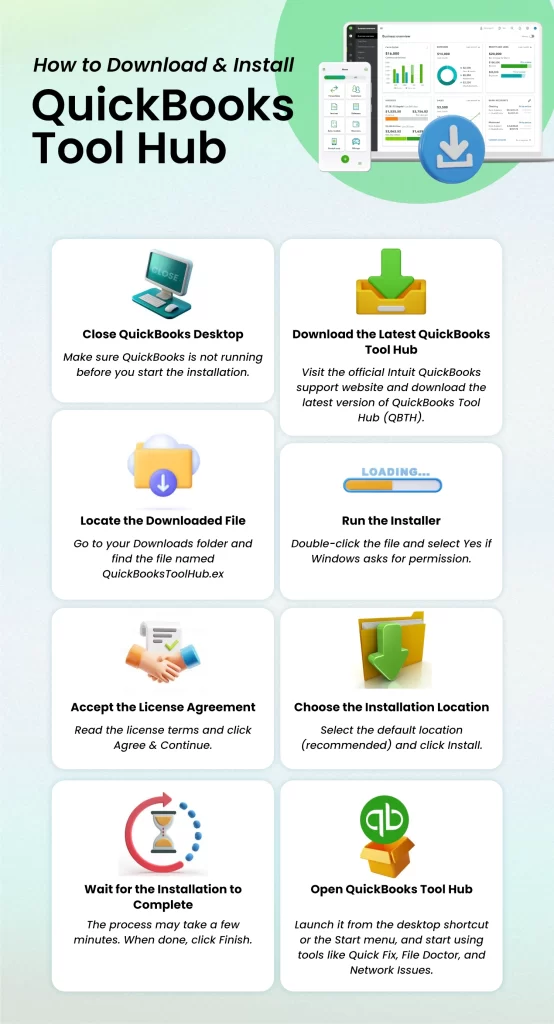
How to Install QuickBooks Tool Hub on Windows
After completing the process to download QuickBooks Desktop Tool Hub, proceed with the following steps to install Tool Hub.
- Step 1: Go to the folder where the installer file is saved.
- Step 2: Double-click on the installer file. Exe extension.
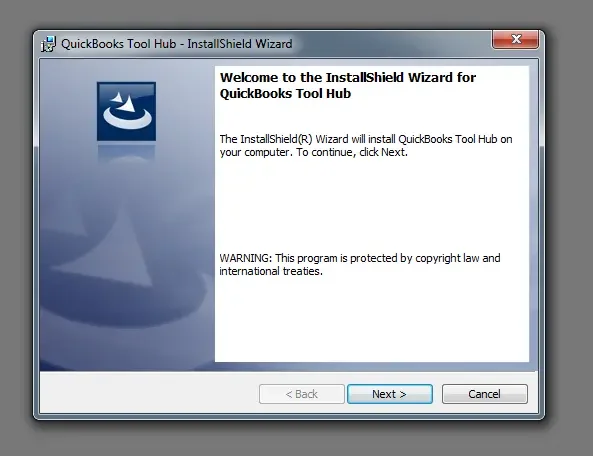
- Step 3: A new window will appear on your computer system, asking for permission to install the desired application.
- Step 4: Click on yes, and then click on Continue.
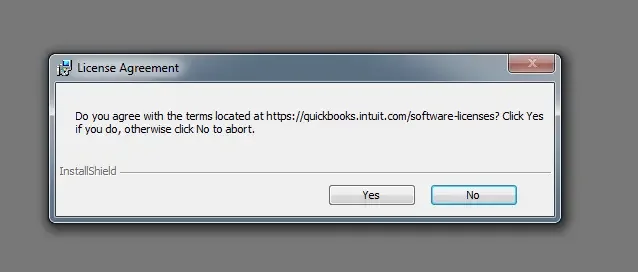
- Step 5: Subsequently, you will get a License Agreement window on your screen. Read all the important consent policies. Once you are done reading the consent policies, click on Yes.
- Step 6: Eventually, a new window will open, and a folder that is solely meant for the QB Tool Hub will open. However, it will get saved in Local Drive C; you can move or change the location as per your preference so that you can easily access it.
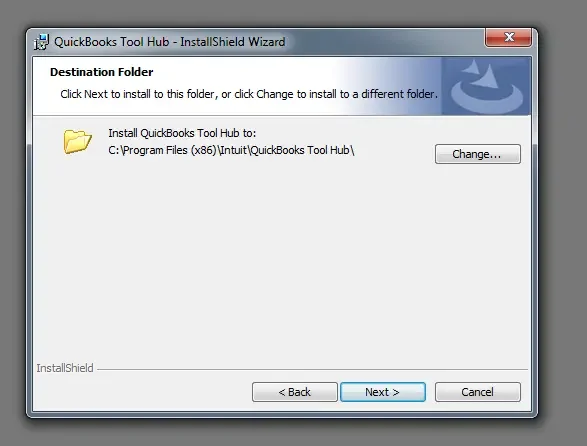
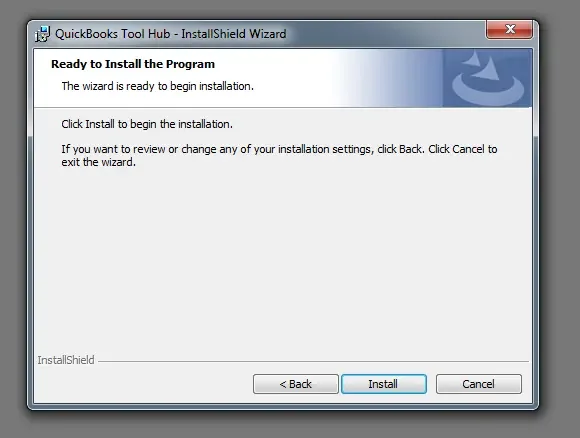
- Step 7: Next, open the folder and click on Install. This will start the installation process.
- Step 8: Once done with the installation process, click on Finish.
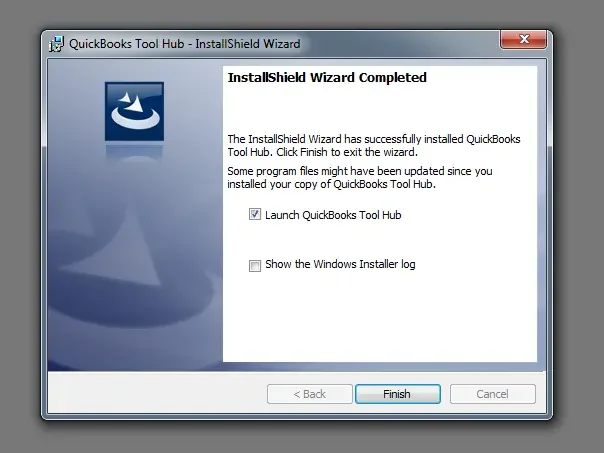
- Step 9: Now, you are all done, and you can begin to use QuickBooks Tool Hub Download.
Note: You can download QuickBooks Tool Hub for Windows 11 by using the same steps as given above.
QuickBooksToolHub.exe Blocked: How to Troubleshoot the Issue
Windows may block an installer if it cannot verify the file or considers it potentially unsafe. If you encounter a warning while downloading or installing Tool Hub, follow these steps:
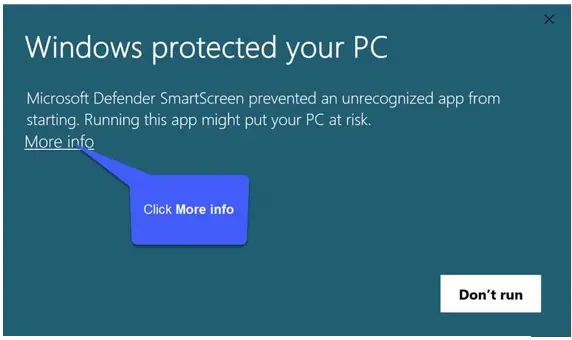
- Confirm that you downloaded the installer from Intuit’s official website.
- Check the file name and review its digital signature or publisher information when available.
- Update Windows security definitions and scan the downloaded file.
- If Windows continues to block the installer, review the exact warning and follow Microsoft’s security guidance.
- If the warning remains unresolved, contact Intuit or a qualified IT professional for assistance.
Do not select Run Anyway merely to by pass a warning. Proceed only after you have verified the file’s authenticity and understand the security implications.
Overview of the Different Tabs in QuickBooks Tool Hub
In this part of the blog, we will essentially shed light on the different kinds of tabs you will see in the QuickBooks Tool Hub. Let us have a look at each tab, with a brief explanation of what each tab is. Let us get started.
Home Tab
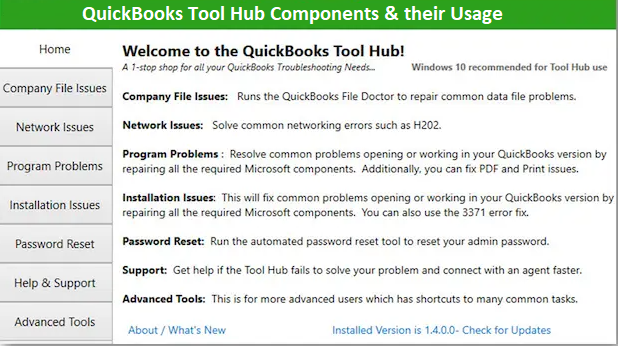
When you open QuickBooks Tool Hub, the Home screen provides an overview of the application. You can check the installed Tool Hub version from the version information displayed in the Home tab. If a newer version is available, refer to Intuit’s official instructions to determine whether an update is needed.
Company File Issues Tab
Use the Company File Issues section when QuickBooks Desktop cannot open a company file or you suspect a company file or related access problem.
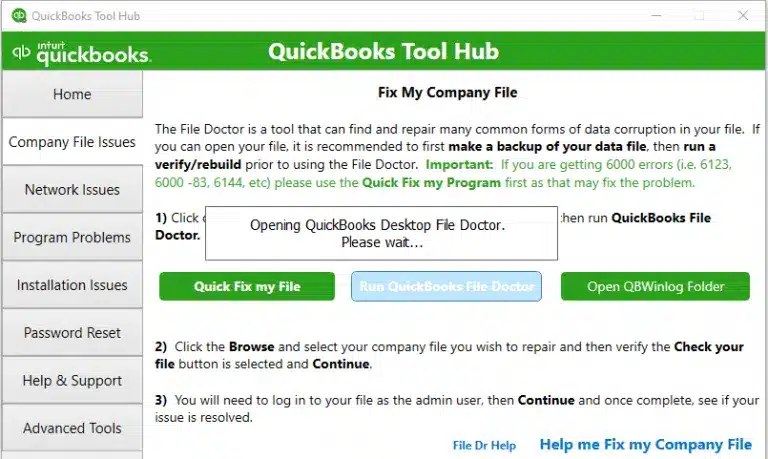
Depending on the installed QB Tool Hub version, the available options may include:
- Quick Fix My File: Helps troubleshoot certain company file problems.
- QuickBooks File Doctor: Helps diagnose and repair supported company file and network-related issues.
- QBWin.log: Provides access to diagnostic logs that may help investigate specific errors.
Start with the tool recommended for your error message. If the problem persists, preserve a backup of your company file and follow the relevant Intuit troubleshooting instructions.
Network Issues Tab
The Network Issues section helps troubleshoot problems accessing a QuickBooks Desktop company file over a network, particularly in multi-user environments.
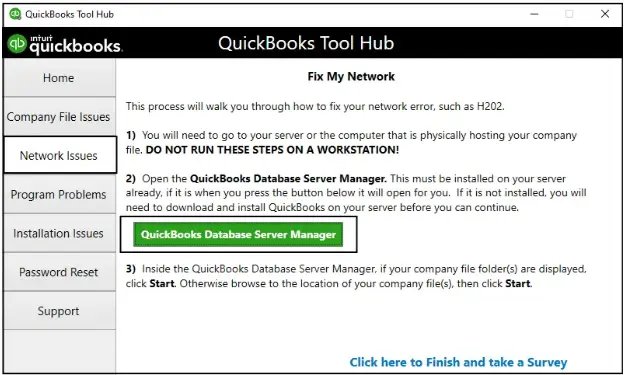
If you encounter QB Error H202 or another multi-user connectivity error, investigate the hosting configuration, server availability, firewall permissions, and network connectivity. Use the relevant Tool Hub options alongside Intuit’s instructions for the specific error.
Running a tool alone may not resolve an issue caused by incorrect hosting settings or blocked network communication.
Program Problems Tab
Use Program Problems when QuickBooks Desktop freezes, becomes unresponsive, or encounters certain application-related errors.
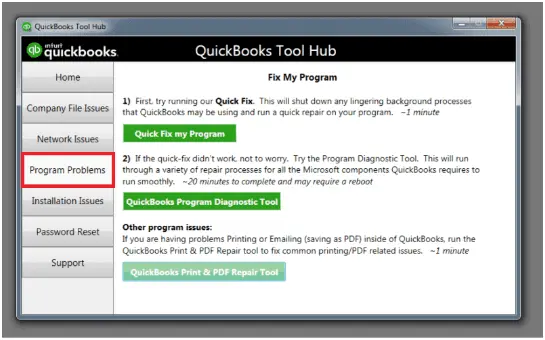
The available utilities may include:
- Quick Fix My Program: Shuts down selected background processes used by QuickBooks and helps troubleshoot common program problems.
- QuickBooks Print & PDF Repair Tool: Helps troubleshoot supported printing, PDF creation, and related problems.
Choose the utility that matches the issue. If QuickBooks still freezes or fails to open, follow the troubleshooting steps for that particular symptom.
Installation Issues Tab
The Installation Issues section contains tools for troubleshooting certain QuickBooks Desktop installation and component problems.
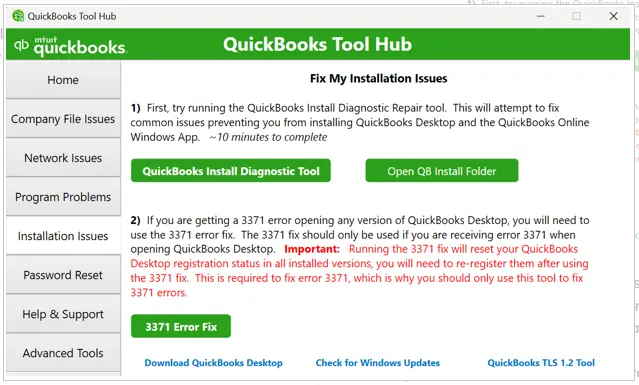
The QuickBooks Install Diagnostic Tool can help diagnose and address issues involving components required by QuickBooks. It may be useful when an installation fails or certain program components do not function correctly.
To use it, open QuickBooks Tool Hub, select Installation Issues, and choose the Install Diagnostic Tool if it is available in your version. Allow the process to finish and follow any instructions to restart Windows.
If the error remains, use Intuit’s specific troubleshooting guide for the error code rather than repeatedly running the same utility.
Password Reset Tab
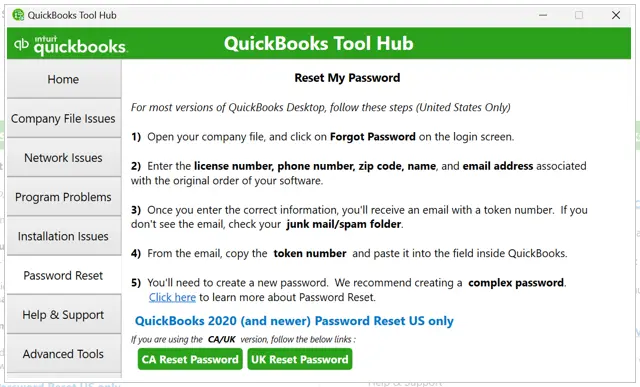
This is the section that will help you reset your QuickBooks password if you have forgotten it.
Help and Support Tab
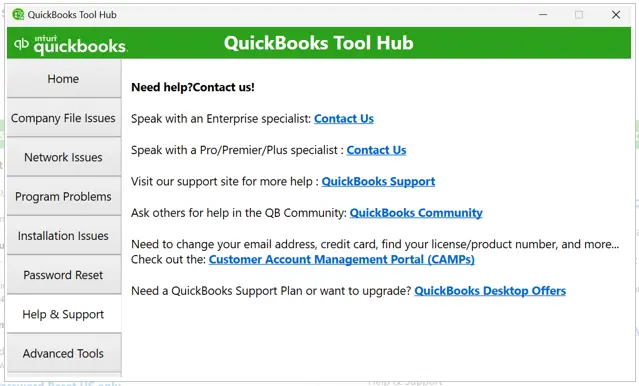
If you need help, you can open this tab and utilize various resources here. Moreover, if you need live assistance, you can call a QB expert.
Advanced Tools Tab
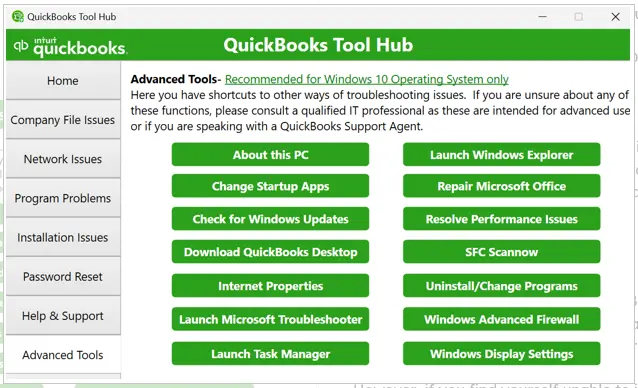
The last tab contains advanced tools to help you with miscellaneous performance and installation issues in QuickBooks. There is a Download QuickBooks Desktop option available that you can use to get QuickBooks Desktop if you have uninstalled it.
If you are struggling with performance issues, this can be because of too many apps running in the background or set to launch at startup. You can open Startup apps and select only the applications that you require.
Conclusion
QuickBooks Tool Hub brings together utilities that can help troubleshoot common QuickBooks Desktop problems, including company file access, network connectivity, program performance, installation, and printing or PDF errors.
Download the installer from Intuit’s official website, follow the installation instructions, and select the tool that matches your particular issue. If the problem persists, refer to the official troubleshooting steps for the relevant error and back up your company file before performing data-related repairs.
Using the appropriate tool can help narrow down the cause of an issue, although some problems require additional technical investigation.
Frequently Asked Questions
1. Is QuickBooks Tool Hub free to use?
Yes. QuickBooks Tool Hub is a free troubleshooting utility available from Intuit. Download it from the official Intuit website.
2. How often should I run QuickBooks Tool Hub?
You don’t need to run it on a fixed schedule. Open it when you encounter a supported QuickBooks Desktop problem and select the appropriate troubleshooting tool.
3. Can QuickBooks Tool Hub fix network errors such as H202?
QB Tool Hub provides network troubleshooting options that may help with Error H202. However, the issue may also require checking hosting settings, firewall permissions, and connectivity between workstations and the server.
4. What should I do if QuickBooks Tool Hub cannot fix my issue?
Record the exact error message, follow Intuit’s instructions for that error, and consult a qualified IT professional if the problem involves network configuration or Windows components. Back up your company file before data-related repair work.
5. Should I back up my company file before using Tool Hub?
Yes. Maintaining a recent backup is a sensible precaution before troubleshooting that could affect company file data. Follow the instructions for the specific tool you intend to use.
6. What is the latest version of QuickBooks Tool Hub?
Intuit’s currently published instructions identify version 1.6.0.8. Check the official page before publishing version-specific claims because the available version may change.
About The Author

Jonathan Browns
Jonathan Brown is a trained QuickBooks professional with 10 years of experience in the accounting sector. Moreover, he is passionate about helping businesses reduce the stress of managing accounts. Also, he is proficient in assisting entrepreneurs and small business owners to use QuickBooks and enhance their accounting experience.
Recent Posts
-
What Causes & How to Fix QuickBooks Error 15223 Efficiently?
-
QuickBooks Library Files Failed: How to Fix Error 80029c4a
-
How to Fix QuickBooks Error OL-301 (Bank Connection Issue)?
-
QuickBooks Email Invoices Not Working: How to Fix It
-
How to Resolve QuickBooks Error 15214 (Step-by-Step)