


How to Fix QuickBooks Error OL-301 (Bank Connection Issue)?

- By Jonathan Browns
- Oct 23, 2026
- Accounting
- 7 min read
QuickBooks Error OL-301 is a common bank feed connectivity issue that occurs when QuickBooks Desktop fails to establish a connection with your financial institution while using Direct Connect Services. This issue mainly arises due to bank server downtime, incorrect credentials or outdated account information.
When the error occurs, it displays the following warning message:
“(Your financial Institution) sent an error message. It might be because your account info changed, or they haven’t turned on a service, like online bill pay. Find common fixes for this error or give a bank a call.”
This error prevents users from downloading bank transactions and accessing online banking services, so it’s important to fix it as soon as possible. In this guide, we will explain the causes, symptoms, and proven troubleshooting methods to fix QuickBooks Error Code OL-301.
What is QuickBooks Bank Feed Error OL-301?
QuickBooks Bank Feed Error OL-301 is a bank connectivity error that appears when QuickBooks fails to establish a secure connection with the bank. It may occur due to various reasons, including incorrect login credentials, internet connectivity issues, or firewall/antivirus interference.
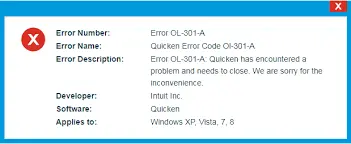
Therefore, fixing this error promptly is important for downloading bank transactions smoothly.
Common Signs & Symptoms to Detect QuickBooks Desktop Error OL-301
By identifying these signs and symptoms, you can determine whether you are facing QuickBooks Desktop Error OL-301.
- You may face issues while downloading or updating bank feed transactions.
- QuickBooks can’t connect with your financial institution.
- The error message appears while accessing the Direct Connect services.
- It may be possible that QuickBooks asks you to reconnect with your bank account.
- Your previously connected bank accounts may suddenly stop working.
- Transactions imported from your bank fails.
What Causes Error OL 301 in QuickBooks Desktop?
The following are the major causes behind the occurrence of Error OL 301 in QuickBooks Desktop.
- Issues with your internet connection.
- Problem with one or more bank accounts in your company file.
- Running an unsupported version of QuickBooks Desktop.
- Bank server downtime.
- Bank has changed the online banking services.
- Inactive bank account in QuickBooks with online banking.
- The bank has changed the service offering from Web to Direct Connect.
- Your bank file isn’t compatible with QuickBooks software.
- Bank details are not updated on the Financial Institution Directory (FiDir) in QuickBooks.
- Pending bank alerts that require your acknowledgement.
Things to Check Before Fixing QuickBooks Banking Error OL 301
Before moving forward with troubleshooting, consider the following pointers;
- Always create a backup of your company file and match any pending downloaded transactions.
- Log in to your bank’s website outside of QuickBooks and verify that you don’t have any pending alerts.
- Make sure you don’t get an error in Bank Feeds Classic Mode. If not, this indicates the file works best in Classic Mode.
Easy Methods to Fix QuickBooks Banking Error OL-301
To fix QuickBooks Error OL-301, verify your bank connection, check bank server status, refresh online banking settings, create a test company file, and ensure TLS 1.2 settings are enabled. Follow the step-by-step instructions to address QuickBooks Bank Feed Error OL 301.
Method 1: Download bank feed transactions in a test company file
Testing a new company file helps determine whether the problem is caused by your company file or the bank connection.
The following are the steps that can help you;
- Launch QuickBooks and click on the File menu.
- Choose the New Company option and then tap on Express Start or Start Setup.
- Now, set up bank feeds for the account you have a problem with.
- Finally, try to download your transactions.
If the error still persists, it shows that the issue lies with your bank. You need instant help from your financial institution. For that, you can provide them with a copy of your bank feed log.
Method 2: Check if the file from your bank works with QuickBooks
QuickBooks only supports the downloaded transactions in a .qbo file extension. If your bank uses a different format, QuickBooks may not open it.
To verify if the problem lies with your bank or the file type, try downloading transactions directly from your bank’s website.
- Log in to your bank’s website outside of QuickBooks.
- After this, locate and download your bank transactions in a .qbo file extension.
- Now, you can import your bank transactions to QuickBooks.
If you still fail to launch the .qbo file in QuickBooks, it shows that the problem lies with your bank. You need to connect with your bank’s support team for help.
If you are able to import and view your transactions, move to the next step.
Method 3: Refresh the Bank Feed Connection in QB Desktop
Make sure to disable the online banking on inactive bank accounts, if you have any. After that, refresh the bank connection on your affected account.
To start, verify if you have an inactive bank account with online banking.
- Click on Company and choose the Charts of Accounts tab.
- Now, pick the Include Inactive box. Then, search for an inactive account with a lightning bolt (it clearly indicates that the account is set up for online banking).
If you get the inactive account, here’s how to turn off online banking. Otherwise, you can also set up bank feeds and then try to download your transactions.
- Initially, right-click on the inactive account and click Edit Account.
- Choose the Bank Feed Settings > Deactivate All Online Services > OK option.
- Move to the Save & Close option.
- Exit and then open your company file once again.
- After this, ensure that the lightning bolt is gone.
Note: At the time of setup, make sure to hold the Ctrl key unless you choose a button, except when entering information. It will eventually refresh the connection with your bank.
If you don’t get the error, it shows that there is a bank connection issue. Once it’s fixed, you can easily download your transactions.
Method 4: Create and Merge Accounts
To check if your company file is causing the issue, create a copy of the account and merge it.
Here are the steps that will help you create and merge accounts.
- Move to the Charts of Accounts and right-click on the affected account to choose the Edit Account option.
- Now, choose and copy the account name.
- After this, type an asterisk (*) at the end of your account name.
- Go to the Bank Feeds Settings > Deactivate All Online Services > OK > Save & Close option.
- Next, create a new account in the Charts of Accounts.
- Note: Whenever you set up the account name, paste the tax that you have copied earlier.
- Exit and then relaunch your QuickBooks company file.
Follow these steps to merge the accounts
- Move to the Charts of Accounts and right-click the account with an asterisk.
- Click the Edit Account and then delete the asterisk sign.
- After removing the asterisk sign, hit the Save & Close option.
- Tap on the Yes option to merge the accounts.
- Now, you can set up your bank feeds.
- After this, test if you are able to download transactions.
If you cannot edit or merge the accounts, it indicates that you might have a damaged company file.
Otherwise, move to the next step if you are still receiving the error.
Method 5: Turn Off and Activate Online Banking Again
If you have numerous accounts set up for only banking, verify if the issue comes from a specific account. If the account is having trouble connecting with your bank, it may hamper other accounts.
- Move to the Charts of Accounts and select the Include Inactive checkbox.
- Disable, and then set up online banking for each of the accounts.
If you can’t turn off bank feeds for any of them, connect with Intuit for assistance.
If the issue continues,
- Go to your bank’s support team with a copy of your Bank Feeds log.
- You must connect with the bank representative to escalate the case through the OFX Connectivity page for resolution. Make sure to note down your case/ticket number.
Method 6: Check Your Internet Security Requirements
To keep your data secure while connecting with your bank, Internet Explorer and QuickBooks use the TLS 1.2 security protocols.
Follow these steps to check the TLS settings in Internet Explorer
- Move to the Tools icon and click Internet Options.
- Choose the Advanced, and scroll down towards the Security section.
- Make sure you have circled the checkbox of TLS 1.2. If not, then circle the checkbox to switch it on.
- After this, hit the OK tab and close all open applications on your PC.
- At last, relaunch your PC, and then try to download your transactions.
How to Prevent QuickBooks Bank Feed Error Code OL-301 in the future?
Follow these preventive tips to prevent QuickBooks Bank Feed Error OL-301 in the future.
- Check out your bank’s website for service outages or maintenance alerts.
- Ensure that your internet connectivity is stable while downloading bank transactions.
- Use an updated version of QuickBooks Desktop.
- It is suggested to create a backup of the company file regularly to avoid data loss.
- Delete the inactive bank account that is still linked with online banking.
- Make sure that you’re using the valid and updated bank login credentials.
Conclusion
QuickBooks Error OL-301 is a bank connectivity issue that prevents QuickBooks Desktop from downloading transactions from your bank account. To resolve this error, verify your bank connection, check server availability, refresh bank feeds, enable TLS 1.2 settings, and repair account-related issues.
Need further assistance? Reach out to our BizBooksAdvice professionals by dialling Call Us : +1-866-408-0444 and get your issue resolved quickly.
Frequently Asked Questions
What is Error Code OL 301 in QuickBooks?
The QuickBooks Error Code OL 301 occurs when QuickBooks fails to connect with your bank while using online banking or direct connect services. This issue mainly occurs due to bank server issues, incorrect login details, or connectivity problems.
How do I fix a bank feed in QuickBooks Online?
Perform the following steps to rectify a bank feed issue in QuickBooks Online;
- Move to the QuickBooks Banking menu and click the Transactions option.
- Choose the Bank Accounts and pick the account showing errors.
- At last, hit the Update option.
How to set up bank feed in QuickBooks?
To set up bank feed in QuickBooks, move to All Apps > Accounting > Bank Transactions. After this, look for your bank and choose Get Direct bank feeds. Provide your account details accurately as they appear on your bank’s records.
What are bank feeds in QuickBooks?
Bank feeds in QuickBooks Desktop allow you to connect your bank and credit card accounts to do online banking.
How to update a bank feed in QuickBooks Desktop?
Follow these steps to update a bank feed in QuickBooks Desktop.
- Choose the Banking menu and click the Bank feeds option.
- After this, pick a bank name and hit the Sync this bank option.
What are the OL Error Codes in QuickBooks?
Ans. The OL error codes in QuickBooks represent the issues associated with bank connectivity or bank-side problems.
About The Author

Jonathan Browns
Jonathan Brown is a trained QuickBooks professional with 10 years of experience in the accounting sector. Moreover, he is passionate about helping businesses reduce the stress of managing accounts. Also, he is proficient in assisting entrepreneurs and small business owners to use QuickBooks and enhance their accounting experience.
Recent Posts
-
How to Fix QuickBooks Error OL-301 (Bank Connection Issue)?
-
QuickBooks Email Invoices Not Working: How to Fix It
-
How to Resolve QuickBooks Error 15214 (Step-by-Step)
-
OL and OLSU Bank Feeds Errors in QuickBooks Desktop: Causes and Fixes
-
QuickBooks Error 15212: Causes & How Can You Fix It