


How to Restore QuickBooks Backup File: Step-By-Step Guide

- By Jonathan Browns
- Sep 22, 2026
- Accounting
- 7 min read
Losing access to the sensitive accounting data can be stressful, especially when your company file contains years of financial records. But, if you have a backup, you can restore QuickBooks backup file and recover your lost or damaged company data. The QuickBooks Desktop users can create the backup in .qbb file format while QBO users cloud-based backup options.
In this comprehensive guide, we have explained how to restore QuickBooks backup file on QuickBooks Desktop for Windows and Mac. Also, we have mentioned the troubleshooting steps if you are unable to restore QuickBooks backup file.
Situations When You Need to Restore QuickBooks Backup File
Following are certain situations when you have to restore QuickBooks backup file to recover your lost or damaged data.
- File Corruption or Damage- If your data file is corrupt or damaged, run Verify and rebuild data utility to repair the data damage. If you can’t repair the file, restore the last backup.
- Accidental Deletion of file- If you have deleted your file by mistake, you will get a QuickBooks company file not found error. You can recover the damaged data with the help of a saved backup file.
- System Crash or Hardware Failure- Crash of your computer or hardware failure may sometimes cause your QuickBooks data inaccessible. Therefore, at that time a recent backup is required to restore it and continue with your work.
- Move QuickBooks to a New Computer – When you install QuickBooks on a new computer, you have to restore the backup file to resume working with existing company data.
- Virus or malware attack- Virus or malware infections might damage or delete the accounting data. Thus, by restoring a backup file ensure that your company data remain safe.
What to do before you Restore QuickBooks backup file?
It is necessary to consider few points in your mind for the smooth restoration of the QuickBooks company backup file.
- You must require proper administrator access to restore the backup file.
- Check that your backup file is correct and has .qbb file extension. This shows that you have a valid backup file.
- Move your backup company file to local drive such as Desktop or Documents instead of an external USB or cloud storage.
- It is advised to create the backup of your current company file before restoring to prevent data loss or damage.
- Verify that your QuickBooks version. It is required to restore the backup file in the same or newer version of QuickBooks to prevent compatibility issues.
How to Restore a Backup file in QuickBooks Desktop?
When you restore the file, QuickBooks uses the backup company file (.qbb) to create a new company file (.qbw). Perform the following steps to restore the backup company file.
- Open the QuickBooks application, click the File menu.
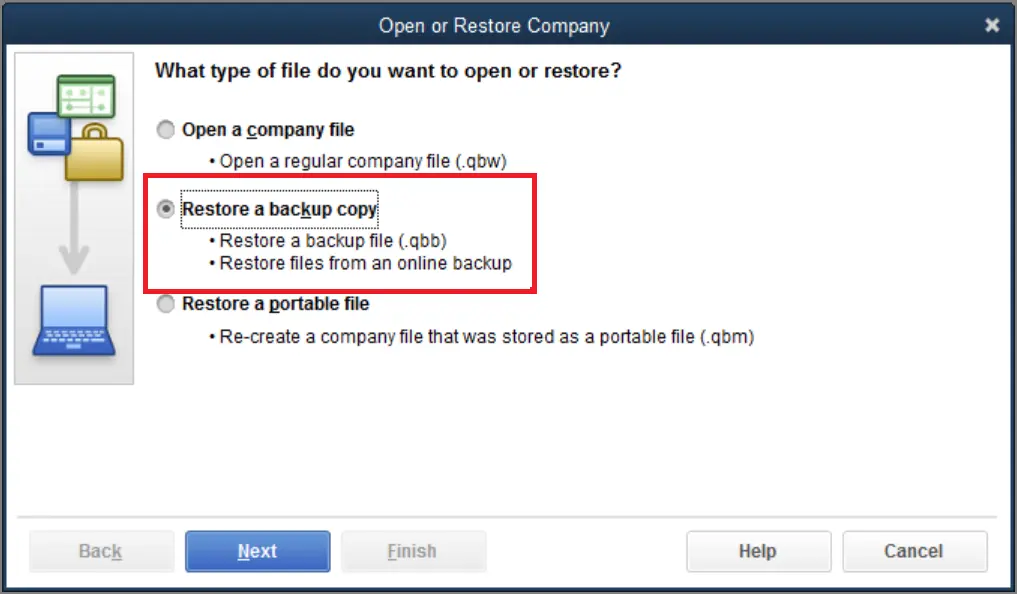
- Choose Open or Restore Company and tap on Restore a backup copy.
- Click Next > Local Backup > Next option.
- Locate your company file in your computer. The file name should be represented in the following format: [Your company name].qbb
- Now, pick an appropriate folder to save the restored company file. Then, select the Open option.
- Note: If you launch your data file in the same folder as your existing company file, it may overwrite your data. However, to prevent overwriting, rename the existing company file or the backup file to make it unique. Otherwise, you can also save the backup copy into a separate folder.
- Once you are all set, hit the Save option. If you get any messages overwriting your data, pick the option according to your requirements.
How to Restore your backup company file for QuickBooks Desktop for Mac?
Here’s what to do for restoring backup company file in QuickBooks Desktop for Mac version.
First Step: Browse to your backup company file
QuickBooks for Mac create a DMG file once the backup is created. This file stores a copy of your company file and other documents you saved in QuickBooks such as forms or PDFs.
If you aren’t sure about the location to save the backup company file, here’s how you can search for it;
- Initially, access the QuickBooks menu and click Settings.
- Choose Backup and click Reveal Backup Folder. Then, double-click the folder you save the backup files.
- After this, tap on Date Modified to arrange according to date and find the recent backup file.
Second Step: Restore your backup company file
Once you get to know the location of backup company file, perform these steps to restore it in QuickBooks.
- Initially, double-click the backup file. This will open the new window displaying a copy of your company file. If the documents are attached in your backup, you will get a folder named as Attachments Library.
- Now, drag the copy of your company file to the folder containing QuickBooks company file. If you find the Attachments Library folder, drag the folder to the same location.
- After this, launch your QuickBooks for Mac version.
- Click Browse and then access the company file folder. Then, tap on Open option.
- You will see a prompt that indicates that you are opening a backup file and select Continue.
- Thereon, mention a name for your company file and click Save.
- Once the changes are done, hit OK option.
Fourth Step: Restore your attached documents
If you have transferred your Attachments Library folder, you can restore it to access the attached documents in QuickBooks.
- Open the QuickBooks application and select Settings.
- Choose the Attachments option and click the Attached Library drop-down arrow. Then, click Select Existing option.
- After that, pick the Attached Library folder that you have moved earlier, and hit Open option.
- Finally, exit from the Preferences window.
How to Restore my company file in QuickBooks Online?
While restoring company data to your online account, use the backup copy to select a specific date and time to restore your file. You can restore all entries except some of the following;
- Budgets- You have to export them as a CSV file.
- Inventory- It must not include the inventory history and inventory adjustments.
- Tax rates using expense accounts- The Online Backup and Restore app restores them in your liability accounts.
- Data backed up using the Local Backup feature- This data is usually saved in a .cab format on your personal cloud account such as Google drive, or drop box.
Once everything is all set, restore your company file again.
- Move to the Settings menu and click Back up company.
- Search for the company for which you want to restore a backup.
- Click on the Action drop-down arrow and select Restore.
- Below the Date field, choose the date you want to restore.
- Pick the appropriate time from where you want to restore by clicking the Time drop-down arrow.
- Navigate to the Ready to restore your backup? Section, enter AGREE and click Next. If you see a list of recommended actions, follow them first. Once everything is done, tap on Refresh to continue option.
- Finally, confirm the process by hitting the Start Restore option.
How to backup QuickBooks Online to a flash drive?
To take the backup of QuickBooks Online to a flash drive, you must perform the steps written below.
- First, take a backup of your file to a flash drive. To do so, download the data from QuickBooks Online to your desktop.
- After this, transfer the QuickBooks data to your system. You can see the file to a location where you can find it easily.
- Now, enter the flash drive to your system.
- Copy the data that you have received from QuickBooks Online and paste them into the flash drive.
How to Restore QuickBooks Backup File to New Computer?
Following are the stepwise instructions to restore QuickBooks backup file to new computer.
1. Create or locate your backup-
On your old computer, search for the QuickBooks Desktop backup file. If you don’t have the backup file, create a current backup before transferring your data.
2. Transfer the backup-
Now, copy the .qbb backup file to your new computer using an external drive, flash drive, network location, or through a secure transfer method.
3. Install QuickBooks Desktop
Now, you need to install a new version of QuickBooks Desktop on your new computer.
4. Restore the backup
Open the QuickBooks application and choose the File menu. Click Open or Restore Company and select the Restore a backup copy. Then, pick the local backup file and search for the .qbb file you transferred.
5. Save the restored company file
Select an appropriate folder on your new computer and then restore the backup. Then, open the restored company file and check whether your accounting information is available.
Unable to Restore QuickBooks Backup File
At times, while restoring a backup of your company file, users may notice any one of the following errors;
- Error: Failed
- Restore Failed: This is an Invalid Format of a Post QuickBooks 2007 Backup File
- Error: Restore Failed. Can’t remove log file
Reasons that Causes Error: Failed or Error: Restore Failed when restoring a backup
You may encounter this error due to the following reasons.
- This may happen when your company file includes special characters (/ < > ! $).
- The file you are trying to restore isn’t an original one.
- You have restored the file from a USB flash drive to a network drive.
- Your company file is compromised.
- If the backup is created in a newer version.
How to Troubleshoot Error: Failed or Error: Restore Failed?
Perform the troubleshooting methods listed below to resolve Error: failed or Error: Restore failed.
Method 1: Remove special characters (/ ! $) From company file
- Initially, look for your company file location.
- After this, right-click on the file name, and tap on Rename option.
- Now, create a file name that doesn’t contains special characters and Enter key.
Method 2: Avoid overwriting an existing file when you restore your backup
- Move to the standard location to save the company file when asked for the location to save the file.
- If you notice the same name as another file in the folder, you will receive a message that says “The file name exists. Would you like to overwrite this file?”
- Click No option.
- After this, rename the file and make sure it should be different from the existing one.
Method 3: Copy your backup from your flash drive or network drive before restoring it
Restoring a backup from your local computer is easier than using a flash drive or network drive. Therefore, it is suggested to copy your backup to desktop before restoring to verify the data safety.
Method 4: Copy a backup file to a new folder before restoring it
Copying a backup to a new folder will make sure it is not in the folder that may be damaged. Using Windows Explorer, you can copy and paste the file into a folder in a different location.
Bringing It Altogether
Restoring a QuickBooks backup file is an effective way to recover important accounting data after file corruption, accidental deletion, system failure, or when moving to a new computer. Whether you use QuickBooks Desktop on Windows or Mac, or QuickBooks Online, following the correct restoration steps can help protect your company data and avoid further loss. Before restoring, always verify your backup file, QuickBooks version, and storage location.
If you encounter restoration errors, the troubleshooting methods discussed above can help resolve the issue. For any additional guidance, you can connect with our BizBooksAdvice professionals to restore your QuickBooks company file safely.
Frequently Asked Questions
What is a QuickBooks backup file?
The QuickBooks backup file is generally represented as .QBB and contains a backup of your company file.
What is the difference between QBB and QBW files?
A QBB is basically a backup company file and QBW is the working company file.
How do I restore a QuickBooks backup file?
To restore the file, open QuickBooks, move to File > Open or Restore Company > Restore a backup copy > Local Backup. Then, choose your backup file and pick the location to save it.
Where can I save my restored QuickBooks company file?
You must save the restored QuickBooks company file to an easy to access location. Make sure not to save it to an existing company file unless you replace it.
How do I restore a QuickBooks backup after a computer crash?
Install QuickBooks Desktop, copy your .QBB backup to the computer, and use the Restore a backup copy option.
About The Author

Jonathan Browns
Jonathan Brown is a trained QuickBooks professional with 10 years of experience in the accounting sector. Moreover, he is passionate about helping businesses reduce the stress of managing accounts. Also, he is proficient in assisting entrepreneurs and small business owners to use QuickBooks and enhance their accounting experience.
Recent Posts
-
How to Restore QuickBooks Backup File: Step-By-Step Guide
-
Fix QuickBooks Error 15240 With 8 Troubleshooting Methods
-
QuickBooks Desktop Enterprise 2026: Features, Pricing, Download & Setup Guide
-
QuickBooks Freezing, Crashes, or Closes Unexpectedly: DIY Troubleshooting
-
QuickBooks Tool Hub Setup- Download, Install, and Run with Ease