


QuickBooks Enterprise File Corrupted After Update? How to Recover Missing Data

- By Jonathan Browns
- Nov 12, 2026
- Accounting
- 7 min read
Updating QuickBooks Enterprise helps improve accounting functionality, enhance software performance, and manage business records more efficiently. However, unexpected issues can sometimes occur after an update. If your QuickBooks Enterprise file corrupted after update, you may notice missing customer, vendor, or employee names, incomplete records, or unexpected data errors.
In some cases, QuickBooks Enterprise may display error messages or fail to open the company file altogether. These problems can disrupt your daily accounting activities, especially when you rely on accurate customer, vendor, and employee information to manage your business.
Before attempting any repair, create a separate backup of your company file and preserve the original data to reduce the risk of further data loss.
In this guide, we’ll explain the common causes and warning signs of QuickBooks Enterprise company file corruption after an update, along with practical troubleshooting steps to help you recover access to your accounting data.
What Happens When a QuickBooks Enterprise Company File Gets Corrupted After an Update?
When a QuickBooks Enterprise company file experiences data damage, the software may have difficulty displaying, accessing, or processing certain accounting records. For example, customer and vendor details may disappear from lists, employee names may not display correctly, or transaction information may appear incomplete.
You may also experience problems opening the company file, accessing financial reports, or performing routine accounting tasks.
However, an issue that appears immediately after an update does not automatically mean that the company file is corrupted. An incomplete installation, compatibility issue, interrupted update, or existing data integrity problem may produce similar symptoms.
It is important to distinguish between these two situations:
- Update-related problems: These may involve an incomplete installation, software compatibility, or an interrupted update process.
- Company file data damage: This involves inconsistencies within the accounting information stored in the company file.
Identifying the actual cause before repairing the file can help prevent unnecessary changes to your accounting records.
Common Signs of QuickBooks Enterprise File Corruption After Update
Are you wondering whether your QuickBooks Enterprise company file has become damaged after an update? Certain changes in how your accounting information appears or behaves may indicate a possible problem.
Look for these common warning signs:
1. Customer, Vendor, or Employee Names Are Missing
You may notice that customer, vendor, or employee names are no longer visible in their respective lists. This can happen because records are inactive, hidden by list filters, or affected by possible company file data damage.
2. Blank Lists or Incomplete Transaction Details
Customer or vendor lists may appear blank, or some transaction details may not display correctly. Before assuming that information has been lost, check the list filters and confirm that you are opening the correct company file.
3. QuickBooks Enterprise Company File Will Not Open
QuickBooks Enterprise may become stuck while opening the company file, close unexpectedly, or display an error message. These symptoms may be related to company file damage, network access problems, or software-related issues.
If QuickBooks freezes or closes unexpectedly, see our guide on troubleshooting QuickBooks freezing and crashes.
4. Unexpected Error Messages
You may encounter unexpected error messages while opening the company file or accessing accounting records. Repeated crashes and data-related warnings may also indicate that further troubleshooting is required.
5. Unusual Behavior When Accessing Reports
Financial reports may display missing transactions, incomplete details, or unexpected balance differences. Check the report date range, filters, and accounting basis before concluding that the company file is damaged.
Why Are Customer, Vendor, and Employee Names Missing in QuickBooks Enterprise?
Missing customer, vendor, or employee names can interrupt everyday accounting activities. You may be unable to select records when creating invoices, processing payments, managing payroll, or reviewing previous transactions.
If you started noticing missing names after updating QuickBooks Enterprise, several factors could be responsible.
1. Inactive Names or List Filters
A customer, vendor, or employee record may be marked as inactive or hidden by a list filter. In this situation, the record may still exist in your company file but may not appear in the default list view.
Check the list settings and display inactive records before attempting a company file repair.
2. Incorrect List Sorting
Changes in list sorting can make certain names difficult to locate. A different sorting order may affect how records appear in the Customer Center, Vendor Center, or Employee Center.
Try changing the sorting order and searching for the missing record by name.
3. Company File Data Integrity Issues
Data integrity problems may prevent QuickBooks Enterprise from displaying customer, vendor, or employee details correctly. The Verify Data utility can help identify certain data integrity issues within your company file.
You can also review Intuit’s guide on missing names, items, or accounts in QuickBooks Desktop to understand the specific symptoms and recommended troubleshooting process.
4. Incomplete or Unsuccessful Data Restoration
Restoring an older company file backup may explain why recently added customer, vendor, or employee records are missing. The restored file contains the information available when that backup was created.
Check the backup date and confirm that you restored the correct company file.
5. Possible Company File Data Damage
If names remain missing after checking list settings, sorting, and filters, your company file may have an underlying data issue.
Run the appropriate company file diagnostic utility to investigate the problem. If QuickBooks identifies data integrity issues, follow the recommended repair process after creating a separate backup.
How to Fix QuickBooks Enterprise File Corruption After Update
Before proceeding, close unnecessary applications and create a separate backup of the affected company file. Do not overwrite your original file while testing recovery methods.
Try the following troubleshooting methods in order. If multiple customer, vendor, or employee names are missing, pay particular attention to the File Doctor instructions and the warning about previously rebuilt files.
1. Check Customer, Vendor, and Employee List Settings
Sometimes, customer, vendor, or employee names appear missing because of inactive status or incorrect list filters. Check these settings before assuming that your company file is corrupted.
Follow these steps:
- Open QuickBooks Enterprise.
- Go to the Customers menu and select the Customer Center.
- Review the customer list and check its active or inactive filter settings.
- Display inactive customers if the option is available.
- Open the Vendor Center and check the vendor records.
- Open the Employee Center and review the employee list.
- Search for the missing names individually.
If you locate the records, review their status and list settings. If the names remain unavailable, continue to the next method.
2. Create a Separate Backup of Your Company File
Before running a repair utility or restoring an older company file, create a separate backup of the affected file.
Follow these steps:
- Open QuickBooks Enterprise.
- Select File and choose Back Up Company.
- Select Create Local Backup.

- Choose Local Backup and click Next.
- Browse to a separate folder where you want to save the backup.
- Select the available verification option, if applicable.
- Complete the backup process and confirm that QuickBooks displays a successful backup message.
Keep this backup separate from your original working company file. For more detailed instructions, see our guide on backing up and restoring a QuickBooks company file.
3. Run QuickBooks File Doctor for Missing Names
If customer, vendor, or employee names are missing from multiple areas of your company file, QuickBooks File Doctor may help diagnose the issue.
Intuit recommends using File Doctor for this specific missing-name problem. However, there is an important precaution: do not run File Doctor on a company file that has already been rebuilt after the missing names first appeared. If the file has already been rebuilt, Intuit recommends restoring the backup created before that rebuild.
Follow these steps when the file has not already been rebuilt:
- Close QuickBooks Enterprise.
- Open QuickBooks Tool Hub.
- Select Company File Issues.
- Choose Run QuickBooks File Doctor.
- Browse to and select the affected company file.
- Select the appropriate file-checking option and continue.
- Enter the company file administrator password when requested.
- Allow the diagnostic process to finish.
- Reopen QuickBooks Enterprise and check whether the missing names are visible.
For more detailed instructions, read our guide on the QuickBooks File Doctor tool.
You can also refer to Intuit’s official instructions for fixing company file and network issues with QuickBooks File Doctor.
Important: File Doctor does not guarantee recovery of every missing customer, vendor, or employee record. If the utility cannot resolve the issue, follow its recovery recommendations and preserve your original file.
4. Run the Verify and Rebuild Data Utilities
If you suspect a company file data integrity problems, use Verify Data to check the file. If QuickBooks identifies data damage, Rebuild Data may help repair certain issues.
Step 1: Run Verify Data
- Open QuickBooks Enterprise and sign in as an administrator.
- Select Window, then choose Close All.
- Select File from the menu.
- Go to Utilities and select Verify Data.
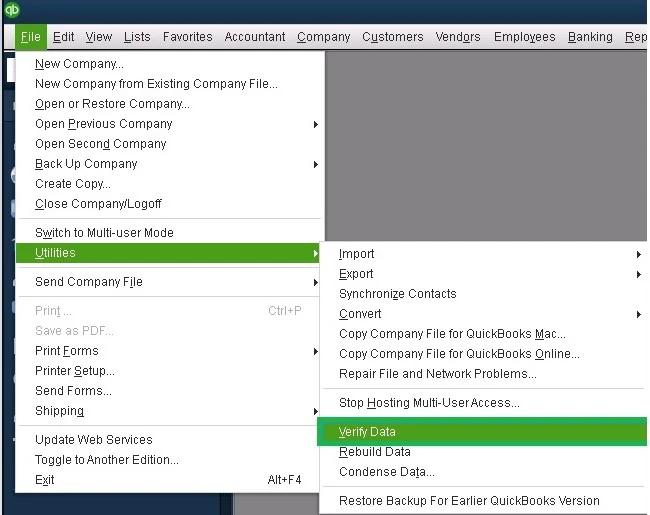
- Allow QuickBooks to check the company file.
- Review the results displayed by the utility.
The results may indicate one of the following:
- QuickBooks detected no problems with your data: The utility did not detect data integrity issues.
- An error message appears: Note the exact error and look for its specific troubleshooting instructions.
- Your data has lost integrity: QuickBooks detected a data issue that may require rebuilding.
Step 2: Run Rebuild Data if QuickBooks identifies damage
- Create a separate backup before proceeding.
- Select File, then open Utilities.
- Choose Rebuild Data.
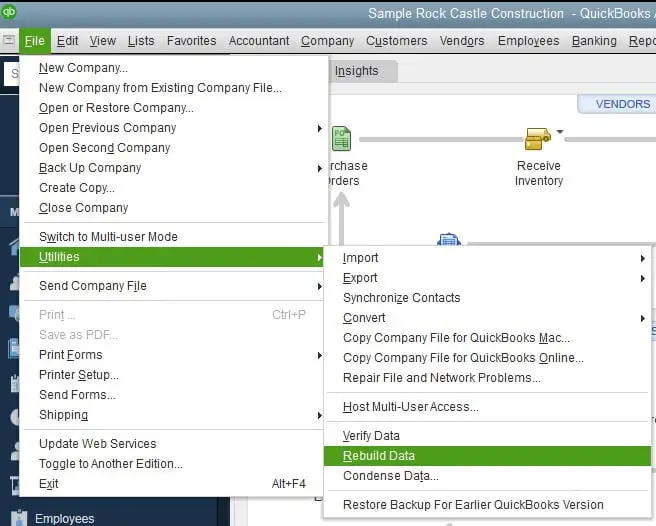
- Follow the on-screen instructions and create the requested backup.
- Allow the rebuilding process to finish without interrupting it.
Step 3: Run Verify Data Again
After rebuilding, run Verify Data again to check whether the identified data integrity issue remains.
Rebuild Data may not resolve every type of company file problem. If the issue continues, preserve the original file and consider restoring a suitable backup.
For additional instructions, see our guide on how to run Verify and Rebuild Data in QuickBooks Desktop.
Note: If you use Assisted Payroll, Intuit advises contacting its payroll team before rebuilding your company file.
5. Restore a Company File Backup
If the repair utilities cannot resolve the issue, restoring a suitable backup may help recover accounting information.
Choose a backup created before the problem started.
Important: Restoring an older backup may exclude transactions and records entered after that backup was created. Preserve your current company file and do not overwrite it.
Follow these steps:
- Open QuickBooks Enterprise.
- Select File and choose Open or Restore Company.
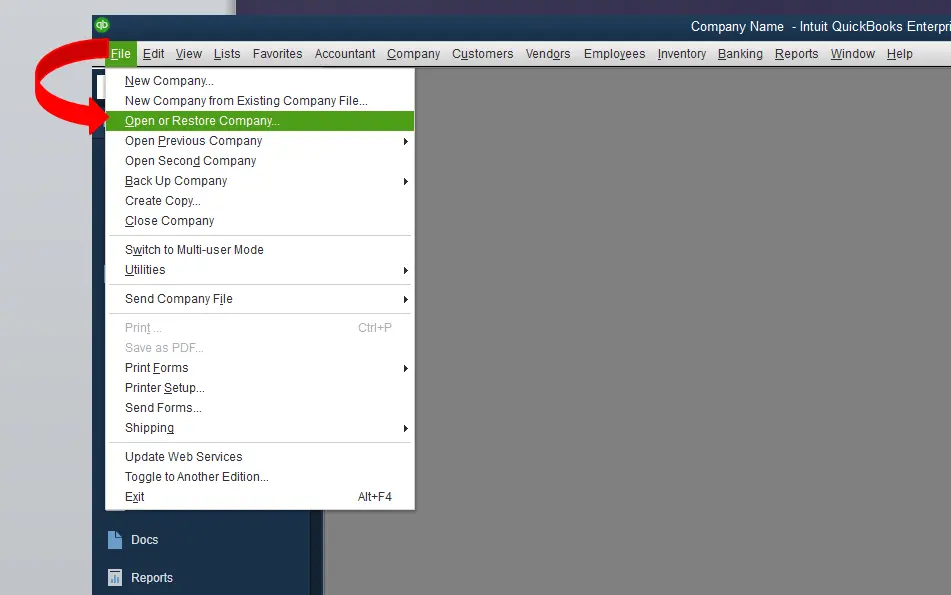
- Select Restore a Backup Copy, then click Next.
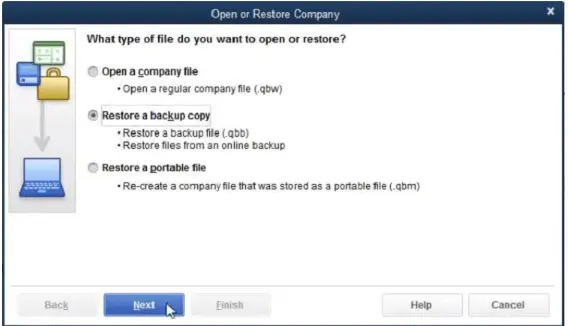
- Choose Local Backup and click Next.
- Browse to the folder containing your backup file (.QBB).
- Select the appropriate backup file and click Open.
- Choose a different location to save the restored company file.
- Give the restored file a new name.
- Click Save and follow the on-screen instructions.
After restoration, open the new company file and check whether the missing records are available. Compare the backup date with your current file before deciding which records need to be recovered.
6. Check the QuickBooks Enterprise Update Installation
An incomplete or unsuccessful update installation may cause QuickBooks to behave unexpectedly. If the problem started immediately after updating, check whether the installed product release matches the applicable Intuit update information.
Follow these steps:
- Close and reopen QuickBooks Enterprise.
- Press F2 or Ctrl + 1 to open the Product Information window.

- Check your QuickBooks product version and release.
- Compare the installed release with the applicable update information from Intuit.
- If the update appears incomplete, follow Intuit’s official QuickBooks Desktop update instructions.
- Restart your computer after completing the update process.
- Open your company file again and check whether the problem continues.
Avoid repeatedly installing updates without first checking the current product release and the reason for the installation problem.
7. Check Company File Location and Network Permissions
If you access QuickBooks Enterprise in multi-user mode, network connectivity and folder permissions can affect company file access. Incorrect permissions or hosting configuration may cause problems that look similar to company file damage.
Follow these steps:
- Exit QuickBooks Enterprise on all workstations.
- Access the computer or server where the company file is stored.
- Open the folder containing your company file.
- Right-click the folder and select Properties.
- Open the Sharing tab and review the sharing permissions.
- Check the Security tab to confirm that the appropriate Windows users have the required permissions.
- Confirm that QuickBooks Database Server Manager is installed and functioning on the hosting computer.
- Open QuickBooks Tool Hub and select Network Issues if additional network troubleshooting is needed.
- Restart the server and workstations, then try opening the company file again.
If the company file is stored on a network, make sure users access it through the configured hosting environment rather than creating separate working copies.
If QuickBooks cannot access the company file over the network, read our guide on troubleshooting QuickBooks communication problems with the company file.
Why QuickBooks File Doctor May Not Resolve Missing Names
QuickBooks File Doctor can help diagnose certain company file and network-related problems. However, it does not guarantee recovery of every missing customer, vendor, or employee record.
Additional investigation may be necessary for the following reasons.
1. Limited Repair Capabilities
File Doctor focuses on certain company file errors, network problems, and access-related issues. It may not recover every missing accounting record or resolve deeper data integrity problems.
2. Deeper Company File Data Issues
Missing names may be associated with underlying data integrity problems. In these situations, Verify Data can help identify certain issues, and Rebuild Data may address some of them.
3. Rebuilding and Restoring Require Care
Rebuilding a company file does not guarantee that every type of data damage will be resolved. Similarly, restoring an older backup may leave out transactions entered after the backup date.
Always preserve the original company file and create a separate backup before attempting either method.
4. Professional Data Recovery May Be Necessary
If customer, vendor, and employee names remain missing after checking list settings and using the available utilities, further investigation may be required.
A qualified QuickBooks data recovery professional can examine the affected company file and help determine an appropriate recovery approach. Avoid making repeated changes to the original file while investigating the issue.
How to Prevent QuickBooks Enterprise Company File Corruption
Taking precautions before updates and maintaining a reliable company file environment can reduce the risk of data-related problems.
Follow these practices to protect your accounting records.
1. Create Verified Backups Before Updates
Create a separate company file backup before installing QuickBooks Enterprise updates. Save it in a secure location and verify that the backup process completes successfully.
2. Install Updates Carefully
Download QuickBooks updates through Intuit’s official channels. Allow the installation to finish and avoid shutting down your computer while the update is running.
3. Maintain a Reliable Hosting and Network Environment
Use a reliable network connection and ensure that the server hosting your company file is configured correctly. Review folder permissions and check that QuickBooks Database Server Manager is functioning properly.
4. Avoid Interrupting Company File Operations
Do not force-close QuickBooks or disconnect the computer from the network while the software is performing company file operations. Close the application properly before shutting down your system.
5. Verify Data Periodically
Run the Verify Data utility periodically to check for potential data integrity issues. If QuickBooks identifies a problem, create a backup before attempting any repair.
Final Thoughts
A QuickBooks Enterprise file corrupted after an update can interrupt accounting activities and make customer, vendor, employee, or transaction information difficult to access. However, missing names and unexpected errors do not always indicate permanent company file damage.
Start by checking list settings and filters. If names are missing from multiple areas, follow the appropriate File Doctor guidance and check whether the file has already been rebuilt. For other data integrity issues, run Verify Data and use Rebuild Data when appropriate. You should also check the update installation, network permissions, and available backups.
Most importantly, preserve the original company file before attempting repairs or restoring a backup. If the missing records remain unavailable after these steps, further data recovery investigation may be necessary.
Frequently Asked Questions
1. Why is my QuickBooks Enterprise file corrupted after an update??
Possible causes include an interrupted update, existing data integrity issues, compatibility problems, or network interruptions. An update may also expose a problem that already existed.
2. How do I fix a corrupted QuickBooks Enterprise company file?
Create a separate backup first. Then check list settings, use File Doctor when appropriate, run Verify Data, and consider rebuilding or restoring a suitable backup.
3. Can a QuickBooks Enterprise update damage my company file?
An update does not automatically damage a company file. However, an interrupted installation, existing data problems, or an unsuccessful company file upgrade may cause errors.
4. How do I identify whether my QuickBooks Enterprise file is damaged?
Look for missing records, incomplete transactions, unexpected errors, crashes, or difficulty opening the file. Run Verify Data to investigate potential data integrity issues.
About The Author

Jonathan Browns
Jonathan Brown is a trained QuickBooks professional with 10 years of experience in the accounting sector. Moreover, he is passionate about helping businesses reduce the stress of managing accounts. Also, he is proficient in assisting entrepreneurs and small business owners to use QuickBooks and enhance their accounting experience.
Recent Posts
-
QuickBooks Won’t Open? How to Fix Desktop, Online & Company File Issues
-
QuickBooks Enterprise File Corrupted After Update? How to Recover Missing Data
-
QuickBooks Inventory Tracking: A Step-by-Step Guide for Small Business Owners
-
QuickBooks Outlook Sync: How to Connect and Manage Contacts
-
Reactivate Your QuickBooks Payroll Subscription: Online & Desktop