


QuickBooks Auto Data Recovery Tool: A Complete Guide

- By Jonathan Browns
- Nov 16, 2026
- Accounting
- 7 min read
The QuickBooks Auto Data Recovery (ADR) Tool is a built-in data recovery feature designed to help users recover lost or damaged QuickBooks company files. If your company file suddenly becomes corrupted, important transactions go missing, or QuickBooks stops opening your data, losing everything can be stressful. That’s where the ADR Tool can help.
It works by creating a copy of your company file and transaction log files, allowing you to recover recent transactions or restore data from an earlier point. Depending on the type of damage and available files, you may be able to recover most of your accounting information without starting from scratch.
In this guide, we’ll explain what the QuickBooks Auto Data Recovery Tool is, how it works, when to use it, and the steps you can follow to recover your company file safely. We’ll also cover its limitations and a few precautions to help protect your financial data.
What is an ADR Tool?
The ADR (Auto Data Recovery) tool is a QuickBooks Desktop feature that can help recover lost or corrupted company data. It is especially useful when a QuickBooks company file becomes damaged, or some of its data is missing.
Need QuickBooks Assistance? Talk to an Expert Today!
Need help figuring out a QuickBooks issue? Connect with our team to discuss your problem and find the next steps toward resolving it.
Instead of waiting for Intuit Data Services to recover the file, you can use the ADR feature as a quicker recovery option in certain situations. However, it should be used only after you have tried the appropriate troubleshooting steps, as it is intended as a recovery method rather than a first-line solution.
The ADR tool can help recover your QuickBooks data in two main ways:
- Recover lost transactions: It can use your current Transaction Log (.TLG) file along with a copy of your QuickBooks Company (.QBW) file to restore lost transactions.
- Recover most transactions: With a copy of both the Company file and Transaction Log file, ADR can restore nearly all transactions except those entered during the last few hours before the problem occurred.
In simple terms, the ADR tool gives you a way to restore a damaged QuickBooks company file using backup copies created by QuickBooks. This can help you get back to work sooner when your company file is affected by data loss or corruption.
How to Recover Lost Data Using the Auto Data Recovery Tool
If your QuickBooks company file is damaged, corrupted, or missing recent transactions, the Auto Data Recovery Tool can help you restore your accounting data.
Before starting the recovery process, make sure you have the original company file and its associated transaction log files available. Let’s walk through the two recovery methods you can use to recover lost QuickBooks data.
Before you begin, keep the following points in mind:
- ADR is available only in QuickBooks Pro, Premier, and Enterprise Solutions for Windows.
- This feature isn’t supported in QuickBooks Accountant Editions.
- The ADR file has a size limit of 1.5 GB. If your backup exceeds 1.5 GB, QuickBooks won’t create an ADR file.
- To get the most from this feature, ensure your QuickBooks Desktop is updated to the latest release.
- Make sure to follow the solutions in the order provided.
Recover recent transactions using the original .TLG file with .QBW.adr file
Use the original Transaction Log (.TLG) file and the ADR version of your company file to recover your most recent transactions.
- Create a new folder on your Desktop and name it QBTest.
- Open the folder where your QuickBooks company file is stored.
Tip: You can find the company file location from the Product Information window by pressing F2 or Ctrl+1 on your keyboard. You can also check the No Company Open window.
- Locate the .TLG file in the same folder as your company file. It will have the same name as your company file.
Show file extensions
If you’re unable to find the .TLG file, follow these steps to display file extensions:
- Press Windows + E on your keyboard to open File Explorer.
- Select Organize, then click Folder and search options.
- Clear the Hide extensions for known file types option.
- Click Apply, then select OK.
- Copy the .TLG file associated with your company file and paste it into the QBTest folder you created on your Desktop.
- Open the QuickBooksAutoDataRecovery folder, which is located in the same folder as your company file.
- Copy the .QBW.adr file and paste it into the QBTest folder. You should now have both the .QBW.adr and .TLG files in the QBTest folder.
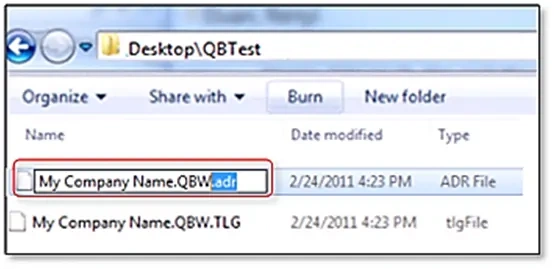
- In the QBTest folder, right-click the .QBW.adr file and select Rename.
- Remove .adr from the end of the file name.

- Open QuickBooks Desktop.
- Open the company file from the QBTest folder and check the account register to confirm that all your transactions are present.
- Select File, then Utilities, and choose Verify Data to check the integrity of the recovered company file.
- If the recovered company file is working properly, move the damaged company file to another location and copy the recovered file from the QBTest folder to the original company file location.
Recover recent transactions using .QBW.adr and .TLG.adr files
This method uses the ADR versions of both the .QBW and .TLG files. It can help recover all transactions except those from the last 12 hours.
- Create a new folder on your Desktop and name it QBTest.
- Open the folder where your company file is saved, then locate the QuickBooksAutoDataRecovery folder.
Tip: You can find the company file location on the Product Information screen by pressing F2 or Ctrl+1 on your keyboard. You can also check the No Company Open window.
- Find the .TLG.adr and .QBW.adr files. Both files will have the same name as your company file.
Show file extensions
If you’re unable to find the .TLG.adr and .QBW.adr files, follow these steps to display the file extensions:
- Select Apply, then OK.
- Press Windows + E on your keyboard to open File Explorer.
- Select Organize, then select Folder and search options.
- Check the Hide extensions for known file types option.
- Click Apply, then select OK.
- Copy the .TLG.adr and .QBW.adr files and paste them into the QBTest folder.
- In the QBTest folder, right-click each file, select Rename, and remove .adr from the end of both file names. You should now have .QBW and .TLG files in the folder.
- Open QuickBooks Desktop.
- Open the company file saved in the QBTest folder. Check your account register to verify that all transactions are available.
- To check the integrity of the recovered company file, select File from the top menu, go to Utilities, and click Verify Data.
- If the recovered company file is working properly, move the damaged company file to a different location. Then, transfer the recovered copy from the QBTest folder to the original company file location.
Summing Up
The QuickBooks Auto Data Recovery Tool helps you recover lost, damaged, or missing company file data without having to recreate your accounting records from scratch. Following the recovery methods discussed above can help restore your company file and retrieve important transactions, provided the required ADR files are available.
If you’re still unable to recover your QuickBooks data, make sure you have a backup of your existing company file and seek professional assistance to avoid further data loss. Call Us : +1-866-408-0444 to connect with a QuickBooks ProAdvisor now!
Frequently Asked Questions
What is the QuickBooks Auto Data Recovery Tool?
The QuickBooks Auto Data Recovery Tool is a built-in feature in supported QuickBooks Desktop versions that helps recover lost or damaged company file data. It uses a copy of your company file and transaction log files to restore transactions and accounting information.
Where is the Auto Data Recovery folder in QuickBooks?
The Auto Data Recovery folder is generally located in the same folder as your original QuickBooks company file. It contains recovery copies of your company file and transaction logs. You can locate it by opening the folder where your company file is saved and looking for the ADR folder.
Can I recover deleted transactions using QuickBooks ADR?
Yes, you may be able to recover deleted transactions using the Auto Data Recovery Tool, provided the required transaction log information is available. The recovery results depend on when the data was deleted and which recovery files are intact.
Does QuickBooks Auto Data Recovery work on QuickBooks Online?
No, the Auto Data Recovery Tool is designed for supported QuickBooks Desktop versions, not QuickBooks Online. QuickBooks Online uses cloud-based data storage and different data recovery and restoration options.
How long does QuickBooks Auto Data Recovery take?
The recovery time depends on your company file size, computer performance, and the amount of data being restored. Smaller company files may take less time, while larger or heavily damaged files can require additional processing.
Can I recover an entire QuickBooks company file using the ADR Tool?
Yes, the ADR Tool can help recover an entire company file in certain situations. However, complete recovery isn’t guaranteed. The results depend on the condition of the original company file, available ADR files, and transaction logs.
What should I do if the QuickBooks Auto Data Recovery Tool fails?
If the ADR Tool doesn’t recover your company file, try restoring a recent verified backup. You can also check whether the original company file and transaction log files are available and undamaged. Avoid repeatedly modifying the original files, as this may complicate recovery. If the problem continues, contact QuickBooks support or a qualified data recovery professional.
Does QuickBooks automatically create ADR files?
Yes, in supported QuickBooks Desktop versions, the software automatically creates Auto Data Recovery files at scheduled intervals. These files provide an additional recovery option, but they should not replace regular company file backups.
About The Author

Jonathan Browns
Jonathan Brown is a trained QuickBooks professional with 10 years of experience in the accounting sector. Moreover, he is passionate about helping businesses reduce the stress of managing accounts. Also, he is proficient in assisting entrepreneurs and small business owners to use QuickBooks and enhance their accounting experience.

Recent Posts
-
Find Out the Best Deals & Discounts in QuickBooks Black Friday Sale
-
QuickBooks Auto Data Recovery Tool: A Complete Guide
-
QuickBooks Running Slow? Causes and Fixes for Desktop & Online
-
QuickBooks Won’t Open? How to Fix Desktop, Online & Company File Issues
-
QuickBooks Enterprise File Corrupted After Update? How to Recover Missing Data