


How to Setup & Use QuickBooks Online Bank Feeds?

- By Jonathan Browns
- Feb 06, 2026
- QuickBooks Online
- 7 min read
QuickBooks bank feeds make the bookkeeping easier by automatically connecting your bank or credit card account with QuickBooks. Moreover, setting up QuickBooks Online Bank feeds will also reduce the manual effort of entering data, improve accuracy, and smooth out bank reconciliation.
Whether you wish to set up bank feeds in QuickBooks Desktop or Online, this post has you covered. Read it carefully to discover how to connect your bank or credit card account in QBO or Desktop for smoother financial tracking.
Need help with the setup of QuickBooks Online bank feed or to connect with your bank account? Talk to our QB professionals by Call Us : +1-866-408-0444 for reliable and quick support.
What are Bank feeds in QuickBooks Online?
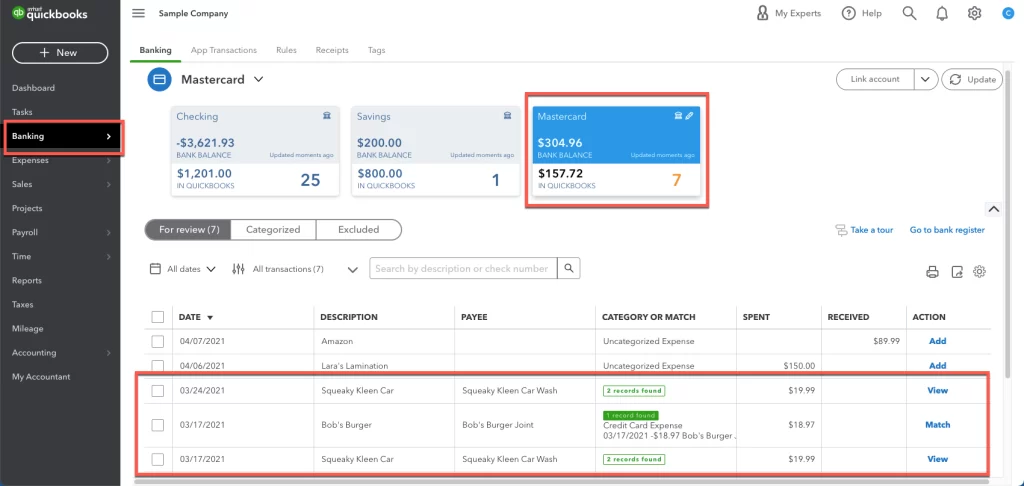
QuickBooks Online bank feeds securely connect your bank or credit card accounts with the software. Also, it imports the transactions in real-time to reduce the stress of manual data entry. However, with the automatic categorization, matching with existing records helps in providing accurate bank reconciliations.
How to Connect a Bank Account in QuickBooks Online?
Do you wish to link your bank or credit card account with QBO? You can do it by using the bank feed or bank connection method. Here’s how to set up bank feeds in QuickBooks Online with the proper step-by-step instructions.
Connect a new bank account
Before proceeding, ensure that your bank account supports a bank connection and the bank feed types. Furthermore, there are three different ways to connect a new bank account, which are as follows:
Method 1: Connect through a standard bank connection
- Login to your QuickBooks Online account.
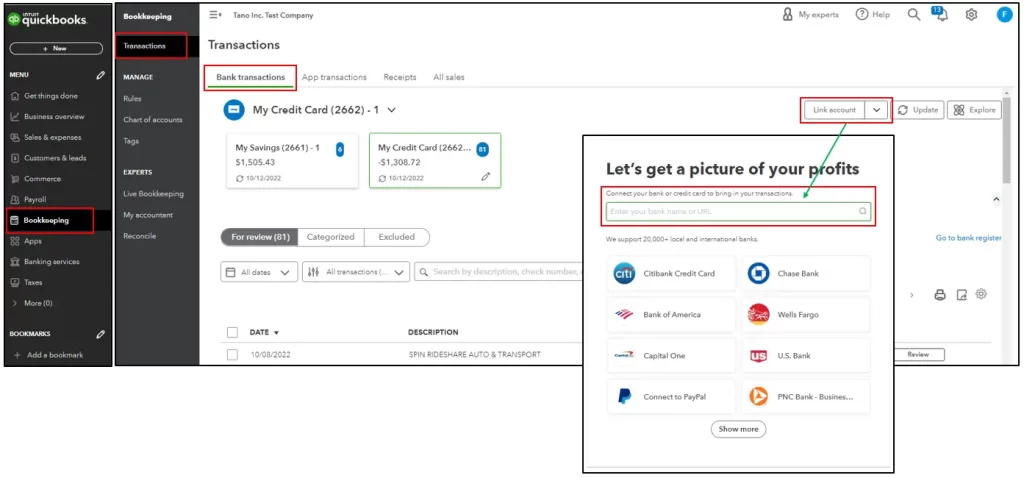
- Go to the Connect Account if you are linking your bank account for the first time. Otherwise, choose the link account.
- Now, start searching for your bank name and click Continue.
- Login to your bank using the correct sign-in credentials.
- Afterwards, perform the on-screen instructions to connect with your bank account. Also, review the additional security checks if mandatory.
- Next, pick any accounts that you wish to connect, such as savings, transactions, or credit cards.
- After this, opt for the matching account type from the charts of accounts in QuickBooks.
- Pick how far you wish to download the transactions. There are some financial institutions that let you download the past 90 days of transactions. However, there are some banks that allow downloading for up to 24 hours.
- Hit the Connect option and relaunch QuickBooks Online. Then, refresh your window to move further.
Method 2: Connect through a Direct bank connection
You must pick any one of the following options to connect via direct bank connection.
Case 1: Choose this heading if you have a foreign currency account
Foreign currency accounts currently don’t support the online bank feed option. This is so because they don’t have a BSB and their account numbers have letters, which indicates that the system won’t recognise them.
You can only use the foreign currency account for direct deposit with the Commonwealth Bank of Australia (CBA). This is supported as long as it has a standard CBA foreign account with a BSB and an account number.
In case you wish to connect a foreign currency account with QuickBooks Online, you can do it via a standard feed.
Case 2: Choose this heading if you bank with American Express
To connect your American Express Business Card account in QuickBooks, do the following:
- Login to your QuickBooks Online account.
- Click on Connect account for the first time. Otherwise, go with the Link account.
- Choose the American Express (AUS) and then the Continue tab.
- In the pop-up window, log in to the American Express. Then, use the on-screen instructions when the American Express needs additional security steps. If you don’t have an account yet, then create one.
- After that, pick the account you wish to connect with QuickBooks.
- Now, for each account, choose the account type and date range to download.
- At last, click the Connect option.
With this, your American Express accounts are connected, and you can download the transactions automatically in QBO without entering them manually.
Learn More:- QuickBooks Not Syncing With American Express
Case 3: Choose this heading if you bank with Macquarie Bank
If you are a Macquarie Bank customer with an account number starting with “00”, you can’t set a direct deposit feed with QBO, even though your account has 9 digits.
QBO also doesn’t work with supported term Direct Deposit accounts, because they don’t have regular transactions.
Below are the supported account types for bank feeds between QuickBooks and Macquarie Bank:
- Cash Management accounts (9-digit account number starting with 1 or 9)
- Business / Trust accounts (9-digit account number starting with 2 or 3)
Read more:- Intuit Workforce Login
Steps for setting up bank feed for an eligible bank account.
- Login to the QuickBooks Online bank account.
- Click on Connect Account for the first time. Otherwise, click Link Account.
- Start searching for your bank and hit the Get direct bank feeds option.
- Review the steps on connecting bank feeds and choose Get direct feeds.
- Provide the account details and pick the bank account you wish to connect. Then, click Connect, and an authorisation form will eventually be created.
- Hit the Preview form option and print the form and hand-sign it. In case you have two signatories, both signatories will sign the form. If there are multiple signatories, then all signatories have to sign the form.
- At last, either send an email or post the form having the following details:
- Email: intuitforms@siss.com.au
- Subject: QuickBooks Bank Feed Request
- Or
- Mail: SISS Data Services Pty Ltd
- Locked Bag 3060
- Crows Nest, NSW, 1585
What to do if your direct feed application has been declined?
In case your application is stuck in an error or has been declined, it means that something is wrong with the form. You will notice the error message in the Banking tab, which has the information required by SISS that requires clarification.
Follow these steps:
- Disconnect the impacted feed
- Resume the process of connecting to a direct feed and then submitting an updated form.
Method 3: Connect through an open banking connection
You can also connect your bank account using the Open Banking connection method in QuickBooks Online.
First Step: Prepare Your Accounts
Before you proceed further, set up a data sharing delegate or nominee representative. Visit the CDR Ready website to review if any accounts need a nominated representative. Then, use the on-screen steps to complete the process.
Second Step: Connect With Your Bank or Credit Card Accounts
- Firstly, login to your QuickBooks Online Bank account.
- Locate your QuickBooks bank account by its URL or name. Otherwise, select from the list of options available.
- After this, login using the bank login details and follow the additional security steps.
- Next, pick the accounts you wish to connect, such as savings, current, or credit card accounts.
Upgrade to a direct bank connection
Make sure to leave your standard bank connection intact unless your new direct bank connection has successfully established.
Steps to upgrade
- If the direct bank connection option is available for your bank account, you will Get a better connection message below your bank account tile.
- After selecting Get a better connection, perform from step 4 within the ” Set up a bank connection section.
- Now, when the bank authorises your direct connection, QuickBooks will merge it with your existing standard bank connection.
- After setup, you can manage your banking activity through one account.
You may notice that most financial institutions take up to 10 business days. Whereas, if you are an ANZ or Westpac customer, you can do it within 48 hours.
How to Set up or edit bank accounts for Bank Feeds in QuickBooks Desktop?
Didn’t know how to set up bank feeds in QuickBooks Desktop? Perform the following instructions to use the bank feed feature to download and reconcile transactions accurately.
Requirements Before Setup
Before you set up QuickBooks Desktop bank feeds, check whether your bank charges a fee or provides the service for free.
1. Bank Provided Credentials
Your bank needs some specific credentials for online banking setup. Make sure that you have the necessary details:
- Customer ID and Password (or PIN)
- Account Number: This is the number provided by your bank to your account. If you are unable to get the account number, then connect with FI.
- Routing Number: It is a 9-digit number that is assigned to your bank. You can find it on either a check or you can contact the FI to get it.
2. Account Type Mapping
You must be aware of how your bank classifies your account. You have to access the following table to tally your bank’s account type with the correct QuickBooks account type.
| Checking | Bank |
| Savings | Bank |
| Money Market | Bank |
| Line of Credit | Bank or Other current liability |
| Credit card | Credit card |
Connect Using Direct Connect
If you are downloading for the first time, QuickBooks will eventually set up an account for Bank Feeds.
- Firstly, access the Banking menu and move to Bank Feeds.
- Choose the Set Up Bank Feeds for an account and choose your bank from the Enter your Bank’s name field.
- If you are registering for the first time, hit the Enrollment site link to apply for Direct Connect. You can connect with your bank to give the approval for the application, or if you need special sign-in details.
- Once registered, choose Continue and then provide your Online Banking details.
- Now, select the Connect option to link QuickBooks with your bank’s server.
- Pick the bank account you want to connect to your QuickBooks account.
- At last, click the Finish option.
Connect via Web Connect (.QBO) file.
In case your bank won’t provide the Direct Connect feature, you can use the Web Connect to import the transactions.
- Initially, download a Web Connect (.QBO) file with your company’s transactions from your bank or credit card website.
- Move to the QuickBooks Banking menu, click Bank Feeds, and then Import Web Connect Files.
- Choose the .QBO file you saved and hit the Open tab.
- When asked to select your bank account:
- Use an existing account: Go with this option if you already set up an account in QuickBooks.
- Create a new QuickBooks account: Pick this option if you don’t have an account in QuickBooks.
- Tap on Continue and click OK when you see the dialog box confirming the data is read into QuickBooks.
- At last, move to the Bank Feeds Center to check your transactions.
Manage the Bank Feed Settings
- Switch connection methods
For switching from the Web Connect to the Direct Connect method, you need to disconnect your bank feeds. After disconnecting, set up the bank feed again with the help of a new method.
Steps to Disconnect Bank Feeds
To disconnect your bank feed in QuickBooks Desktop, perform these steps.
First Step: Match Or Delete the Transactions
Before turning off the bank feed option, match or delete the transactions. This is so because QuickBooks won’t allow you to make changes if there are any pending transactions.
Second Step: Turn off the Bank Feeds
You can only disconnect your accounts from the bank feeds one at a time.
QuickBooks Desktop For Windows
- Move to the Lists menu > Chart of Accounts.
- Right-click on the account you want to disable and click Edit Account > Bank Settings.
- Choose the Deactivate all online services > OK > Save & Close option.
QuickBooks For Mac
- Move to the Lists menu > Chart of Accounts.
- Next, highlight the account and click the pencil icon to edit.
- Choose the Online Settings > Download Transactions > Not Enabled.
- After this, hit the OK tab to confirm and click OK again.
Once it’s disconnected, QuickBooks won’t download new transactions any longer.
Edit the Login or Account Details
For modifying your login or other details for a connected bank account, use these steps.
- Firstly, disconnect the bank feed for the specific amount.
- Do the required changes.
- You can set up QuickBooks bank feeds for your account once again.
Final Thoughts
QuickBooks Online bank feed is one of the easiest ways to automate bookkeeping by directly connecting a bank or credit card account with the software. We hope that by following this guide, you can easily set up bank feed in QBO and QuickBooks Desktop. Thus, it keeps your financial data up-to-date and provides real-time visibility regarding business cash flow.
If you still need any further help, you can connect with our BizBooksAdvice professionals. You can dial the Call Us : +1-866-408-0444 or use the live chat facility for better guidance.
Frequently Asked Questions (FAQ’s):
Question 1: How do I fix a bank feed in QuickBooks Online?
Ans. To resolve a bank feed in QBO, pick the affected bank account and hit the Edit account details. After this, select the Reconnect Bank option. Sign in using the updated credentials and run QuickBooks again.
Question 2: How to reset bank feed in QuickBooks Online?
Ans. Follow these steps to reset the bank feed in QBO.
- Firstly, deactivate the bank account for the account and generate a new bank account.
- Go to the Lists menu > Charts of accounts.
- Merge two accounts by renaming the old account with the name of the new account.
- At last, set up the merged account for the Bank Feeds.
Question 3: Does QuickBooks Online automatically download bank transactions?
Ans. Yes, QBO automatically downloads the bank transactions after connecting a bank account to online banking.
Question 4: Why aren’t all my bank transactions showing up in QuickBooks Online?
Ans. If your bank transactions aren’t showing in QBO, try manually updating the bank feed or reconnecting the account.
Question 5: How often does QuickBooks Online update bank transactions?
Ans. Many financial institutions update transactions with QuickBooks within every 24 hours, but it may vary. However, to download the latest bank transactions, you need to do a manual update.
About The Author

Jonathan Browns
Jonathan Brown is a trained QuickBooks professional with 10 years of experience in the accounting sector. Moreover, he is passionate about helping businesses reduce the stress of managing accounts. Also, he is proficient in assisting entrepreneurs and small business owners to use QuickBooks and enhance their accounting experience.
Recent Posts
-
QuickBooks Has Stopped Working? 10 Ways to Fix It
-
QuickBooks Desktop Enterprise: Pricing, Features, Download & Setup
-
Fixing QuickBooks Error 1606: Could Not Access Network Location
-
QuickBooks Error 3100: Causes, Solutions, and Prevention Tips
-
How to Perform QuickBooks Messy Books Cleanup: Step-by-Step Guide