


QuickBooks Error 15311: How to Fix Payroll & Desktop Update Issues

- By Jonathan Browns
- May 16, 2026
- Accounting
- 7 min read
Are you stuck with QuickBooks Error 15311 and unable to download the latest payroll updates?
This error belongs to the 15000 series and it usually occurs while downloading the latest QuickBooks Desktop or payroll updates. It may appear when the software fails to verify the digital signature, or when there is an issue with the internet connection. When the error occurs, the following message appears on the screen:
“Error 15311: QuickBooks could not verify the digital signature for the update file.”
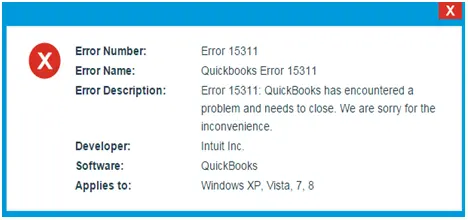
Many users find this error frustrating because it prevents QuickBooks from installing the latest updates, which can disrupt accurate payroll processing. In this guide, you’ll learn more about the possible causes, and solutions to fix QuickBooks Error Code 15311.
Why am I Getting QuickBooks Error Code 15311?
Users often experience QuickBooks Error Code 15311 while trying to download the latest payroll update due to an unstable internet connection. This issue may also be caused by several other factors given below.
- An incomplete installation or damage to the QuickBooks or Windows files.
- Another reason may be the inappropriate system date and time.
- Sometimes, interference from the Windows Firewall or antivirus software may trigger Error 15311 in QuickBooks.
- The shared Download drive isn’t accurately mapped.
- You haven’t enabled the QuickBooks File Copy Service.
What Should You Do To Fix QuickBooks Update Error 15311?
After understanding the root causes behind QuickBooks Update Error 15311, let’s learn the troubleshooting methods. Let’s have a look at all the solutions described below to fix the error smoothly.
Solution 1: Get the Updates As An Administrator
To download the latest QuickBooks Desktop updates, make sure that you log in as an administrator. For that, you must perform the following stepwise instructions below.
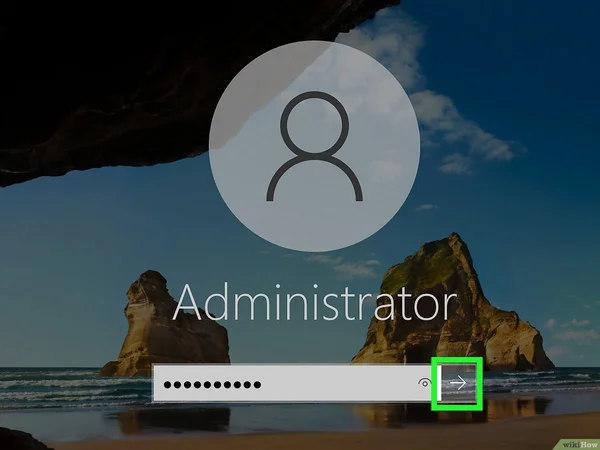
- Exit your data files and then your QuickBooks Desktop application.
- After this, right-click on the QuickBooks Desktop icon and choose the Run as Administrator option.
- When you get the message stating, “Do you want to allow this program to make changes to your computer?”, hit the Yes tab.
- Finally, download the latest QuickBooks Desktop product updates or the latest payroll tax table update again. Then, verify if the QuickBooks Error Code 15311 still exists.
Solution 2: Get a Digital Signature Certificate Installed
QuickBooks requires a digital signature certificate to verify the authenticity of the update. But sometimes the outdated or missing digital signature certificate fails to verify the authenticity. As a result, it may lead to QuickBooks Desktop Update Error 15311. So, to fix the error, you must install a digital signature certificate with the following steps.
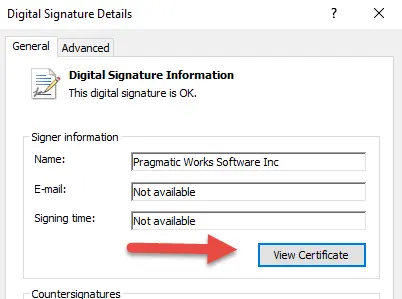
- Initially, you must browse to the C:\Program Files\Intuit\ QuickBooks.
- Now, right-click on the QBW32.exe file and then choose the Properties option.
- After this, pick the Digital Signature option and ensure Intuit is chosen from the signature list.
- Next, hit the Details tab and then opt for the View certificate option.
- When you are in the Certificates window, pick the Install Certificate option.
- Choose the Next option unless the Finish option is seen. Later on, hit the Finish tab to move further.
- Thereon, relaunch your PC and launch QuickBooks. Then, try to download the payroll update once again.
Solution 3: Access the Quick Fix My Program Tool to Fix the Issue
Running the Quick Fix My Program tool will help you close all the background running processes. Moreover, it will also run a quick repair on the QuickBooks program to see if the issue is resolved.
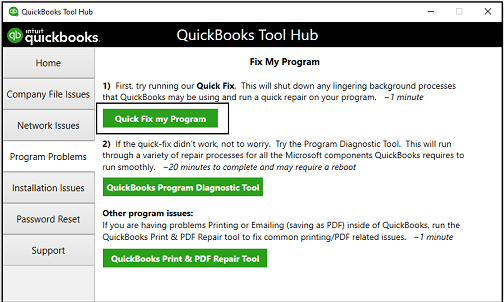
- Firstly, launch the QuickBooks Tool Hub and then pick the Program Problems tab.
- After this, hit the Quick Fix My Program option.
- When you are all sorted, try to reopen the QuickBooks application and then your data file.
- At last, you must download the latest QuickBooks Desktop product updates or the latest payroll tax table updates.
If you are still receiving the error, then implement these steps:
- Exit from the QuickBooks Desktop application and then move further.
- After this, browse to the C:\ProgramData\Intuit\QuickBooks XX\ Components.
- Thereon, right-click the Components tab and choose the Delete option.
- Access the QuickBooks application and hit the Help menu. Then, move to the Update QuickBooks Desktop option.
- Next, tap on the Update Now option and tick the Reset Update checkbox.
- Furthermore, click the Get Updates option, and when the update is complete, restart QuickBooks Desktop.
- Now, hit the Help menu and then switch to the Update QuickBooks Desktop.
- Finally, head to the Overview option and click the Update Now tab.
Solution 4: Run the Reboot.bat file To Re-Register the files
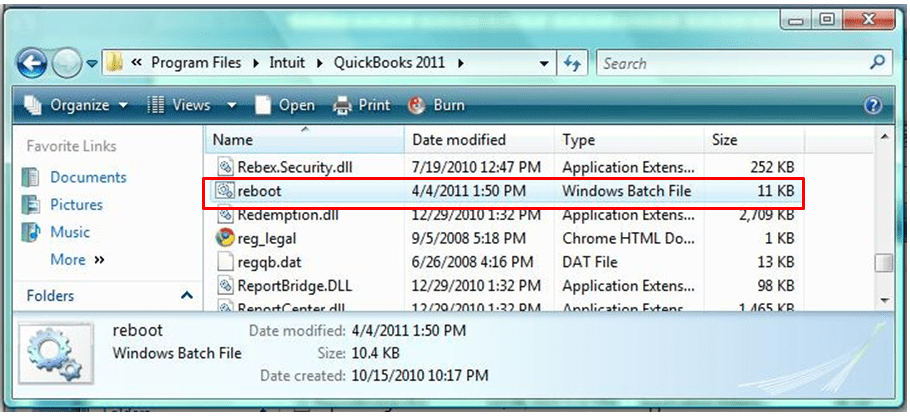
The Reboot.bat is basically a batch file that enables the QuickBooks application to re-register .DLL and .OCX files. The main role of these files is to conduct different functions that QuickBooks requires.
- Exit from the QuickBooks Desktop application on your device.
- After this, right-click on the QB icon and opt for Properties.
- Now, browse to the Open File Location option to access the QuickBooks Installation Folders on your system.
- Thereon, verify that the options for Windows Hidden Files and Folders are set to display.
- Furthermore, start looking for the Reboot.bat file and right-click on it to open.
- Next, tap on the Run as Administrator option and wait till the Reboot file re-registers all your QuickBooks files.
- Finally, the black screen will automatically disappear. Later on, try to download the latest QuickBooks Desktop updates after they disappear.
Solution 5: Include Intuit in the List of Trusted Websites
At times, the QuickBooks update process gets hampered if Intuit isn’t listed in the list of trusted websites. For that, you must carry on with the instructions outlined below.
- Initially, launch Internet Explorer and hit the Gear icon at the top of the screen.
- After this, hit the Internet Options, click the Security tab, and then the Trusted Sites option.
- Choose the Sites option and list the following details:
- If you are accessing the U.S. version of QuickBooks,
- .*quickbooks.com
- .*intuit.com
- For the Canada version users, do the following;
- *.quickbooks.ca
- *.intuit.ca
- If you are accessing the U.S. version of QuickBooks,
- When the changes are done, hit the Close and then the OK option.
Solution 6: Test Your Internet Connection Settings
To check the internet settings, launch a secure web browser and access the Chase Banking. If the Chase Banking page doesn’t load, you might fail to get updates from QuickBooks. In that case, you have to connect with your ISP for assistance.
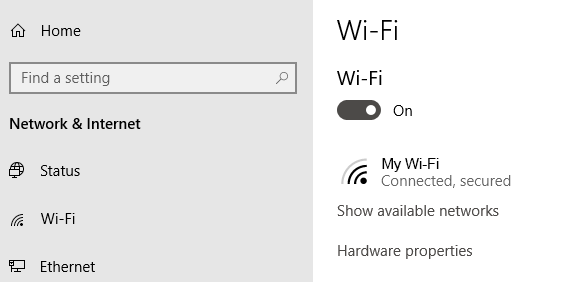
If you get the Chase Banking website, then launch the QuickBooks Desktop and perform the following steps:
- Initially, move to the Help menu and click the Internet Connection Setup option.
- Choose the option stating “Use my computer’s Internet connection settings to establish a connection when this application accesses the internet.”
- Hit the Next tab and opt for the Advanced Connection Settings tab.
- When you are on the Advanced tab, tap on the Restore Advanced Settings menu.
- Thereon, tap on OK and then the Done option.
- At last, try to update the QuickBooks Desktop or Payroll again.
Solution 7: Adjust the Firewall Permissions Manually
Sometimes, the incorrect Firewall settings may prevent users from downloading the latest payroll or desktop updates in QuickBooks. So, to resolve the issue, you must configure the Windows Firewall permissions.
Solution 8: Repair the Damages With the QuickBooks Program
You can run the QuickBooks Install Diagnostic Tool to fix the common issues generated while trying to install the latest QuickBooks Desktop or payroll updates. This tool will scan for damage to the QuickBooks installation and then run a repair to fix it.
Solution 9: Reinstall the QuickBooks Desktop Application
After using the above solutions, if nothing works in your favor, then try to reinstall QuickBooks Desktop. Doing so will remove the technical bugs present in the software and install a new version of QuickBooks on your device. As a result, it will help you resolve QuickBooks Error 15311.
Ending Note
QuickBooks Error 15311 may interrupt payroll and desktop updates, but it can be resolved using the right troubleshooting methods. We hope you found this guide helpful and that the solutions above restore smooth and successful updates.
If the issue persists, connect with our experienced BizBooksAdvice accounting experts for assistance and to prevent further payroll disruptions.
Frequently Asked Questions (FAQ’s):-
Question 1: What is Error 15000 in QuickBooks?
Ans. The QuickBooks Error 15000 usually appears while trying to update the QuickBooks Desktop. It may also trigger while downloading the latest payroll tax table due to issues with the internet connection, firewall settings, etc.
Question 2: How to avoid QuickBooks Error Code 15311 from occurring in the future?
Ans. To prevent the QuickBooks Error Code 15311 from happening in the future, do as follows;
- Check the Windows Firewall or antivirus software settings.
- Verify that your device is linked to a good internet connection.
- Ensure to install the latest Windows or QuickBooks Desktop updates.
- Verify that the system’s date and time are correct.
Question 3: Does QuickBooks Error 15311 require administrative access?
Ans. Yes, it is essential that the users have enough administrative rights to allow QuickBooks to install the latest updates.
Question 4: When does QuickBooks Desktop Update Error 15311 occur?
Ans. The QuickBooks Desktop Update Error 15311 occurs while trying to download the latest QuickBooks Desktop or payroll updates. It may often occur when QuickBooks fails to verify the digital signature certificate of the update files.
Question 5: Does reinstalling QuickBooks help resolve QuickBooks Update Error 15311?
Ans. Yes, reinstalling QuickBooks Desktop will help fix corrupted installation files, which may cause QuickBooks Update Error 15311.
About The Author

Jonathan Browns
Jonathan Brown is a trained QuickBooks professional with 10 years of experience in the accounting sector. Moreover, he is passionate about helping businesses reduce the stress of managing accounts. Also, he is proficient in assisting entrepreneurs and small business owners to use QuickBooks and enhance their accounting experience.
Recent Posts
-
How to Fix QuickBooks Invoice Payment Error (A Complete Guide)
-
9 Proven Ways to Fix QuickBooks Migration Error-1009
-
QuickBooks Error 401 Authentication Error: Complete Fix Guide
-
How to Fix QuickBooks Freezing or Not Responding
-
Fix Your QuickBooks Online Sync Problems: A Step-by-Step Guide