


Rectify QuickBooks Error 1618 (Update or Install Issue)

- By Jonathan Browns
- Feb 23, 2026
- Accounting
- 7 min read
Did you notice the QuickBooks Error 1618: “Another program is being updated” message? This may happen when you try to install or update the QuickBooks Desktop. You may encounter this error due to issues with the installation of the Microsoft Runtime Library.
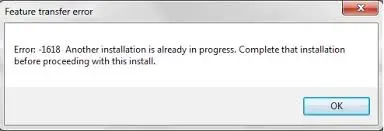
Read this guide and find the possible causes along with troubleshooting methods to fix the QuickBooks Error Code 1618.
Wondering how to rectify QuickBooks Error 1618 while installing? Call Us : +1-866-408-0444 and connect with our QB professionals to find the best guidance.
What Does QuickBooks Error 1618 Signify?
The QuickBooks Error 1618 indicates that another installation or update process is already running, which is creating trouble while installing or updating QuickBooks Desktop. This error comes up with one of the following messages that says:
- Error: there was a problem installing Microsoft Runtime Library (Error 1618)
- Error 1618. “ERROR_INSTALL_ALREADY_RUNNING”
Unfortunately, QB Installation Error 1618 may disrupt the ongoing update or installation process and leave your work at a standstill. So, it’s essential to fix this issue in a timely manner and regain the installation or update of QuickBooks Desktop.
What Causes QuickBooks Desktop Installation Error 1618?
You may confront QuickBooks Desktop Installation Error 1618 due to the following reasons.
- A corrupt or damaged Windows Registry may trigger Error Code 1618 in QuickBooks.
- Issue with the installation of QuickBooks Desktop.
- A damaged installation of Microsoft Runtime Libraries.
- Multiple instances of MSIEXEC.EXE are running in the background.
- The presence of a virus or malware infecting the Windows System Files.
What to do to Resolve QuickBooks Installation Error 1618?
The QuickBooks Installation Error 1618 must be fixed soon to regain access to the QuickBooks Desktop installation. Let’s look at the solutions discussed below closely.
Solution 1: Test if there are Any instances of MSIEXEC.EXE in the background
Perform the following steps to delete the background processes of MSIEXEC.EXE.
- Launch Task Manager by hitting the Ctrl + Alt + Del keys together.
- Now, go to the Processes tab and choose the Image Name column to sort the processes alphabetically.
- Browse to the middle of the list and right-click on processes called MSIEXEC.EXE. Then, pick the End Process option.
- Exit from the Task Manager window and try installing QuickBooks Desktop again to check if the QuickBooks Desktop Error 1618 persists.
Solution 2: Reinstall Microsoft Runtime Libraries via the Microsoft Visual C++ Redistributable Package
- Firstly, download the Microsoft Visual C++ Redistributable Package.
- 32 bit users must launch the Microsoft Visual C++ 2008 Redistributable Package (x 86).
- 64-bit users must launch the Microsoft Visual C++ 2008 Redistributable Package (x 64)
- Now, save the file in a secure and easily accessible location.
- Once the download is complete, double-tap on the “vcredist_X86.exe” or “vcredist_X64.exe. Later on, perform as per the guidelines given on the screen.
- At last, you must run the Quick Fix My Program via Tool Hub.
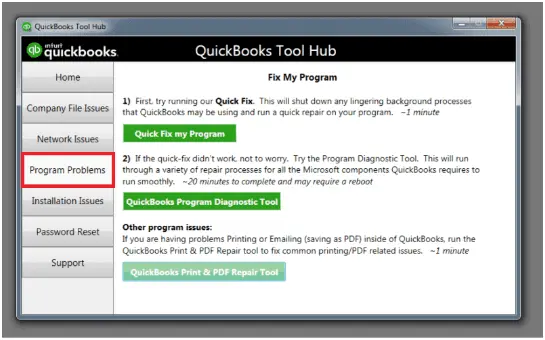
- Launch the QuickBooks Tool Hub and click on Program Problems.
- Choose the highlighted Quick Fix My Program tab.
- After this, open the QuickBooks Desktop and then open your company file.
Solution 3: Run the QuickBooks Install Diagnostic Tool
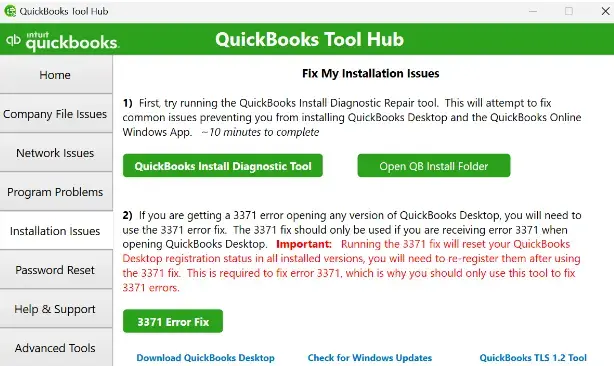
Since QuickBooks Error 1618 is an installation error, you can fix it by running the QuickBooks Install Diagnostic Tool. This tool scans installation issues and then automatically repairs them.
Solution 4: Update the Windows Installer
To resolve the QuickBooks Installation Error 1618, try updating the Windows installer by performing these steps.
- Initially, you must log in as a System Administrator.
- Move to the Windows Installer and check if it’s updated or not.
- Now, head to the My Computer option.
- Launch the C:\WINDOWS\ system32 and choose the .exe file.
- Soon after this, check the version and click Properties.
- Now, you will get all the information regarding the Windows Installer’s version.
- Finally, restart your PC after completing the update.
Solution 5: Generate a Backup for the Windows Registry
- To create the Windows registry backup, hit the Start option.
- Launch the Run window and insert Regedit in the text box.
- Go to My Computer and launch the File menu > Export tab.
- After that, pick all options from the export range.
- Now, you must save the created registry backup on your computer.
- Finally, you must write down that the deletion of keys will also delete all sub-keys.
Conclusion
So, hereby we end this blog on QuickBooks Error 1618. We hope you can now easily install or update QuickBooks Desktop. If the issue still exists, then check your internet access and ensure you are using the latest QuickBooks Desktop or Windows operating system.
For any further assistance, you can connect with our BizBooksAdvice professionals for help. You can connect them by Call Us : +1-866-408-0444 or via live chat.
Frequently Asked Questions (FAQ’s):-
Question 1: Why does QuickBooks Error Code 1618 occur during installation?
Ans. Users often encounter QuickBooks Error Code 1618 during installation when another Windows installation process (MSIEXEC.EXE) is running in the background.
Question 2: Which versions of QuickBooks Desktop are affected by Error 1618?
Ans. The QuickBooks Error 1618 may appear in all versions of QuickBooks Desktop, including Pro, Premier, and Enterprise, during the installation of Windows updates.
Question 3: Is QuickBooks Error 1618 a Windows-related issue?
Ans. Yes, the QuickBooks Error 1618 is a Windows-related error that may occur due to issues with Windows Installer, Microsoft Visual C++ Redistributable packages, and the system registry.
Question 4: What precautions should I take before fixing QuickBooks Error Message 1618?
Ans. Before fixing the QuickBooks Error Message 1618, you must consider the following points.
- Make sure that you have created the backup company file.
- Exit all the running applications in the background.
- You must log in to QuickBooks as an administrator.
- Also, ensure to generate a backup of the Windows registry.
Question 5: How do I know if MSIEXEC.EXE is causing QuickBooks Error 1618?
Ans. You can determine that MSIEXEC.EXE is causing the error by opening the Task Manager and clicking the Processes tab. If you check that the MSIEXEC.EXE is running in the background, it means that the Windows Installer is busy, which may cause this error.
About The Author

Jonathan Browns
Jonathan Brown is a trained QuickBooks professional with 10 years of experience in the accounting sector. Moreover, he is passionate about helping businesses reduce the stress of managing accounts. Also, he is proficient in assisting entrepreneurs and small business owners to use QuickBooks and enhance their accounting experience.
Recent Posts
-
What Causes & How to Fix QuickBooks Error 15223 Efficiently?
-
QuickBooks Library Files Failed: How to Fix Error 80029c4a
-
How to Fix QuickBooks Error OL-301 (Bank Connection Issue)?
-
QuickBooks Email Invoices Not Working: How to Fix It
-
How to Resolve QuickBooks Error 15214 (Step-by-Step)