


What Causes & How to Fix QuickBooks Error 15223 Efficiently?

- By Jonathan Browns
- Oct 23, 2026
- Accounting
- 7 min read
Facing QuickBooks Error 15223 while updating your software or downloading payroll updates?
This issue may interrupt the update process and start displaying the error messages stating “The QuickBooks Desktop update did not complete successfully.” or “Cannot connect to QuickBooks Desktop Payroll.” This QB payroll error may also appear due to connectivity problems, security certificate errors, incorrect browser settings, or system file issues.
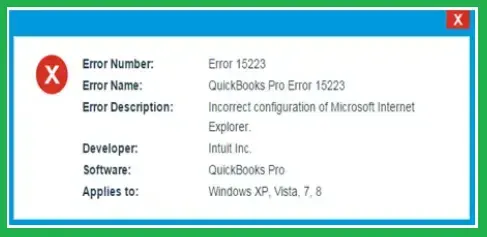
In this post, we have covered the major causes that trigger QuickBooks Error Code 15223 and effective troubleshooting methods to fix it.
A Quick Overview of QuickBooks Error 15223
The table highlights the key details of QuickBooks Error 15223, including its causes, symptoms, and solutions. It helps users understand the error and identify the right solution quickly.
| Category | Details |
| Error Name | QuickBooks Error 15223 |
| Error Type | Payroll Update & QuickBooks Desktop Update Error |
| Affected Versions | QuickBooks Desktop Pro, Premier, Enterprise, and Accountant. |
| Error Messages | “The QuickBooks Desktop update did not complete successfully.” or “Cannot connect to QuickBooks Desktop Payroll.” |
| Causes | Incorrect Internet Explorer settings, damaged Windows DLL files, outdated digital signature certificate, disabled QuickBooks File Copy Service (FCS), Windows Firewall or antivirus restrictions |
| Symptoms | Failed payroll updates, interrupted software updates, update errors, slow QuickBooks performance, or inability to connect to payroll services |
| Solutions | Configure Internet Explorer settings, register DLL files, clear SSL state, enable QuickBooks FCS, install the digital signature certificate, run QuickBooks as Administrator, configure Windows Firewall, or reinstall QuickBooks in Selective Startup mode. |
What is QuickBooks Error 15223?
QuickBooks Error 15223 is a part of the QuickBooks Error 15XXX series of errors that mainly occurs while trying to download the software or payroll updates. It may also appear when QuickBooks can’t verify the digital signature or establish a secure internet connection. Other factors causing this error include incorrect Internet Explorer settings, damaged Windows files, firewall restrictions, or missing DLL registrations.
Common Symptoms You Notice When QuickBooks Error Code 15223 Occurs
The following are the signs and symptoms that will help you identify that your system is encountering QuickBooks Error Code 15223. Let’s learn about them to find the right troubleshooting method to fix it.
- QuickBooks Desktop may fail to download the latest updates.
- Unable to install the latest QuickBooks payroll updates.
- You may get an error message on the screen when Error 15223 occurs.
- QuickBooks programs close unexpectedly during payroll updates.
- This error may prevent you from downloading the latest payroll tax table update.
What are the Possible Causes That Lead to QuickBooks Update Error 15223?
Let’s find out the major causes that trigger QuickBooks Update Error 15223 to fix the issue efficiently.
- Corrupted Windows files or damaged DLL files can interrupt the verification process during payroll update.
- Internet Explorer settings aren’t configured properly.
- Using an outdated version of Internet Explorer for digital signatures.
- Windows Firewall or the security software is blocking the update process.
- Another major reason is running QuickBooks without admin rights, which is preventing the application from installing system updates.
- QuickBooks File Copy Service is disabled.
Prerequisites Before Fixing QuickBooks Update Error 15223
Before applying the troubleshooting steps to address QuickBooks Update Error 15223, keep the following points in mind.
- Create a backup company file to protect your company data.
- Make sure that you have updated QuickBooks to the latest released version.
- You must log in as an administrator to run the updates.
- Also, ensure that you are running the latest Windows operating system.
- Verify that you are running a stable and uninterrupted internet connection.
- Temporarily disable the third-party antivirus software that’s interrupting the payroll update process.
How to Fix Error Code 15223 in QuickBooks With Effective Solutions?
If you’re experiencing QuickBooks Error 15223 while downloading payroll updates or updating QuickBooks, implement the following solutions given below. After completing each method, reopen QuickBooks and check whether the update installs successfully.
Method 1: Configure Your Internet Explorer Settings
Misconfigured Internet Explorer settings are one of the major reasons that trigger QuickBooks Payroll Error Code 15223 because QuickBooks uses Internet settings to connect with Intuit’s servers. Here’s what to do to correct the Internet Explorer settings.
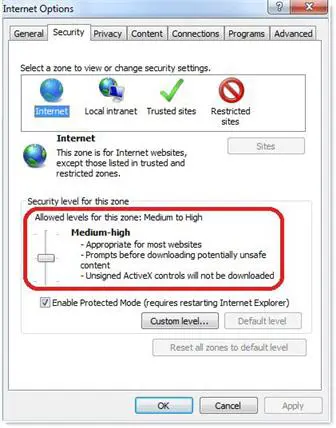
- Initially, launch Internet Explorer and click the Gear icon.
- Choose the Internet Options and head to the Advanced tab.
- Right below the Security section, look for Use TLS 1.0, Use TLS 1.1, and Use TLS 1.2, which are marked.
- Tap on Apply and then the OK tab. Then, retry the update process.
- If you are still getting the error, uninstall and install QuickBooks Desktop in Selective Startup.
Method 2: Register .dll files
Corrupted or unregistered Windows DLL files can prevent QuickBooks from verifying update files, resulting in Error Code 15223 in QuickBooks.
- Initially, hit the Windows logo key and open the Run window.
- After that, copy the following path: “regsvr32 /s %SystemRoot%\system32\softpub.dll.”
- Now, paste them into the blank field in the Run window and hit the OK tab.
- If you don’t get any messages, it means that the file was registered successfully. Whereas, if you get a message, verify that you have copied the register file exactly as it displays.
- Repeat the first step again and copy the following “regsvr32 /s %SystemRoot%\system32\WinTrust.dll.”
- Repeat the 3rd and 4th steps again. If you are still receiving the error message while registering 1 or both the files, it indicates that the issue is with your system.
Method 3: Clear the Internet Explorer SSL State
An outdated or corrupted SSL cache may interfere with secure communication between QuickBooks Desktop and Intuit’s servers. Perform the following steps to clear the Internet Explorer’s SSL state.
- Launch Internet Explorer and from there click the Gear icon.
- Choose the Internet Options and head to the Contents tab.
- After this, hit the Clear SSL State option.
- Relaunch your computer, open the QuickBooks software, and try downloading the updates.
Method 4: Uninstall and Reinstall QuickBooks Desktop in Selective Startup
If the issue isn’t resolved, try reinstalling QuickBooks Desktop in Selective Startup mode.
Step 1: Switch to Selective Startup
- Initially, launch the Run window and type “msconfig” in the search console.
- Go to the General tab and choose the Selective Startup and Load System Services.
- When you are in the Services tab, hit the Hide All Microsoft Services.
- Move to the Disable All option and unmark the “Hide all Microsoft Services” option.
- Click the Windows Installer from the services list and click OK.
- From the System Configuration window, choose the Restart option.
Step 2: Uninstall or install QuickBooks Desktop
- Reinstall the QuickBooks Desktop application.
- After this, launch the Run window and type “msconfig” in the search console.
- When you are in the General tab, click the Normal Startup option.
- Hit the OK tab and choose the Restart option from the System Configuration window.
Method 5: Download the QuickBooks Updates as an Administrator
Insufficient administrative rights may also prevent users from downloading the QuickBooks payroll updates. So, to fix the issue, you need to install QuickBooks updates as an administrator.
- Exit from the QuickBooks Desktop and your company file.
- Now, search for the QuickBooks icon, right-click on it, and choose Run as Administrator.
- After this, click Yes from the message stating “Do you want to allow this program to make changes to your computer?” Then, try to download the latest QuickBooks Desktop or payroll updates.
- If the error 15223 QuickBooks exists, then try another solution.
Method 6: Get the Digital Signature Installed on QuickBooks Desktop
If the digital signature certificate is missing or outdated, QuickBooks may fail to verify update files, resulting in QuickBooks Payroll Update Error 15223. Use the following instructions to download the Digital Signature installed on QuickBooks Desktop.
- Launch the Windows File Explorer and head to C:\ProgramFiles\Intuit\QuickBooks folder.
- After this, search for the QBW32.exe file and right-click on it.
- Click the Properties option and hit the Digital Signatures.
- Verify that the Intuit is chosen from the list of signatures.
- Now, hit the Details tab to access the Digital Signature Details window.
- Head to the View Certificate option and click Install Certificate in the Certificate window.
- Hit the Next option until the Finish option is displayed.
- Now, hit the Finish tab again and then relaunch your computer.
Method 7: Enable the QuickBooks File Copy Service
Intuit QuickBooks File Copy Service is used to initiate and execute the update process. But, if this service is disabled, then you won’t be able to run the QuickBooks or payroll updates. Undertake the following steps to enable the QuickBooks FCS service.
- Firstly, open the Run window and insert COMPMGMT.MSC .
- After this, hit the OK tab, and it will open the Computer Management window.
- Click the Service and Applications, and then hit the Services option.
- Look for the Intuit QuickBooks FCS from the options available and double-tap on it.
- Head to the Startup Type, select Manual > Apply, and click the OK tab.
Method 8: Configure the Windows Firewall Settings
Windows Firewall is a security application that blocks access to unknown threats and applications. So, to download the payroll updates, add Windows Firewall as an exception in QuickBooks.
Quick Troubleshooting Checklist To Prevent QuickBooks Desktop Error 15223
To avoid occurring the QuickBooks Desktop Error 15223 in future,
- Ensure that you are running a stable internet connection.
- QuickBooks is running with proper admin rights.
- You have installed the latest Windows version.
- Required DLL files are registered.
- Internet Explorer TLS settings are enabled.
Conclusion
QuickBooks Error 15223 is a complex payroll update issue that prevents users from downloading the latest payroll tax table. Therefore, to fix the issue, run QuickBooks as an administrator, register .dll files, clear Internet Explorer’s SSL state, configure firewall settings, and run QuickBooks in Selective startup mode.
Need further guidance to fix QuickBooks Error Code 15223? Contact our BizBooksAdvice professionals.
Frequently Asked Questions
Can QuickBooks Error 15223 prevent payroll updates?
Yes, this error may prevent you from installing the latest payroll and tax table updates. However, it is necessary to fix the issue for accurate tax and employee payroll calculations.
Why does QuickBooks Error 15223 occur?
The QuickBooks Error 15223 may appear due to incorrect Internet Explorer settings, outdated security certificates, disabled file copy services, antivirus or firewall blocking QuickBooks update connections.
How do I fix QuickBooks Error Code 15223?
You can fix this error by configuring Internet Explorer settings, register required DLL files, clear SSL state, install the QB digital signature certificate and configure firewall settings.
Why can’t QuickBooks connect to payroll services?
QuickBooks fails to connect to payroll services due to incorrect internet settings, firewall restrictions, outdated security certificates, or damaged program files. These issues can trigger errors such as QuickBooks Error 15223.
About The Author

Jonathan Browns
Jonathan Brown is a trained QuickBooks professional with 10 years of experience in the accounting sector. Moreover, he is passionate about helping businesses reduce the stress of managing accounts. Also, he is proficient in assisting entrepreneurs and small business owners to use QuickBooks and enhance their accounting experience.
Recent Posts
-
What Causes & How to Fix QuickBooks Error 15223 Efficiently?
-
QuickBooks Library Files Failed: How to Fix Error 80029c4a
-
How to Fix QuickBooks Error OL-301 (Bank Connection Issue)?
-
QuickBooks Email Invoices Not Working: How to Fix It
-
How to Resolve QuickBooks Error 15214 (Step-by-Step)