


QuickBooks Journal Entry: How to Create, Edit, Reverse & Delete Entries

- By Jonathan Browns
- May 16, 2026
- Accounting
- 7 min read
A QuickBooks journal entry is used to record accounting transactions that can’t be entered through regular forms such as invoices, bills, or checks. It also helps you make adjustments, correct bookkeeping mistakes, and record entries like depreciation, accruals, or year-end adjustments, ensuring your books remain accurate.
Whether you’re using QuickBooks Desktop or QuickBooks Online, the process is straightforward once you know the right steps. In this guide, you’ll learn how to create, edit, reverse, and delete a QuickBooks journal entry, understand when you should use one, and troubleshoot some common issues along the way.
What is a Journal Entry in Accounting?
A journal entry is the process of recording a financial transaction in your accounting records using the double-entry accounting method. Every journal entry includes at least one debit and one credit, and the total debits must always equal the total credits. These entries help keep your books accurate and ensure your financial statements reflect the correct account balances.
In QuickBooks, journal entries are commonly used to record transactions that can’t be entered through standard forms, such as depreciation, accruals, year-end adjustments, loan entries, correcting accounting errors, or other accountant-recommended adjustments. Since journal entries directly affect your general ledger, they should be created carefully and only when necessary.
When Should You Use a Journal Entry?
A QuickBooks journal entry should only be used when a transaction can’t be recorded using standard QuickBooks forms, such as invoices, bills, expenses, or checks. Since journal entries directly impact your general ledger, they’re typically used for accounting adjustments or other non-routine transactions.
Here are some common situations where you should use a QuickBooks journal entry:
- Record depreciation or amortization: Enter periodic depreciation or amortization adjustments recommended by your accountant.
- Record accruals: Recognize income earned or expenses incurred before the related payment is received or made.
- Make year-end adjusting entries: Record adjustments for prepaid expenses, accrued liabilities, or other year-end accounting changes.
- Correct accounting errors: Fix transactions that were posted to the wrong account or entered incorrectly.
- Record loan transactions: Enter loan proceeds, principal repayments, or interest adjustments when needed.
- Transfer balances between general ledger accounts: Move amounts from one account to another when a standard QuickBooks transaction isn’t appropriate.
Note: Intuit recommends using QuickBooks transaction forms such as invoices, bills, checks, expenses, and bank deposits whenever possible. Journal entries are generally intended for accountant-recommended adjustments and other transactions that can’t be recorded through standard QuickBooks workflows.
Let’s Create a Journal Entry in QuickBooks Desktop [Windows & Mac]
Before you can record adjustments or other accounting transactions, you need to know how to create a journal entry in QuickBooks Desktop. Follow the steps below for both Windows and Mac:
Add a journal entry
Creating a QuickBooks journal entry in QuickBooks Desktop is simple. Just follow these steps:
- Go to the Company menu.
- Select Make General Journal Entries.
- Enter the required details for the journal entry, ensuring the total debits and credits are equal.
- Select Save or Save & Close to record the transaction.
Edit, reverse, or delete a journal entry
QuickBooks Desktop lets you update, reverse, or remove an existing QuickBooks journal entry whenever necessary. Follow these steps:
- Go to the Company menu and select Make General Journal Entries.
- Locate and open the journal entry you want to edit, reverse, or delete.
- Make the required changes based on the action you want to perform.
- To edit the journal entry, update the details, then select Save or Save & Close. When prompted, select Yes to save the changes.
- To reverse the journal entry, select the Reverse checkbox.
- To delete the journal entry, open the Edit menu, select Delete, and then click OK to confirm.
Results
Once you save, reverse, or delete a QuickBooks journal entry, your accounting records are updated automatically based on the changes you’ve made.
- New entries are posted to your general journal, and the related account balances are updated according to the debit and credit amounts.
- Reversed entries are marked with an “R” next to the journal entry number. QuickBooks creates a new entry with the debits and credits switched, dated the first day of the month following the original transaction.
- Deleted entries are removed from your accounting records, unless they’re retained as part of an audit trail.
Let’s Create a Journal Entry in QuickBooks Online and Intuit Enterprise Suite
If you’re using QuickBooks Online or Intuit Enterprise Suite, creating a journal entry is just as simple. Follow the steps below to record your transaction accurately:
Prerequisites
Before you create a QuickBooks journal entry, keep these requirements in mind to ensure the transaction is recorded accurately:
- Understand debits and credits: You should have a basic understanding of how the double-entry accounting system works.
- Balance the entry: The total amount entered in the Debits column must exactly match the total in the Credits column.
- Consult an accountant when needed: If you’re unsure which accounts should be debited or credited, seek guidance from your accountant to avoid inaccurate financial reporting.
Create a journal entry
Follow these steps to create a standard journal entry:
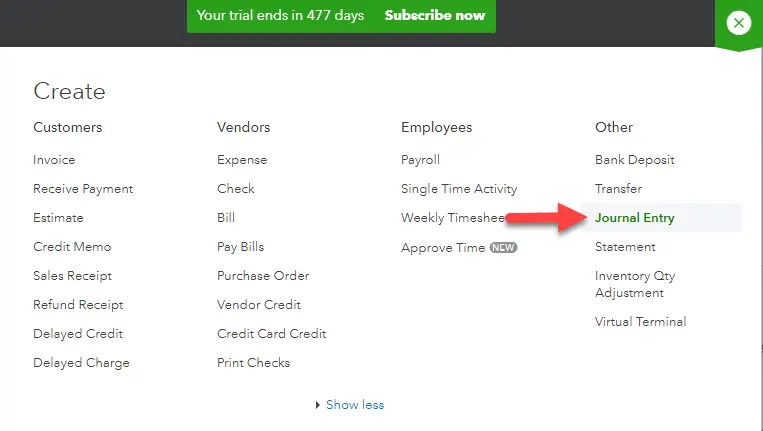
- Select + Create, then choose Journal entry.
- On the first line, select the appropriate account from the Account field.
- Enter the transaction amount under either the Debits or Credits column.
- On the next line, choose the second account involved in the transaction.
- Enter the identical amount in the opposite column (for example, if the first line is a debit, the second line should be a credit).
(Optional) Add a note in the Memo field explaining the purpose of the entry.
- Verify that the total debits and credits are equal.
- Select Save and New or Save and Close to record the journal entry.
Review your journal entries
After creating a QuickBooks journal entry, it’s a good idea to review it to ensure the transaction has been recorded correctly. QuickBooks lets you generate a Journal report that displays all journal entries posted to your accounts.
- Go to the Reports menu.
- Search for and open the Journal report.
- Review the report to verify your journal entries, including the accounts, debits, credits, and transaction details.
Common Journal Entry Issues & How to Fix Them
While creating a QuickBooks journal entry is usually straightforward, you may occasionally run into issues that prevent you from saving, editing, or recording the transaction correctly. Below are some common problems and how to resolve them:
Debits and credits don’t balance
QuickBooks won’t let you save a journal entry unless the total debits equal the total credits.
- Review each line of the journal entry.
- Make sure the total amount in the Debits column matches the total in the Credits column before saving.
Required information is missing
QuickBooks won’t let you save a journal entry unless the total debits equal the total credits.
- Review each line of the journal entry.
- Make sure the total amount in the Debits column matches the total in the Credits column before saving.
Unable to edit or delete a Journal Entry
In some cases, you may not be able to edit or delete a journal entry because it’s linked to another transaction, belongs to a closed accounting period, or you don’t have the required user permissions.
- Verify that the journal entry isn’t part of a closed accounting period.
- Check whether the entry is linked to another transaction that restricts editing.
- Make sure you’re signed in with sufficient user permissions to modify journal entries.
Journal entry doesn’t appear in reports
If your QuickBooks journal entry isn’t showing up in reports, it may be due to the report filters, date range, or because the entry wasn’t saved successfully.
- Verify that the journal entry was saved successfully.
- Adjust the report’s date range to include the transaction date.
- Review the report filters and remove any settings that may exclude journal entries.
Incorrect account was selected
Selecting the wrong account can result in inaccurate financial reports and account balances.
- Open the journal entry and confirm that each debit and credit is posted to the correct account.
- Edit the journal entry if it’s still editable, or create a reversing journal entry and record a new one with the correct accounts.
- Consult your accountant before making changes if the entry has already been reconciled or affects previous accounting periods.
Summing Up
Finally, we are at the end of this blog. We hope this guide helped you understand everything about QuickBooks journal entry, including how to create, edit, reverse, and review entries in both QuickBooks Desktop and QuickBooks Online. Recording journal entries correctly helps maintain accurate financial records and prevents accounting errors down the road.
If you have trouble creating a QuickBooks journal entry or aren’t sure which accounts to debit and credit, we recommend consulting a QuickBooks ProAdvisor. Dial Call Us : +1-866-408-0444 today to connect with a QuickBooks expert and get the assistance you need.
Frequently Asked Questions
How do I create a journal entry in QuickBooks?
To do a journal entry in QuickBooks Online, click the + New button, select Journal entry, fill out the accounts with matching debit and credit amounts, and click Save and close.
Can I edit a journal entry in QuickBooks?
Yes, you can edit an existing journal entry in QuickBooks. Simply search or locate the entry via the search icon, your Chart of Accounts register, or the journal entry history icon, open the transaction, make your updates while keeping debits and credits balanced, and click Save.
How do I reverse a journal entry in QuickBooks?
To reverse a journal entry in QuickBooks Online, open the account register from your Chart of Accounts, select the target journal entry, click Edit, and then click Reverse at the bottom of the transaction before saving your changes.
Can I delete a journal entry in QuickBooks?
Yes, you can delete a journal entry in QuickBooks. To do this in QuickBooks Online, go to your Chart of Accounts, open the account register, select the journal entry, click More at the bottom, and choose Delete.
What is the difference between a journal entry and an expense in QuickBooks?
In QuickBooks, an expense form is a user-friendly, specific tool used to record everyday day-to-day spending (like cash or credit card purchases tied to a vendor). A journal entry is an advanced, manual tool that explicitly uses debits and credits to move money between any accounts.
Why won’t QuickBooks let me save a journal entry?
QuickBooks may block you from saving a journal entry if your total debits and credits do not match, if a required field like an account or name is missing, if your browser cache is corrupted, or if your company file has minor data damage.
How do I find journal entries in QuickBooks?
To find journal entries in QuickBooks Online, run a Journal report from the left menu, use the Advanced Search tool, or click the History/Clock icon inside the Journal Entry creation screen. Click any entry in the list to open and view its full details.
About The Author

Jonathan Browns
Jonathan Brown is a trained QuickBooks professional with 10 years of experience in the accounting sector. Moreover, he is passionate about helping businesses reduce the stress of managing accounts. Also, he is proficient in assisting entrepreneurs and small business owners to use QuickBooks and enhance their accounting experience.
Recent Posts
-
9 DIY Troubleshooting Methods to Fix QuickBooks Error 15270
-
QuickBooks Data Conversion Services: Everything to Know
-
QuickBooks Point of Sale: Features, Setup, Pricing & Best Alternatives
-
QuickBooks Scheduled Backup Not Working: Common Causes & Easy Fixes
-
QuickBooks Credit Card Processing: How It Works, Fees & Benefits