


Let’s Fix QuickBooks Error 6175 With Proven Methods

- By Jonathan Browns
- Feb 25, 2026
- Accounting
- 7 min read
Users often complain about getting QuickBooks Error 6175 when the software fails to access the company file stored on a server. This issue may be triggered due to multi-user hosting, misconfigured firewall settings, or problems with the Database Server Manager.
As a result, QuickBooks company file error 6175 0 may cause the server to time out and block multi-user access. When the error strikes, you may see the following warning messages:
- “QuickBooks is trying to access the company file, but the database server is not responding.”
- “Error -6175: An error occurred when QuickBooks tried to access the company file.”
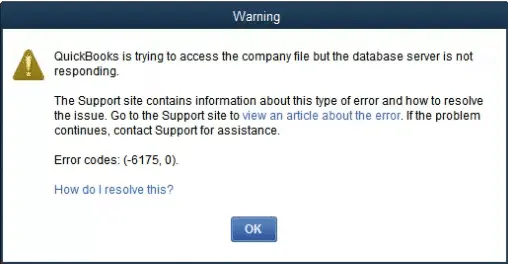
Read this comprehensive guide to understand how to fix QuickBooks Error Code 6175 0 in a few effective steps.
Facing issues while accessing your company file due to QuickBooks Error 6175? Connect with our QB professionals at Call Us : +1-866-408-0444 for quick assistance.
What are the Reasons Behind Error 6175 0 in QuickBooks Desktop?
The following are the possible causes that trigger Error 6175 0 in QuickBooks Desktop.
- Windows Firewall or third-party security software is preventing QuickBooks from connecting to your server.
- Also, it may occur when QuickBooks fails to start or stop the database service, caused by the server being busy or the service crashing.
- You have set up multiple workstations to host the company file, or if the server isn’t correctly hosting the file.
- The Database Server manager fails to open the company file.
Effective Methods to Resolve QuickBooks Desktop Error 6175
Learn what to do when you face QuickBooks Desktop Error 6175. Before proceeding further, ensure you are running the latest QuickBooks release, and your system is well-connected with a stable internet connection.
First Solution: Test Your Hosting Settings
At times, incorrect hosting settings may prevent users from accessing the company file. As a result, it may result in QuickBooks Company File error 6175. Therefore, to fix the issue, you must configure the hosting settings using these steps.
1.1: Review the Settings on Your Workstations
- Initially, access the QuickBooks on any workstations having Error H101, H303, or H505.
- After this, move to the File menu and click the Utilities tab.
- Avoid choosing the Host Multi-User Access option. Shift to the next workstation, and it is the one that is causing the issue.
- If the Stop Hosting Multi-User Access option is visible, click on it.
- Resume these steps for all workstations encountering Error 6175.
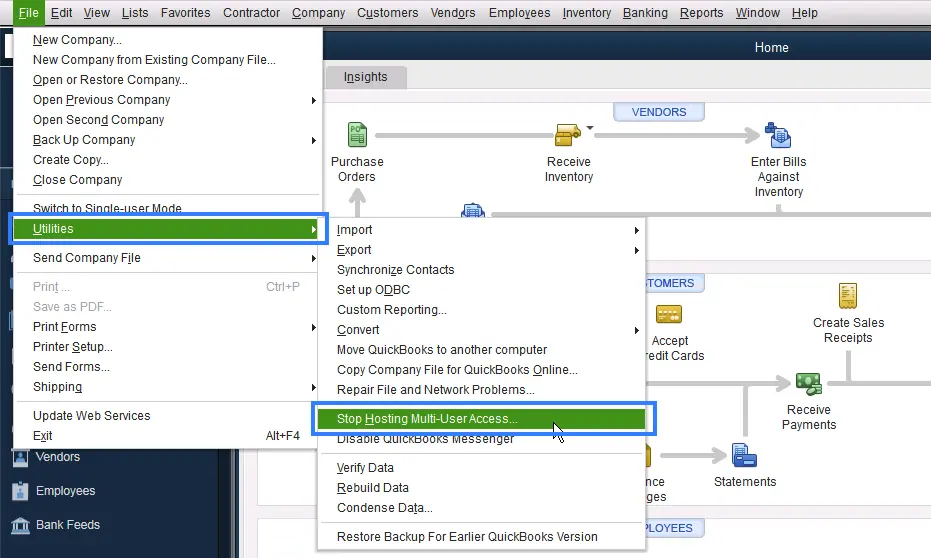
1.2: Review Your Server Settings
Perform the steps below according to your setup.
Case 1: If you have the full version of QuickBooks Desktop Installed on your server
After testing all of your workstations, skip to the server computer and then reconfigure your hosting settings.
- Launch the QuickBooks Desktop on your server computer.
- Move to the File menu and click the Utilities menu.
- Choose the Host Multi-User Access option. Resume the same step and click Stop Hosting Multi-User Access. Doing so will reset the multi-user mode.
- Finally, resume the same process once again and then choose the Host Multi-User Access option.
Case 2: If you don’t have the full version of QuickBooks Desktop installed on your server
It clearly indicates that you only have the Database Server on your server PC. You must implement these steps to scan the folder containing the data file.
- Open the Start menu on the server computer and insert Database in the search panel.
- After this, launch the QuickBooks Database Server Manager and move to the Scan Folders tab.
- Now, choose the Browse option and pick the folders containing the company file.
- Next, hit the OK tab once you are all set.
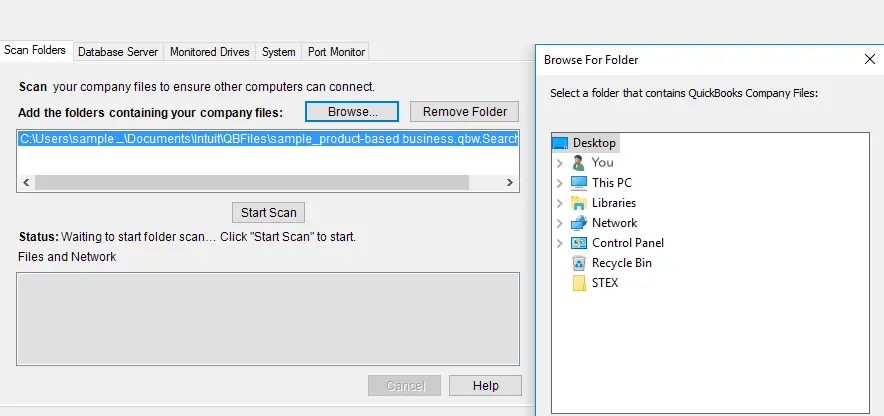
Finally, choose the Start Scan option once everything is good.
Once the scanning is over, you will find the folders within the QuickBooks company files found section. From there, you can easily get the data file from these folders located on other computers in the network.
If the error still exists, continue to the next troubleshooting step.
Solution 2: Run the QuickBooks File Doctor Tool
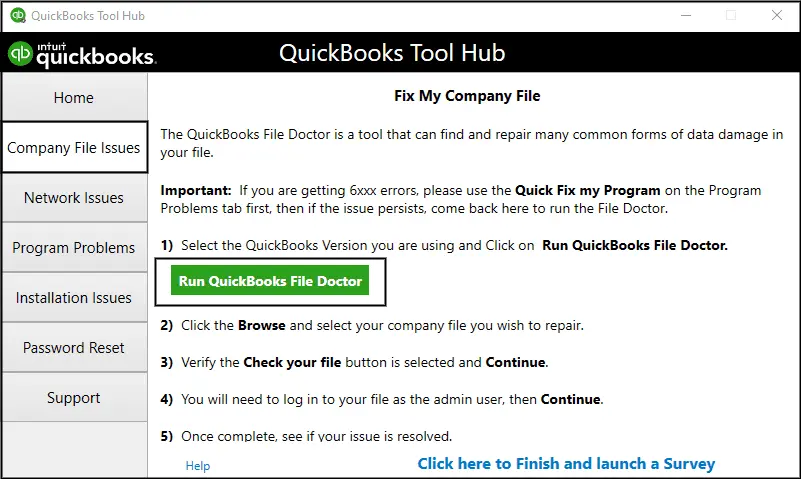
QuickBooks File Doctor is a great utility that helps to refresh your system files. So, by running the QuickBooks File Doctor Tool, you can repair the damage or corrupt files. Thus, it helps you to resolve QuickBooks Error Code 6175.
Solution 3: Review Your Hosting Settings
- Initially, you must check your Windows User Settings. If you haven’t done it previously, include QBDataServiceUser as a user having proper admin rights.
- Review your firewall settings. Herein, verify that QBW32.exe, QBUpdate.exe, QBDBMgr.exe, and QBDBMgrN.exe have proper access to go through your firewall.
Solution 4: Change the QuickBooksDBXX Service to a Local System
- Press the Windows logo key to open the Start menu and insert msc in the search panel.
- Now, right-click on the QuickBooksDBXX service and tap on Properties.
- Thereon, hit the Radio button and then click on Next.
- Choose the Apply tab and then the OK tab.
- Finally, move to multi-user mode once again.
Solution 5: Run the QuickBooks Database Server Manager & Scan For Company File
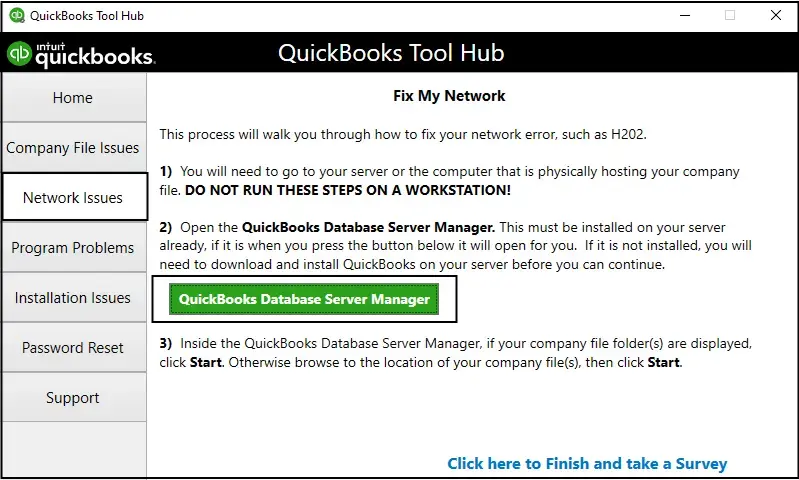
- Primarily, open the QuickBooks Tool Hub.
- From there, tap on the Network Issues tab and then hit the QuickBooks Database Server Manager option.
- Click the Scan Folders tab and pick the folders holding the data file.
- When you are done, hit the OK tab to conclude. Later on, browse to the Start Scan option.
Solution 6: Reinstall QuickBooks Desktop
If you continue facing Company file error 6175 in QuickBooks, then uninstall and reinstall QuickBooks Desktop. This will freshly install the QuickBooks Desktop and remove all the technical bugs present in the software. Thus, it makes it easier to access the company file without encountering any issues.
Final Thoughts
QuickBooks Error 6175 mainly appears when the QuickBooks Desktop fails to open the company file because the database server manager isn’t working appropriately. We hope that by performing the above solutions, you can easily address the issue and resume with your business operations without any hindrance.
If you still require any additional help, then communicate with our BizBooksAdvice professionals for quick resolution.
Frequently Asked Questions (FAQ’s):-
Question 1: What is QuickBooks Error Code 6175 0?
Ans. The QuickBooks Error 6175, 0 may appear when QuickBooks Desktop fails to communicate with the database server hosting the data file. This error mainly occurs in multi-user mode when the server cannot respond or due to misconfigured hosting settings.
Question 2: Does QuickBooks Enterprise 2023 show Error 6175 0?
Ans. Yes, the QuickBooks Enterprise 2023 users may also get the Error 6175 0 QuickBooks. It may happen when the database server manager doesn’t match, server services are stopped, or due to misconfigured multi-user hosting.
Question 3: How to fix error code 6000 in QuickBooks?
Ans. QuickBooks Error 6000 is mainly related to network-related issues and can occur while opening the data file stored on a local computer. So, to fix the issue, check the file path and verify that the company file name is correct.
About The Author

Jonathan Browns
Jonathan Brown is a trained QuickBooks professional with 10 years of experience in the accounting sector. Moreover, he is passionate about helping businesses reduce the stress of managing accounts. Also, he is proficient in assisting entrepreneurs and small business owners to use QuickBooks and enhance their accounting experience.
Recent Posts
-
9 DIY Troubleshooting Methods to Fix QuickBooks Error 15270
-
QuickBooks Data Conversion Services: Everything to Know
-
QuickBooks Point of Sale: Features, Setup, Pricing & Best Alternatives
-
QuickBooks Scheduled Backup Not Working: Common Causes & Easy Fixes
-
QuickBooks Credit Card Processing: How It Works, Fees & Benefits