


QuickBooks Error 15212: Causes & How Can You Fix It

- By Jonathan Browns
- Oct 19, 2026
- Accounting
- 7 min read
QuickBooks Payroll Update errors can be frustrating, especially when you encounter QuickBooks Error 15212 while processing payroll. This is an update error that occurs when QuickBooks Desktop cannot access the shared download location or required update files. It may prevent payroll or software updates from completing successfully. Also, it is caused by incorrect shared download settings, insufficient drive space, or restrictive firewall or antivirus settings. Often, this error is displayed with any one of the following warning messages indicating;
| The payroll update did not complete successfully. Please try again. You must successfully download the update by the deadline displayed in the Get Updates window. |
| The QuickBooks update did not complete successfully. |
| The payroll update did not complete successfully. The location for the shared download is not accessible. |
In this comprehensive blog, we will walk you through the causes and the simplest ways to troubleshoot QuickBooks Error Code 15212.
What Does QuickBooks Error 15212 Mean?
QuickBooks Error 15212 is part of the 15XXX series of update errors. It generally occurs when QuickBooks Desktop cannot access the files or locations required to download or install a payroll or software update. However, this issue may also occur because of incorrect mapping of the Shared download drive, missing update components, firewall restrictions, disabled QuickBooks File Copy Service, or digital signature verification issues.
Signs That You Are Experiencing Error 15212 in QuickBooks
With the help of the following signs and symptoms, you can identify the occurrence of Error 15212 in QuickBooks.
- Failure to install the latest QuickBooks Payroll updates.
- You may notice that QuickBooks says the Shared Download location isn’t accessible.
- Also, you may face issues while trying to install the latest payroll tax table update.
- QuickBooks starts displaying a 15XXX update error.
- In other instances, you may notice that the payroll update remains incomplete.
- QuickBooks can’t access the required update files.
Why do users experience Error 15212 in QuickBooks Desktop?
The following are the major reasons why you end up with Error 15212 in QuickBooks Desktop.
- If the file or component required for downloading payroll updates is missing.
- Windows Firewall is interrupting payroll updates in QuickBooks Desktop.
- The QuickBooks File Copy Service is disabled.
- You haven’t installed the Digital Signature Certificate for QuickBooks properly.
- When the Windows operating system files are damaged.
- Internet Explorer settings aren’t configured properly.
Things to Check Before Fixing Error Code 15212 in QuickBooks
The following are the key points that you must consider for fixing the QuickBooks Error Code 15212 easily.
- Create a backup of the QuickBooks company file.
- Make sure you have Windows administrator access to install or update QuickBooks.
- Verify that your system is well-connected with a stable and steady internet connection.
- Also, ensure that you are using the supported QuickBooks Desktop version.
How to fix the Error 15212 in QuickBooks With These Proven methods?
After identifying the root causes, let’s explore the troubleshooting methods to fix Error 15212 in QuickBooks.
Method 1: Download the updates as an Administrator
Users often fail to download the latest payroll tax table updates in QuickBooks due to a lack of admin rights, which causes Payroll Update Error 15212. So, to fix the issue, try downloading the updates as an admin user. Follow the step-by-step instructions to download as an administrator.
- Before beginning the process, make sure that your company files and QuickBooks Desktop are closed.
- Afterward, locate and right-click on the QuickBooks icon. Then, hit Run as Administrator from the expanded list of options.
- When you get the message “Do you want to allow this program to make changes to your computer?”, hit the Yes option.
- Once the process is complete, download the latest QuickBooks Desktop product updates and the latest payroll tax table update.
Method 2: Remap the Shared Download Drive
If the shared download location isn’t mapped correctly or become inaccessible, then remapping the network drive can help QuickBooks access the required update files.
- Move to the Start menu and click the “This PC” option.
- Head to the More(…) and choose the Map Network Drive option.
- Choose the drive letter in Drive, and you will see the following options;
- Mention the complete path of the folder you are trying to map.
- Make sure to add only the path of the computer file hosted from, and click Browse to locate the file in the folder.
- After this, hit the Reconnect Sign-In option to verify if the Drive app is updated every time you log in to your computer.
- Tap on the Finish option to complete the process.
Method 3: Using the Quick Fix My Program From the Tool Hub
Sometimes, processes running in the background may interrupt while downloading the latest QuickBooks payroll updates. Quick Fix My Program closes background processes and performs a quick repair of the QuickBooks program. It can help resolve program-related issues that interfere with updates.
- To begin the process, first download and install the latest version of QuickBooks Tool Hub.
- After this, head to the Program Problems tab.
- Choose the Quick Fix My Program option.
If the error continues, use the following steps;
- Initially, move to the C:\ ProgramData \ Intuit \ QuickBooks XX \ Components.
- After this, right-click on Components and click the Delete option.
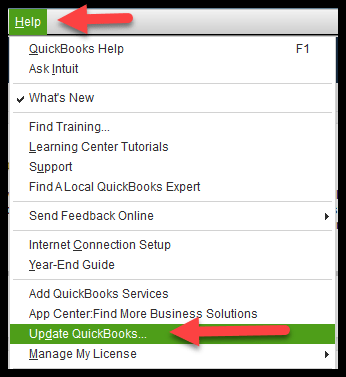
- Launch QuickBooks Desktop, head to the Help menu > Update QuickBooks Desktop.
- Choose Update Now and circle the Reset Update checkbox.
- Click the Get Updates option. After completing the download, exit and relaunch QuickBooks Desktop.
- Tap on the Overview option and hit the Update Now option.
Method 4: Install a Digital Signature Certificate
QuickBooks uses a digital signature to verify that its executable and update components are authentic. If the certificate is missing, invalid, or can’t be verified then it may interrupt the update process. Therefore, reinstalling or verifying the Intuit digital certificate can help restore the update process and fix the issue.
- Firstly, browse to C:\Program Files \ Intuit \ QuickBooks.
- Now, right-click on the QBW32.exe file and click the Properties option.
- Choose the Digital Signature and ensure that Intuit is chosen from the signature list.
- Hit the Details tab and click View Certificate from the Digital Signature Details window.
- Afterwards, tap on Install Certificate and click Next until the Finish option is displayed. Then, tap on the Finish option.
- Relaunch your computer, open QuickBooks, and then try to download the QuickBooks Desktop or payroll update again.
Method 5: Run the QuickBooks Install Diagnostic Tool To Repair QuickBooks
The QuickBooks Update Error 15212 may also be caused by installation issues. So, to fix the issue, run the QuickBooks Install Diagnostic tool and address the installation issues easily.
Method 6: Enable the QuickBooks Desktop File Copy Service (FCS)
QuickBooks File Copy Service (FCS) supports the downloading and copying of files needed for QuickBooks updates. If the service is disabled or isn’t functioning correctly, QuickBooks may be unable to complete the update.
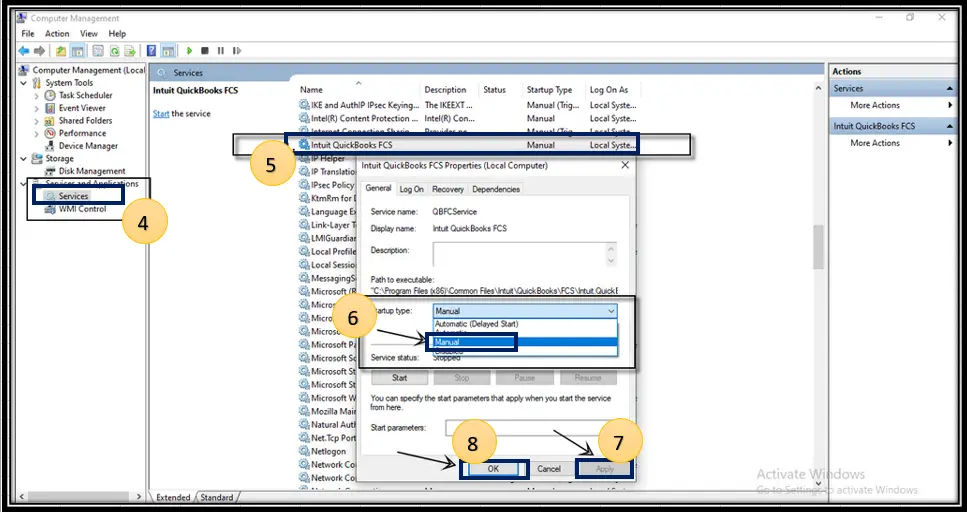
- Press the Windows + R keys to launch the Run window.
- In the search field, type COMPMGMT.MSC and click OK.
- This will open the Computer Management window, and then choose Services and Applications.
- Select the Services checkbox.
- Locate the Intuit QuickBooks FCS and then double-tap on it.
- Choose the Startup Type and click Manual.
- When the changes are done, select Apply and then OK.
Method 7: Reinstallation of the QuickBooks Desktop
If the above solutions don’t help, fix the QuickBooks Error Code 15212 by
reinstalling QuickBooks Desktop. This will remove the technical glitches from the QuickBooks software and let you download the latest QuickBooks payroll updates again.
Conclusion
QuickBooks Error 15212 usually prevents QuickBooks Desktop from accessing or completing update files. Therefore, by checking the shared download location and running QuickBooks as an administrator you can fix the issue.
If the issue persists, reset the update, verify the File Copy Service, and use QuickBooks Tool Hub or a clean installation as advanced troubleshooting steps.
Frequently Asked Questions
What does QuickBooks Error 15XXX series signify?
The QuickBooks Error 15XXX series reflects a payroll or software update failure. These errors mainly occur when QuickBooks fails to verify the digital signature of a downloaded file or when firewall/network restrictions prevent access to payroll servers
How do I reset the QuickBooks Desktop update?
To reset the QuickBooks Desktop update, use these steps.
- Launch QuickBooks Desktop and move to the Help menu.
- Choose the Update QuickBooks Desktop and click the Update Now tab.
- Circle the Reset Update checkbox.
How to prevent the QuickBooks Payroll Update Error 15212?
To avoid the QuickBooks Payroll Update Error 15212;
- Make sure to keep QuickBooks Desktop up-to-date.
- Always ensure you run QuickBooks as an administrator.
- Back up the QuickBooks company files to prevent data loss.
About The Author

Jonathan Browns
Jonathan Brown is a trained QuickBooks professional with 10 years of experience in the accounting sector. Moreover, he is passionate about helping businesses reduce the stress of managing accounts. Also, he is proficient in assisting entrepreneurs and small business owners to use QuickBooks and enhance their accounting experience.
Recent Posts
-
QuickBooks Error 15212: Causes & How Can You Fix It
-
How to Recover Deleted Invoice in QuickBooks - Online & Desktop
-
How to Fix QuickBooks Invoice Payment Error (A Complete Guide)
-
9 Proven Ways to Fix QuickBooks Migration Error-1009
-
QuickBooks Error 401 Authentication Error: Complete Fix Guide