


QuickBooks Desktop 2024: New Features, Updates & More

- By Jonathan Browns
- Nov 25, 2025
- Accounting
- 7 min read
As a new QuickBooks user, it’s common to wonder which version is right for you, how updates are delivered, and what the installation process looks like. To make things easier, we’ve created a complete guide that answers all these questions and more.
Intuit QuickBooks Desktop 2024 is the latest release, bringing a range of new features, enhancements, and performance improvements. Whether you’re upgrading from an earlier version or installing QuickBooks for the first time, this guide will walk you through everything—new feature updates, how releases are delivered, subscription changes, installation steps, system requirements, and more.
Explore this detailed blog to get a clear understanding of what’s new in QuickBooks Desktop 2024 and how to get started effortlessly.
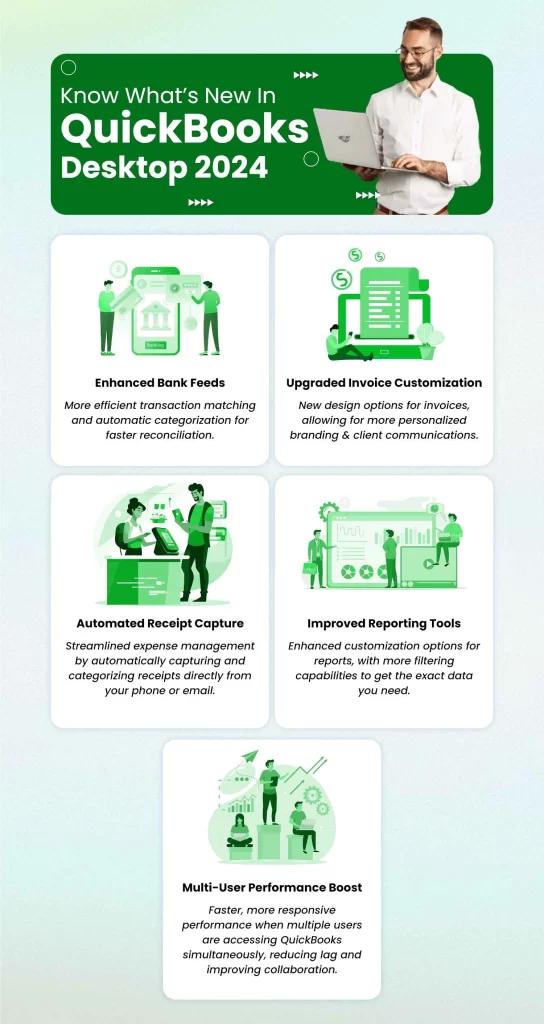
New Features & Release Notes for QuickBooks Desktop 2024 (R11 – R16)
Intuit has revamped its release process, so you no longer need to wait for the annual release to get improvements and enhancements.
Now, you will receive an update message within QuickBooks Desktop to install them as soon as they’re available. Just accept the notification and enjoy the advanced features and improvements.
Below is a list of recent release notes and improvements you will receive within QuickBooks Desktop Enterprise 2024:
1. Release 16 (R16_34) 9/9/2025
a. Invoice Profitability Report
The invoice profitability report shows the exact profit generated from a single invoice or transaction, allowing businesses to see which sales are the most and least profitable. Because this report is at the transaction level, it can support pricing, cost management, and customer prioritization.
b. Email Enhancement
Now you can set your customer contacts as the default email recipients for your transactions, avoiding the need to enter their details each time. The last used email address will be automatically saved for your email recipient for that transaction.
2. Release 15 (R15_34) 5/20/2025
a. Use alternate vendors in QuickBooks Enterprise Solutions
Especially if you work with multiple vendors, keeping track of prices and lead times can be difficult. You can use the Alternate Vendors feature in QuickBooks Enterprise Solutions to match vendor items to your inventory, and easily compare and select vendors.
b. Manage Enhanced Inventory Receiving
Now, to simplify inventory accounting, keep track of bill receipts by creating an inventory offset liability account using a feature available exclusively for enterprises.
c. Email sales forms, invoices, and statements in QuickBooks Desktop
Just open the transaction window to quickly select the appropriate contact email, eliminating the need to look up email addresses.
3. Release 13 (R13) 2/25/2025
a. Item profitability report (QuickBooks Desktop Enterprise only)
You can now compare quantity sold, cost, sales price, and planned vs. actual markup and margin in one view.
b. Custom field improvements (QuickBooks Desktop Enterprise only)
You can now filter reports using text or drop-down lists. We’ve also improved error handling for custom fields to prevent invalid data from being entered or filtered. For example, entering a date in a number-type custom field or filtering by a number in a date custom field.
c. System configuration settings
You can go to Help and select System Configuration to adjust Windows system settings from within QuickBooks Desktop.
d. Search in reports
At the top right of any report, you’ll see a Look for field. You can select this field and enter any text or number to find specific info in a report.
4. Release 11 (R11_20) 11/21/2024
a. Inventory Turnover Report
Add or remove the columns you want to see and filter the Inventory Turnover report by any of these columns to see only the data you need.
b. Improved Landed Cost Calculator
The Landed Cost Calculator has been improved to be more user friendly.
c. Find entries in lists faster
Use the new Search field in any list to find entries faster.
What are the System Requirements of QuickBooks Desktop 2024?
Whether it’s QuickBooks Desktop/Online or any other software/mobile application, each requires specific requirements to ensure seamless, uninterrupted functioning. These requirements include hardware, software, an operating system, and even a browser to run web-based operations. Make sure your system meets the minimum system requirements for QuickBooks Desktop 2024 before you proceed with installing or running accounting processes.
Subscription Plans of Latest Version 2024 of QuickBooks Desktop
Since Intuit officially ended QuickBooks Desktop Pro 2024 and Premium subscriptions, the sole version offered today is QuickBooks Desktop Enterprise, with various subscription options.
Now, let’s review the current QuickBooks Desktop 2024 pricing options for the software and choose the plan that best aligns with your business needs:
| Gold $1768/ 1st year* Annual Subscription** | Platinum $217360/ 1st year* Annual Subscription** | Diamond $429120/ 1st year* Monthly Subscription** |
| QuickBooks Desktop Enterprise software | ✓ | ✓ |
| Up to 30 users with custom roles and permissions | ✓ | Up to 40 users with custom roles and permissions |
| Advanced Reporting | ✓ | ✓ |
| QuickBooks Priority Circle | ✓ | ✓ |
| QuickBooks Desktop Enhanced Payroll (+ up to $3/employee per month)** | ✓ | ✓ |
| Advanced Inventory | ✓ | |
| Bill & PO workflow approvals | ✓ | |
| Intercompany transactions | ✓ | |
| QuickBooks Time Elite (+$10 $5/employee per month)** |
How to Perform QuickBooks Desktop 2024 Download and Install It?
It is a straightforward process to download QuickBooks Desktop 2024 and install it, but it’s important to follow each step carefully to avoid installation errors or data issues. Don’t forget to activate the software to get started and receive the security patches and updates, ensuring optimal performance.
Conclusion
QuickBooks Desktop 2024 continues to enhance productivity with improved features, updated subscription options, and smoother installation processes. With this guide, you now have a clear understanding of what’s new and how to get started seamlessly.
If you need additional support or personalized guidance, the QuickBooks ProAdvisors at BizBooksAdvice are ready to help. Dial toll-free number (+1-866-408-0444) to speak with an expert today!
Frequently Asked Questions (FAQ’s)
1. Does QuickBooks have a Desktop version for 2024?
No, you can no longer buy new subscriptions for QuickBooks Desktop Pro or Premier in the US, as sales ended on September 30, 2024. Existing subscribers can still renew, and QuickBooks Desktop Enterprise is still available for purchase, but new customers are encouraged to switch to QuickBooks Online.
2. Is QuickBooks Desktop being phased out?
Yes, QuickBooks Desktop is being phased out, as Intuit has stopped selling new subscriptions for most QuickBooks Desktop products after September 30, 2024. And the QuickBooks Desktop Enterprise will also be discontinued gradually over the years. The final version of QuickBooks Desktop 2024 will end support in 2027.
3. How do I upgrade QuickBooks Desktop to 2024?
To upgrade QuickBooks Desktop to 2024, you will need to subscribe to the 2024 version and back up your company file first, then either use the built-in Discovery Hub or QuickBooks Desktop Manager to download and install the new version.
4. What is the annual fee for QuickBooks Desktop?
The annual fee for QuickBooks Desktop varies depending on the subscription you choose, such as $1768 for the Gold version, $217360 for Platinum, and $429120 per month for Diamond. It is best first to compare the prices and needs of your business, then choose the one that suits you better.
5. Can you buy QuickBooks Desktop without a subscription?
No, you cannot purchase QuickBooks Desktop without a subscription. However, you can get a 30-day free trial. To access all the software’s features and use them for business management, you will need a valid QuickBooks Desktop subscription.
About The Author

Jonathan Browns
Jonathan Brown is a trained QuickBooks professional with 10 years of experience in the accounting sector. Moreover, he is passionate about helping businesses reduce the stress of managing accounts. Also, he is proficient in assisting entrepreneurs and small business owners to use QuickBooks and enhance their accounting experience.
Recent Posts
-
QuickBooks Error 6131, 0 When Opening a Company File? Try These Fixes
-
QuickBooks Unscheduled Payroll Check: Step-by-Step Guide for 2026
-
QuickBooks Inventory Tracking: Setup, Manage & Monitor Stock
-
QuickBooks Company File Not Found: Top 7 Ways to Restore File Access
-
QuickBooks Won’t Open: Desktop, Online & Mobile Application