


QuickBooks Payroll Tax Table Update: Download, Install, & Troubleshoot

- By Jonathan Browns
- Sep 23, 2026
- Accounting
- 7 min read
A QuickBooks payroll tax table update is required to keep your payroll calculations updated according to the latest federal and supported state taxes, withholding tables, and payroll forms. QuickBooks Desktop Payroll users need to download and install the latest tax table update manually, and Online Payroll users get the updates automatically.
In this guide, we have provided step-by-step instructions to install the latest payroll tax table update, as well as troubleshooting methods to fix the payroll tax table not updating issue.
What is a QuickBooks Payroll Tax Table Update?
A payroll tax table update contains changes that QuickBooks needs to calculate payroll taxes correctly. Depending on the release, an update may include changes to federal or state withholding tables, payroll tax calculations, tax forms, and e-file or e-pay functionality.
QuickBooks Desktop users need to install the payroll updates whenever they are released. Also, you must have an active payroll subscription to update the payroll tax table.
Why Is It Essential To Install QuickBooks Payroll Tax Table Update?
The latest QuickBooks payroll tax table update will provide you with up-to-date, accurate tax rates. Also, it helps users calculate state and federal taxes and payroll tax forms accurately. You need an active QuickBooks Desktop Payroll subscription to update your tax table.
What’s Included in Payroll Update 22614 (August 20,2026)?
Here we have discussed the latest QuickBooks Payroll update.
Tax Table Updates
- Idaho: New withholding tables effective 8/1/2026.
- Ohio: New withholding tables effective 8/1/2026.
Forms Updates
There are no Forms Updates in this payroll update.
Recent Payroll Updates
| Payroll Update Number | Date Released |
| 22613 | 7/16/2026 |
| 22612 | 6/18/2026 |
| 22610 | 5/25/2026 |
| 22608 | 3/31/2026 |
| 22604 | 1/22/2026 |
To verify Installed Updates
To ensure which QuickBooks payroll update you have recently installed, perform these steps.
- First, open your QuickBooks company file.
- Choose the Employees > Get Payroll Updates option.
- After that, select the Payroll Update Info tab.
How to Check Your Tax Table Version?
You can verify which QuickBooks version you have;
- Go to the Employees menu in QuickBooks.
- Choose My Payroll Service and click the Tax Table Information option.
- The first three numbers under “You are using tax table version” show your tax table version. The number that is displayed is 123343003.
Things To Consider Before Installing Latest Payroll Tax Table Update
The following are the things that you must consider for smooth installation of the QuickBooks payroll tax table update.
- Users need an active and valid QuickBooks payroll subscription to download the latest payroll tax table update.
- You must have an updated version of QuickBooks Desktop.
- An uninterrupted internet connection is required for a smooth payroll tax table update.
- Also, it is suggested to download the payroll tax table update at least 45 days before it comes into effect.
How to Check or Download the Latest Tax Table Update in QuickBooks Desktop Payroll?
Here’s what to do for downloading the QuickBooks payroll tax table update.
Check or download the latest tax table update
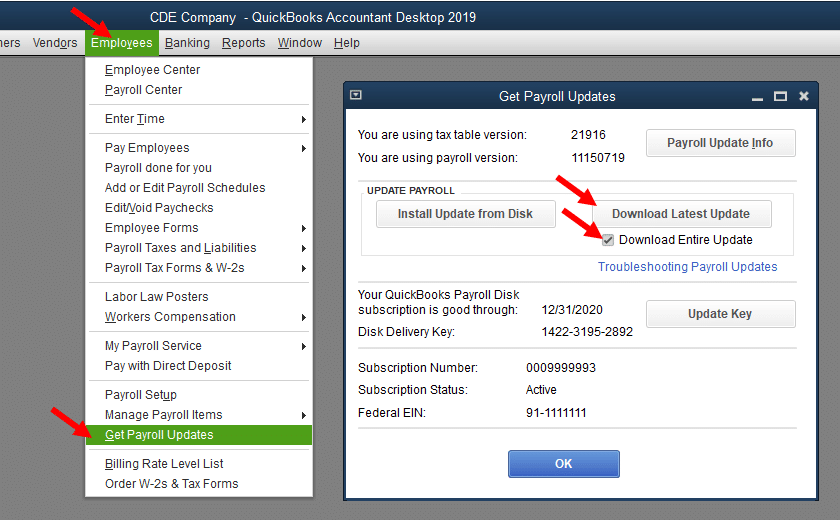
- Click on the Employees menu and choose the Get Payroll Updates option.
To detect your tax table version;
- First, verify the number beside the You are using tax table version column.
- To find out whether the version is correct, check out the latest payroll news and updates.
- To get more details on your tax table version, tap on Payroll Update Info.
To get the latest tax table:
- Navigate to the Download Entire Update option.
- Click the Update option. This will open an informational window once the download process is completed.
How to Download & Install the latest Payroll Tax table update for QuickBooks Desktop? (Canada Version)
By downloading the latest payroll tax table update in QuickBooks Desktop, you can get the most current and accurate rates to compute taxes accurately. The latest tax table version available in QuickBooks Desktop 2024 or QuickBooks Desktop Enterprise Solutions is 24.0.
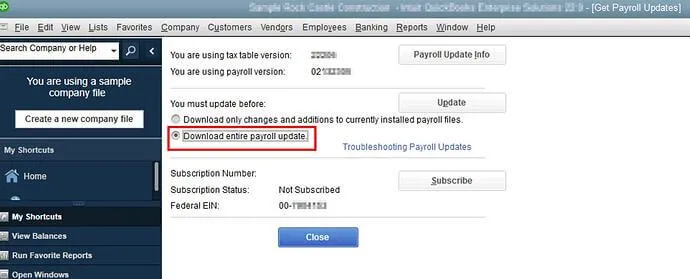
The current payroll tax table version is 123343003 on QuickBooks Desktop 2024.
- Released on: June 18, 2026
- Effective from: July 1, 2026 to December 31, 2026
Steps to Get the QuickBooks Payroll Tax Table Updates
When you subscribe to QuickBooks Payroll, you can set automatic updates so that you can easily download the latest QuickBooks payroll updates automatically.
You can download the latest payroll updates anytime in QuickBooks using the following steps;
- Choose the Update QuickBooks option from the Help menu.
- After this, click the Update Now tab.
- Browse to the Get Updates > File > Exit option.
- Once done, restart QuickBooks Desktop.
QuickBooks Payroll Tax Table Update Not Working
At times, users may experience the QuickBooks payroll tax table update not working issue due to network connectivity issues, an inactive payroll subscription, or other reasons. Below, we have stated the troubleshooting methods that will help you resolve the issue.
Method 1: Check Your Payroll Service Subscription
If your payroll subscription is inactive, you will get a message stating that your QuickBooks subscription has lapsed. To check whether QuickBooks Desktop is registered, perform the following steps;
- Open the Product Information window by pressing the F2 key.
- Now, look at the status beside the license number to verify if it displays Activated.
- After completing the registration, update QuickBooks Desktop to the latest version. Also, install the latest payroll tax table update.
Method 2: Install the Latest Digital Signature Certificate
The QuickBooks payroll tax table update not working issue may also arise when QuickBooks fails to verify the digital signature certificate.
- Browse to C:\Program Files\Intuit\QuickBooks on your computer.
- After this, right-click the QBW32.exe file and click Properties.
- Tap on the Digital Signature option and verify if Intuit is listed in the signature details.
- Select the Details option.
- Click the View Certificate option from the Digital Signature Details window.
- Now, choose the Install Certificate option and click Next unless you see the Finish option.
- After that, click the Finish option.
- Relaunch your computer, open QuickBooks, and download the update again.
Method 3: Verify Your Computer’s Date & Time
An incorrect date and time on your system might interrupt the payroll update and can cause QuickBooks payroll update errors. Perform the following steps to correct the system’s date and time.
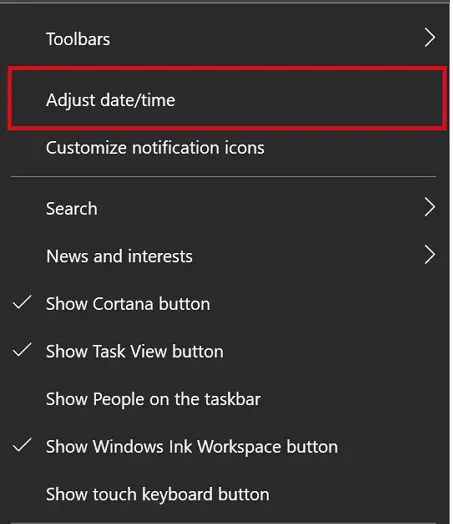
- First, right-click on your computer’s taskbar and select Adjust Date/Time.
- Choose the Change date and time option and see if the current settings are up to date.
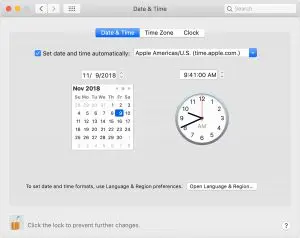
- After that, click the OK option twice to confirm and save the changes.
- Restart your computer and then try to get the QuickBooks Desktop payroll updates again.
Method 4: Repair QuickBooks Desktop
You can repair the damaged or corrupt QuickBooks components by running the QuickBooks Tool Hub.
a. Run Quick Fix My Program
The Quick Fix My Program in QuickBooks is used to close down the background running processes. Therefore, to run a quick repair on the QuickBooks program, perform these steps,
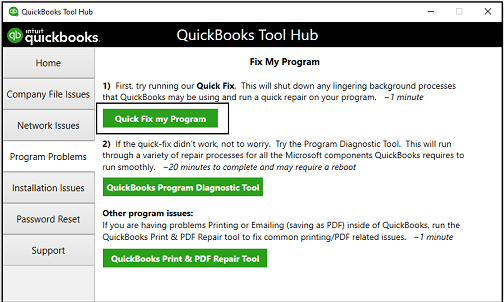
- Launch QuickBooks Tool Hub and select the Program Problems tab.
- Choose Quick Fix My Program and allow the tool to complete the repair process.
- Lastly, restart QuickBooks Desktop and launch the company file.
b. Run QuickBooks Install Diagnostic Tool
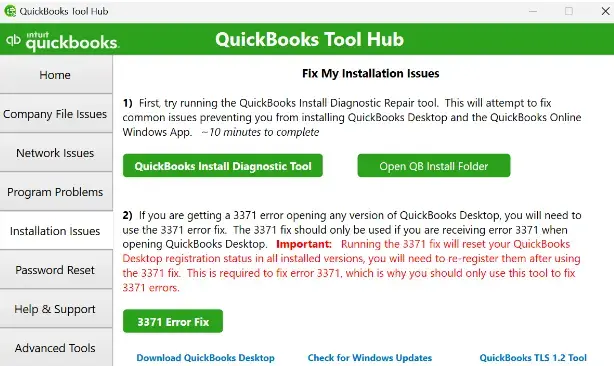
You can resolve the QuickBooks payroll tax table update not working issue by running the QuickBooks Install Diagnostic Tool.
Conclusion
Keeping your QuickBooks payroll tax table current helps ensure that QuickBooks uses the latest available payroll tax information for supported federal and state calculations. If your QuickBooks payroll tax table update is not updating, then check the installed version and confirm your payroll subscription is active. For further assistance, connect with your QuickBooks professionals for quick resolution.
Frequently Asked Questions
What is the latest QuickBooks payroll tax table update?
The latest QuickBooks Desktop Payroll update currently listed by Intuit is Payroll Update 22614, released on August 20, 2026. It includes new Idaho and Ohio withholding tables effective August 1, 2026.
How do I update the payroll tax table in QuickBooks Desktop?
Open QuickBooks Desktop and go to Employees > Get Payroll Updates. Check your current tax table version, select Download Entire Update, and then select Update to install the latest available payroll tax table.
How do I download the latest QuickBooks payroll tax table update?
In QuickBooks Desktop Payroll, select Employees > Get Payroll Updates, then choose Download Entire Update. Select Update and wait for QuickBooks to confirm that the download has completed.
How do I check my current QuickBooks tax table version?
Go to Employees > Get Payroll Updates in QuickBooks Desktop. The number next to “You are using tax table version” shows the payroll tax table currently installed.
Does QuickBooks Online Payroll need a tax table update?
No. QuickBooks Online Payroll tax tables are automatically updated, so you don’t need to manually download or install payroll tax table updates. QuickBooks Payroll Tax Table Update
About The Author

Jonathan Browns
Jonathan Brown is a trained QuickBooks professional with 10 years of experience in the accounting sector. Moreover, he is passionate about helping businesses reduce the stress of managing accounts. Also, he is proficient in assisting entrepreneurs and small business owners to use QuickBooks and enhance their accounting experience.
Recent Posts
-
Fixing QuickBooks Error 6144 82 When Opening Company File
-
How to Fix QuickBooks Error PS038: Stuck Paychecks & Payroll Update Issues
-
QuickBooks Payroll Tax Table Update: Download, Install, & Troubleshoot
-
How to Restore QuickBooks Backup File: Step-By-Step Guide
-
Fix QuickBooks Error 15240 With 8 Troubleshooting Methods