


Record Opening Balance in QuickBooks: Step-by-Step Guide

- By Jonathan Browns
- Aug 24, 2026
- Accounting
- 7 min read
When you start using QuickBooks, your accounts may already have existing balances, such as money in your bank account, unpaid customer invoices, credit card debt, or outstanding bills from before you began using the software. To ensure your financial records are accurate, you need to Record Opening Balance in QuickBooks and enter these existing amounts correctly.
Recording the opening balance gives QuickBooks a starting point. It helps your account register begin with the correct amount so that future transactions can be tracked accurately.
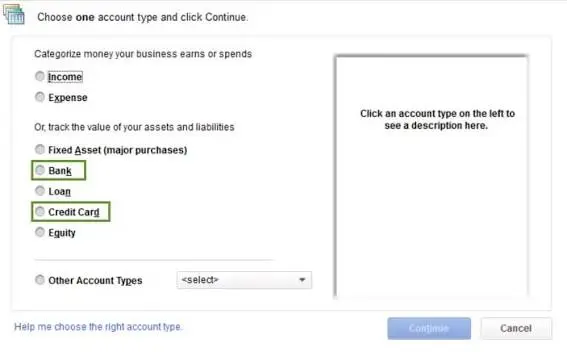
The process can vary depending on the account you are setting up and the version of QuickBooks you use. Below, we explain how opening balances work and how to record or correct them in QuickBooks.
What Is an Opening Balance in QuickBooks?
An opening balance is the amount that was already in an account on the day you started tracking that account in QuickBooks.
For example, suppose your business checking account had $8,500 on January 1, the date you began using QuickBooks. That amount would become the opening balance for the account.
QuickBooks uses this starting amount along with the transactions you enter afterward to calculate the current balance.
Depending on the account, an opening balance may apply to:
- Bank accounts
- Credit card accounts
- Asset accounts
- Liability accounts
- Other balance sheet accounts
It is important to use the correct balance and date. If the opening balance is wrong, your account may not reconcile properly later.
Before You Enter an Opening Balance
Before recording an opening balance, gather the information you need from your financial records.
You should have:
- The account statement
- The correct account balance
- The date you want to begin tracking the account in QuickBooks
- Details of any outstanding transactions, if applicable
For bank accounts, it is generally best to use a statement that gives you a clear starting balance. The date and amount you enter should match your records.
If you are switching to QuickBooks from another accounting system, make sure the opening balances you enter are consistent with your previous books.
How to Enter an Opening Balance in QuickBooks Online
When you create a new account in QuickBooks Online, you may have the option to enter the opening balance as part of the setup process.
To add an opening balance:
- Go to Settings.
- Select Chart of accounts.
- Select New to create a new account.
- Choose the appropriate Account Type and Detail Type.
- Enter the account name and other required details.
- Enter the opening balance and the date you want QuickBooks to start tracking the account.
- Save the account.
QuickBooks records the opening balance as the starting point for that account.
If you are connecting a bank or credit card account, QuickBooks may also identify an opening balance based on the information available during the connection process. Review the balance carefully before proceeding.
The opening balance should match the balance from your bank or credit card records as of the date you begin tracking transactions in QuickBooks.
How to Record an Opening Balance for a Bank Account
A bank account opening balance should reflect the amount available in the account on the starting date you choose for your QuickBooks records.
For example, if you begin using QuickBooks on July 1 and your bank account had a balance of $12,000 at the end of June 30, that amount may be used as your opening balance.
After entering the opening balance, make sure you do not enter transactions that occurred before your chosen start date unless you are also adjusting the opening balance accordingly.
Otherwise, you could duplicate transactions and cause the account balance to become inaccurate.
Once the account is set up, you can connect it to online banking and review the transactions that QuickBooks downloads.
How to Record an Opening Balance for a Credit Card
The same principle applies to credit card accounts.
Your opening balance should reflect the amount you owed on the credit card as of the date you started tracking the account in QuickBooks.
For example, if your credit card balance was $3,200 on your chosen start date, that amount should be recorded as the opening balance.
Be careful when entering older credit card transactions. Adding transactions that are already included in the opening balance can create duplicate amounts and make reconciliation more difficult.
Where Does the Opening Balance Go in QuickBooks?
QuickBooks uses an Opening Balance Equity account to offset opening balance entries in certain situations.
This account is typically used when you enter the beginning balances of accounts while setting up your company file.
For example, if you enter an opening balance for a bank account, QuickBooks needs an offsetting entry to keep your books balanced. Opening Balance Equity may be used for this purpose.
However, Opening Balance Equity should not usually remain as a long-term balance without review. Once your company setup is complete, you may need to work with an accountant to make sure the opening balances are properly allocated to the appropriate equity or other accounts.
How to Check an Existing Opening Balance
If an account balance does not look right, you can review the account history to locate the opening balance entry.
In QuickBooks Online, go to your Chart of accounts and open the account register or account history.
Look for an entry related to the opening balance. Review:
- The amount
- The date
- The account affected
- Any changes made after the original entry
Comparing this information with your bank or credit card statement can help you identify whether the opening balance is correct.
If the account has already been reconciled, use extra caution before making changes to older transactions.
How to Edit an Opening Balance in QuickBooks
If you discover that the opening balance is incorrect, review the original entry before making changes.
First, confirm the correct balance using your bank statement, credit card statement, or other financial records.
Then locate the opening balance transaction in the account register or account history.
Depending on the situation, you may be able to:
- Edit the opening balance amount
- Correct the opening balance date
- Delete an incorrect opening balance entry
- Enter an adjustment when appropriate
Before changing anything, check whether the transaction has already been reconciled. Editing a reconciled transaction can create reconciliation discrepancies.
If you are unsure about the correct adjustment, especially when the account has prior reconciliations or historical transactions, it may be best to review the records with an accountant.
How to Fix an Incorrect Opening Balance
An incorrect opening balance can affect your account balance and cause problems during reconciliation.
Here are a few steps to follow:
1. Compare the Balance With Your Statement
Find the bank or credit card statement for the date you started tracking the account in QuickBooks.
Compare the statement balance with the opening balance recorded in QuickBooks.
Make sure you are comparing balances for the same date.
2. Review the Opening Balance Entry
Open the account register or account history and locate the opening balance transaction.
Check whether:
- The amount is correct
- The date is correct
- The transaction was entered only once
A duplicate opening balance is a common reason for an account balance being incorrect.
3. Check for Duplicate Transactions
If you connected your bank account to QuickBooks, review the transactions downloaded through bank feeds.
Transactions that occurred before your chosen start date may already be included in your opening balance.
Adding them again can duplicate the activity in your books.
4. Review Reconciled Transactions Carefully
If you have already reconciled the account, do not make changes without checking how those changes will affect your reconciliation.
QuickBooks tracks changes to reconciled transactions, and altering an opening balance can create differences in future reconciliations.
5. Ask an Accountant When Necessary
If your opening balance affects multiple accounts or your Opening Balance Equity account has an unexplained balance, an accountant can help determine the correct adjustment.
This is particularly important when you are moving from another accounting system or entering historical business records.
Opening Balance and Bank Reconciliation
Your opening balance plays an important role in reconciliation.
When you reconcile an account for the first time, QuickBooks uses the existing account information to help compare your QuickBooks records with your bank or credit card statement.
If the opening balance does not match your actual starting balance, the difference can continue into future reconciliation periods.
Before your first reconciliation, check:
- The opening balance amount
- The opening balance date
- Any transactions entered before the reconciliation period
- Any duplicate bank feed transactions
Getting the starting balance right can save time when you reconcile the account later.
Common Opening Balance Problems in QuickBooks
Here are some common issues you may encounter.’
The opening balance is missing
If you did not enter an opening balance when you created the account, your QuickBooks balance may start at zero even though the account already had funds or an existing balance.
Review the account setup and historical records to determine whether an opening balance entry is needed.
The opening balance is incorrect
An incorrect amount can affect every balance that follows.
Compare the amount with the financial statement from the correct date before editing the entry.
The opening balance was entered twice
This can happen when an opening balance is entered manually, and older transactions are also imported or added.
Review the account register to identify duplicate entries.
The account will not reconcile
A reconciliation difference may occur when the opening balance, transaction dates, or historical transactions do not match your bank records.
Start by reviewing the opening balance and the first statement you are reconciling.
There is a balance in the opening balance equity
A balance in Opening Balance Equity may simply mean that opening entries were created during the company setup process.
However, once your books are established, review the account with an accountant to make sure the amounts are properly recorded.
Tips for Recording Opening Balances Correctly
A few simple checks can help avoid problems later:
- Use financial statements to verify the amount.
- Make sure the opening balance date is correct.
- Do not duplicate transactions already included in the opening balance.
- Review the account register after entering the balance.
- Be careful when editing transactions that have already been reconciled.
- Review the Opening Balance Equity after completing your initial company setup.
- Keep copies of the statements used to determine your starting balances.
Taking the time to verify the opening balance can make your future bookkeeping and reconciliation process much easier.
Summing Up
Now, we are wrapping up this guide on how to record an opening balance in QuickBooks. We have discussed what an opening balance is, how to enter or edit it, and how an incorrect balance can affect your account records and bank reconciliation.
Entering the correct opening balance gives your QuickBooks account an accurate starting point and helps keep your financial records organized. If you face any issues while recording, correcting, or reconciling an opening balance, you can consult QuickBooks ProAdvisors at Call Us : +1-866-408-0444.
Frequently Asked Questions
How do I enter an opening balance in QuickBooks?
You can enter an opening balance when creating an account or by locating and recording the appropriate opening balance entry in the account register. Use the correct balance and date based on your financial records.
What is Opening Balance Equity in QuickBooks?
Opening Balance Equity is an account QuickBooks may use to offset opening balance entries while you set up your books. After setup, the account should be reviewed to ensure the balances are properly allocated.
Can I change an opening balance after setting up an account?
Yes, you may be able to edit or correct the opening balance entry. However, review the reconciliation status first, as changing older or reconciled transactions can create discrepancies.
Why is my QuickBooks opening balance wrong?
The balance may be wrong because of an incorrect amount or date, duplicate transactions, changes to the original entry, or transactions that were entered twice.
Should my opening balance match my bank statement?
Yes, the opening balance should match the actual account balance from your financial records for the date you choose as your QuickBooks starting date.
What happens if I enter the wrong opening balance?
An incorrect opening balance can cause your account balance to be inaccurate and may create reconciliation problems. Review the original entry and compare it with your financial statement before making corrections.
Can I delete an opening balance in QuickBooks?
You may be able to delete an incorrect opening balance transaction, but first make sure it will not affect reconciled periods or other account balances. Review your records before making the change.
Do I need an opening balance for every account?
Not every account requires the same setup. However, accounts that already had a balance when you started using QuickBooks may need an opening balance so your books accurately reflect the starting financial position.
About The Author

Jonathan Browns
Jonathan Brown is a trained QuickBooks professional with 10 years of experience in the accounting sector. Moreover, he is passionate about helping businesses reduce the stress of managing accounts. Also, he is proficient in assisting entrepreneurs and small business owners to use QuickBooks and enhance their accounting experience.
Recent Posts
-
How to Fix QuickBooks Invoice Payment Error (A Complete Guide)
-
9 Proven Ways to Fix QuickBooks Migration Error-1009
-
QuickBooks Error 401 Authentication Error: Complete Fix Guide
-
How to Fix QuickBooks Freezing or Not Responding
-
Fix Your QuickBooks Online Sync Problems: A Step-by-Step Guide