


Change EIN in QuickBooks: Complete Guide for Desktop, Online & Payroll

- By Jonathan Browns
- Jul 23, 2026
- Accounting
- 7 min read
Changing your Employer Identification Number (EIN) in QuickBooks isn’t always as simple as editing a business detail. Depending on your QuickBooks version and payroll service, the steps may vary, and in some cases, you’ll need to create a new payroll account instead of updating the existing one. Using the wrong EIN can also lead to payroll tax filing issues and rejected forms.
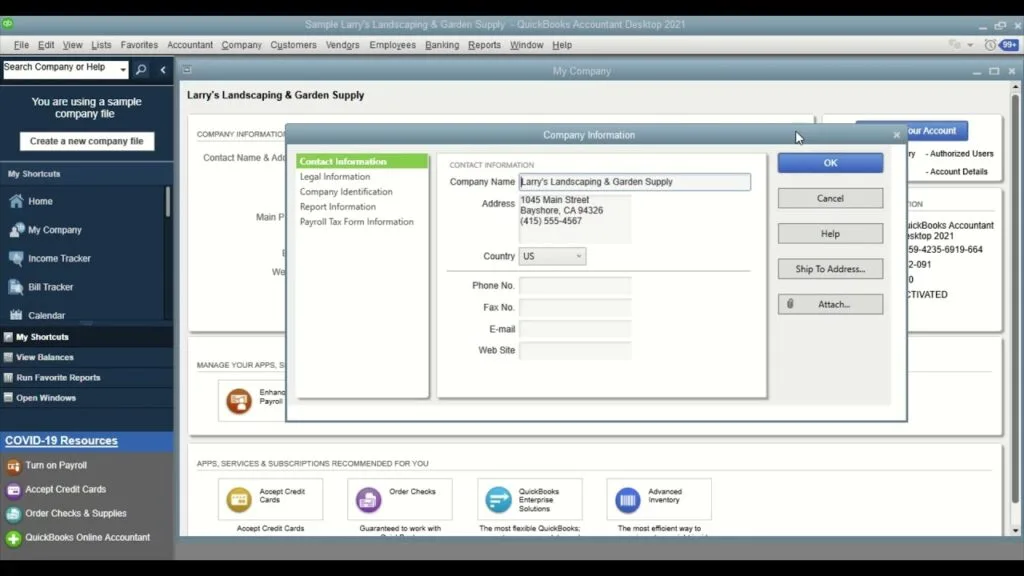
In this guide, we’ll explain when you can Change EIN in QuickBooks, when you can’t, and walk you through the correct steps for QuickBooks Desktop, QuickBooks Online, Workforce, and other payroll plans.
What is An EIN in QuickBooks Desktop?
An Employer Identification Number (EIN) is a unique nine-digit tax ID issued by the IRS to identify your business for federal tax purposes. In QuickBooks Desktop, the EIN is used to process payroll, file payroll tax forms, generate W-2s and 1099s, and maintain accurate tax records.
When you first set up payroll in QuickBooks Desktop, you’re asked to enter your EIN along with other business details. It’s important to keep this information accurate because an incorrect EIN can lead to payroll filing errors, rejected tax forms, or compliance issues.
If your business has undergone a legal change, such as a new ownership structure or a new EIN assigned by the IRS, you may need to update your EIN in QuickBooks Desktop. The process depends on whether it’s a successor or non-successor entity change and the payroll service you’re using.
Let’s Change EIN in QuickBooks Workforce and Other Payroll Plans
Changing an EIN in QuickBooks depends on the payroll service you use and the reason for the change. While some payroll plans require you to contact Intuit before making any updates, others may require you to create a new payroll account.
Below, we’ve explained how the process works for different QuickBooks payroll plans:
QuickBooks Workforce Payroll
If your business has undergone a successor entity change, contact Intuit before updating the EIN so the necessary changes can be made in their system.
For a non-successor entity change, you’ll need to create a new payroll account using the updated EIN:
- Sign in to QuickBooks using the primary admin credentials.
- From the left menu, select All apps, then go to Payroll > Overview.
If you’re using QuickBooks Workforce Elite, you can choose to have a payroll expert assist with the setup or complete it on your behalf. Simply use the Expert setup option to call or schedule an appointment.
- Click Get started to begin setting up your payroll account.
- Indicate whether you or another provider has already paid employees during the current calendar year.
- Choose the date you want to begin processing payroll through QuickBooks.
- Enter your primary business address to continue with the setup.
- Provide your physical business address, as P.O. Boxes aren’t accepted. Your work location is used to determine your payroll tax obligations.
- If your business operates from multiple locations, you can add the additional work locations later while setting up your employees.
- Enter the contact details for your primary payroll administrator.
- This is usually the person responsible for processing employee payroll and receiving payroll-related notifications from Intuit.
- Specify how you’ve managed payroll previously.
- Based on your response, QuickBooks may allow you to import employee records and payroll history instead of entering the information manually.
- Begin adding your employees. You can complete the employee setup by following the on-screen instructions.
- If you haven’t paid any employees during the current year, you can choose to issue paper checks immediately or continue with the remaining payroll setup steps.
Note: If you decide to pay employees before completing the setup, you’ll be responsible for any payroll taxes due until your payroll account is fully configured.
- If you’ve already paid employees this year, you’ll need to complete a few additional setup tasks before you can process payroll through QuickBooks.
QuickBooks Workforce Premium, QuickBooks Workforce Elite
Some of the required information depends on whether automatic tax payments and tax form filing are enabled in your Intuit QuickBooks Workforce or QuickBooks Desktop Payroll account. If you’re unsure, verify your automatic tax payment and filing settings before proceeding.
If you have automatic tax payments and filings turned on
- Download the Entity Change Packet, complete all required details, and sign the form.
- Gather the supporting documents specified in the packet.
- Email the completed packet along with the required supporting documents to EntityChanges@intuit.com.
- Once submitted, update any other business details, such as your DBA address in Settings ⚙ or your payroll contact information, if needed.
You’ll receive an email confirmation within 3–5 business days after Intuit receives your completed Entity Change Packet and supporting documents.
You can continue processing payroll as usual until a payroll specialist contacts you regarding the entity change. If you have any questions during the process, email EntityChanges@intuit.com for assistance.
If you have automatic tax payments and filings turned off
a. Update your company legal name
- Go to Settings and select Payroll settings.
- Under General tax, click Edit.
- Enter your updated Company legal name.
- Click Save, then select Done to apply the changes.
b. Update your Federal EIN
- Open Settings and navigate to Payroll settings.
- Under Federal tax, select Edit.
- Enter your new Employer Identification Number (EIN).
- Click Save, then select Done to confirm the changes.
QuickBooks Desktop Payroll Assisted
If you’re using QuickBooks Desktop Payroll Assisted, the steps for updating your EIN or legal business name are slightly different because Intuit manages payroll tax filings and payments on your behalf.
Follow the instructions below to submit your request and ensure your payroll records remain accurate:
Update your company legal name
- Download the Assisted Legal Name Change form.
- Complete the form, then sign and date it before printing.
Note: If you also need to update your Intuit Account name, select the checkbox provided below the new fax number field.
- Upload the completed form or email it to account_maintenance@intuit.com.
After the request is processed, your updated company name will automatically appear in QuickBooks Desktop the next time you run payroll.
Update your Federal EIN
- Download the Entity Change Packet, complete all the required information, and sign the form.
- Gather the supporting documents listed in the packet.
- Email the completed packet and all required supporting documents to EntityChanges@intuit.com.
Once your request is submitted, you’ll receive an email confirmation within 3–5 business days acknowledging receipt of your documents.
You can continue processing payroll until an Intuit payroll specialist contacts you regarding the entity change. For any questions about the process, email EntityChanges@intuit.com.
QuickBooks Desktop Payroll Basic, QuickBooks Desktop Payroll Standard, and QuickBooks Desktop Payroll Enhanced
If you use QuickBooks Desktop Payroll Basic, Standard, or Enhanced, you can update your legal business name or EIN directly from within QuickBooks. However, if your EIN has changed, make sure the update is reflected correctly in your payroll records to avoid issues with payroll tax reporting and filings.
Update your company legal name
- Go to Company and select My Company.
- Click Edit, then choose Legal Information.
- Enter your updated legal business name.
- Select OK to save the changes.
Update your Federal EIN
If your business has a new EIN, contact Intuit first so the change can be updated in their system.
- Go to Company and select My Company.
- Under Company Information, click Edit.
- From the left pane, choose Company Identification.
- Enter the updated EIN in the Federal Employer Identification No. field.
- Click OK to save your changes.
Summing Up
Changing your EIN in QuickBooks isn’t the same for every payroll product. Depending on the payroll plan you’re using and whether it’s a successor or non-successor entity change, you may need to update the information directly in QuickBooks, submit an Entity Change Packet, or create a new payroll account. Following the correct process helps ensure your payroll taxes, employee records, and tax filings remain accurate.
If you run into any issues while updating your EIN or legal business information, consider contacting QuickBooks Payroll Support for further assistance at Call Us : +1-866-408-0444.
Frequently Asked Questions
What is Intuit’s EIN number?
An EIN (Employer Identification Number) is a unique nine-digit number assigned by the IRS to identify a business entity. Think of it as a Social Security number for a company, used for tax reporting, hiring employees, and opening bank accounts.
Can I change my EIN in QuickBooks?
Yes, you can change your EIN in QuickBooks, but the steps depend on which version you are using and whether you process payroll.
How do I change the tax info on QuickBooks?
To change your company’s tax ID (EIN) or legal name in QuickBooks Desktop, navigate to Company > My Company on the top menu bar. Click the Edit (pencil) icon in the upper-right corner, select Company Information, update the Federal Tax ID or Legal Name, and click OK to save.
Why can’t I edit my EIN in QuickBooks Payroll settings?
You may not be able to edit your EIN in QuickBooks Payroll because it is tied to your payroll tax records. Depending on your payroll plan and the reason for the change, you’ll either need to contact QuickBooks Payroll Support or set up a new payroll account with the correct EIN.
Can I change my business name and EIN at the same time in QuickBooks?
Yes, you can update both at the same time. To do this in QuickBooks Online, go to Settings (Gear icon) > Account and Settings > Company. Select the pencil (Edit) icon in the Company Name section to edit your name and update your EIN/Tax ID.
Do I need to create a new payroll account after changing my EIN?
Whether or not you need to create a new payroll account depends on the reason for your EIN change. If your business underwent a true structural change (like a merger, incorporation, or legal name change that required a new legal entity), yes, you must set up a brand new payroll account. This is because your payroll tax history is tied to the original entity’s tax ID.
About The Author

Jonathan Browns
Jonathan Brown is a trained QuickBooks professional with 10 years of experience in the accounting sector. Moreover, he is passionate about helping businesses reduce the stress of managing accounts. Also, he is proficient in assisting entrepreneurs and small business owners to use QuickBooks and enhance their accounting experience.
Recent Posts
-
QuickBooks Enterprise Gold: Features, Pricing, and How to Choose
-
How to Customize & Download QuickBooks Online Invoice Template
-
How to Export Chart of Accounts in QuickBooks Desktop & Online?
-
How to Delete Invoice in QuickBooks Online (Step-by-Step Guide)
-
How to Fix QuickBooks Error 6000 83: Step-by-Step Guide