


QuickBooks Outlook Integration: Setup, Email Settings & Common Issues

- By Jonathan Browns
- Jul 31, 2026
- Business
- 7 min read
QuickBooks Outlook integration allows you to send invoices, estimates, sales receipts, reports, and other forms directly from QuickBooks using Microsoft Outlook. Instead of saving files and attaching them manually, you can email documents from within QuickBooks, making the process faster and more convenient.
However, the integration may not always work as expected. Incorrect email settings, Outlook configuration issues, or compatibility problems can interrupt the connection and prevent QuickBooks from sending emails. In this guide, we’ll explain how to set up QuickBooks Outlook integration, configure your email preferences, and understand the most common QuickBooks Outlook integration issues.
Why Integrate Microsoft Outlook with QuickBooks
Integrating Microsoft Outlook with QuickBooks makes it easier to send invoices, estimates, purchase orders, reports, and other forms directly from QuickBooks without switching between applications. It saves time, keeps your communication organized, and helps you manage customer emails more efficiently.
Since Outlook is one of the most widely used email clients, this integration also provides a familiar and reliable way to share important business documents with customers, vendors, and employees.
Let’s Set Up the QuickBooks Outlook Integration Easily
Connecting QuickBooks with Microsoft Outlook takes only a few minutes when the required settings are in place.
Follow the steps below to set up the QuickBooks Outlook integration and start sending invoices, estimates, reports, and other forms directly from QuickBooks:
Set up Outlook to work with QuickBooks
a. Contact your internet or email provider to get the following info
- Username
- Password
- Incoming email server address
- Incoming email server type
- Outgoing email server address
b. Set up Outlook
- Navigate to the QuickBooks Edit menu.
- Choose Preferences > Send Forms.
- Finally, click Outlook and OK.
Read More:- QuickBooks Microsoft 365 Email Setup Problems
Set up webmail to work with QuickBooks
Before you get started
- Verify your email server details and port configuration with your internet or email service provider.
- Some webmail providers require two-factor authentication to be enabled before connecting your account.
- QuickBooks can automatically populate the server settings for many popular email providers.
Set up webmail
- Go to the Edit menu in QuickBooks.
- Select Preferences, then choose Send Forms.
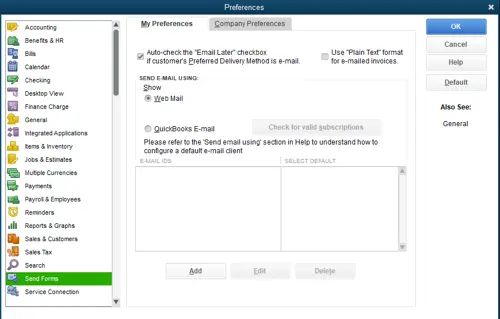
- Select Web Mail, then click Add.
- Enter your email account details in the Add Email Info window and select OK.
- Click OK to save the updated settings.
When your webmail provider’s sign-in page appears, log in and grant Intuit permission to access your account.
Internet Service Provider (ISP) and Port Information
Intuit does not support providers that use STARTTLS encryption.
| ISP (Internet Service Provider) | SMTP Server | SMTP Port |
| 1AND1.com | smtp.1and1.com | 587 (SSL enabled, with password) |
| ADELPHIA | mail.adelphia.net | 110 |
| AOL | smtp.aol.com | 465 or 587 (see note) (SSL enabled for incoming and outgoing mail servers) |
| BELL SOUTH | mail.bellsouth.net | 110 |
| COMCAST | smtp.comcast.net | 587 |
| COMPUSERV | smtp.compuserve.com smtp.aol.com | 110 or 587 |
| COX Business | smarthost.coxmail.com | 465 or 587 (see Note) |
| COX CENTRAL | smtp.central.cox.net | 465 or 587 (see Note) |
| COX EAST | smtp.east.cox.net | 465 or 587 (see Note) |
| COX WEST | smtp.west.cox.net | 465 or 587 (see Note) |
| EARTHLINK | smtpauth.earthlink.net | 25 (with password) |
| LYCOS | smtp.mail.lycos.com | 25 |
| MICROSOFT OUTLOOK 365 | outlook.office365.com | 587 (SSL enabled) |
| NETSCAPE | smtp.isp.netscape.com | 25 (SSL enabled) |
| PRODIGY | smtp.prodigy.net | 25 (SSL enabled) |
| ROADRUNNER | smtp-server.sc.rr.com | 587 |
| SPRINT PCS | smtp.sprintpcs.com | 25 |
| VERIZON | outgoing.verizon.net | 465 |
| VERIZON YAHOO | outgoing.yahoo.verizon.net | 465 |
Important Note: If port 465 does not work, switch to port 587 and ensure SSL is enabled for both connection attempts.
Resolve the Common QuickBooks Outlook Integration Issues
QuickBooks and Microsoft Outlook are built to work together, but the integration can sometimes stop working because of software conflicts, incorrect email settings, damaged Outlook profiles, or compatibility issues after an update. As a result, you may not be able to send invoices, estimates, reports, or other forms directly from QuickBooks. Since there are several possible reasons behind these QuickBooks Outlook integration issues, identifying the exact cause is important before you begin troubleshooting.
Summing Up
QuickBooks Outlook integration makes it easier to email invoices, estimates, reports, purchase orders, and other forms directly from QuickBooks, helping you save time and streamline day-to-day communication. With the right email settings and a proper setup, the integration usually works without any issues.
However, if you run into problems while integrating QuickBooks and Outlook, you must reach out to QB ProAdvisors at Call Us : +1-866-408-0444.
Frequently Asked Questions
Why is Outlook not working in QuickBooks?
Outlook may not work in QuickBooks because of incorrect email settings, a damaged Outlook profile, MAPI errors, or compatibility issues. An outdated version of QuickBooks or Microsoft Outlook can also cause the integration to stop working.
Does Microsoft integrate with QuickBooks?
Yes, Microsoft integrates with QuickBooks, primarily through Microsoft Dynamics 365, third-party connectors, and basic export tools. While native direct automation with standard Office 365 apps is limited, multiple integration pathways exist.
How to integrate Outlook with QuickBooks?
You can integrate Microsoft Outlook with QuickBooks Desktop by updating your email preferences, choosing Outlook under the Send Forms menu, or using third-party connectors like Zapier for QuickBooks Online.
Does QuickBooks work with the new Outlook?
No, QuickBooks Desktop does not currently work with the new Outlook for Windows because the new Outlook lacks support for the desktop COM add-ins required to connect. Users frequently experience errors, freezing, or missing email options.
Why can’t I send an email from QuickBooks Desktop?
You cannot send emails from QuickBooks Desktop, usually due to incorrect email preferences, Outlook permission conflicts, outdated software releases, or blocked network connections
How to fix error messages between QuickBooks and Outlook?
To fix communication errors between QuickBooks and Outlook, adjust administrative compatibility settings, toggle email preference configurations, or repair the program installation via Windows.
About The Author

Jonathan Browns
Jonathan Brown is a trained QuickBooks professional with 10 years of experience in the accounting sector. Moreover, he is passionate about helping businesses reduce the stress of managing accounts. Also, he is proficient in assisting entrepreneurs and small business owners to use QuickBooks and enhance their accounting experience.
Recent Posts
-
Reactivate Your QuickBooks Payroll Subscription: Online & Desktop
-
Import Credit Card Transactions into QuickBooks Online & Desktop: Step-by-Step Guide
-
How to Set Up Classes in QuickBooks Online and Desktop: DIY Guide
-
QuickBooks Desktop Pro Plus 2024 and Pro: Features & Setup Guide
-
Do This If You Cannot Print Invoices in QuickBooks Desktop