


QuickBooks Error 3100: Causes, Solutions, and Prevention Tips

- By Jonathan Browns
- Oct 01, 2026
- Business
- 7 min read
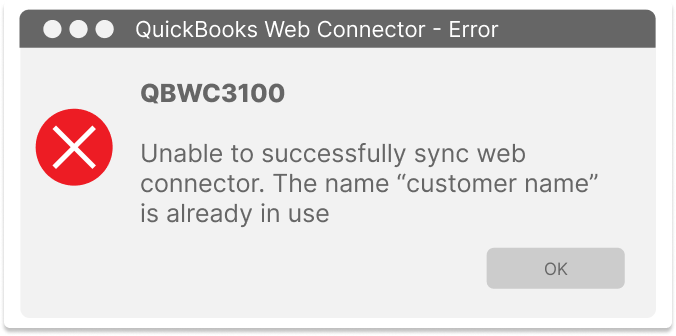
Are you struggling with QuickBooks Error 3100 while adding or syncing records to QuickBooks? This error mainly appears when QuickBooks detects a duplicate name for a customer, vendor, employee, or other list item. However, when it occurs, the following warning message appears stating;
Customer Insert/Update Error- [Customer Name] – 3100 – The name “[CustomerName] of the list element is already in use.
In this guide, we explain the possible causes, signs, troubleshooting methods, and preventive tips to fix the error 3100 in QuickBooks.
A Quick Overview of the Error 3100
| Detail | Explanation |
| Error Code | QuickBooks Error Code 3100 |
| Error Type | Duplicate Name / Synchronization Error |
| When it occurs | During data import, integration, or synchronization |
| Common Symptoms | Sync fails, records aren’t added, or a duplicate-name message appears |
| Possible Causes | A name being added already exists in QuickBooks |
| Troubleshooting Steps | Identify the duplicate record and either use a unique name or correctly map the existing QuickBooks record to the external record. |
| Preventive Tips | Check for duplicate names before importing data and ensure your integration or synchronization mappings are configured correctly. |
Signs & Symptoms of Getting QuickBooks Error 3100
The following are the signs and symptoms that you may experience when the QuickBooks Error 3100 occurs.
- QuickBooks fails to add or create a new record.
- You may receive Error 3100 during data import or synchronization.
- Failure to sync a customer, vendor, employee, or item record.
- Duplicate name errors may appear while importing or creating records.
- The synchronization or integration process may stop unexpectedly.
- An existing list record may prevent a new record with the same name from being added.
What Are the Possible Causes That May Trigger Error 3100 in QuickBooks?
By understanding the root cause behind Error 3100 in QuickBooks, you can easily troubleshoot the issue. Let’s learn about all the possible causes that may trigger this issue.
- This issue may occur when a customer, vendor, employee, or item with the same name already exists.
- A misconfigured or outdated mapping between the external application and QuickBooks.
- Data imported from another QuickBooks company file contains duplicate names.
- A third-party application does not correctly map an existing QuickBooks record and attempts to create a duplicate.
- An integration attempts to create a duplicate record in QuickBooks.
- List data may contain duplicate or damaged elements.
Troubleshoot QuickBooks Error Code 3100 In Easy Steps
In this blog section, we have described the possible troubleshooting steps to resolve the QuickBooks Error Code 3100.
Method 1: Repair the Windows Registry Files
Damaged or corrupt Windows Registry files are one of the major reasons that may trigger QuickBooks Error 3100.
- Click the Start menu and type Command in the search field. Don’t press the Enter key. Instead, press Ctrl + Shift, and then hit the Enter key.
- This will redirect you to the permission dialog box.
- Click Yes on the following window.
- You will then get a Command Prompt screen; here, type “regedit” and press Enter.
- Now, choose the keys corresponding to the QuickBooks Error 3100 in the Registry Editor.
- Click Export from the File menu and choose the folder where it is saved.
- Select the folder that you want to save in your Save In list.
- Verify that you have chosen “Selected branch” in the Export Range box.
- Now, click the Save option.
- Finally, save the file with .reg extension.
Method 2: Find the Duplicate Names
Here, we have described the procedure to find the duplicate names in the records to perform in QuickBooks Desktop and QuickBooks POS.
Steps to perform in QuickBooks Desktop
- Click on the Customers (vendors) tab and choose the Customer (vendor) menu.
- Search for the name that was indicated in the error on your screen.
- Start looking for the duplicates.
- If you are able to find the duplicate, then merge the names.
- Otherwise, you can proceed forward.
Steps to perform in QuickBooks POS
- Go to Customers (Purchasing) and click the Customer (Vendor) list.
- Enter the exact name that appears in your error. Then, start looking for the duplicates.
- Now, select the “I want to drop-down” and hit the Merge option.
- When the Merge window appears, tap on the vendor/customer that you want to remove and the one you want to keep.
- Lastly, hit the merge customers/vendors tab.
Method 3: Fixing the damaged customer names
There are two steps that will have to be followed in this solution. They have to be done in the given order.
Step 1: Creating a new customer (vendor)
Perform the following steps to create a new customer.
- Click on the Customer menu and click Customer Center from the list.
- Afterwards, search for the “New Customer & Job” tab and then click on it.
- Select the New Customer by clicking the drop-down menu.
- Enter the Test Customer as its name and then leave the other areas blank. Then, hit OK to complete the process.
Step 2: Merging names
After creating a new customer, you need to merge the names. The following are the step-by-step instructions to merge names.
- Click on the customer name and select the Edit Customer option.
- Note: If you get a job below the customer section, tap on the Job tab. When you see the blank cross, drag it and place it below the new customer name.
- After that, replace the customer (vendor), click (type customer), and click OK.
- As a result, the merge window will appear on the screen; click OK once again.
- Now, change the name of the customer by going back to the original name. Then, click the OK button.
- Close QuickBooks Desktop and then relaunch it.
Method 4: Update the System Drivers on your desktop
To update the system drivers, perform the step-by-step instructions listed below.
- Click on the Programs and Features option.
- After this, search for the NETGEAR adapter, right-click on it, and select the Uninstall option.
- Restart your computer and then reinstall the system drivers. You can do it using a CD or website.
- If you get the prompt message on the screen, then plug in and insert the adapter. This will help counter the issues that may arise with the existing devices.
Method 5: Clear Cache and System Junk Files
Sometimes, the storage, cache, or system junk files may lead to malfunctioning. Thus, it may lead to QuickBooks Error 3100. So, to fix the issue, you need to clear the browser cache and system junk files.
- Select the Start menu and type Command in the search console.
- After this, don’t press the Enter key; instead, press Ctrl + Shift, and then press Enter.
- This will open the dialog box on the screen. Here, click the Yes button.
- As a result, it will open the Command Prompt window.
- Now, type cleanmgr and press the Enter key.
- Thereafter, Disk Cleanup will assess how much disk space is used.
- Now, put a tick mark on the checkboxes and click OK.
Method 6: Restore to Previous System Settings
You need to undo the current settings of the computer system to ensure that it is back to default settings. The following are the step-by-step instructions to perform the steps instructed below.
- Click on the Start menu and type System Restore in the search panel.
- Hit the Enter key and select the System Restore option.
- In the following window, type “administrator password”.
- Finally, restart your computer and see if the issue is resolved.
Method 7: Reinstall your QuickBooks Desktop software
If the above steps don’t resolve the issue, reinstall the QuickBooks Desktop software to enhance your software performance. Thus, it reduces the chance of getting the Error 3100 in QuickBooks.
Effective Ways to Avoid QuickBooks Error 3100
Keep your QuickBooks records organized and check for duplicate customer, vendor, or employee names before importing or syncing data. Regularly review your lists, verify import files, and maintain backups to reduce the chances of Error 3100 recurring.
- Back up your QuickBooks company file before making major data changes.
- Remove or manage outdated or duplicate customer, vendor, and employee records.
- Look for your customer, vendor, and employee lists before creating or importing a new record.
- Search for CSV, Excel, and IIF files for duplicate names before importing them into QuickBooks.
- Make sure not to use unsupported special characters in names and imported data to reduce application errors.
- Review previous imports before uploading the same data again, as this can create duplicate entries.
In a Nutshell.
QuickBooks Error Code 3100 may interrupt the customer, vendor, employee, or item imports and synchronizations because a name already exists or the integration encounters a server-related issue. Checking for duplicate or inactive records, verifying name details, and repairing company data can help resolve the problem.
If the issue still exists, retry the sync or connect with our BizBooksAdvice professionals for immediate help.
Frequently Asked Questions
What is QuickBooks Error Code 3100?
QuickBooks Error Code 3100 mainly occurs when a customer, vendor, employee, or item name already exists in QuickBooks during imports or synchronization.
How do I fix Error 3100 when importing an IIF file?
Check the IIF file for names that already exist in QuickBooks. Find the matching record, correct or rename the duplicate, and then retry the import.
How do I find the duplicate causing Error 3100?
Search your QuickBooks lists for the exact name shown in the error message. Check customers, vendors, employees, and inactive records for the same name.
Does QuickBooks Error 3100 affect payroll imports?
It can. QuickBooks users have reported Error 3100 when importing employee information or payroll-related IIF files where an employee name conflicts with an existing list entry.
About The Author

Jonathan Browns
Jonathan Brown is a trained QuickBooks professional with 10 years of experience in the accounting sector. Moreover, he is passionate about helping businesses reduce the stress of managing accounts. Also, he is proficient in assisting entrepreneurs and small business owners to use QuickBooks and enhance their accounting experience.
Recent Posts
-
QuickBooks Desktop Enterprise: Pricing, Features, Download & Setup
-
Fixing QuickBooks Error 1606: Could Not Access Network Location
-
QuickBooks Error 3100: Causes, Solutions, and Prevention Tips
-
How to Perform QuickBooks Messy Books Cleanup: Step-by-Step Guide
-
How to Fix QuickBooks Error 6177, 0: Complete Troubleshooting Guide