


QuickBooks Error 401 Authentication Error: Complete Fix Guide

- By Jonathan Browns
- Oct 16, 2026
- Accounting
- 7 min read
Are you encountering QuickBooks Error 401 while signing in, registering QuickBooks, or using QuickBooks Payments? This error indicates that a request has been rejected as unauthorized. The exact cause can vary depending on whether you’re using QuickBooks Desktop, QuickBooks Online, or an integration.
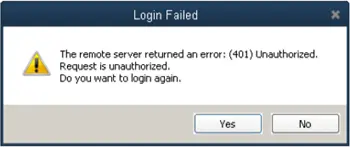
In this guide, you’ll learn what QuickBooks Error 401 means, its common symptoms and causes, and the troubleshooting steps you can follow to resolve it.
What is QuickBooks Error 401?
QuickBooks Error 401 is an authentication or authorization error that occurs when a request to QuickBooks is not properly authorized. In QuickBooks Desktop, Intuit reports that the error can occur while signing in to a company file or Accountant Toolbox, registering QuickBooks during installation, or sending an invoice with QuickBooks Payments.
For QuickBooks Online integrations, a 401 response can also be associated with authorization problems involving OAuth access. Intuit’s developer documentation notes that a 401 response can result in an invalid token and that applications may need to refresh the token.
QuickBooks Error Code 401: A Quick Overview
The table given below provides you with a quick overview of QuickBooks Error Code 401, including its causes, symptoms, impact, and possible solutions. It helps users understand why the error occurs and what steps they can take to resolve it.
| Parameter | Description |
| Error Name | QuickBooks Error 401 |
| Error Type | Authentication / Authorization Error |
| When It Occurs | While signing into company file, accessing an account, or using connected QuickBooks services. |
| Common Causes | Invalid or expired authentication credentials |
| Other Causes | Connectivity issue, outdated software, expired sessions, or account authentication problems |
| Common Symptoms | Unable to sign in, access restrictions, an Error 401 message, or repeated authentication prompts. |
| Quick Fixes | Re-login, clear browser cache, check internet, and update QuickBooks. |
| Recommended Approach | Identify whether the issue is related to authentication, browser settings, connectivity or QuickBooks application. |
| Preventive Tips | Keep QuickBooks updated, maintain valid credentials, clear browser related data when required. |
Signs You’re Experiencing QuickBooks Online Error 401
The following are the signs and symptoms that will help you identify the occurrence of QuickBooks Online Error 401.
- An Error 401 or unauthorized access message appears on the screen.
- QuickBooks may fail to connect to your account or related services.
- QuickBooks repeatedly asks you to log in.
- You might face issues while logging in to your QuickBooks account.
- Repeated login or authentication prompts.
Common Causes Behind Error 401 QuickBooks Online
Error 401 in QuickBooks Online may appear when the software fails to authenticate your account or verify your login request. The following are the common causes that may lead to this error.
- Incorrect login details can prevent authentication and lead to QuickBooks Error Code 401.
- It may be caused by an expired QuickBooks login session.
- An unstable internet connection may prevent QuickBooks from verifying your request.
- Temporary problems with QuickBooks account services can also cause this error.
- Corrupted cache, cookies, or browser settings can interfere with authentication.
- An outdated QuickBooks application or browser may cause compatibility issues.
How to Fix Error 401 in QuickBooks Desktop & QuickBooks Online
Below, we have provided two different sections explaining how to fix QuickBooks error 401 in QuickBooks Online and Desktop. So, apply the troubleshooting method according to your affected QuickBooks version.
Steps to Fix Error Code 401 in QuickBooks Desktop
You may encounter Error Code 401 in QuickBooks Desktop while using an outdated QuickBooks application. Therefore, to fix the issue, you need to update QuickBooks Desktop.
- First, click the No button in the error message window to close it.
- Shut down your company file and then the QuickBooks application.
- Click the Start menu and look for QuickBooks Desktop.
- Right-click the QuickBooks icon and choose Run as Administrator.
- Navigate to the Help menu and select Update QuickBooks Desktop.
- Go to Options > Mark All > Save option.
- Click Update Now and select the Reset Update checkbox.
- After this, click the Get Updates button.
- Re-open QuickBooks Desktop and click Yes to install the updates.
Learn how to fix QuickBooks API HTTP Error 401 in Online Version
QuickBooks API HTTP Error 401 may occur due to expired access tokens, wrong email ID, or changes made by an admin. Thus, by performing the troubleshooting steps given below, you can fix the issue easily.
First Step: Re-Login to your company file
If you have previously logged in to your company file but can’t use certain features, then try to log out of your company file. Then, close your web browser, restart your computer, and then log in to your company file again.
Second Step: Remove Integration and then Remove It
First, you need to re-authorize the connection between Finale Inventory and your QBO company file. Perform the following steps to remove and then add back the integration.
- Click on the QuickBooks Online Settings and select Admin > Integration.
- Choose QuickBooks Online below the Accounting section.
- Select Disconnect and then confirm to disconnect the integration.
- Browse to Feature Add-Ons and click Manage Add-Ons.
- Now, look for the QuickBooks Online Integration and tap Install.
- Navigate to the Connect to QuickBooks option. This will open the Intuit sign-in page on the screen.
- Enter the login credentials on the login page. If you are using multiple companies, select the company that you want to link.
- When you see the message, click Authorize.
- This will pop up a message stating “You are now connected,” and then it will open the preferences window.
Preventive Tips to Avoid the Error Code 401 in QuickBooks
The following are the practices you must follow to prevent the occurrence of Error Code 401 in QuickBooks.
- Ensure you keep your QuickBooks and Windows updated to the latest version.
- Verify that you are using an active Intuit account.
- Try to run QuickBooks with the proper administrative credentials.
- Make sure you are using the correct QuickBooks login credentials.
- Remove the unnecessary browsing history that’s interrupting the QuickBooks login process.
Summarizing The Above!
QuickBooks Error 401 is an authentication or authorization issue that can prevent certain QuickBooks operations from completing. For QuickBooks Desktop, Intuit recommends closing the error message and updating QuickBooks to the latest version. For QuickBooks Online integrations, checking authorization and access-token status may be necessary.
If the error continues after following the applicable troubleshooting steps, contact QuickBooks Support or the support team for the integration you’re using.
Frequently Asked Questions
What is QuickBooks Error 401?
QuickBooks Error 401 is an authentication or authorization error that occurs when QuickBooks cannot properly verify a user’s request. It may appear while signing in, registering QuickBooks, or using QuickBooks Payments.
What does 401 Unauthorized mean?
A 401 unauthorized error means that the site is blocking access because your login details are missing or invalid. This issue may also occur due to a mistyped URL, an outdated browser, or an expired login session.
Does QuickBooks Error 401 cause data loss?
QuickBooks Error 401 is an authentication-related error and does not itself indicate that your company data has been lost or damaged.
Does Error 401 affect QuickBooks Payments?
Yes. QuickBooks Error 401 may appear when attempting to send an invoice using QuickBooks Payments.
Is QuickBooks Error 401 an authentication error?
Yes. A 401 response means “Unauthorized,” indicating that authentication or authorization has failed.
About The Author

Jonathan Browns
Jonathan Brown is a trained QuickBooks professional with 10 years of experience in the accounting sector. Moreover, he is passionate about helping businesses reduce the stress of managing accounts. Also, he is proficient in assisting entrepreneurs and small business owners to use QuickBooks and enhance their accounting experience.
Recent Posts
-
9 Proven Ways to Fix QuickBooks Migration Error-1009
-
QuickBooks Error 401 Authentication Error: Complete Fix Guide
-
How to Fix QuickBooks Freezing or Not Responding
-
Fix Your QuickBooks Online Sync Problems: A Step-by-Step Guide
-
QuickBooks Online Canada: Complete Guide for Canadian Businesses