


How to Perform Pipedrive QuickBooks Integration With Easy Steps?

- By Jonathan Browns
- Apr 13, 2026
- Business
- 7 min read
Pipedrive is a cloud-based CRM software that lets the sales team visualize their sales process and close deals efficiently. With the Pipedrive QuickBooks integration, you can reduce your sales and accounting tasks by automating data transfer. This lets users create, send, and monitor QuickBooks invoices and estimates directly through Pipedrive’s deal view. Moreover, the integration also eliminates the risk of data entry issues and helps sync customer/product data between platforms.
In this guide, we will walk you through what the QuickBooks Integration app is, the benefits of using it, and the steps to integrate it smoothly.
Pipedrive QuickBooks integration lets you sync your customer data, invoices, and payment details, ensuring a smooth transition for the sales and accounting teams.
What is the Pipedrive QuickBooks Integration App?
Accessing the Pipedrive integration with QuickBooks, you can have endless communication with your accountants. Also, it lets you switch between the Pipedrive and QuickBooks apps by generating invoices from the Pipedrive’s deal details view:
- Invoice creation and sending
- Contacts creation/link to QuickBooks contacts
- Automatic Products creation/link to QuickBooks products
- Pulling invoices from QuickBooks into Pipedrive
- Aggregated invoicing data by contact
- Updated statuses on invoices
What are the reasons to integrate Pipedrive with QuickBooks?
Integrating Pipedrive with QuickBooks not only synchronizes sales and accounting but also minimizes the risk of manual data entry errors. Other reasons for integrating Pipedrive with QuickBooks are discussed below.
- Faster Invoicing & Improved Cash Flow-
You can now easily create, send, and track QuickBooks invoices directly with the Pipedrive deal detail view and ensure faster payment collection.
- Accurate Sales Reporting-
It becomes easier to combine Pipedrive sales data with QuickBooks accounting data to get a clear insight into the sales performance and financial health.
- Obtain 360-Degree Customer View-
The sales team can easily get access to the invoice statuses (paid or due), payments, and estimates directly within the CRM. This promotes informed conversations without relying on the accounting team.
- Easily Sync Contact & Deal-
This integration lets you sync your customer information and deal details automatically to keep your records consistent.
- Minimizes the manual Entry-
It automatically syncs customer, product, and invoice data between Pipedrive and QuickBooks, reducing time and avoiding double entry.
- Improve Data Accuracy-
With the integration, it minimizes the risk of errors in financial reporting and invoicing, as there is no human intervention during the data transfer.
What are the Advantages & Limitations of Pipedrive-QuickBooks Integration?
Herein, we have described the advantages and disadvantages of Pipedrive-QuickBooks integration.
Advantages
- Allows you to create invoices directly from Pipedrive without entering the data manually.
- Easy to track invoice status within Pipedrive to keep your teams aligned.
- Sync your contacts, addresses, and tax IDs across both platforms.
- Both sales and accounting teams don’t have to spend much time on manual tasks.
- Field mapping eliminates the chances of mismatched customer or invoice details.
Disadvantages
- Direct contact isn’t supported with the QuickBooks Desktop application.
- You only have the option to map standard fields between Pipedrive and QuickBooks.
- Large data volumes may encounter restrictions because of system or API usage caps.
- Synchronization entirely depends upon the connection quality or third-party app limitations, and can’t be done instantly.
How to Do PipeDrive Integration with QuickBooks?
Use the following steps for the Pipedrive integration with QuickBooks.
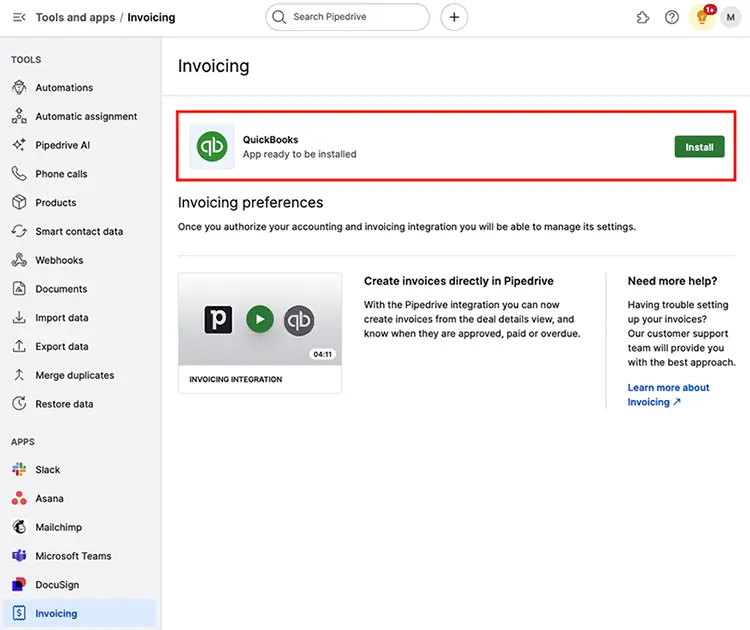
- Firstly, connect your QuickBooks account. For that, open the Account menu from the top-right corner.
- Move to the Tools & Apps and select the Install option beside QuickBooks.
- This will redirect you to the Pipedrive Marketplace, where you have to complete the installation and grant access. You can also uninstall the app below the Tools and apps > Marketplace apps.
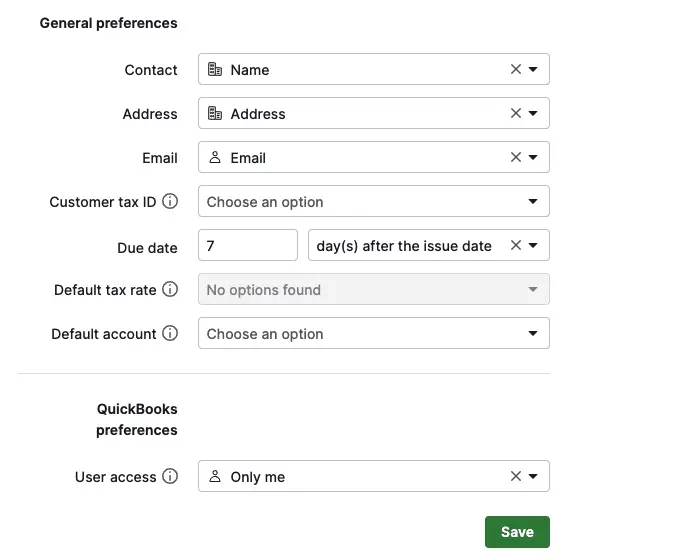
- After the successful login, you will return to Pipedrive settings to configure QuickBooks Preferences.
Using the Integration with QuickBooks
- Once the setup of the Pipedrive account with QuickBooks is completed, browse to the detail view of any deal to generate the first invoice.
- Hit the Invoice tab and click the “+ Invoice” option to start.

- After that, you will be prompted to enter the information fr your invoice. Once the invoice is saved, the data entered here will automatically reflect in your QuickBooks account. You will get a Create Invoice window with three different sections:
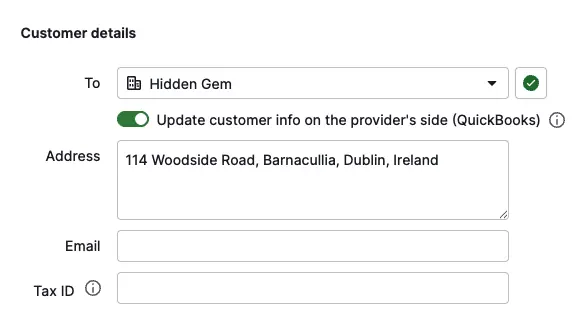
- Customer Details-
In this section, you will get the information regarding the invoice recipient, like the name of the entity being invoiced, the address, email, and tax ID.
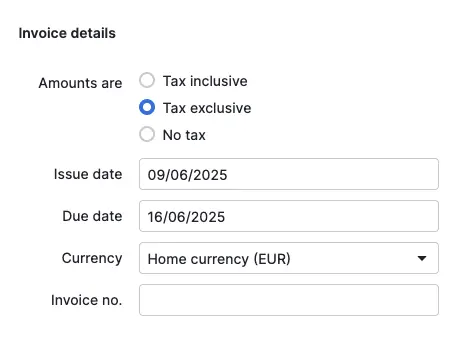
- Invoice Details-
Within this section, you have to provide the details regarding invoicing details like tax, issue and due dates, currency and invoice number.
- Invoice Items-
This section mainly lists the products or services that make up charges in your invoice. Whereas, the products associated with the deal are automatically populated into the invoice items section, you can also include more items to your list.

- Once you have provided all the essential details, tap on Create Invoice option to send it to your QuickBooks account.
Is Pipedrive QuickBooks Desktop Integration possible?
No, you can’t directly do the Pipedrive QuickBooks Desktop integration. Instead, use the third-party connector apps for integrating Pipedrive with QuickBooks Desktop. You can simply search “Pipedrive QuickBooks Desktop integration” on any search engine and get many tools according to your requirements. These tools allow both one-way and two-way data sync so that you can exchange the data smoothly.
How to Resolve Pipedrive QuickBooks Integration Issues?
Sometimes, while performing the Pipedrive QuickBooks integration, users might be stuck with the error message “Something went wrong.” If you, too, are getting this error, then use the troubleshooting step according to the cause of the issue.

Case 1: Issues Related to Document Number
1. Duplicate Document Number-
If the Invoice Number field has the same number as an invoice that already exists on the QuickBooks side, this will create an error, as it is a duplicate. So, to fix the issue, try selecting a different number.
2. Invoice Number not supported-
In case the invoice number is generated with letters such as GRAL-2021, continue adding invoice numbers manually for the next invoices. Your system will continuously give you an error unless you add the invoice number manually.
3. Invoice Number Generation-
In case you haven’t added the Invoice Number during the Pipedrive QuickBooks Integration process, you will automatically get assigned an invoice number starting from 1001. This clearly means that your next invoice number will be 1002 and so on.
If you have generated the invoice without a number and want to resume in the same order, return to your QuickBooks account. After that, look for the number mentioned on your last invoice and manually enter the next one.
Read More:- Simple Procedure to Void An Invoice in QuickBooks
Tax and Currency Issues
1. Verify your tax rates are set up
Pipedrive won’t identify your tax rate, so it’s essential to ensure that you have set up the tax rates accurately in QuickBooks.
2. One foreign currency at a time
QuickBooks Simple Start Plan users don’t support multiple currency types. If you see the wrong currency on the QuickBooks invoice, you will see an error in Pipedrive. Therefore, to resolve the issue, move to QuickBooks and edit the invoice to the accurate currency.
Other
1. Duplicate Name-
In QuickBooks, you won’t need duplicate names for customers, suppliers, employees, etc. For creating an invoice with a duplicate name, change the name on the invoice or the other entry in QuickBooks.
2. Valid QuickBooks Account-
You must verify that you have a valid QuickBooks account. In case your account/trial has expired, you will get an error message in Pipedrive.
Conclusion
Pipedrive QuickBooks integration lets businesses align their sales and financial processes for efficiency and accuracy. Automating data between these two platforms reduces manual data errors and helps get clear insight regarding the company’s revenue and performance. Moreover, this collaboration also improves decision-making through reliable data.
If you still find any difficulty while integrating these two platforms, then connect with our BizBooksAdvice professionals for help.
Frequently Asked Questions (FAQ’s):-
Question 1: Does QuickBooks integrate with Pipedrive?
Ans. Using the Pipedrive QuickBooks integration app, you can do endless communications with your accountants & can easily switch between both platforms by creating an invoice.
Question 2: What is the purpose of Pipedrive?
Ans. Pipedrive is a CRM tool that allows the team to store customer data, monitor sales activity, and manage relationships through the sales cycle.
Question 3: How many users can install the QuickBooks API in Pipedrive?
Ans. QuickBooks API only enables one active connection at a time per account. In short, only one user can install it into the Pipedrive software.
About The Author

Jonathan Browns
Jonathan Brown is a trained QuickBooks professional with 10 years of experience in the accounting sector. Moreover, he is passionate about helping businesses reduce the stress of managing accounts. Also, he is proficient in assisting entrepreneurs and small business owners to use QuickBooks and enhance their accounting experience.
Recent Posts
-
What Causes & How to Fix QuickBooks Error 15223 Efficiently?
-
QuickBooks Library Files Failed: How to Fix Error 80029c4a
-
How to Fix QuickBooks Error OL-301 (Bank Connection Issue)?
-
QuickBooks Email Invoices Not Working: How to Fix It
-
How to Resolve QuickBooks Error 15214 (Step-by-Step)