


Fix QuickBooks Error 15102: Stop Payroll Update Failures

- By Jonathan Browns
- May 18, 2026
- QuickBooks Payroll
- 7 min read
Are your payroll tasks getting affected due to the issues faced while installing the latest QuickBooks payroll updates?
Well, it’s due to the occurrence of QuickBooks Error 15102. This error belongs to the 15xxx series of errors, which mainly appear during the installation of the latest updates. It may occur due to insufficient admin rights, incorrect mapping, or an invalid digital signature certificate.
So, let’s read this guide and learn more about what QuickBooks Error Code means, possible causes, and the best methods to fix the error.
What is Error 15102 in QuickBooks?
The QuickBooks Error 15102 is the most common update error that may trigger while downloading the latest payroll updates. However, when this error occurs, it displays the following warning message.
“Error 15102:Failed to reset update.”
This error generally occurs because of internet issues, interference from the firewall, or a lack of user permissions. So, if you are also stuck with this error, then learn the causes and then use the troubleshooting methods given ahead in this post.
Why does QuickBooks Error Code 15102 occur?
The QuickBooks Error Code 15102 often appears while downloading the latest tax table update. However, there are numerous other factors causing this error, which are as follows:
- Incorrect mapping of the shared download certificate.
- Windows Firewall blocking the download of the latest updates.
- QuickBooks file copy service is disabled.
- Improper verification of the digital signature certificate.
- Problems arise due to missing files or components for payroll updates.
- Also, it may occur due to damage with Windows files.
Effective Methods to Fix QuickBooks Payroll Error 15102
Fixing the QuickBooks Payroll Error 15102 in a timely manner is important to continue downloading the latest QuickBooks Desktop or Payroll updates. So, follow the troubleshooting methods mentioned below to fix the error quickly.
Method 1: Get the Latest Updates Download With Admin Rights
Having proper administrative rights is essential, especially while installing or downloading the latest payroll updates. If you don’t have proper admin rights, then it may prevent you from downloading updates. Thus, it results in QuickBooks Payroll Error 15102.
- Make sure that you have closed your QuickBooks company files and QuickBooks Desktop.
- Locate and right-click on the QuickBooks Desktop icon.
- Choose the Run as Administrator option.
- Now, you will get a pop-up “Do you want to allow this program to make changes to your computer?”, click on the Yes option.
- Finally, try to download the latest QuickBooks Desktop or the payroll tax table updates again.
Method 2: Operate the Quick Fix My Program Tool
To repair the damage present in the QuickBooks program, you must run the Quick Fix My Program tool. Once you run this tool, it will end all the background processes in QuickBooks. Then, it will instantly run a quick repair on your QuickBooks program.
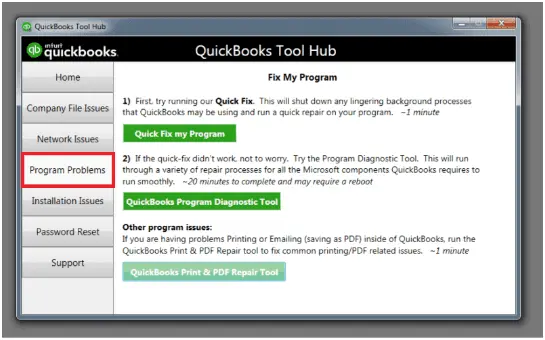
- Before starting the process, set up QuickBooks Tool Hub 1.6.0.8.
- Now, launch the installed Intuit Tool Hub and head to the Program Problems.
- You must hit the Quick Fix My program tab.
- When you are all set, try to launch QuickBooks again and then your data file.
- Complete the process by downloading the latest QuickBooks Desktop or payroll updates.
If the error is still obstructing the update task, perform the following steps.
- Shut down your QuickBooks Desktop application.
- Now, browse to the following location to get QuickBooks.
- C:\ProgramData\Intuit\QuickBooks XX\Components.
- Thereon, right-click on the Components and click the Delete tab.
- Launch the QuickBooks Desktop application and head to the Help menu.
- Choose the Update QuickBooks Desktop > Update Now tab.
- Afterwards, tick the Reset Update checkbox.
- Tap on the Get Updates option, and when the download is over, close and then open QuickBooks Desktop again.
- Return to the Help menu and choose the Update QuickBooks Desktop.
- At last, proceed to Overview and then hit the Update Now option.
Method 3: Perform the Installation of a Digital Signature Certificate
For downloading and installing the latest version of the Digital Signature Certificate in QuickBooks, use the steps below.
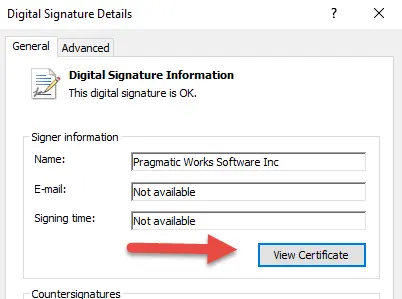
- Use the following path to access the QuickBooks application.
- C:\Program Files\Intuit\QuickBooks
- When you get the QBW32.exe file, right-click on it and click Properties.
- After this, choose the Digital Signature tab and ensure Intuit is selected from the signature list.
- Head to the Details option.
- When you are in the Digital Signature Details window, tap on View Certificate.
- Choose the Install Certificate >Next option unless the Finish option appears. Then, you must hit the Finish tab.
- Relaunch your Windows PC, open QuickBooks, and begin downloading the Update again.
Method 4: Verify that the Mapped File Location Is Correct
- Launch the Product Information window by hitting the Ctrl + 1 keys. Then, write down the mapped location.
- Example: [x]:\[folder name]\[data file name].
- After that, browse for the location where the downloaded file is located.
- Choose the Update QuickBooks option from the Help menu.
- When you are in the Options tab, verify the download location.
- If you see that the Shared Download is set to Yes, then make sure that the Download Location drive is already listed in the Product Information box.
- In case it’s set to No, the Download Location directory must match the QuickBooks Desktop installation path.
- Also, you need to change the state of the location when the Download location is incorrect.
- Click on No for shared download if Yes is selected, and hit the Save option.
- Tap on Yes for shared download if No is chosen, and click on the Save tab.
- At last, hit the Close option and then begin downloading the latest tax table.
Method 5: Use the QuickBooks Install Diagnostic Tool
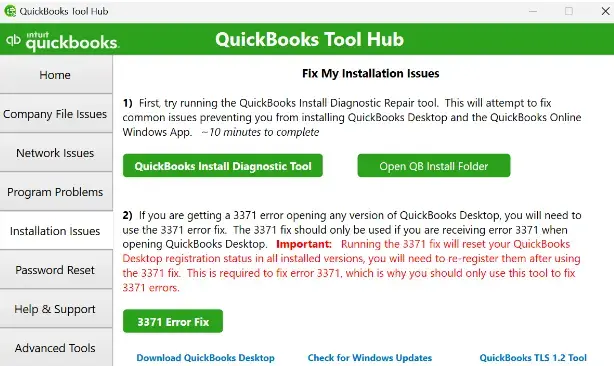
At times, the users may end up with QuickBooks Error 15102 if something goes wrong with the installation of QuickBooks. So, to resolve the issue, you must run the QuickBooks Install Diagnostic tool. By using this tool, you can run a scan on the installation file and then repair it to get the updates easily.
Method 6: Perform the Reinstallation of QuickBooks Desktop
By reinstalling the QuickBooks Desktop application, you can remove all the technical issues present within the software. It will install the program from scratch so that you can start downloading the latest payroll updates easily.
Method 7: Correct the Windows Firewall Security Settings
You may also experience Error 15102 in QuickBooks when the Windows Firewall settings are incorrect. As a result, the Windows Firewall considers QuickBooks as an unknown or a threat to the system. This is the reason why it restricts you from downloading the latest QuickBooks updates. So, to resolve the issue, it’s crucial to set up the Windows Firewall settings manually.
Method 8: Remapping of Drive To a Different Letter
- Exit from the QuickBooks company file and click on the Start menu.
- Open the “This PC” option and choose the Map a network drive beneath the computer tab.
- After this, pick any unused drive letter and hit the Browse option.
- Head to the network location where you have placed the QuickBooks data file.
- Click the OK tab and then hit the Finish option.
- Launch your company file using the new mapped drive letter and pick the Help menu.
- Move to the Update QuickBooks and tap on Update QuickBooks.
- Proceed to the Options tab and click the Shared Download off option.
- Herein, you must ensure that the download location is accessing the new mapped drive letter.
- Thereon, pick the Save tab and then hit the Close option.
- Finally, start downloading the latest tax table update to see if the issue exists.
Bringing it Altogether
QuickBooks Error 15102 usually triggers when you attempt to download the latest QuickBooks Desktop or payroll updates. We ensure that by following the above solutions, you can fix the error. You can also try updating QuickBooks Desktop and ensuring that your system has proper internet access.
If you still want any additional help, then feel free to have direct communication with our BizBooksAdvice professionals. You can reach out to them either using the Call Us : +1-866-408-0444 or through the live chat option for quick resolution.
Frequently Asked Questions (FAQ’s):-
Question 1: What does the error message “Error 15102: Failed to reset update” mean in QuickBooks?
Ans. The Error message “Error 15102: failed to reset update” indicates the failure to complete the update process. This may usually occur due to incorrect firewall settings, disabled QuickBooks services, or an inappropriate shared download drive.
Question 2: Does QuickBooks Error 15102 affect payroll calculations?
Ans. No, the QuickBooks Error 15102 won’t directly impact the payroll calculations, but it may restrict you from downloading the latest payroll updates. So, without having any proper updates, the payroll feature may reflect incorrect payroll calculations.
Question 3: Can a lack of admin rights cause QuickBooks Error 15102?
Ans. Yes, the users may require proper admin rights to install the latest QuickBooks Desktop or payroll updates. Otherwise, it may cause QuickBooks Error 15102 and cause issues while downloading the updates.
Question 4: How does installing a digital signature certificate help fix Error 15102 in QuickBooks?
Ans. QuickBooks accesses the digital signature certificate to verify the authenticity of the update file. Any missing or invalid Digital Signature Certificate may cause Error 15102 in QuickBooks. So, it’s essential to install the latest digital signature certificate to fix the issue.
Question 5: Does Windows Firewall cause QuickBooks Payroll Update Error 15102?
Ans. Yes, the Windows Firewall may block the QuickBooks update service if the settings aren’t set properly. As a result, it may consider QuickBooks as a potential threat and stop them from getting the latest payroll updates.
About The Author

Jonathan Browns
Jonathan Brown is a trained QuickBooks professional with 10 years of experience in the accounting sector. Moreover, he is passionate about helping businesses reduce the stress of managing accounts. Also, he is proficient in assisting entrepreneurs and small business owners to use QuickBooks and enhance their accounting experience.
Recent Posts
-
QuickBooks Email Invoices Not Working: How to Fix It
-
How to Resolve QuickBooks Error 15214 (Step-by-Step)
-
OL and OLSU Bank Feeds Errors in QuickBooks Desktop: Causes and Fixes
-
QuickBooks Error 15212: Causes & How Can You Fix It
-
How to Recover Deleted Invoice in QuickBooks - Online & Desktop