


How to Fix QuickBooks Invoice Payment Error (A Complete Guide)

- By Jonathan Browns
- Oct 17, 2026
- Accounting
- 7 min read
Are your customers’ payments failing or not showing correctly on your invoices? A QuickBooks invoice payment error can prevent successful payment processing or cause a payment to remain unapplied. You may also observe that an invoice continues to show an outstanding balance even after the payment is made. Several factors can cause this problem, including incorrect payment details, improper invoice settings, and mismatching of the transactions.
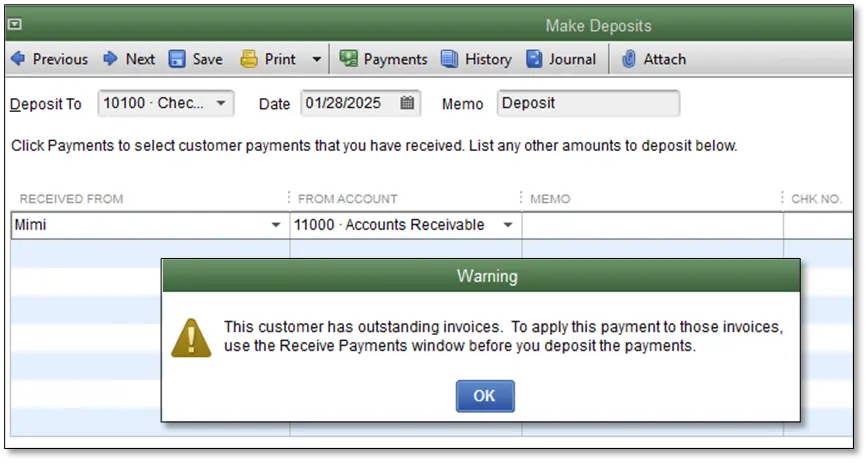
This guide explains what a QuickBooks Invoice payment error is, why it occurs, and how to fix it.
What Do You Understand By QuickBooks Invoice Payment Error?
You may encounter a QuickBooks Invoice Payment error when a customer payment cannot be processed, recorded, or correctly applied to an invoice. It may cause payments to fail or be declined, payment links to stop working, or an invoice to continue showing as unpaid even after payment. Common causes include incorrect payment details, processing issues, unapplied payments, and invoice settings.
Symptoms of Invoice Payment Error in QuickBooks
Users often come across Invoice payment errors in QuickBooks in several ways, depending on whether the problem occurs while making a payment, recording it, or applying it to an invoice. Identifying these symptoms can help you spot the issue and use the right method to fix it.
- Payment fails or gets declined: The customer can’t complete the payment, or the transaction is rejected.
- Payment isn’t showing: The customer paid, but the payment doesn’t appear in the invoice or account.
- Payment isn’t applied: The payment is recorded but isn’t linked to the right invoice.
- Invoice still shows unpaid: The invoice remains open even after the customer has paid.
- Payment status doesn’t update: Even after the payment is done, the invoice doesn’t change it’s status to “Paid”.
- Payment link isn’t working: The customer can’t open the link or reach the payment page.
- Payment error appears: An error message shows up while processing or recording the payment.
- Payment may be duplicated: You may think a payment is missing and accidentally record it twice.
- Customer balance is incorrect: The account doesn’t reflect the latest payment.
- Receive Payment won’t work: You can’t save or apply a customer payment to an invoice.
- Payment is applied to the wrong invoice: The payment is linked to a different invoice for the same customer.
- Payment and deposit don’t match: The recorded payment amount differs from the related bank deposit.
What are the Possible Reasons Behind QuickBooks Invoice Payment Not Showing?
Below, we have discussed all the possible root causes that might be responsible for the appearance of an invoice payment error in QuickBooks.
- Incorrect credit card or bank account information.
- Another major reason is disabled online invoice settings.
- You have made the payment to another invoice belonging to the same customer.
- Issues with the customer’s browser, such as cached data, can affect the invoice payment link and online payment processing.
- When a payment doesn’t exactly match the related bank deposit, it may not be automatically recorded or matched.
- Delay in the payment processing could also cause this issue.
- This can happen when the online invoice settings are disabled.
How To Fix QuickBooks Payment Error on Invoice
Try the following troubleshooting methods discussed below to address the QuickBooks payment error on an invoice.
Method 1: Check the Payment Status
In the first step of troubleshooting, check whether the payment was processed successfully.
Review the customer’s payment transaction and see if it shows;
- Completed
- Pending
- Unapplied
- Applied to another invoice
- Returned
- Declined
If an electronic payment is still processing, give the appropriate processing time before making changes to the invoice.
Method 2: Review the Invoice Payment Status
If customers can’t see the payment option, check the online invoice settings.
In QuickBooks Online
- Select the Settings icon and tap on Account and Settings.
- Click Sales and choose the Online Delivery option.
- Following this, hit the Online invoice option.
- Once changes are done, click Save.
Method 3: Check the Payment Link
If a customer is getting an error after clicking Pay now, then follow the instructions provided in the error message. If you don’t see any instructions, then do as follows;
- Copy the payment URL from the invoice email.
- After this, paste it into your web browser.
- Try another supported web browser if necessary.
- Ask the customer to test their internet connection.
Method 4: Verify Customer Payment Information
If you encounter a QuickBooks invoice payment declined message, ask the customer to verify their card or bank information.
Verify that;
- The payment details you enter are correct.
- The customer has sufficient available funds or credit.
- Your bank has not declined the transaction.
- The payment amount is valid.
- The card or bank account is active.
Method 5: Apply the Payment to the Correct Invoice
QuickBooks payment not applied to invoice message may also appear if the payment is applied to the wrong invoice. Therefore, to apply the payment to the correct invoice, perform the following steps;
- Click the Sales menu and choose Invoices.
- After this, open the invoice where the payment was incorrectly applied.
- Check the Transaction Journal or payment details to identify the payment.
- Following this, open the payment transaction and delete the incorrect invoice.
- Now, pick the correct invoice you want to apply payments to.
- Enter or confirm the payment amount and click Save & Close.
- Finally, reopen the invoice and ensure that the payment has been applied correctly.
Method 6: Check for Unapplied Payments
An unapplied payment can exist in the customer’s account without being linked to a specific invoice. However, applying it to the right invoice can help you resolve a QuickBooks invoice payment status not updating issue.
- Move to Sales and click Customers.
- Pick the customer who has made the payment and check the customer’s transaction list.
- Search for the payment that has not been applied to an invoice.
- Open the payment transaction and thoroughly review the Outstanding Transactions section.
- Choose the invoice the payment is applied to and ensure that the payment amount is correct.
- Click Save and close.
- Relaunch the invoice and see that its status and balance are updated.
Method 7: Review QuickBooks Payments Deposits
If you are using QuickBooks Payments, reviewing your deposits will help you determine why a payment does not match the amount recorded in your bank account.
- At first, sign in to your QuickBooks Online account.
- Browse to Transactions > Bank Transactions.
- Pick the bank account where the payment was deposited.
- Search for the related deposit and check the deposit amount and transaction date.
- Now, compare the deposit with the customer payment recorded in QuickBooks.
- Check whether the payment amount matches the bank deposit.
- If you see that the amounts don’t match, review the individual transactions included in the deposit.
- Correct or record any missing transactions as needed.
- Match the payment and deposit when the details agree.
- Save your changes and review the customer’s invoice to ensure that the payment is shown correctly.
Method 8: Record a Missing Customer Payment
If you have not recorded the transaction of the payment made by cash, bank transfer, or another payment method, you may face this issue. So, to manually record the missing customer payment transaction;
- Choose + Create and click the Receive Payment option.
- Pick the customer who made the payment.
- Type the Payment date, and choose the payment method like cash, check, or bank transfer.
- Add the payment amount and choose the invoice the customer paid.
- Confirm that the payment amount is correctly applied to the invoice.
- Choose the appropriate Deposit To account.
- When the changes are made, click Save and close.
- Lastly, open the invoice and ensure that the outstanding balance has been updated.
Method 9: Update Your Web Browser
Updating the web browser will improve performance. Thus, it also helps you address the invoice payment error in QuickBooks.
- Double-click on the Chrome icon to open the program.
- Select the More icon at the upper right corner of the screen.
- If the icon shows green, it means that the app update was released recently.
- If the color is Orange, it means the update was released a week ago.
- A red icon shows that the update was released more than a week ago.
- This means that you need to update Chrome by performing these steps;
- Select the More icon and click the Help menu.
- Tap on About Google Chrome > Update Google Chrome. If you can’t view this, it means that the browser is up-to-date.
- Finally, click on the Relaunch option to complete the process.
Learn More:- QuickBooks GoPayment App
Method 10: Switch to the Incognito Window
The web browser saves the browsing history, cookies, and cache files that may hamper the performance of the browser. Users may also experience QuickBooks Invoice Payment problems due to damaged cookies or cache files. Running the invoice payment in an incognito window will not save the browsing history and can help resolve the issue.
- Google Chrome: Ctrl + Shift + N
- Mozilla Firefox: Ctrl + Shift + P
- Safari: Command + Option + P
Method 11: Delete Browsing History of the Web Browser
For Chrome Browser
- Open the Chrome browser and click on the More icon.
- Following this, select the More Tools option.
- Select the Clear Browsing data option.
- Choose a time range to delete the data for. Alternatively, you can also opt for deleting everything by selecting the All-Time option. Also, select the checkboxes for;
- Cookies and other site data
- Cached images and files
- Lastly, click Clear Data and then reopen Chrome.
Read More:- QuickBooks Desktop Invoice Missing
How to Fix QuickBooks Invoice Paid but Showing Unpaid
If an invoice is paid but still continues to show unpaid, then check the payment transaction;
- Initially, launch the customer’s transaction history.
- Search for the payment and confirm that the payment is linked to the right customer.
- Also, ensure that it is linked to the correct invoice.
- When required, delete the incorrect invoice selection.
- Next, apply the payment to the correct invoice.
- Lastly, save the transaction and check the invoice status again to see if the issue is resolved.
How to Fix QuickBooks Invoice Payment Status Not Updating
If the QuickBooks invoice payment status is not updating, do not create another payment instantly. First, ensure whether the original payment still exists.
This is because creating a duplicate payment can make your customer balance and financial records inaccurate.
Instead, you must perform the following actions;
- Check the invoice’s payment history.
- Look for unapplied payments.
- Confirm whether the transaction is still processing.
- Look out for the customer’s transaction list.
- Review the related deposit if QuickBooks Payments was used.
Learn More:- Void An Invoice in QuickBooks
How Can You Avoid the QuickBooks Invoice Payment Errors?
To prevent QuickBooks Invoice payment errors in the future, consider the following points:
- Confirm that the payment and invoice settings are correctly configured.
- Also, make sure that payments are applied to the correct customer and invoice.
- Verify that your browser and accounting software are up-to-date.
- Check the payment records before changing an invoice status.
- Make sure that your payment and invoice settings are configured correctly.
- Do not enter duplicate payments when an existing transaction is simply unapplied.
Conclusion
To sum up, a QuickBooks invoice payment error can be frustrating, especially when a payment fails or an invoice still shows as unpaid. But, you can resolve this issue, by performing the above-given troubleshooting methods.
If still your QuickBooks invoice payment is not showing, avoid recording the payment again unless your status is confirmed. For further guidance, you can have a word with our QB professional at BizBooksAdvice by dialing Call Us : +1-866-408-0444 to get instant support.
Frequently Asked Questions
Why is QuickBooks showing an invoice payment error?
QuickBooks may display a payment error because of incorrect payment details, bank declines, or temporary technical glitches.
Why can’t customers pay QuickBooks invoices Online?
Online payments may be disabled, or the customer’s payment method may be declined.
How do I resolve duplicate payment errors in QuickBooks?
Review the transaction history before retrying the payment to avoid duplicate charges.
Why are QuickBooks Online invoice payments unavailable?
Payment services may be disabled, restricted, or temporarily unavailable.
Why does my QuickBooks invoice still show unpaid after payment?
The payment may still be processing or may not have been applied to the correct invoice.
About The Author

Jonathan Browns
Jonathan Brown is a trained QuickBooks professional with 10 years of experience in the accounting sector. Moreover, he is passionate about helping businesses reduce the stress of managing accounts. Also, he is proficient in assisting entrepreneurs and small business owners to use QuickBooks and enhance their accounting experience.
Recent Posts
-
How to Fix QuickBooks Invoice Payment Error (A Complete Guide)
-
9 Proven Ways to Fix QuickBooks Migration Error-1009
-
QuickBooks Error 401 Authentication Error: Complete Fix Guide
-
How to Fix QuickBooks Freezing or Not Responding
-
Fix Your QuickBooks Online Sync Problems: A Step-by-Step Guide