


How to Delete Invoice in QuickBooks Online (Step-by-Step Guide)

- By Jonathan Browns
- Oct 28, 2026
- Accounting
- 7 min read
Have you ever created an invoice in QuickBooks Online and noticed that you have entered a transaction incorrectly, recorded it twice, or no longer need it in your books? Fortunately, QuickBooks Online lets you delete or void invoices according to the situation. The important part is to choose the right option so your accounting records remain accurate.
In this detailed post, you will learn how to delete an invoice in QuickBooks Online, when to void it, and what to do if the software won’t let you remove an invoice.
Void Vs Delete Invoice in QuickBooks Online: What’s The Difference?
This table helps you understand the difference between deleting and voiding an invoice in QuickBooks. Both options can help you correct mistakes, but they handle the transaction record differently.
| Feature | Delete Invoice | Void Invoice |
| What happens | It removes the transaction from normal records. | Retains the transaction with a zero amount. |
| Financial impact | Remove the transaction’s account effect. | Reverses the invoice’s financial effect. |
| Audit Trail | Deletion remains visible in the audit log. | The voided transaction remains in the records. |
| Best suited for | Duplicate or mistakenly created transactions. | Incorrect invoices you want to retain for reference. |
| Can you undo it directly? | The deleted transaction must generally be created. | A voided invoice generally must be recreated to restore it. |
Which Option You Should Choose?
You need to delete an invoice when it was created accidentally, and there is a clear reason to remove the transaction entirely from your books of accounts.
You need to void an invoice when you want to cancel an invoice but want to store the record of what happened. This can be helpful for bookkeeping reviews and audit documentation.
For record-keeping, voiding is the perfect option. QuickBooks notes that a voided transaction remains in your books without affecting your totals. You should also be aware that voiding cannot simply be undone.
Best Practices Before Deleting An Invoice in QuickBooks
A few quick prerequisites can save you from a lot of cleanup later.
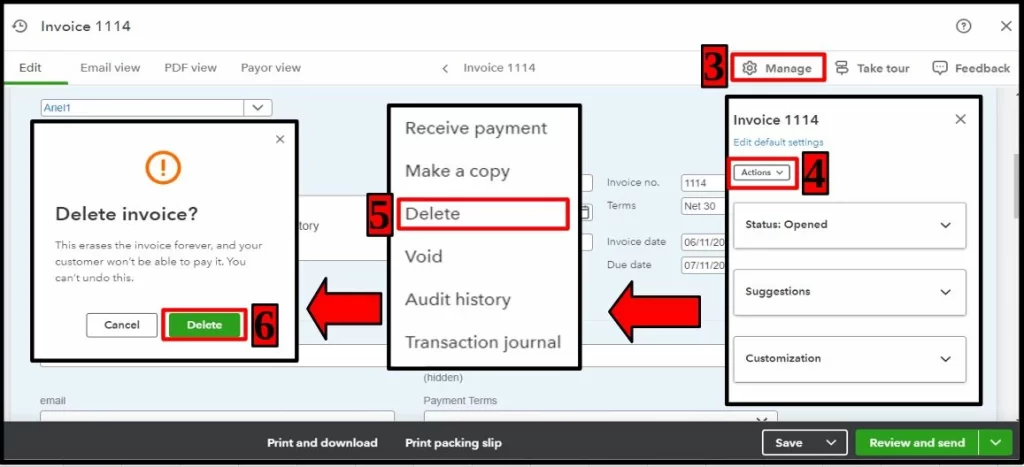
- Check the invoice number and customer name before deleting.
- Check whether the invoice has been paid, partially paid, or reconciled.
- Save relevant supporting documents and customer communications.
- Tell the customer if the invoice was already sent.
- Ask your accountant before changing transactions in a closed reporting period.
- Review your accounts receivable reports after correcting the transaction.
- Consider voiding the invoice if you need to preserve a record.
How to Delete Invoice in QuickBooks Online
Let’s learn how to delete an invoice in QuickBooks Online. You can either delete them individually or choose them in a batch.
1. Delete invoices individually in QuickBooks Online
- Initially, log in to QuickBooks and select Get Paid & Pay.
- Next, choose the Invoices tab.
- After this, choose the invoice that you want to delete.
- When the invoice opens, click More and then hit the Delete option.
- Once done, tap the Yes option.
2. How to Delete Multiple Invoices in QuickBooks Online
- Select the Sales menu and then choose the Invoices tab.
- Click on the Status drop-down menu and select Paid to show invoices linked to payments. You can also apply a filter to a specific time on the Date menu.
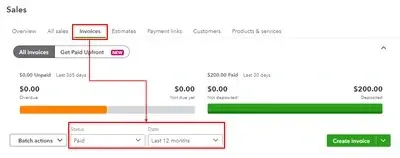
- Mark the checkbox for the invoices that you want to delete (or choose the box column to select all of them).

- Choose the Batch Actions button.
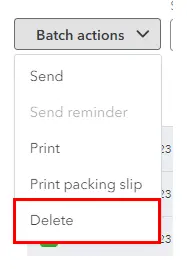
- Click on Delete to confirm it.
How to Delete an Invoice in QuickBooks Online (Via Web Browser)
Using the web browser, you can get a clear picture of all your transactions, and it makes it easier to find and delete invoices.
First step: Move to the Sales menu
- First, sign in to your QuickBooks Online account using your browser.
- Select Sales from the left-hand menu.
- After this, click on Invoices to open the list of all invoices, such as paid, unpaid, or overdue.
Second Step: Locate the invoice
- Locate the required entry by navigating through the invoice list.
- Use the Search bar to look for the invoices according to the customer name or amount.
- After this, apply the filters like date, status, or customer to narrow down the results.
Third Step: Access the Action menu
- You need to look for the invoice in the list of options.
- Browse to the Action column on the right side.
- Choose the drop-down arrow beside the available action.
Fourth Step: Choose the Delete option
- Select the drop-down menu and select the Delete option.
- This will start the process to remove the invoice from your records.
- You will get a confirmation message on the screen.
- Thoroughly review the message to confirm that you have chosen the right invoice.
- Finally, select Yes to delete the invoice permanently.
Read More:- Recover Deleted Invoice in QuickBooks
How to Void Invoice in QuickBooks Online
Learn how to Void an Invoice in QuickBooks while preserving the transaction history for accurate financial records.
- Open All Apps and select Sales & Get Paid.
- Choose the Sales transactions option.
- After this, select the More actions drop-down menu.
- Click on the Void option.
- Review the confirmation message and then confirm the action.
Then, verify the invoice status and amount. The amount will appear as voided, with its amount reduced to zero. Verify that the menu names can vary between QuickBooks versions. If you don’t get the Void option, see the transaction type and account’s available actions.
How to Remove an Invoice from QuickBooks Online when it’s incorrect
Sometimes, it is not important to delete an invoice. If you have made a small mistake, editing the existing transaction makes more sense.
For example: You have entered $850 instead of $580. If the invoice is still editable and no other accounting issues are involved, you may be able to correct the amount without deleting the entire transaction.
- Open the Invoices section and choose the invoice that needs correction.
- Click on the Edit menu.
- After this, update the incorrect details like the amount, date, customer, or product information.
- Now, save the changes made and review the updated invoice.
If the invoice has already sent, consider sending the customer a corrected copy or clearly communicating the change. If it’s already been paid, review the payment and related records before editing.
Read More:- QuickBooks Email Invoices Not Working
How to Delete a Paid Invoice in QuickBooks Online
Deleting a paid invoice requires more care than deleting an unpaid one because the invoice is connected to a payment record.
Imagine a customer paid an invoice for $1,200, but you later realized the invoice was entered twice. Deleting the wrong transaction without reviewing its payment can leave your accounts out of balance or create confusion about which invoice the payment belongs to.
Before taking action;
- Open the paid invoice and then check its payment details.
- After this, determine the payment link to the invoice.
- Find out whether the invoice is incorrect or whether only the payment allocation requires fixing.
- Now, check with your bookkeeper or accountant for the appropriate correction if the transaction has already been reconciled or reported.
If a customer has paid the invoice, avoid deleting the payment to make the invoices disappear. The right method is to correct a duplicate invoice, reallocate a payment, or record a refund or adjustment.
Learn More:- QuickBooks Invoice Payment Error
How to Delete an Unapplied Invoice in QuickBooks Online
An invoice is basically your sales transaction. A payment that has not been matched to an invoice is a separate transaction and is described as an unapplied payment or unapplied customer credit.
If you have an invoice that is unpaid, open it and review its status before selecting Delete or Void.
If you actually mean an unapplied payment, avoid deleting the invoice to clear the payment issue. Instead;
- Initially, launch the customer’s transaction history.
- After this, look for the payment or credit that has not been applied.
- Check the amount and the invoice to which it is related.
- Now, apply the payment to the correct invoice if possible.
- If the payment is recorded inappropriately, correct the payment transaction.
How to Review Deleted Invoices in QuickBooks
Accidental deletions can happen, or you may need to find out who deleted an invoice for auditing or record-keeping purposes. While QuickBooks Online doesn’t offer a direct way to restore a deleted invoice, you can use its audit log to review the deletion activity and access details of the original transaction. This information helps you identify what was deleted and recreate the invoice if necessary.
Use the Audit Log to find deleted invoices.
The Audit Log in QuickBooks Online stores a complete history of all activities, such as invoice deletions.
First Step: Launch the Audit Log & Apply Filters
- Select the Settings icon in the top-right corner.
- After this, choose Audit Log from the menu.
- As a result, it will display a list of all recent activities in your account.
- Tap on the Filter option to narrow down results.
- Now, set User to “All Users” or choose a specific user if needed.
- Next, pick the appropriate Date range.
- Below Events, click on Transactions to focus on invoice-related actions.
Second Step: Look for the Deleted Invoice
- Scroll down through the filtered results.
- After this, search for the entries that are marked as Delete in the event column.
- You can also view who can delete the invoice and the exact time of deletion.
Third Step: View Detailed Information
- Select View from the History column.
- Review the original invoice details, like customer name, products/services, and total amount.
- After this, use this information to recreate the invoice manually when required.
View Deleted Transactions in the Transaction History
Here’s how to view the deleted transactions in the Transaction History.
Step 1: Run the Deleted Transactions Report
- Move to the Reports menu.
- Choose Accountant & Taxes.
- After this, click on Voided/Deleted Transactions Summary or Voided/Deleted Transactions Detail.
Step 2: Adjust the Date Range
- Adjust the date range to include both the creation and deletion period of the invoice.
- As a result, it ensures the report contains all the necessary data.
Step 3: Analyze the Report
- Check out the list of deleted invoices shown in the report.
- After this, review the important details such as invoice number, date, and amount.
- Use this data for reconciliation or to re-enter the invoice appropriately.
Conclusion
Hopefully, we have ensured that you now understand how to delete an invoice in QuickBooks Online. It is a straightforward process when the transaction was created by mistake and has no complications. However, paid invoices, linked payments, and duplicate entries may require a different approach. Before making changes, check the invoice status and decide whether deleting, voiding, or editing is the best option. When in doubt, preserve the audit trail and consult your accountant.
If still you are looking for any additional help, then communicating with our BizBooksAdvice professionals for help.
Frequently Asked Questions
Can I delete an invoice after sending it to a customer?
Yes! You can delete an invoice after it has been sent, depending on its status and related transactions. If you cancel it, inform to your customer so they don’t attempt to pay an invalid invoice.
Why can’t I delete an invoice in QuickBooks Online?
This issue may trigger due to various reasons include linked payments, the invoice’s status, user permissions, or differences in the available interface options. Review the transaction and its related records before trying another correction method.
How do I cancel an invoice without deleting it?
To cancel an invoice, open the invoice, locate the More actions menu, and choose Void if the option is available. Confirm the action and verify that the invoice shows a voided status.
Can I delete an invoice with an unapplied payment?
First, you determine whether you mean an unpaid invoice or a payment that hasn’t been matched to an invoice. If the issue is an unapplied payment, review and correct the payment allocation rather than deleting the invoice unnecessarily.
What happens when I void an invoice in QuickBooks Online?
Voiding reduces the invoice amount to zero while retaining the transaction record. This preserves a reference to the original invoice without allowing it to affect your totals.
About The Author

Jonathan Browns
Jonathan Brown is a trained QuickBooks professional with 10 years of experience in the accounting sector. Moreover, he is passionate about helping businesses reduce the stress of managing accounts. Also, he is proficient in assisting entrepreneurs and small business owners to use QuickBooks and enhance their accounting experience.
Recent Posts
-
How to Export Chart of Accounts in QuickBooks Desktop & Online?
-
How to Delete Invoice in QuickBooks Online (Step-by-Step Guide)
-
How to Fix QuickBooks Error 6000 83: Step-by-Step Guide
-
Edit Deposit QuickBooks Online: Complete Step-by-Step Guide
-
How to Fix QuickBooks Error 6189 816 & Restore Company File Access