


How to Fix QuickBooks Error 6189 816 & Restore Company File Access

- By Jonathan Browns
- Oct 26, 2026
- Accounting
- 7 min read
If you get stuck with QuickBooks Error 6189 816 while opening a company file, you won’t be able to access your business data, which puts your entire work at a halt. This error is mainly concerned with multi-user network issues and hosting problems. A mismatch between the company file and transaction log files can also lead to this issue. Fixing this issue as soon as possible is important to regain access to the company file and multi-user access.
In this guide, we are going to discuss what causes QuickBooks Error Code 6189 816, symptoms, and how to fix it step by step.
What Do You Mean By QuickBooks Error 6189 816?
QuickBooks Error 6189, 816 occurs when QuickBooks Desktop cannot properly access a company file. It is commonly associated with multi-user network problems rather than indicating that the company file itself is damaged.
You will notice the following error message stating;
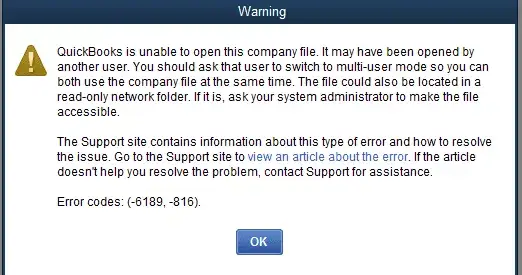
“An error occurred when QuickBooks tried to access the company file. Please try again.”
The exact message may vary by version and situation. The error can occur when QuickBooks cannot establish the required connection to the computer hosting the company file.
Understanding the Causes of QuickBooks Desktop Error 6189 816
Before trying different solutions, it is important to understand why QuickBooks cannot access your company file. Some common reasons for QuickBooks Error 6189 816 include:
Multi-user hosting configuration issues:-
Issues faced due to incorrect setup of multiple workstations trying to host the company file.
File Lock or Mismatch:-
A mismatch or damage between your company file (.qbw) and the corresponding transaction log files (.tlg).
Network Connectivity Problems:-
QB Error Code 6189 816 may also appear due to a lost connection between the workstation and the server interrupting the file access.
QuickBooks Database Server Manager issues:-
There might be a possibility that the QBDBMgrN, responsible for managing the company file in multi-user access, is not running properly.
Firewall or security software interference:-
Windows Firewall or security software may block communication between QuickBooks and your server computer.
Company file location problems:-
Different workstations are trying to access separate copies of the company files instead of the same shared file.
Missing or Damaged QuickBooks Installation:-
Issues with the installation of QuickBooks Desktop could also trigger QB error 6190 and 816.
Logged into Single-user mode:-
You may also encounter this error when another user is logged into QuickBooks using single-user mode.
Signs & Symptoms Of QuickBooks Error Codes 6189, -816
You may notice QuickBooks Error Codes 6189 and -816 when the software fails to access your company file due to issues with your multi-user network or hosting setup. Identifying the warning signs can help identify the problem and select the correct troubleshooting method.
- QuickBooks Desktop displays an error when you try to open a company file.
- A workstation cannot access the company file stored on the server.
- Multiple users experience difficulty opening the same company file.
- QuickBooks cannot communicate with the computer hosting the company file.
- Accounting work is interrupted because the company file is unavailable.
Pre-Checklist Before Fixing Error 6189, – 816 in QuickBooks
Before resolving Error 6189/816, check a few things to avoid unnecessary changes to your company file.
Protect your data: If you can access the company file, create a verified backup before making changes. If the file cannot be opened, preserve the existing file and any available backups.
- Close QuickBooks: Ask other users to save their work and close QuickBooks before restarting the server or performing maintenance.
- Check network access: Confirm that the server & workstations are connected to the correct network.
- Update QuickBooks: Install applicable updates for your QuickBooks Desktop version.
- Confirm the file location: Identify the original company file and the computer hosting it.
- Avoid destructive changes: Do not delete the company file, overwrite a backup or replace transaction logs without a verified backup and a clear reason.
Fix Error 6189, -816 in QuickBooks Desktop Using Simple Steps
Error 6189, 816 in QuickBooks can prevent you from opening your company file because of a multi-user network or hosting issue. To help you fix this issue, we have outlined simple, step-by-step troubleshooting methods. Follow each step in order, starting with the basic fixes before moving further. This approach will help you restore access to your company file & get back to your accounting tasks.
Method 1: Run Quick Fix My Program from QB Tool Hub
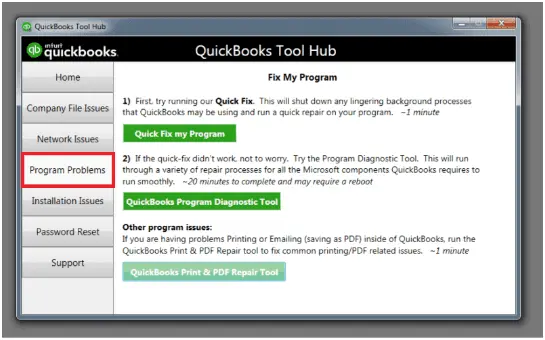
Quick Fix My Program is available through QuickBooks Tool Hub. It can help resolve certain program-related problems that interfere with QuickBooks Desktop.
Step 1: Start by downloading and installing QuickBooks Tool Hub version 1.6.0.8 on your computer.
Step 2: Use the Quick Fix My Program
- Launch the QuickBooks Tool Hub you have recently installed.
- Click on Program Problems and choose Quick Fix My Program.
- Open the QuickBooks Desktop application.
- Try to access the QuickBooks company file to see whether the Company file error message 6189, – 816 in QuickBooks still appears.
Method 2: Restart All Computers & Servers
A temporary network or service problem may prevent QuickBooks from communicating with the hosting computer. Restarting the affected computers can help establish a fresh connection.
Here’s how to restart all your computers and servers;
- Restart your server computer (the one used to host your company files).
- Now, restart each workstation (the other computers linked to the network that do not host your company files).
- Launch QuickBooks Desktop on your server computer.
- After this, open QuickBooks Desktop on each workstation.
- If you are able to open QuickBooks, it means that the issue is resolved. Otherwise, move on to the next solution and get the issue resolved.
Method 3: Run QuickBooks Database Server Manager on your server
The main use of QuickBooks Database Server Manager is to access company files in a multi-user mode. If the service is not detecting the correct folder or network configurations, users may face problems accessing the company file.
- Open QuickBooks Tool Hub and click the Network Issues tab.
- Choose the QuickBooks Database Server Manager tab. Then, you will get a pop-up to install QuickBooks on the server computer if it isn’t already.
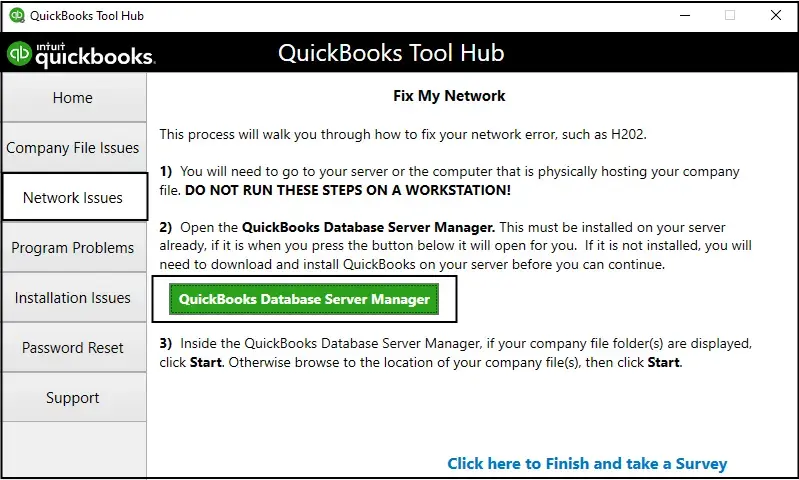
- Click Start Scan option when you find your company file. If not, then Browse to the location of your company file and tap on Start Scan again.
- Select Close option.
- Now, again open QuickBooks Desktop on your server computer and then your workstations.
Method 4: Renaming Network Data (.ND) & Transaction Log File (.TLG)
The network data and transaction log are the configuration files that enable QuickBooks to open the company file in multi-user mode. Damage or corruption in these configuration files may trigger company file access problems. Renaming these files does not cause any sort of data loss, as they are created while opening the company file.
- Open the folder where your QuickBooks company file is saved.
- After this, search for the files with a similar name to your data file. But they include different file extensions such as .ND and .TLG.
- You will find the file listed in the following format:
- company_file.qbw.nd
- company_file.qbw.tlg
- Now, right-click on each file one by one. Then, select Rename and add .OLD at the end of the file name.
- Finally, open QuickBooks and try to log in to your company file to see if the issue still persists.
Method 5: Verify Multi-User Hosting Settings
Incorrect hosting settings may lead to QuickBooks Error Code 6189 816, usually when multiple computers host the same company file. Usually, in QuickBooks Desktop multi-user setup, the server hosts the company file and workstations connect to it.
To verify the multi-user hosting settings;
- On your workstation, launch QuickBooks Desktop.
- If your company file is not open, click on the File menu and then choose Utilities.
- Go to the Stop Hosting Multi-User Access option. Then, follow the given guidelines to disable hosting on that workstation.
- After this, repeat the check on other workstations that should not host the company file.
- On the designated server, check that the hosting is configured as per your network setup and QuickBooks version.
Make sure not to turn off hosting on the server. The main purpose is to test that the
hosting is configured properly and not to turn it off.
Method 6: Restore a Backup Company File
QuickBooks mainly uses the backup company file to create a new company file when you perform a restore.
- Select the File menu and click Open/ Restore Company in QuickBooks. For further assistance, you can check out ” Restore QuickBooks Backup File.
- Choose Restore a backup copy and click Next.
- Select the Local Backup option and then click Next.
- Move to the computer to locate the backup company file. You will see the file name as: [Your company name].qbb.
- Browse to a directory to identify where you want to save the restored company file. Then, click Open.
You have to either change the name of the existing company file or create the backup to confirm that the names are different to avoid overwriting. You may also store the backup in a different folder to resolve Error 6189 816.
- Click the Save option once you are all set.
- Select the suitable option according to your situation when you encounter warnings related to possible data overwriting.
- Prevent overwriting anything unless you are sure it is essential.
- You now have a new company file available for your use.
Method 7: Review Folder Permissions
Proper Windows folder permissions are required to access the company file in multi-user mode. Perform the steps instructed below to check the folder permissions.
- Click on the Start menu and then open File Explorer.
- After this, right-click on the folder holding the company file.
- Choose the Properties option.
- Move to the Security tab and click the Advanced option.
- Navigate to the QBDataServiceUserXX and click the Edit menu.
- Now, configure the following permissions to Allowed;
- Traverse Folder/Execute File
- List Folder/Read Data
- Read Attributes
- Read Extended Attributes
- Create Files/Write Data
- Create Folders/Append Data
- Write Attributes
- Write Extended Attributes
- Read Permissions
If the permissions are not configured correctly;
- Initially, right-click on the folder containing the company file.
- After this, select the Properties option.
- Choose Security, then click Edit.
- Navigate to the QBDataServiceUserXX and grant Full Control. Then, select the Allow option.
- Once done, choose Apply and then hit the OK option.
What is the Difference between QuickBooks Error 6189 816 and Error 6190 816?
Both QuickBooks Error 6189 816 and Error 6190 816 are associated with company file access errors. But they don’t have the same cause.
| Error Codes | Causes |
| QuickBooks Error 6189 816 | Multi-user network connectivity, hosting settings, Database Server Manager, and file location |
| QuickBooks Error 6190 816 | Multi-user access configuration, whether another user is working in a different mode, and possible company file or transaction log inconsistencies. |
How to Avoid QuickBooks Error 6189 816 in the Future?
These practices can help reduce the risk of future company file access problems:
- Store company files in a supported location on the hosting computer.
- Keep QuickBooks Desktop & its related components updated.
- Configure hosting correctly for the network.
- Ensure the database service has the required folder permissions.
- Keep the network connection between the server and workstations stable.
- Configure firewall and security software to permit the required QuickBooks network communication.
- Back up the company file regularly and verify that backups can be restored.
- Avoid opening separate copies of the company file when users should be working on the same shared file.
Conclusion
QuickBooks Error 6189 816 can interrupt your work when you are trying to open or access your company file. You can resolve this issue by checking your network connection, using QuickBooks Tool Hub & running Database Server Manager. Keep your company file in the right location and confirm that all users have proper access. Also, update QuickBooks regularly and back up your company file to help avoid similar issues in the future.
If the error still appears after trying these solutions, contact BizBooksAdvice professionals for further assistance.
Frequently Asked Questions
What is QuickBooks Error 6189 816?
QuickBooks error 6189 816 triggers when QuickBooks Desktop fails to access a company file due to a multi-user network issue. It does not generally mean that your company file is damaged.
Can restarting the server fix Error 6189 816 in QuickBooks Desktop?
Yes! Restarting the server and connected workstations may help resolve temporary network or service issues. Close QuickBooks on all computers first, restart the server, restart the workstations, and then open QuickBooks on the server before opening it on other computers.
How can I fix QuickBooks Error Code 6189 816 when opening a company file?
First, run Quick Fix My Program and restart the server and workstations. If the problem continues, scan the company file folder using Database Server Manager. Also, make sure the file is stored on the server computer’s local hard drive rather than a removable or online-synced drive.
Can incorrect hosting settings cause QuickBooks Error 6189 816?
Yes. Incorrect hosting settings can prevent QuickBooks from accessing a company file over the network. In a typical multi-user setup, only the server computer should host the company file. Hosting should be turned off on workstations.
Is QuickBooks Error 6189 816 related to QuickBooks Error 6190 816?
Yes. Both errors can be related to multi-user network access problems. Intuit provides troubleshooting steps for both errors, including running Quick Fix My Program, restarting computers, and using Database Server Manager.
About The Author

Jonathan Browns
Jonathan Brown is a trained QuickBooks professional with 10 years of experience in the accounting sector. Moreover, he is passionate about helping businesses reduce the stress of managing accounts. Also, he is proficient in assisting entrepreneurs and small business owners to use QuickBooks and enhance their accounting experience.
Recent Posts
-
How to Fix QuickBooks Error 6189 816 & Restore Company File Access
-
What Causes & How to Fix QuickBooks Error 15223 Efficiently?
-
QuickBooks Library Files Failed: How to Fix Error 80029c4a
-
How to Fix QuickBooks Error OL-301 (Bank Connection Issue)?
-
QuickBooks Email Invoices Not Working: How to Fix It