


Fixing QuickBooks Error 1606: Could Not Access Network Location

- By Jonathan Browns
- Oct 01, 2026
- Accounting
- 7 min read
Are you trying to install QuickBooks Desktop but suddenly get stuck with QuickBooks Error 1606: Could not access network location?
If so, you’re not alone. This installation issue may occur when Windows fails to access a location required by the QuickBooks installer. It may happen when the Windows user account is damaged or the network location mentioned in the error is unavailable. As a result, it can interrupt the installation process and prevent you from using QuickBooks for your regular business tasks.
In this guide, we’ll explain what QuickBooks Error Code 1606 is, why it occurs, its symptoms, and the troubleshooting methods you can use to resolve it.
What Is QuickBooks Error 1606?
QuickBooks Error 1606 is an installation-related error that can appear when installing QuickBooks Desktop. The error displays the message “Error 1606: Could not access network location” and may occur when the Windows user account is damaged or the network location mentioned in the error is unavailable.
QuickBooks Error 1606: A Quick Overview
This table provides a quick overview of QuickBooks Error Code 1606, including the error message, common causes, symptoms, and troubleshooting methods. This will help you understand why this error occurs and how to get it fixed easily.
| Parameter | Description |
| Error Name | QuickBooks Error 1606 |
| Error Message | Error 1606: Could not access network location. |
| When it occurs | It may occur while installing QuickBooks Desktop |
| Primary Causes | Damaged Windows User Account, or an unavailable network location |
| Other Possible Causes | Incorrect Windows configuration, permissions issues, or an incorrect registry subkey |
| Common Symptoms | QuickBooks installation stops, an error message appears, or the installation cannot proceed. |
| Basic Fixes | Try installing QuickBooks using a Windows Administrator account, use Selective Startup, or create a new Windows Administrator user. |
| Advanced Fix | An incorrect registry subkey may need to be addressed, but Intuit recommends involving a system administrator or qualified professional for registry changes |
What Do You Observe When QuickBooks Installation Error 1606 Occurs?
You may encounter QuickBooks Error 1606 when installing QuickBooks Desktop. The following signs can help you identify whether this error is affecting the installation process.
- The QuickBooks Desktop installation stops unexpectedly.
- You might face trouble installing, reinstalling, or updating QuickBooks Desktop.
- QuickBooks faces issues while accessing a specific network or folder location required during installation.
- You may also notice this error when you try to access a mapped network drive or specific folder path.
- While installing or updating QuickBooks Desktop, you may see the message stating “Error 1606: Could not access network location.”
- The installation works differently under another Windows account.
Common Causes Why You Encounter Error Code 1606 in QuickBooks
Error Code 1606 in QuickBooks may occur due to several Windows-related issues that prevent the installer from accessing the required location. In this blog section, we have provided some of the common causes responsible for this installation error.
- Incorrect or missing values inside the Windows Registry can stop the installer from locating default system folders.
- This issue may occur when the network path mentioned in the error is disconnected, inaccessible, or unavailable.
- Improper admin permissions may prevent the installer from accessing certain folders or locations.
- Another reason may be corrupted or damaged user profile which prevents QuickBooks from accessing the folders.
- Improper system settings may also disrupt the QuickBooks installation process.
- A disconnected or incorrectly mapped network drive may prevent the installer from reaching the required path.
How to Resolve Error 1606: Could not access network location
After understanding the QuickBooks install error 1606, let’s learn the troubleshooting methods to address the issue.
Method 1: Install QuickBooks Using the Administrator User Account
Installing QuickBooks with Windows Administrator privileges gives the installer the required access to system files, folders, and network locations. This can help resolve Error 1606 when it is caused by restricted permissions or a problematic user account.
- Restart your computer.
- After this, enter the Windows Administrator username and password to login to your computer.
- If you don’t have administrator credentials, then ask your IT administrator for them.
- Finally, try installing or updating QuickBooks to verify whether performing these operations with the admin account resolves the error.
Method 2: Install QuickBooks in Selective Startup Mode
Installing QuickBooks in Selective Startup mode can help determine whether a background application or service is interfering with the installation process.
Step 1: Switch to Selective Startup
If you are facing trouble while performing these steps, connect with your computer’s manufacturer or a Windows expert.
- Launch the Run window using the shortcut keys Windows + R.
- Type msconfig and click OK.
- Choose Selective Startup and Load system services.
- Browse to the Services tab and tick mark the Hide all Microsoft Services checkbox.
- Click on Disable All option.
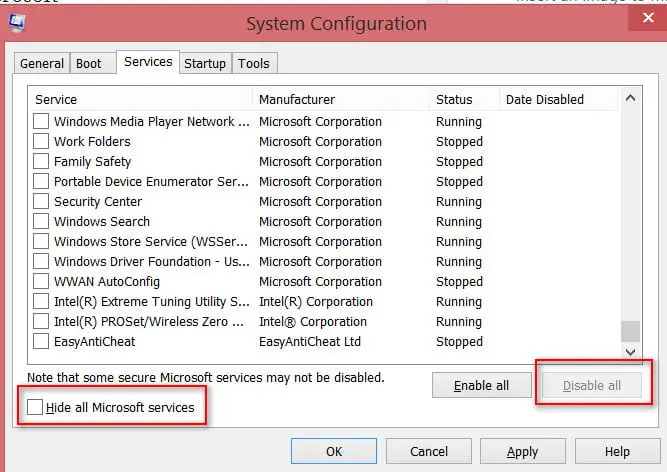
- Keep the checkbox next to Hide All Microsoft Services unmarked.
- Click Windows Installer from the list of available services.
- Tap on OK option.
- On the System Configuration window, click Restart option.
Step 2: Uninstall or install QuickBooks Desktop
- Reinstall QuickBooks Desktop.
- Launch the Run window and type msconfig. Then, click OK.
- Choose Normal Startup from the General tab.
- Click OK tab.
- At last, when on the System Configuration window, click Restart.
Method 3: Create a new Windows User with Admin Rights
Users may experience Error Code 1606 when you don’t have enough Windows admin permissions for installing QuickBooks Desktop. Therefore, to fix the issue, you must create a new Windows user account with proper administrative rights.
Windows 11
- Go to the Settings menu on your Windows device.
- Click Accounts > Other Users.
- Below the Add other user, choose Add Account.
- Now, enter the following account information for the new person to log in.
- If the person you want to add already has a Microsoft account, add their email address.
- If the person you are adding, don’t have a Microsoft account, you can use their email address to create one. Make sure to add the email address the person usually use and click Sign up for a new email address.
- If you choose I don’t have this person’s sign-in information, sign up for a new email address and create a new Microsoft account. For creating a local account, click Add a user without a Microsoft account.
- To finish setting up the account, follow the on-screen instructions closely.
Windows Small Business Server 2011 and 2008 R2
- Click the Start menu and choose All Programs.
- Launch Windows Small Business Server and select Windows SBS Console.
- Browse to the Users and Groups. Then, click the Add a new user account tab.
- Now, complete the user information.
- Do as per the instructions on Add a New User Account wizard.
- Give the new user administrator rights.
- Once you are done, click on Finish tab.
After creating a new Windows user account, try to install QuickBooks Desktop to see if the issue occurs.
Method 4: Log Out of Parallels
- Log out of your parallel and then log in back again.
- In the parallel Desktop, choose Devices and hit Shared Folders option.
- Select the Disconnect All. This will logged out of the parallel.
- Finally, sign in back and install QuickBooks Desktop.
Method 5: Fix Incorrect Registry Subkey
If Error 1606 continues after trying the recommended solutions, an incorrect registry setting may be involved. Because modifying the Windows Registry incorrectly can cause serious system problems, Intuit recommends contacting a system or network administrator, computer consultant, or Microsoft support rather than making changes yourself.
- Open the Run window, type regedit and click OK.
- Look for the subkey related to the registry item that you want to modify.
- Select the File menu and choose Export to create a backup.
- Mention a file name and then save it with .reg file extension.
- To complete the backup, select Save option.
Method 6: Run the QuickBooks Install Diagnostic Tool
If Error 1606 persists or you suspect a broader QuickBooks installation problem, you can use the QuickBooks Install Diagnostic Tool to troubleshoot common installation issues. Thus, to repair the damaged installation, you need to run the QuickBooks Install Diagnostic tool. This utility diagnose the issues and then fix damages with the QuickBooks installation.
Preventive Tips to Avoid QuickBooks Installation Errors
Follow these practices that will help reduce the chances of getting QuickBooks Installation Error 1606.
- Keep your Windows and QuickBooks Desktop updated.
- Avoid installing QuickBooks to unavailable or disconnected network locations.
- Create a backup of the QuickBooks company files before making any major changes.
- Ensure reliable access to required network drives.
- Use a Windows account with the appropriate administrator permissions when installing QuickBooks Desktop.
- Avoid making unnecessary Windows Registry modifications.
Summarizing The Above!
QuickBooks Error 1606 may prevent the QuickBooks Desktop installation when Windows can’t access the required network location. This may be caused by a damaged Windows user account, restricted permissions, an unavailable network location, or incorrect system configuration. By following the troubleshooting methods above you can identify the likely cause and work toward resolving the issue.
If QuickBooks Error 1606 continues after trying the recommended troubleshooting methods, consider contacting a qualified QuickBooks or Windows professional for further assistance.
Frequently Asked Questions
Why does QuickBooks say it cannot access a network location?
This issue may occur when the network location is unavailable, incorrectly configured, inaccessible to the Windows user, or affected by incorrect Windows Shell Folder settings.
Can I fix Error 1606 by using an Administrator account?
Yes, installing QuickBooks with administrator privileges can help when restricted permissions or user-account issues are causing the error.
What is QuickBooks Error 1606?
QuickBooks Error 1606 is an installation error that occurs when QuickBooks cannot access a required network location.
Can a network drive cause QuickBooks Error 1606?
Yes, an unavailable, disconnected, or incorrectly mapped network location may trigger this error.
About The Author

Jonathan Browns
Jonathan Brown is a trained QuickBooks professional with 10 years of experience in the accounting sector. Moreover, he is passionate about helping businesses reduce the stress of managing accounts. Also, he is proficient in assisting entrepreneurs and small business owners to use QuickBooks and enhance their accounting experience.
Recent Posts
-
QuickBooks Desktop Enterprise: Pricing, Features, Download & Setup
-
Fixing QuickBooks Error 1606: Could Not Access Network Location
-
QuickBooks Error 3100: Causes, Solutions, and Prevention Tips
-
How to Perform QuickBooks Messy Books Cleanup: Step-by-Step Guide
-
How to Fix QuickBooks Error 6177, 0: Complete Troubleshooting Guide