


How to Fix QuickBooks Freezes during exporting to Microsoft Excel?

- By Jonathan Browns
- May 01, 2026
- Accounting
- 7 min read
If QuickBooks freezes during exporting to Microsoft Excel or fails to export reports, it can interrupt your workflow and delay ongoing tasks. This issue usually occurs due to compatibility problems between QuickBooks Desktop and Microsoft Excel, a damaged installation or incorrect settings.
In this guide, we’ll explain why QuickBooks freezes when exporting to Excel and provide step-by-step solutions to fix QuickBooks export errors quickly.
QuickBooks freezes during exporting to Microsoft Excel because of a damaged installation or a compatibility issue. Therefore, to fix the issue, run QuickBooks as an administrator and update both QuickBooks and MS Excel.
Why does QuickBooks Crashes When Exporting to Excel?
The following are the reasons why QuickBooks crashes when exporting to Excel.
- Compatibility issues between MS Office and QuickBooks versions.
- Damaged installation of MS Office or QuickBooks.
- Issues with the report or the company file itself.
- Using the older version of QuickBooks Desktop.
- You don’t have enough Windows admin permissions for exporting.
- Damaged Microsoft Excel software.
How to Fix QuickBooks Desktop freezes when exporting to Excel?
After understanding the causes, let’s discover the troubleshooting methods to fix QuickBooks Desktop freezes when exporting to Excel.
Method 1: Update QuickBooks Desktop to Fix Export Errors
The first troubleshooting method is to ensure that you are using the updated QuickBooks Desktop version. Then, launch QuickBooks and export a report.
- Move to the Reports menu and then open a report.
- Choose the Excel button.
Method 2: Check QuickBooks System Requirements
The QuickBooks Desktop application works best with a certain version of MS Excel. Verify that your system meets the basic system requirements to run QuickBooks Desktop 2024.
If you spot that your MS Excel version isn’t updated, then update it to the latest version.
Method 3: Repair Microsoft Office
At times, QuickBooks won’t export to Excel when Excel isn’t working properly. So, to repair the Microsoft Office, perform the following steps carefully.
Windows 11
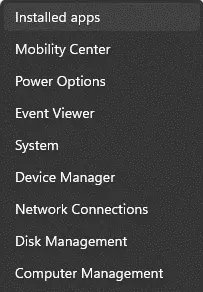
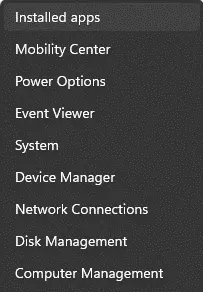
- Initially, right-click the Start button and select Installed apps from the pop-up menu.
- Choose the Microsoft 365 or Office product that you wish to repair. Then, go to the ellipses and click Modify.
- According to the Microsoft 365 or Office Installations Type, you will get the following options to continue with the repair process. Use the following steps for your installation type.
Click-to-run-
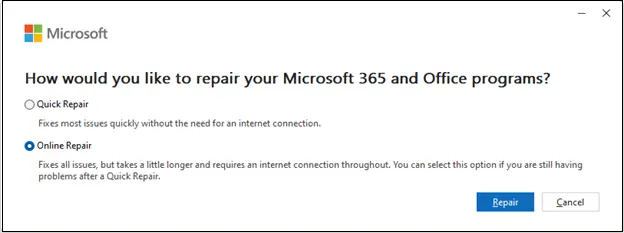
From the How would you like to repair your Microsoft 365 and Office programs, hit the Online Repair > Repair option.
MSI-based-
When you are in the Change your installation window, click Repair and hit the Continue tab.
- Now, follow the instructions given on the screen to finish the repair process.
Method 4: Toggle Windows User Account Controls (UAC)
The following are the stepwise instructions to switch on or off the Windows User Account Control settings. It will fix the problems that are preventing you from exporting. Perform the steps below to toggle UAC settings.
- Initially, press the Windows logo key and open the Start menu.
- Within the search bar, insert User Account Control Settings.
- As a result, this will open the User Account Control Settings window.
- Now, move the slider towards the Never Notify option.
- At last, click OK and then relaunch your PC.
Method 5: Reinstall QuickBooks Desktop
Before the installation of the QuickBooks Desktop, verify that you have installed Microsoft Office and Excel first. If MS Excel isn’t installed, then reinstall QuickBooks Desktop.
Method 6: Make sure that Microsoft Excel’s default file format is .xls
Visit Microsoft’s official website to find out which file format is supported by MS Excel. Following are the file format that are suitable with Microsoft Excel.
- Excel Workbook
- Excel Macro-Enabled Workbook (code)
- Excel Binary Workbook
- Template
- Template (code)
- Excel 97- Excel 2003 Workbook
- Excel 97- Excel 2003 Template
- Microsoft Excel 5.0/95 Workbook
- XML Spreadsheet 2003
- XML Data
- Excel Add-In
- Excel 97-2003 Add-In
- Excel 4.0 Workbook
- Works 6.0-9.0 spreadsheet
Method 7: Use the Right Method to Export to Excel from QuickBooks
Using the wrong method to export to Excel in QuickBooks may also cause the “QuickBooks Unable To Export To Excel” error. Here’s how to export to Excel correctly from QuickBooks.
- Move to the Customer Centre and click Transactions from the Transaction pane.
- Now, head to the Transaction Journal available in the Transaction list and pick a transaction.
- Select the Excel tab, generate a new worksheet and then export it to Excel.
- Verify that you have first opened the item list and then your report.
- Hit the List option and launch the Item list from there.
- Move to the Report menu and click the report you want to open.
- Choose the Email option and then Export to Excel.
- Finally, click Email or Email as an Excel form option by clicking the drop-down menu list.
Method 8: Reinstall Excel on the System
Perform the following steps to reinstall Excel on your computer.
Uninstall Office
Windows 10
- Initially, launch the Control Panel and click the Programs option.
- Go to the Programs and Features.
- Right-click on the Microsoft Office product and click Uninstall.
Windows 8.1, 8
- Initially, right-click on the Windows icon in Windows 8 and click the Control Panel icon.
- Choose the Programs and Features option.
- Now, right-click the Office product and select Uninstall.
Windows 7
- Initially, hit the Windows icon and open the Control Panel.
- Click the Programs and Features.
- Now, right-click the Office application that you wish to remove and select Uninstall.
- Go through the prompts on the screen to finish the uninstallation process.
- At last, reinstall Office according to the versions you have.
Steps to reinstall MS Office
- Initially, log in to the official MS Office website and click the Install Apps option.
- Choose Install or Install apps according to the version, and it will start downloading Microsoft 365.
- According to the browser you are using, choose from the following options: Run (in Edge or Internet Explorer), Setup (In Chrome), or Save File (in Firefox).
- When you get the User Account Control prompting you to allow this app to make changes to your device, click Yes. This will start the installation.
- Once you notice the message “You’re all set! Office is installed now”, it states that the installation is completed.
- At last, it will open the animation letting you know where you can find the Office applications on your system. Then, hit the Close option to finish.
Conclusion
QuickBooks export issues such as QuickBooks freezes during exporting to Microsoft Excel, mainly appears due to compatability conflicts or damaged installations. Updating QuickBooks Desktop, repairing Excel, and following the correct export process can help address the issue. Thus, it restores smooth data transfers.
If the problem persists, consult with our BizBooksAdvice professionals, who can help ensure smooth and uninterrupted data export.
Frequently Asked Questions (FAQ’s):
Question 1: Why is my QuickBooks not letting me export to Excel?
Ans. QuickBooks stops you from exporting to Excel when the latest software updates haven’t been installed for a long time or due to corrupt Excel software.
Question 2: How do I change the export setting in Excel?
Ans. Perform these steps to change the export setting in Excel.
- Initially, click the Reports and choose the Export Settings option.
- You will get the Report Export Settings page on the screen.
- Now, head to the Excel Options button on the left side.
- Thereon, hit the Update option to save the changes you made to Export settings.
Question 3: What format does QuickBooks export?
Ans. QuickBooks exports the data in CSV format by default.
About The Author

Jonathan Browns
Jonathan Brown is a trained QuickBooks professional with 10 years of experience in the accounting sector. Moreover, he is passionate about helping businesses reduce the stress of managing accounts. Also, he is proficient in assisting entrepreneurs and small business owners to use QuickBooks and enhance their accounting experience.
Recent Posts
-
9 Proven Ways to Fix QuickBooks Migration Error-1009
-
QuickBooks Error 401 Authentication Error: Complete Fix Guide
-
How to Fix QuickBooks Freezing or Not Responding
-
Fix Your QuickBooks Online Sync Problems: A Step-by-Step Guide
-
QuickBooks Online Canada: Complete Guide for Canadian Businesses