


QuickBooks Sales Tax Rounding Error: Causes & How to Fix It Fast

- By Jonathan Browns
- Aug 17, 2026
- Accounting
- 7 min read
Is QuickBooks showing a sales tax amount that does not match your calculation?
If yes, you might be struggling with the QuickBooks sales tax rounding error. This issue mainly arises from rounding differences during tax calculations and can cause minor discrepancies in invoices or tax reports. However, there are many rounding errors that can be identified and fixed by checking your tax rates, settings, and transactions. Let’s read this blog to understand the major causes and solutions to keep your sales tax records accurate.
What is a QuickBooks Sales Tax Rounding Error?
A QuickBooks Sales tax rounding error occurs when the sales tax calculated by QuickBooks differs slightly from the expected amount due to rounding. This issue mainly occurs due to the difference between how tax is calculated and rounded on individual invoice items versus the total transaction.
Let’s understand it better with an example:
An invoice has three taxable items of $10 each and the sales tax rate is 8.675%.
- Tax on each item: $10 X 8.675% = $0.8675, rounded to $0.87
- Total tax for 3 items: $0.87 × 3 = $2.61
- Tax on the total invoice: $30 × 8.675% = $2.6025, rounded to $2.60
“This illustrates how line-item rounding can produce a $0.01 difference compared with rounding the tax on the invoice total.”
Why Does QuickBooks Round Sales Tax?
QuickBooks rounds sales tax because tax calculations can produce fractions of a cent. Whereas, invoices and receipts shows amounts up to two decimal places. It can sometimes lead to a small difference like $0.01.
Line Item Sales Tax Rounding
QuickBooks can round the sales tax for each line item on invoice or sales receipt;
- First, it rounds the tax for each item.
- After this, it adds them together to obtain your total sales tax.
For example: An item costing around $1.23 and the tax rate is 8%. The sales tax is $0.0984, which will be rounded up to $0.10.
Invoice-level sales tax rounding
When QBO rounds the sales tax for sales transactions:
- It calculates the sales tax for each item on the invoices or sales receipts.
- After this, QBO sums up all the sales tax amounts.
- Now, QBO rounds the total sales tax on the invoices or sales receipts.
For example: The total sales tax for all invoice items is $2.567. The total sales tax rounds to $2.57.
Why Is QuickBooks Sales Tax Off by One Cent?
A $0.01 difference usually occurs because of the difference between line-item and total-invoice rounding. For example, individual items may produce $2.61 in rounded tax, while calculating tax on the total may produce $2.60.
Therefore, a one-cent difference does not necessarily mean your QuickBooks sales tax rate is incorrect. It may simply be a normal rounding difference.
Major Causes of Sales Tax Rounding Errors in QuickBooks
The following are the major causes that may trigger Sales tax rounding errors in QuickBooks.
- An outdated, duplicate, or misconfigured sales tax rate may cause the tax amount to differ from the expected amount.
- Sometimes, this issue may occur when QuickBooks rounds tax at the line-item level and another system may round the total invoice amount.
- Misconfigured tax settings may cause QuickBooks to calculate tax on the wrong items.
- Discounts can also change the taxable amount and hamper the final sales tax calculation.
- Invoices involving different tax jurisdictions can be more prone to small differences.
- Transactions imported from e-commerce platforms or other accounting software may use different tax-calculation rules.
How to Fix QuickBooks Sales Tax Rounding Error
The QuickBooks Sales Tax rounding error may appear in both QuickBooks Desktop and Online. Therefore, we have described the troubleshooting methods for both versions below.
Methods to fix Sales Tax Rounding Error in QuickBooks Desktop
To adjust your sales tax rounding in QuickBooks Desktop, you can either create a sales tax adjustment or create a credit memo. Here we have described the step-by-step instructions for both procedures below.
Method 1: Create a Sales Tax Adjustment
After making sales tax adjustments, you can move the money in or out of the Sales Tax Liability account.
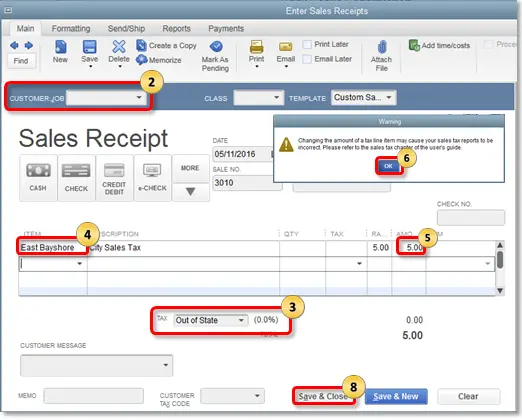
- Click the Customers menu and choose Enter Sales Receipts.
- Make sure to keep the Customer field blank.
- Tap the tax drop-down menu to select a 0% sales tax item.
- Note: If there is no 0% sales tax item, click Add New and then create one.
- Choose the first empty line and pick the sales tax item for the adjustment.
- Add the adjustment amount and press the Tab or Enter key.
- Click OK when you get the message that says “Changing the amount of a tax line item may cause your sales tax reports to be incorrect.”
- Repeat the 4th and 5th steps for other sales tax items that you need to adjust.
- Click Save & Close to create a sales tax adjustment.
Method 2: Create a Credit Memo
You can also resolve the sales tax rounding error by creating a credit memo in QuickBooks Desktop.
- Click the Customers menu and choose Create Credit Memos/Refunds.
- Select a customer name and enter it. If you don’t want to use a real customer, tap on Add New and name it as Accountant Use Only.
- Enter $00.01 into the amount column and press Enter.
- The message will appear on the screen stating, “Changing the amount of a tax line item may cause your sales tax reports to be incorrect.” Click OK and then Continue.
- Now, choose the next empty line and click Discount Item.
- Browse to the Amount section and add $0.001.
- Move to the Tax column and click Tax. Also, verify that the total amount is $00.00.
- After making changes, select Save & Close.
Methods to Fix Sales Tax Rounding Error in QuickBooks Online
Here, we have described different methods to resolve the sales tax rounding error in QuickBooks Online.
Method 1: Create a Sales Tax Adjustment
- Select the Gear icon at the top and click Chart of Accounts.
- Click the New option in the top right corner.
- Browse to the Account Type menu and select Income or Expense.
- You must pick an Income account to decrease your sales tax.
- Opt for an Expense account to increase your sales tax.
- Navigate to the Detail Type section.
- Click Sales of Product Income for the income account.
- Choose Taxes Paid for an expense account.
- Assign a name to your adjustment account.
- Choose the Save & Close option.
- Move to the Taxes menu > Sales Tax and add the tax period for making the adjustments. Then, click on Prepare return.
- Tap on the Adjust option for the entry you want to adjust.
- Add the Adjustment Date and the Tax rate.
- Also, mention the Adjustment account for adjusting sales tax.
- Choose an expense account to increase the Tax due.
- Select an expense account to decrease the Tax due.
- Next, add $00.01 in the Adjustment amount section.
- Once you type notes in Memo, click the Save option.
Method 2: Create a Credit Memo and then Apply it
Here are the step-by-step instructions to create a credit memo in QuickBooks Online.
- Click on the Plus (+) icon and choose Credit Memo.
- Select your customer name and enter the memo date.
- Enter $00.01 into the amount section and click Save & Close.
- Choose the + New button and then select Invoice.
- Create the Invoice and tap the Receive Payment option.
- Now, mark your credit and the Invoice.
- After making the changes, select Save and Close.
Preventive Tips to Avoid QuickBooks Sales Tax Rounding Error
Following these best practices can help prevent sales tax rounding errors from occurring in the future.
- Always use the correct sales tax items for each transaction.
- Allow QuickBooks to calculate sales tax automatically when required.
- To identify any tax discrepancies, check your tax reports regularly.
- Document any tax adjustments according to the date, amount, and reason.
- It is important to reconcile QuickBooks tax totals before filing your tax return.
In a Nutshell
A QuickBooks Sales Tax Rounding Error is often caused by differences in how Tax is calculated and rounded. A $0.01 difference may simply be a normal rounding variation rather than an actual error.
Before making adjustments, check your tax rates, taxable items, settings, and sales tax reports. If you’re still figuring out why QuickBooks is not calculating sales tax correctly, check the transaction. Otherwise, consult with our BizBooksAdvice professionals for recurring discrepancies.
Frequently Asked Questions-
Why is QuickBooks not calculating sales tax correctly?
This issue may occur when QuickBooks calculates sales tax differently due to rounding, incorrect tax rates, taxable item settings, or tax jurisdiction issues. A $0.01 difference is considered as a normal rounding variation.
Is a $0.01 sales tax difference normal in QuickBooks?
Yes, a $0.01 difference can be caused from normal tax rounding. But larger or recurring discrepancies should be must be checked for incorrect tax rates, settings, or transactions.
Why doesn’t QuickBooks sales tax match my tax return?
Small differences can appear due to rounding across multiple transactions. Larger differences can occur due to misconfigured tax rates, taxable items or tax adjustments.
Why does QuickBooks round sales tax?
QuickBooks rounds sales tax because tax calculations can generate fractions of a cent, while invoices and receipts display amounts up to two decimal places.
How do I adjust sales tax in QuickBooks Online?
You need to review the affected sales tax return and use the appropriate sales tax adjustment option to correct a verified rounding difference.
About The Author

Jonathan Browns
Jonathan Brown is a trained QuickBooks professional with 10 years of experience in the accounting sector. Moreover, he is passionate about helping businesses reduce the stress of managing accounts. Also, he is proficient in assisting entrepreneurs and small business owners to use QuickBooks and enhance their accounting experience.
Recent Posts
-
QuickBooks Email Invoices Not Working: How to Fix It
-
How to Resolve QuickBooks Error 15214 (Step-by-Step)
-
OL and OLSU Bank Feeds Errors in QuickBooks Desktop: Causes and Fixes
-
QuickBooks Error 15212: Causes & How Can You Fix It
-
How to Recover Deleted Invoice in QuickBooks - Online & Desktop