


QuickBooks Error PS077: 5 Proven Ways to Fix Tax Table Issues

- By Jonathan Browns
- Mar 11, 2026
- Accounting
- 7 min read
Payroll updates plays a vital role in calculating accurate taxes, but errors such as QuickBooks Error PS077 may stops you from installing them. This issue mainly triggers when users try to update payroll or download new tax tables in QuickBooks Desktop. However, it may display the warning message stating “[PS077] QuickBooks is having trouble installing your payroll update.” The users may get this error due to various reasons including incorrect billing details, damaged QuickBooks installation files or misconfigured internet settings.
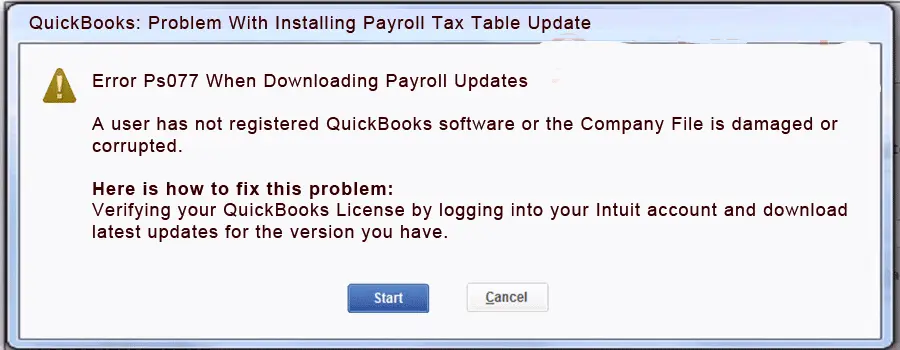
If you are also facing the QuickBooks Error Code PS077, it’s crucial to fix it asap as it may cause delay in payroll processing and disrupt business operations.
What is Error Code PS077 in QuickBooks?
QuickBooks Error PS077 is a payroll error which is reported while downloading the tax table updates, indicating a corrupted tax table file, inactive payroll subscription or incorrect registration. However, this error restricts users from updating payroll to the latest version often causing QuickBooks to freeze.
Why am I getting PS077 Error in QuickBooks Desktop?
Users may get the QuickBooks Error Message PS077 while downloading the latest tax table updates. However, several other factors can also be responsible for this error. Let’s explore the possible causes behind this error.
- If payroll details are outdated or incorrect QuickBooks may fails to verify the payroll subscription.
- Corrupted company file may restricts QuickBooks from reading payroll update files accurately.
- Windows Firewall or third-party is interrupting the QuickBooks from accessing the update servers.
- Running the old version of the QuickBooks Desktop may also trigger this error.
- Missing or damage with the QuickBooks installation.
How to fix QuickBooks Error PS077 Efficiently?
After knowing the root causes that trigger QuickBooks Desktop Error PS077, let’s understand the most effective troubleshooting methods to fix it.
Method 1: Check your payroll service subscription
At times, the QuickBooks Payroll Update Error PS077 may occur due to inactive or unverified payroll subscription. So, to resolve the issue, you must check your payroll service subscription by performing the steps listed below.
- Exit from your company files and relaunch your computer.
- After this, launch the QuickBooks application and move to the Employees menu.
- Head to the My Payroll Service > Manage Service key option.
- Make sure that your Service Name and Status are correct and will be displayed as Active status.
- Now, click the Edit menu and check the service key number. If it’s incorrect, then mention the appropriate service key.
- Hit the Next option and unmark the Open Payroll Setup option.
- Choose the Finish option and then begin downloading the entire payroll update. If the error still continues, then move to the next solution.
Method 2: Register & Update the QuickBooks Desktop
It’s crucial to get the latest security and software improvements. Here we have listed the step-by-step instructions to see if your software is registered.
- Initially, hit the F2 key to access the Product Information window.
- After this, next to the License Number, see if it says Activated.
- Once you register the QuickBooks Desktop, update it to the latest version.
- Now, follow the below steps to download the latest payroll tax table update.
- Move to the Employees menu > Get Payroll Updates option.
- To see which tax table version you are checking.
- See the number beside the You are using tax table version.
- To find out if it’s the correct version, look at the latest payroll news and updates.
- Furthermore, to obtain more details on your tax table version, tap on Payroll Update Info.
- To download the latest tax table;
- Choose the Download Entire Update option.
- Hit the Update option. As a result, an informational window will open when the download process is over.
Method 3: Run the Quick Fix My Program Tool to Configure the Error
Running the Quick Fix My Program tool will update the entire program by closing all the background running apps. To run this tool, you must install the QuickBooks Tool Hub. Once you are all set, you must perform the steps below to run this tool efficiently.
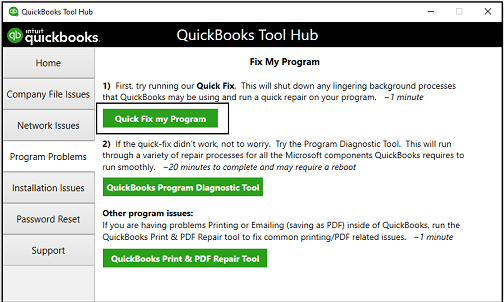
- To begin with, open the QuickBooks Tool Hub and then hit the Program Problems tab.
- You must choose the Quick Fix My Program tab to move further.
- When you are all done, start the QB program again and open the data file.
Method 4: Change the Windows Firewall Settings
Sometimes, users might have trouble downloading the latest payroll updates due to the interference of the Windows firewall. So, to rectify the issue, you must configure the firewall settings manually
Method 5: Edit Your Credit Card Details For QB Payroll Billing
In certain instances, incorrect billing details might cause trouble while updating the payroll. So, to rectify the issue, it is mandatory to review the billing details by applying the below steps.
- Login to your QuickBooks application and then move to My Payroll Service.
- Switch to the Account/Billing Info tab and sign in to your Intuit account with the correct login details.
- Now, hit the Billing Details tab. If you won’t get any details, it means you haven’t mentioned the accurate billing contact. Therefore, to fix this issue, you must edit the holder’s name or the billing contact.
- At last, click the Edit Billing Info button and providing the new billing details. Then, click the “I Agree” tab.
Method 6: Repair the Damages Within the QuickBooks Desktop
- Open the Start menu and then launch the Control Panel.
- When you access the Control Panel window, move to the Programs and Features and hit the Uninstall a Program tab.
- After this, you will get a list of applications to remove or modify. The users must then hit QuickBooks and click the Uninstall/Change option.
- From there, hit Continue and then the Repair option. Later, give some time to complete the repair process.
- Finally, try opening the QuickBooks application and verifying if you are still receiving the QuickBooks Update Error PS077.
Method 7: Turn Off the UAC Settings From the Control Panel
The main role of the User Account Control is to enhance user security. But, sometimes, the lack of user rights prevents users from downloading the latest payroll updates. Therefore, to address the issue, you must turn off the User Account Control settings via the Control Panel using the steps below.
- Launch the Run window by pressing the Windows + R keys.
- After this, include “Control Panel” in the search area and click OK to open the Control Panel window.
- Thereon, choose the User Accounts (Classic View) and opt for the Change UAC Settings tab.
- If asked, hit the Yes option and drag the slider toward the Never Notify tab.
- Finally, try updating QuickBooks Payroll and check if the issue still interrupts you.
Method 8: Run the Verify/Rebuild Data Utility
Users might experience QuickBooks Error Code PS077 due to damage or corruption with the company file data. You must try running the Verify and Rebuild Data Utility to repair those damages within the data.
Conclusion
QuickBooks Error PS077 is the payroll update error that appears when the software fails to verify the payroll subscription information or install the payroll tax table updates. Moreover, this error also interrupts the payroll processing but you can fix it easily with the troubleshooting methods listed above.
By checking the payroll subscription details, updating QuickBooks Desktop, repairing installation files and verifying firewall settings you can easily deal with this error. If the issue still appears, then connect with our BizBooksAdvice experts for help.
Frequently Asked Questions (FAQ’s):-
1. Why am I unable to complete my QuickBooks update?
If you are stuck with the QuickBooks update, it might be due to numerous factors, including inadequate internet connectivity, improper Windows permissions, or issues with Windows updates. Therefore, to address the issue, you must verify the internet connectivity and ensure that it is stable.
2. Why won’t my QuickBooks Desktop update payroll?
QuickBooks Desktop sometimes fails to update payroll because of inactive payroll subscriptions or incomplete billing details. This issue may also be triggered by inappropriate internet connectivity throughout the update process.
3. How can you identify the occurrence of QuickBooks Error Code PS077?
Following are the signs and symptoms that will help you identify QuickBooks Error Code PS077.
- You might face trouble installing the latest QuickBooks payroll updates.
- The users fail to calculate the paychecks accurately, resulting in delays in payroll processing.
- Otherwise, your system will freeze or hang while downloading the payroll updates.
4. What should I do to reset QuickBooks Update?
For resetting the QuickBooks update, move to the Help menu and click the Update QuickBooks Desktop. After this, choose Update Now and circle the Reset Update checkbox. Then, you must pick the Get Updates and relaunch the QuickBooks application when the download completes.
5. What should you do to update payroll QuickBooks Desktop?
To update the payroll QuickBooks Desktop, choose the Employees and then hit Get Payroll Updates. After this, you must opt for the Payroll Update Info tab.
About The Author

Jonathan Browns
Jonathan Brown is a trained QuickBooks professional with 10 years of experience in the accounting sector. Moreover, he is passionate about helping businesses reduce the stress of managing accounts. Also, he is proficient in assisting entrepreneurs and small business owners to use QuickBooks and enhance their accounting experience.
Recent Posts
-
What is QuickBooks Error 6209, 0 & Proven Methods to Fix It?
-
How to Fix QuickBooks Error 61686: EXEAdapter Installation Error
-
How to Fix QuickBooks Error 3371 Status Code 11118 (Easy Guide)
-
Fix QuickBooks Error PS032 | QB Payroll Update Error
-
Fixing QuickBooks Error 6144 82 When Opening Company File