


QuickBooks Payroll Calculator: Accurate Salary & Hourly Wages

- By Jonathan Browns
- Dec 13, 2025
- Accounting
- 7 min read
Are you struggling while calculating your employees’ paychecks accurately? Well, in that case, you must use the QuickBooks Payroll Calculator to get a clear image of the employee’s gross pay, including overtime, commissions, bonuses, etc. Moreover, it’s a free hourly and salary paycheck calculator used to get an estimate of an employee’s net pay depending on their taxes and withholdings. Herein, this guide will show you how to use QuickBooks’ free paycheck calculator to pay employees accurately.
What is QuickBooks Paycheck Calculator?
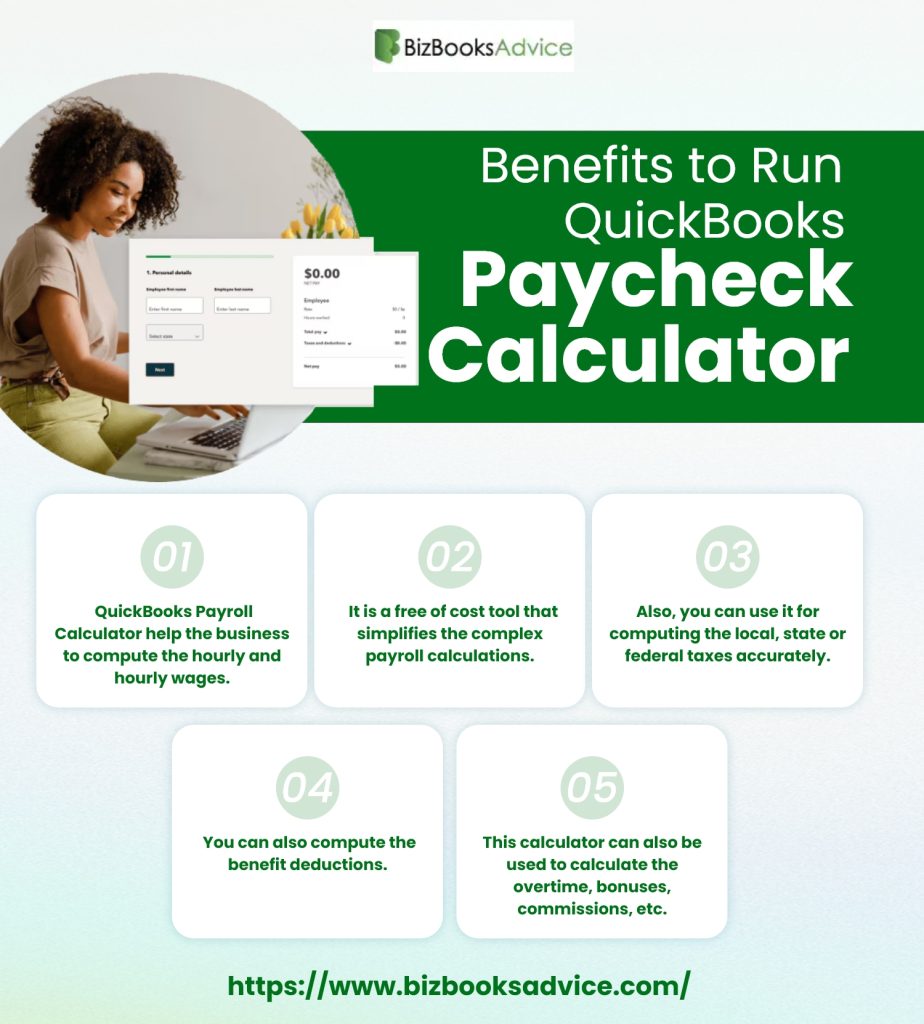
The QuickBooks Paycheck Calculator is a free tool launched by Intuit to estimate the net pay by calculating the federal, state, and local taxes and deductions depending on the hourly or salaried employees. Along with this, it also computes the overtime, bonuses, and ensures that the payroll is computed according to the latest taxation laws. Moreover, it also helps the small businesses to see potential home pay and to handle labor costs efficiently. Thus, it saves precious time and simplifies the complex payroll calculations.
Understanding the Relevance of Computing Accurate Paychecks
Computing the paychecks accurately is equally important to run the business smoothly as it is for the employees. But, in case the company fails to pay their employees according to the federal, state, or local laws, then you may need to pay heavy fines. So, accurately computing the employees’ paychecks is important. Furthermore, below we have provided you with clear step-by-step instructions to run the Paycheck Calculator in QuickBooks.
Calculating Net Income
In this section, we have explained the steps you must perform to compute the net income accurately. As a result, it will help you provide a clear picture of your financial status to make informed business decisions.
1. Identify Total Income
- For calculating the total income, you need to add all sources of income, including wages, salary, bonuses, freelance earnings, interest, dividends, and other income streams.
- Also, check that all income figures are up to date.
2. Calculate Total Gross Income
- Herein, you need to add all sources of income to obtain the total gross income.
- Formula: Total Gross Income = Salary + Wages + Bonuses + Other Income
3. Subtract Pre-Tax Deductions
- Determine any pre-tax deductions that contain retirement contributions, health insurance premiums, and other pre-tax benefits.
- Now, you need to deduct all those deductions from the total gross income.
4. Calculate Taxable Income
- Now, you need to subtract the pre-tax deductions from the total amount of your gross income.
- Formula: Taxable Income = Total Gross Income – Pre-Tax Deductions.
5. Estimate Taxes
- Compute the taxes owed as per the taxable income. It might consist of federal, state, and local taxes, along with the Social Security and Medicare Taxes.
- Use the tax brackets and rates that are applicable to the individual’s tax filing status and income level.
6. Subtract Taxes
- Herein, you must subtract the estimated taxes from your taxable income.
- Formula: Income After Taxes = Taxable Income – Taxes.
7. Subtract Post-Tax Deductions & Expenses
- Determine any of the post-tax deductions, including loan repayments, savings, and other personal expenses.
- Thereon, subtract these amounts from the income after taxes.
8. Calculate Net Income
- Herein, you need to subtract the total post-tax deductions and expenses from the income you get after the taxes.
- Formula: Net income = Income After Taxes – Post-Tax Deductions & Expenses.
How to Use a QuickBooks Free Paycheck Calculator?
By accessing the QuickBooks Free Paycheck calculator, it becomes much more convenient to compute the pay for all your workers, including hourly wage earners and salaried employees. Below, we have described the detailed steps to run the payroll calculator.
1. Provide the Employee’s Details
Herein, you have to mention only two items, i.e, the employee’s name and the state where they stay. As a result, it will help the tool to compute some of the employees’ local taxes.
2. Mention the Employee’s Pay Information
Next, you need to enter the pay type, pay period, hours worked, and pay rate. Begin by inserting the pay type and choosing the hourly or salary by clicking the drop-down menu.
- If you have appointed the employee on an hourly basis, provide their hourly wage under the “pay rate” section and include the number of hours they worked that pay period. If your employee works more than 40 hours and thus accrues overtime, then record 40 here and save the remaining for “additional pay”.
- In case your employee is salaried on both the “pay rate” as well as “hours worked”, the fields will disappear. Instead, you have to understand how much the employee makes each pay period. You have to include that in the “amount” field.
Once all the details are provided, choose the pay date and the employee’s pay frequency. Also, you need to decide whether to pay them weekly or every two weeks.
3. Include Any Additional Pay the Employee Receives
- If the employee is working only for the salary, then you will get only two fields: bonus and commission. Herein, you need to insert those amounts, if applicable.
- If you hire your employee on an hourly basis, you will see four fields, i.e, overtime worked, bonus, commission, and salary. Herein, you can also include that if you get additional pay, they should receive it within this pay period.
- In case your employee worked overtime, mention the number of overtime hours they worked. Herein, you must keep in mind that for the California employees, this calculator won’t account for double-time pay. As this calculator computes the overtime pay using time and a half.
4. Insert the Employee’s Federal Tax Information
In this section, you must add the employee’s filing status, number of allowances, and the additional withholdings. These details are helpful for the employee’s Form W-4. If you still don’t have the employee’s W-4 form, the calculator will eventually fill in tax rates to get the semi-accurate paycheck estimate.
5. Provide the Employee’s State Tax Information
This column contains the employee’s filing status, number of allowances, and additional withholdings. You can also take all such information from the employee’s state Form W-4.
6. Calculate Paycheck
To get an estimate of the employee’s earnings for the pay period, choose the “calculate check” option.
Why is this Paycheck Calculator Missing in QuickBooks?
The Paycheck Calculator is used to compute the estimate of an employee’s net pay after adding or deducting things, including bonuses, overtime, and taxes. If you don’t have much knowledge to run this calculator, then you need to consult an accountant or invest in full-service payroll to pay the employees confidently.
Below, we have described some pointers that are missing from this calculator.
Exempt Vs Non-exempt status-
There are many instances where the salaried employees don’t get overtime, but an hourly employee does. Herein, you can’t make any assumptions. So, it’s best that you review the Fair Labor Standards Act (FLSA) for in-depth guidance.
Double-time pay-
California has the most unique overtime in the country. There, the qualified employees are paid double their standard rate when they work above 12 hours in a day or more than eight hours on their seventh consecutive day of work. It is meant by “double-time pay” and isn’t included within the paycheck calculator.
Non-Tax specific withholdings or deductions-
This calculator helps in computing the federal taxes, such as FICA taxes, which consist of Medicare and Social Security. But, these deductions aren’t accounted for the myriad of other deductions or withholdings that are present. However, these deductions include insurance premiums and HSA withholdings, retirement and 401(K) withholdings, and deductions for uniform fees or meals.
Discussing the Tax Withholdings & Payroll Deductions
It is essential for businesses to know about the tax withholdings and payroll deductions for efficiently managing their finances. Below, we have explained them in detail. Let’s check them out.
Read More:- QuickBooks Payroll Not Withholding Taxes
Federal Income Tax Withholding
The Federal Income tax withholding mainly covers those sections of your employees’ paychecks that you send to the federal government, including the tax liability. However, for computing the tax withholding correctly, you must consider total income, filing status, and the number of allowances or exemptions they claim.
With the help of the IRS tools and calculators, you can recognize the correct amount to withhold. Furthermore, if the employees find that too much or too little is being withheld, then you can make the adjustments for the W-4 form according to it.
Read More:- Print Paystubs QuickBooks Desktop
FICA Withholding
The FICA withholdings consist of Social Security and Medicare Taxes. Being an employer, you are responsible for withholding a fixed percentage of your employee’s earnings for these taxes. Then, you can tally them with their contributions. However, the FICA Withholdings help you ensure that your employees contribute to and receive benefits through the vital social programs.
State & Local Tax Withholding
The State and local tax withholding may also apply, depending on your business location. These taxes may vary according to the state and locality and are also used for funding public services, such as education, transportation, and public safety. Herein, you must check that your state and local tax obligations accurately withhold the right amounts from the employees’ paychecks.
Benefit Deductions
The benefit deductions may include contributions to retirement accounts (like 401(k) or IRA), health insurance premiums, and other employee benefits. The pre-tax benefit deductions may comprise reducing your employee’s taxable income, which will give valuable financial insights. Thus, it lowers their overall tax bills.
Wage Garnishments
Wage garnishments are basically the court-ordered deductions taken from employees’ paychecks for paying off debts, including child support, student loans, or unpaid taxes. However, as an employer, it is important to impose these orders and make sure that the correct amounts are deducted from your employees’ pay.
In a Nutshell!
QuickBooks Paycheck calculator is the best tool that helps businesses compute employees’ paychecks, federal, state, and local taxes accurately. Moreover, it also computes the bonuses, overtime, and commissions to ensure that the payroll is computed accurately. Furthermore, if you still require any additional help, then connect with our BizBooksAdvice professionals for better results.
Frequently Asked Questions (FAQ’s):-
Question 1: Is the QuickBooks Paycheck Calculator free to use?
Ans. Yes, the QuickBooks Paycheck Calculator is free of cost and is available to all users.
Question 2: Can I calculate both hourly and salary paychecks in QuickBooks?
Ans. Yes, by using the QuickBooks Calculator, you can compute both the hourly and the salary paychecks. Also, you can compute the overtime, bonuses, and commission.
Question 3: Is the QuickBooks Paycheck Calculator accurate?
Ans. Yes, the QuickBooks Paycheck Calculator provides accurate estimates depending on the current tax rates. But the final payroll might be a bit different according to the benefits, custom deductions, or employer-added adjustments.
Question 4: How to calculate a salary paycheck?
Ans. To calculate the salary paycheck, you must provide the employee’s name and location in the online payroll calculator and then choose the salary pay type option. After this, insert the employee’s gross salary amount along with any additional pay, such as bonuses or commissions. Later on, you can access the employee’s W-4 form to insert the state and federal tax details.
Question 5: What are gross pay and net pay?
Ans. The Gross Pay basically indicates the total earnings, and the net pay shows the actual amount available for spending plus saving after necessary deductions.
Related Posts-
Intuit Workforce Login: Get Your Employee Details & More
QuickBooks Payroll Direct Deposit Not Working
About The Author

Jonathan Browns
Jonathan Brown is a trained QuickBooks professional with 10 years of experience in the accounting sector. Moreover, he is passionate about helping businesses reduce the stress of managing accounts. Also, he is proficient in assisting entrepreneurs and small business owners to use QuickBooks and enhance their accounting experience.
Recent Posts
-
9 DIY Troubleshooting Methods to Fix QuickBooks Error 15270
-
QuickBooks Data Conversion Services: Everything to Know
-
QuickBooks Point of Sale: Features, Setup, Pricing & Best Alternatives
-
QuickBooks Scheduled Backup Not Working: Common Causes & Easy Fixes
-
QuickBooks Credit Card Processing: How It Works, Fees & Benefits