


What Causes QuickBooks Error 0x800701b1 & How Can You Fix It Fast?

- By Jonathan Browns
- Mar 25, 2026
- Bookkeeping
- 7 min read
Most often, users may get the QuickBooks Error 0x800701b1 while attempting to access company files stored on an external drive, USB drive, or network connection. This error is represented with a warning message.
“A device which does not exist was specified.”
This Error basically occurs when QuickBooks fails to access the company file, backup, or save data on an external drive or USB. It basically indicates a disconnection between the software and storage hardware during file transfers or backup. Herein, we have described all the possible causes and solutions to fix Error 0x800701b1 in QuickBooks Desktop.
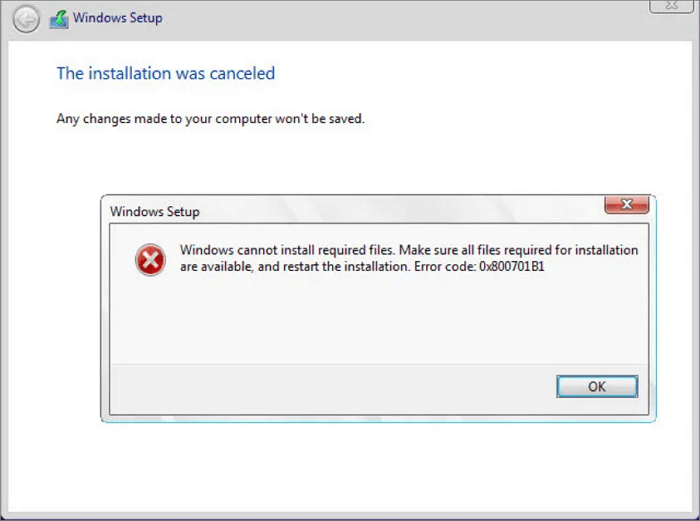
QuickBooks Error 0x800701b1 occurs when QuickBooks can’t access files due to a faulty storage device, driver problems, or a connection issue. You can fix the issue by updating drivers, changing the USB port, and running an SFC scan.
What are the Main Reasons Behind the QuickBooks Error Code 0x800701b1?
The following are the common reasons why QuickBooks Error Code 0x800701b1 appears. Let’s study all the possible causes and fix the error efficiently.
- Using the old or corrupt device drivers.
- If your QuickBooks company file is either corrupt or inaccessible.
- Windows system file corruption may also trigger Windows Installation Error 0x800701b1.
- Malfunctioning of the USB port or cable.
- A faulty or disconnected external storage device may also cause this issue.
- Presence of bad sectors on your hard disk.
What Are the Best Solutions to Resolve QuickBooks Error 0x800701b1?
After understanding the major causes, let’s learn about the troubleshooting methods to rectify the QuickBooks Error 0x800701b1.
Method 1: Run the CHKDSK
Running CHKDSK will automatically scan the drive for file system errors and bad sectors, repairing the disk issues that are blocking you from accessing the data.
A. Use the Graphical User Interface (GUI)
- Launch the File Explorer on your system by double-tapping on the icon from the taskbar.
- Search for the drive you want to scan, right-click, and hit the Properties option.
- When you are in the Properties window, launch the Tools tab.
- Below the Error checking, tap on the Check option. For running a full scan, enable both available options from the Check Disk window.
- Thereon, hit the Start to begin. If the drive is presently in use, Windows will display a message saying it can be scanned. You must select Schedule disk check—your computer will restart and run the scan before Windows loads.
B. Use the Command- Line Interface
- You also have the option to run the CHKDSK via Command Prompt.
- After this, open the Run window and type “cmd” in the search console.
- Launch the Command Prompt window, and then confirm it by hitting the OK tab.
- Next, from the search results, right-click the “cmd.exe” and opt for the Run as Administrator option.
- Finally, insert “CHKDSK/F” and press the Enter key on the keyboard.
Method 2: Plug Your Device into a Different USB Port
Using a different USB port helps you deal with the faulty or unstable ports, ensuring a reliable connection to the storage. Thus, it avoids the data access interruptions. Follow these steps to use a different USB port.
- Initially, access the Task Manager by pressing the Ctrl + Alt + Del keys together.
- Now, move to the Processes tab.
- Close each running process at a time.
- You can now safely eject the USB storage device and plug it into a different USB port.
- At last, try to transfer the test file to see if the error 0x800701b1 in QuickBooks still exists.
Method 3: Update Your Device Drivers
Running the outdated device drivers is one of the possible reasons that causes Windows installation error 0x800701b1. However, updating the drivers helps fix the issue. Here are the steps you need to perform to update drivers.
- Go to the desktop, right-click on the Start icon, and choose the Device Manager option.
- Click on the arrow icon beside the category of device to expand the category.
- Choose the arrow icon beside the Printers to update the driver of a printer.
- When the selected category expands, you will get a list of multiple devices. Choose which device drivers you need to update.
- Now, right-click on the desired device and hit Update Driver.
- Opt for the Search automatically for updated driver software. Within this, Windows will start searching for the new drivers and then install them if available.
- If no updates are available, you can look for the Windows Update by opting for the Search for updated drivers on Windows Update. Then, perform the steps in Automatically get recommended drivers and updates for your hardware.
- Tap on the Close option to exit from the Update Drivers window.
Method 4: Run the SFC Scan
SFC scan is used to repair the corrupted Windows system files, which will help you run the QuickBooks application smoothly. Here are the complete steps to run the SFC Scan on your system.
- Go to the desktop and press the Windows + X keys.
- You will see a list of options, and hit the Command Prompt (Admin).
- Important Tip: You can also run System File Checker from Windows PowerShell (Admin).
- When the User Account Control window opens, tap on the Yes option to continue.
- After that, when you are in the elevated command window, insert “SFC/Scannow” and hit the Enter key.
- With this, the System File Checker tool will start scanning for the Windows system files for issues. Then, it will automatically repair the problems.
- Once you are done with the scanning, relaunch your PC to restore the changes.
Method 5: Rescan All Disks Via Disk Management
If you fail to access the connected drives, then Windows users can rescan the drives in Disk Management. Rescanning your drives will resolve the error 0x800701b1 in QuickBooks Desktop. Use these steps to perform the rescanning of the disk.
- Launch the Run window using the shortcut keys Windows + R.
- After this, type “diskmgmt.msc” and click OK.
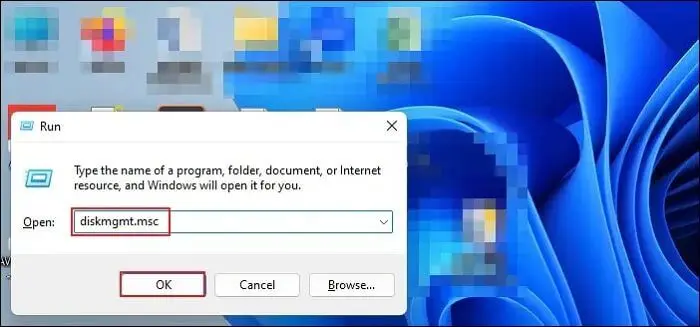
- Select the Action tab from the Disk Management.
- Go to the Rescan Disks option and let the procedure to complete.
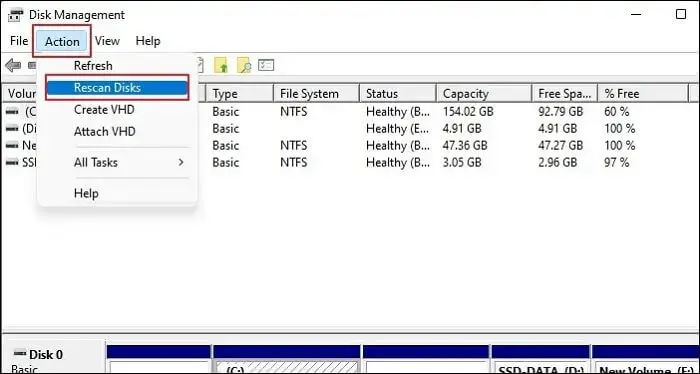
At last, try to transfer the file and see if you are still getting the error.
Method 6: Assign Drive Ownership in Security Settings
Sometimes, the QuickBooks Error Code 0x800701b1 may arise when Windows denies access due to a lack of permissions. Therefore, setting the drive ownership via security settings may help you fix the error.
- Launch the File Explorer and select the “This PC” option.
- Right-click on your faulty drive and click Properties > Security > Advanced > Find Now.
- You must pick the username and hit the OK tab.
- Now, allow “Replace All Child Object Permission Entries with Inheritable Permission Entries from This Object”.
- Choose the Apply option and then verify it.
- At last, you must verify if the issue is resolved.
Method 7: Modify the Drive Format
By modifying the drive format to NTFS, you can erase the file transfer issues from the file system errors. The following are the steps to perform for changing the drive format.
- Initially, open the File Explorer and right-click on the faulty drive.
- After this, hit the Format option.
- Choose the NTFS below the File System tab.
- Now, press the Windows key to open the Start menu. Then, wait for some time and click the Close tab.
- Restart your computer and then try to transfer the file once again.
Method 8: Run the Verify & Rebuild Data Utility
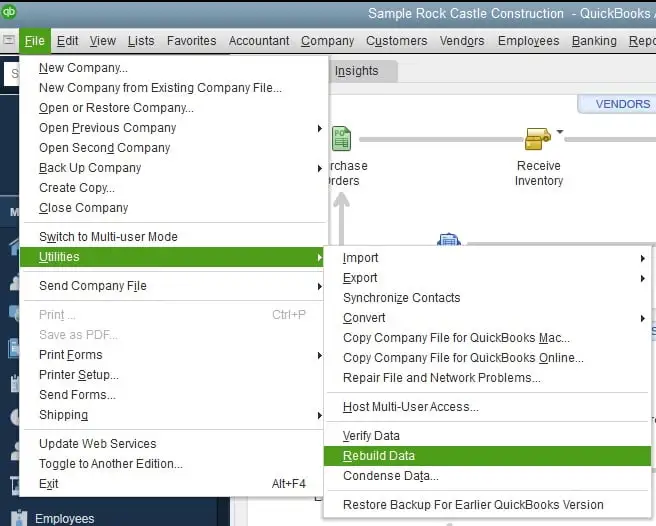
The main use of the Verify and rebuild data utility is to scan the company file, detect the corruption, and configure the damaged lists or transactions. Thus, it helps to restore file integrity that can cause Error 0x800701b1 in QuickBooks.
Method 9: Run QuickBooks File Doctor Tool
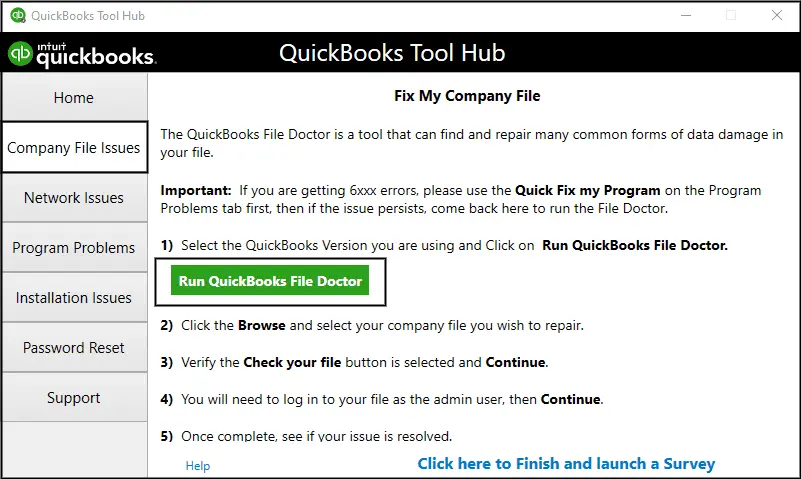
QuickBooks File Doctor is an inbuilt utility that is used to diagnose and fix damaged company files or network connectivity issue. You can also run this tool to address the Error 0x800701b1 in QuickBooks.
Method 10: Access the Quick Fix My Program
The Quick Fix My Program is used to exit all the background running processes in QuickBooks. Then, it run a quick scan and fix the QuickBooks program from damages.
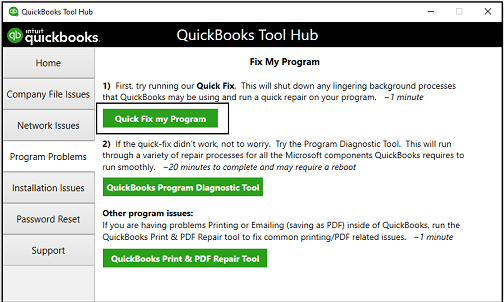
- Open the QuickBooks Tool Hub and choose the Program Problems tab.
- After this, hit the Quick Fix My Program tab.
- Launch the QuickBooks Desktop and then your company file to check if the issue exists.
Final Thoughts
Dealing with the QuickBooks Error 0x800701b1 can be challenging, but by using the right troubleshooting methods given above, you can easily fix the error. Thus, it helps you resume your day-to-day business operations and save your company data.
If you are still facing problems while fixing the error, consult with our BizBooksAdvice professionals. You will get instant and personalized solutions to address the issue.
Frequently Asked Questions:-
Question 1: What is QuickBooks Error 0x800701b1?
Ans. The QuickBooks Error 0x800701b1 is a system-related error that appears when QuickBooks fails to access a storage device. This issue is mainly linked to faulty drivers, corrupt system files, or issues related to external drives.
Question 2: Can a faulty hard drive cause QuickBooks Error 0x800701b1?
Ans. Yes, the QuickBooks Error 0x800701b1 is caused by a damaged or faulty hard drive.
Question 3: How can I prevent Error 0x800701b1 in QuickBooks?
Ans. To avoid the Error 0x800701b1 in QuickBooks.
- Make sure that your drivers are updated.
- You must regularly scan for disk errors.
- Prevent unplugging devices during the file transfer.
- Make use of the reliable storage device.
Question 4: Does the Error 0x800701b1 occur only in QuickBooks?
Ans. You can also face the Error 0x800701b1 in other situations, including;
- Windows installation error 0x800701b1
- An unspecified error occurred during system restore 0x800701b1
- We couldn’t delete the selected partition 0x800701b1
About The Author

Jonathan Browns
Jonathan Brown is a trained QuickBooks professional with 10 years of experience in the accounting sector. Moreover, he is passionate about helping businesses reduce the stress of managing accounts. Also, he is proficient in assisting entrepreneurs and small business owners to use QuickBooks and enhance their accounting experience.
Recent Posts
-
A Guide On How To Upgrade QuickBooks Desktop To 2024
-
QuickBooks Desktop Invoice Missing? Top Methods to Fix It Now
-
QuickBooks Desktop 2024 R21_65 Update: Release Details and Installation
-
How to Fix QuickBooks Something’s Not Quite Right Error
-
How to Upgrade QuickBooks to a Multi-user License [Win/Mac]