


QuickBooks Payroll PIN Not Working? Causes, Fixes, and How to Reset It

- By Jonathan Browns
- Nov 25, 2026
- Accounting
- 7 min read
If you find QuickBooks Payroll PIN not working, you’re probably going to be looking at an Invalid PIN message on the day your people are due their pay. That’s a very stressful situation, but the problem is almost always fixable, and in most cases you can fix it yourself in just a few minutes. This guide explains what the payroll PIN is, why QuickBooks is rejecting it, and how to change, reset, or recover it using the standard Intuit process for QuickBooks Desktop Payroll.
Need QuickBooks Assistance? Talk to an Expert Today!
Need help figuring out a QuickBooks issue? Connect with our team to discuss your problem and find the next steps toward resolving it.
Here’s the short version: the PIN is the pin you use to send direct deposit payroll from QB Desktop. If it’s being rejected you can usually amend it from the My Payroll Service menu or reset it from the Send Payroll Data window if you have your company file admin password. If neither of those will work then you can complete the Direct Deposit PIN reset form with ID and have Intuit Payroll support generate a new PIN for you.
Quick Overview: Payroll PIN Problems at a Glance
The following table provides a quick summary of various QuickBooks Payroll PIN issues and what you can do about them.
| Situation | What it usually means | Best first step |
| You see “Invalid PIN” | The PIN you typed does not match the one on file with Intuit | Re-enter it carefully, then reset it if it still fails |
| You know your PIN and want a new one | Routine security update | Employees > My Payroll Service > Account/Billing Information (or Billing/Bank Information for Assisted Payroll) |
| You forgot your PIN but know the Admin password | A reset is possible inside QuickBooks | Use the reset option in the Send Payroll Data window |
| You forgot your PIN and the Admin password | Self-service reset is not available | Complete the Direct Deposit PIN reset form and contact payroll support |
| You see a message about too many attempts | The PIN was entered several times incorrectly, and access is temporarily limited | Wait 15 minutes, then try once more with the correct PIN |
| A new PIN is rejected right after a reset | The change may not have saved, or you are entering the wrong value | Confirm the PIN meets the format rules and try again |
| You use QuickBooks Online Payroll | PIN-based direct deposit sign-in does not apply in the same way | Use your Intuit Account sign-in instead |
What is QuickBooks Payroll PIN Actually?
In QuickBooks Desktop Payroll, the Payroll Service PIN (which Intuit refers to as the Direct Deposit PIN) is effectively a company-level password for sending payroll data. Every time you send direct deposit paychecks via QuickBooks, QuickBooks will ask for that PIN so Intuit can verify that the request is coming from someone legitimately authorized to move your company’s funds.
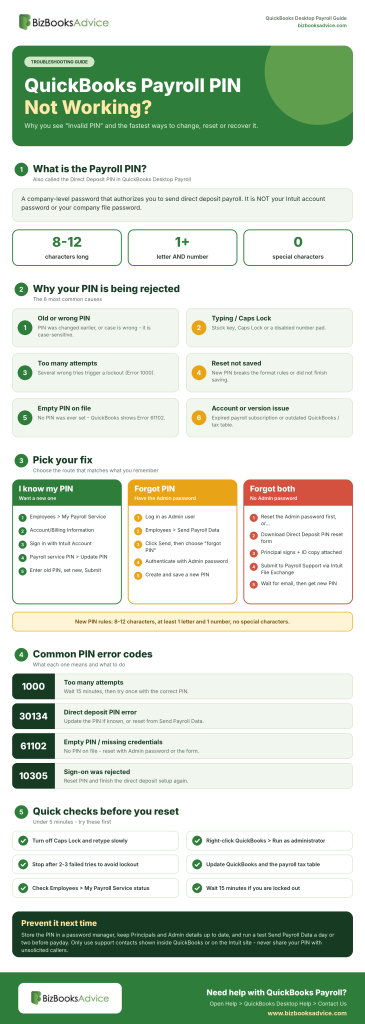
It helps to be absolutely clear as to what the PIN is not
It’s not your Intuit account password. It’s not the password you use to log into your company file. It’s not a personal PIN for your employees. Those are three different things and a fair number of the “PIN not working” calls we get are people just completely mashing the three of them up.
The PIN also has format rules
Intuit says the new PIN must be between 8 and 12 characters long and must contain at least one letter and at least one number. Special characters are not permitted. If you attempt to create a PIN with an exclamation mark or an underscore (for example), QuickBooks will simply not accept it.
One more point to be absolutely clear on up front. Intuit’s guidance is for QuickBooks Desktop Payroll (the Basic, Standard, Enhanced and Assisted versions). QuickBooks Online Payroll deals with authentication in a completely different way and doesn’t use a PIN in the same way so if you’re using QuickBooks Online Payroll then the steps below are not the ones you want to be following.
Why Is Your QuickBooks Payroll PIN Not Working?
In the situation of QuickBooks Payroll not working, before you reset anything, it’s worth considering what the likely cause is. Resetting a PIN you’ve just typed wrong is one thing, but if you keep re-typing a PIN you’ve forgotten, you can easily end up locked out. Here are the most likely reasons why the PIN will fail.
You are entering an old or incorrect PIN
This is by far the most common reason. If your company changed their PIN at any point in the past or if a previous bookkeeper set it up then the PIN you’re used to is very likely the one that’s now been superseded. The PIN is case sensitive so if you’ve got a capital in there and you’ve typed it in as a lower case it will fail.
Typing errors or keyboard problems
A stuck key, Caps Lock on or a number pad that’s switched off can all lead to a PIN that appears correct on screen but which is in fact wrong. If they’re displayed as dots you won’t be able to see the error at all.
Too many failed attempts
If you enter the wrong PIN several times in a row, QuickBooks will temporarily lock your payroll account as a safety feature. You’ll get an error (e.g., 1000) and a message to wait. Intuit recommends that you wait 15 minutes before trying to log in again. If you keep trying straight away, you only extend the problem.
A newly reset PIN has not taken effect
On rare occasions you’ll successfully reset the PIN only for the new PIN to be rejected afterwards. This could be because the new PIN doesn’t meet the format rules, the change hasn’t quite finished saving or you’re being asked for a different credential to the one you’ve just changed.
An empty PIN field or missing credentials
Error 61102 is the empty PIN / missing password error. If QuickBooks is asking for a PIN that you’ve never set (or indeed one you don’t remember setting) then you’re going to have to reset it rather than try and recover it.
Subscription or account status issues
If your payroll subscription has expired or the company file isn’t linked to the correct payroll service, then QB will very probably fail to validate your credentials. The PIN itself may well be correct in that situation, and the real fix is to check the subscription status first.
An outdated version of QuickBooks or payroll tax table
Payroll features are version dependent. If you’re on an old version of QuickBooks Desktop or have an out-of-date payroll update, this can cause problems with the company file talking to Intuit’s servers, and you’ll end up with an authentication error.
Start Here: Quick Checks Before You Reset the QuickBooks Payroll PIN
You can often rule out the obvious in under 5 minutes. Just go through that short list in order.
- Slow down and re-type the PIN: Click into the field, turn off Caps Lock, and type each character in. If you’ve got it stored in a password manager, then just copy it straight from there rather than typing it from memory.
- Confirm you’re using the Payroll PIN: Make sure you’re not inadvertently entering your Intuit Account password or your company file password.
- Check for a recent change: Ask your accountant, your owner, or whoever did the payroll if the PIN has been changed recently.
- Search your email: When the Payroll services were initially turned on, Intuit may have sent you a message about your PIN or your direct deposit. A search of your email would very well have picked up that message.
- Stop after two or three failures: If the PIN has failed more than twice, stop rather than keep guessing. A lockout is a lot more disruptive than a brief delay.
- Wait 15 minutes if you’re locked out: Close the payroll window, wait for the timer to expire, and then try again once with the correct value.
If you’ve gone through that list and the PIN still won’t be accepted then move on to the reset options below.
How to Change Your Payroll PIN in QuickBooks Desktop (When You Know the Current PIN)
If you remember your current PIN and just want to change it you can do that in QuickBooks Desktop. The steps are slightly different depending on which payroll plan you’re using.
For QuickBooks Desktop Payroll Basic, Standard, and Enhanced
- Open QuickBooks Desktop and log in to your company file.
- Go to Employees and click on My Payroll Service.
- Select Account/Billing Information.
- Sign in with your Intuit Account login when asked.
- Go to the Payroll Details section and, under Payroll service PIN, select Update PIN.
- Enter your old PIN, create a new one, and confirm it.
- Select Submit.
For QuickBooks Desktop Payroll Assisted
- Go to Employees and select My Payroll Service.
- Select Billing/Bank Information.
- Go to Service Information, select ‘Change‘ next to My PIN.
- Enter your old PIN, create a new one, and confirm it.
- Select Submit.
Your new PIN must be between 8 and 12 characters long, contain at least one letter and one number, and contain no special characters. Do write it down somewhere safe before you close the window.
How to Reset Your Payroll PIN If You Forgot It (Using the Admin Password)
This is the route that most people take when they’re looking for how to reset a payroll PIN. If you’ve forgotten your PIN but you do know the Admin password for your QuickBooks company file, then Intuit will allow you to reset the Payroll service PIN from the Send Payroll Data window.
Here is how the process generally works:
- Open your company file and log in as the Admin user. If you’re not sure who the Admin user is then just check with your accountant or whoever originally set up the file.
- Go to Employees and select Send Payroll Data.
- Select Send. When QuickBooks asks for your PIN, look for the option that says you’ve forgotten it.
- Follow the on-screen authentication prompts and authenticate with the Admin password.
- Create a new PIN that complies with the format rules, confirm it, and save.
- Go back to your payroll and have another go at sending the direct deposit.
The screens can vary slightly from version to version of QuickBooks Desktop so your wording may be slightly different from what’s shown here. The key point is that the Admin password is the password that enables you to do an in-product reset. If you don’t have that password you’re back to the form based approach as described in the following section.
What if you also forgot the Admin password?
If the admin password is the missing piece, then get that sorted first. Intuit provides a way to reset the QuickBooks Desktop admin password, and once you have access, you can go back and reset the payroll PIN. It’s usually not worth any effort at all in trying to work around the admin password, so it’s far better just to get that sorted first.
How to Reset a Lost PIN with the Direct Deposit PIN Reset Form
If you can’t change the PIN in QuickBooks (or the admin password isn’t available), then Intuit does have a manual reset process. It’s a bit slower, as Intuit has to verify that the person requesting it is, in fact, the person entitled to do it, but it’s a valid process. That’s also the process you’d follow if you get a message that you can’t recover the PIN by resetting it yourself.
Follow these steps:
- Download and complete the Direct Deposit PIN reset form from Intuit.
- Have the Primary Principal or Secondary Principal sign the form. They’re the ones on the payroll account as the company’s authorized representatives.
- Make a photocopy of the Principal’s Government ID.
- Get in touch with QuickBooks Desktop Payroll support to submit the signed form and the ID via Intuit File Exchange.
- Watch for an email from Intuit Payroll with the status of your request.
- Get in touch with Payroll Support again once you’ve got that email so an agent can issue you a new PIN.
A few practical tips will save you time. The person signing off on the form must actually be a principal (a signature from anyone else will not be acceptable). The ID copy must be clear and legible. Don’t wait until the day before payroll is due, as this request requires verification and a follow-up call, so it will take longer than an in-product reset.
How to contact payroll support
You can reach support from inside QuickBooks Desktop:
- Select Help from the menu at the top of the screen.
- Choose QuickBooks Desktop Help.
- Type a short description of your concern in the search box.
- Select the ‘Contact Us‘ link at the bottom of the window.
- Choose from the support options that are available.
Support hours are product-specific. Intuit lists QuickBooks Desktop Pro and Premier support as being available Monday to Friday during standard business hours in Pacific time. QuickBooks Desktop Enterprise customers can generally get support on any day. Always check the current hours on the Intuit support site prior to planning around a deadline.
A word of warning, really. Payroll involves ID docs and bank details, so only use contact details listed in QuickBooks or on the Intuit website. You’ll sometimes come across third-party sites in the search results that will have a phone number that they’ll say is QuickBooks support, and you absolutely must never give your PIN, your ID, or your bank details to any such unverified source.
How to Troubleshoot the “Invalid PIN” Error Message
The ‘Invalid PIN’ message simply means that QuickBooks couldn’t authenticate the PIN you entered for direct deposit. In other words the PIN you typed in didn’t match the one that Intuit has on file. Here’s how to deal with it.
Step 1: Re-enter the PIN carefully
Close any open payroll windows, re-open Send Payroll Data, and type in your PIN very slowly. Be extremely careful with uppercase and lowercase. If that works, you’re done—except for storing your PIN in a safe place.
Step 2: Run QuickBooks as an administrator
On Windows, close QuickBooks, right-click on the QuickBooks Desktop icon, and select ‘Run as administrator’. Open your company file and try again. Limited permissions on your machine can occasionally interfere with verification, and this simple fix will resolve the issue in a high proportion of cases.
Step 3: Wait out any temporary lockout
If QuickBooks tells you that there have been too many attempts, simply wait 15 minutes. Don’t carry on trying during that 15-minute period. After the 15-minute wait, make one attempt with the PIN you believe is correct.
Step 4: Update QuickBooks Desktop and your payroll tax table
Go to Help, go to Update QuickBooks Desktop and install any updates that are available. Then go to Employees, go to Get Payroll Updates and download the latest payroll update. Once the updates are complete, restart QuickBooks and try the PIN again.
Step 5: Reset the PIN
If the PIN is still being rejected, it’s not the one on file and needs to be reset. If you have the Admin password, use the in-product reset; otherwise, follow the reset form process.
Step 6: Verify your payroll subscription and company connection
Go to Employees > My Payroll Service and check the account status. Ensure your subscription is active and that the company file is linked to the correct payroll account. A billing issue or a link to the wrong account can look like a PIN issue when it’s actually something else.
Fixing Direct Deposit PIN Errors and Related Error Codes
Several error codes are associated with direct deposit authentication. Here’s what the most common ones tend to mean and what you can do about them.
Error 1000 (too many attempts):
This will happen if you’ve entered the wrong PIN too many times. Simply wait 15 minutes, then try again with the correct PIN. If you’ve reset your PIN and you’re still getting this message after a number of attempts then please get in touch with Payroll Support who can then look at your account and unlock it.
Error 30134:
This is a direct deposit PIN error which occurs when you’ve already tried to send direct deposit with the wrong PIN several times. The solution is to either update the PIN if you know it or reset it from the Send Payroll Data window if you don’t.
Error 61102:
This is an error relating to an empty PIN or missing credentials. Since it usually means there is no PIN on file, the normal solution is to reset the PIN via the form-based process or the Admin password option, if available.
Error 10305 or a “sign on was rejected” message:
This means QB can’t sign you into the payroll service. The sensible thing to do is reset your PIN and complete the direct deposit setup (which will involve entering your employees’ bank details).
As the exact reason for an error is going to be something only visible in your account, a support agent will generally be able to spot the problem far more quickly than you ever could via trial and error. If you do come across an error code that isn’t in this list, please be sure to provide both the code and the exact message so you can pass it on to support.
QuickBooks Enterprise Payroll PIN Reset: What’s Different?
If you’re using QuickBooks Desktop Enterprise with payroll, the basic process is the same: you either update the PIN if you know it, reset it via the Admin password if you don’t, or use the reset form if you’ve got neither. The difference in practice is generally just one of scale and urgency. With an Enterprise company, you’re likely to have a very large number of employees, so a locked PIN could potentially impact a major direct deposit deadline.
For that reason, you should plan ahead. Intuit has said that Enterprise customers can generally get support on any day of the week, which is very useful if you’re up against a deadline. You’ll need to have your paperwork ready prior to the call, though. That means the completed Direct Deposit PIN reset form, the principal’s signature, and a clean copy of the principal’s government-issued ID.
Larger companies should also check who the primary and secondary principals are on the account. If the person listed has left the company, the reset can get stuck, so it’s important to update those contacts if there are any staff changes.
What If You Cannot Process QuickBooks Payroll in Time?
If you’re up against a tight deadline and you find QuickBooks Payroll PIN not working, then the timing is just as important as the technology. Direct deposit transactions must be sent a certain number of business days before the pay date, depending on your payroll plan and the timing rules in your account. A delay in resetting the PIN could well see the money reach your staff later than it should.
If you are running out of time, consider these steps:
- Get in touch with Payroll Support straight away and let them know that a pay date is on the way.
- Check your direct deposit deadline in QuickBooks so that you know how much time you actually have.
- Consider a backup plan in the form of issuing paper checks for that pay period if direct deposit isn’t possible in time. That’s absolutely not ideal, but at least the staff will get their pay.
- Let your team know if there’s any chance of a delay. A very short, straightforward message is all that’s necessary.
None of these steps replace the need to fix the root cause of the PIN issue. They simply protect your team as you go about doing that.
How to Prevent QuickBooks Payroll PIN Problems in the Future
A bit of preparation at this stage can save you a right old bit of stress later in the morning. Now that you’ve resolved the QuickBooks Payroll PIN not working issue, consider these habits for a smooth accounting experience in the future.
- Store the PIN in a secure location. A password manager or a locked company document is far better than a sticky note or an old email.
- Share it only with the owner, the payroll admin, and one other person you fully trust.
- Record who the Admin is. Make sure that at least two people you trust know how to get to the Admin password, or that it’s properly documented.
- Keep your principals current. If a Primary or Secondary Principal leaves, then update the account straight away.
- Keep your QuickBooks and payroll tables up to date, as that will reduce the likelihood of auth errors.
- Don’t just keep guessing. After two go-rounds, you’ll have to stop and check the PIN rather than risk locking yourself out.
- Do a test run early. Open the Send Payroll Data window a day or two before payroll is due rather than an hour before so you can pick up any problems while you still have the time.
- Choose a PIN that you can manage (8 to 12 characters, at least one letter and one number). It should be something you can remember but not something that’s obvious. Don’t reuse it anywhere else.
Security Tips When Resetting Your Payroll PIN in QuickBooks
Payroll accounts are always going to be a prime target for fraudsters so you need to be very careful when you’re looking for someone to help you. Remember these points.
- Use the Help menu in QuickBooks or Intuit’s support site to find the contact details.
- Don’t give your PIN to anyone who contacts you out of the blue even if they say they’re from Intuit.
- Be wary of websites that look like they’re the official guide but have some rather odd phone numbers listed.
- Just send your signed form and ID via the channel that Intuit’s support agent tells you to use (Intuit File Exchange in this case).
- If you have any suspicion that someone else has used your PIN then reset it immediately and have a look at your recent payroll activity.
Summing Up
QuickBooks Payroll PIN not working can be a bit of a pain really, but the fix is pretty simple once you know which of the situations you’re in. If you remember the PIN, simply retype it carefully and make sure QuickBooks is up to date. If you want a new PIN, then you can change it via the My Payroll Service menu. If you’ve forgotten it but you DO have your Admin password, then you can reset it from the Send Payroll Data window. If you’re missing both, then you can get a new PIN via the Direct Deposit PIN reset form or get in touch with a QuickBooks expert at Call Us : +1-866-408-0444.
Whatever route you take, once you’ve got your PIN, then protect it. Keep your principals and Admin details up to date, and test your payroll access before each deadline. A few minutes of prep will make a massive difference in avoiding the next frantic payday and ensuring your team is paid on time.
Need QuickBooks Assistance? Talk to an Expert Today!
Need help figuring out a QuickBooks issue? Connect with our team to discuss your problem and find the next steps toward resolving it.
Frequently Asked Questions
Why does QuickBooks say my payroll PIN is invalid when I know it is correct?
An ‘Invalid PIN’ message basically means the PIN you’ve entered doesn’t match the one Intuit has on file. The most common reasons are that someone else has changed it, you’ve mixed upper and lower case, Caps Lock is on, or your keyboard is mistyping a character. Try running QuickBooks as admin and retype the PIN slowly. If it still fails, then reset the PIN so that the one you enter is the one that’s on file.
How long do I have to wait after too many incorrect PIN attempts?
Can I reset my payroll PIN without the Admin password?
Are the payroll PIN and my Intuit Account password the same thing?
What are the requirements for a new payroll PIN?
Does QuickBooks Online Payroll use a PIN for direct deposit?
How long does the PIN reset form process take?
Who can request a payroll PIN reset?
About The Author

Jonathan Browns
Jonathan Brown is a trained QuickBooks professional with 10 years of experience in the accounting sector. Moreover, he is passionate about helping businesses reduce the stress of managing accounts. Also, he is proficient in assisting entrepreneurs and small business owners to use QuickBooks and enhance their accounting experience.

Recent Posts
-
QuickBooks Payroll PIN Not Working? Causes, Fixes, and How to Reset It
-
QuickBooks form does not fit on the page: Easy Ways To Fix It
-
QuickBooks ACH Payments: How to Send, Receive, Setup & Manage Payments
-
How to Fix QuickBooks Script Error: 5 Proven Methods
-
Fixing QuickBooks Black and White Screen Problem Now