


QuickBooks Bank Feeds Not Working? Apply These 9 Proven Methods

- By Jonathan Browns
- Apr 16, 2026
- Accounting
- 7 min read
The Bank Feed feature in QuickBooks connects your bank or credit card accounts directly to the software allowing transactions to be imported automatically. This reduces the need for manual data entry and simplifies bank reconciliation.
However, users sometimes face the QuickBooks Bank feeds not working issue when the software fails to connect to the bank or download transactions. This problem can occur due to expired bank credentials, temporary connection errors, or updates on the bank’s website.
In this guide, we’ll cover the major causes and effective troubleshooting methods to resolve the Intuit Bank feed not working issue.
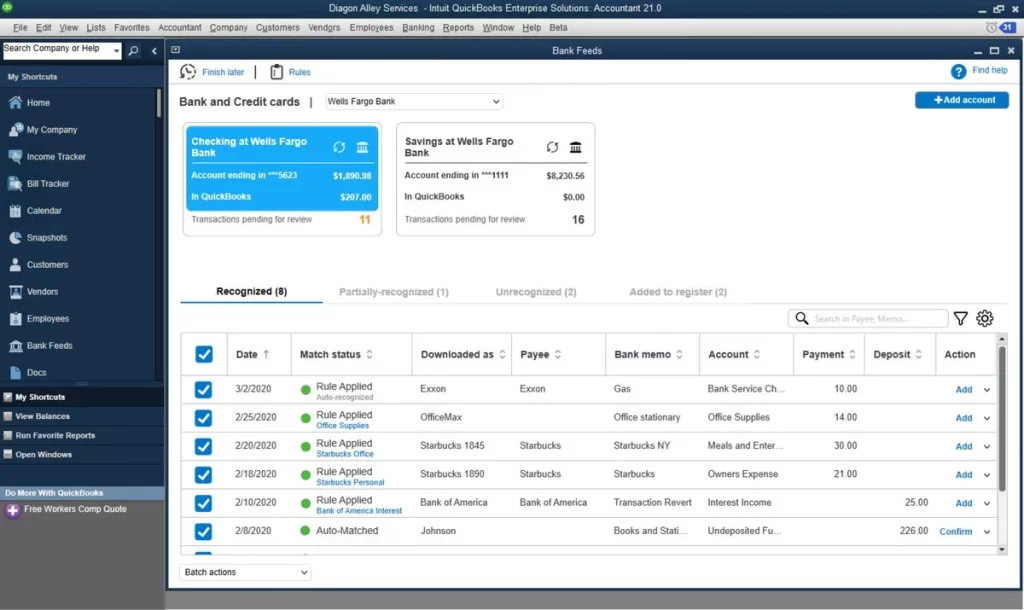
The QuickBooks Bank feed not working issue often occurs due to incorrect bank login details, unstable internet connections, or issues on the bank’s end. You can resolve the issue by deactivating and reactivating your bank account.
Why is my QuickBooks Bank Feeds Not Working?
The QuickBooks bank feed not working issue occurs when QuickBooks couldn’t connect to your bank or download transactions. Other common issues that may trigger this issue are discussed below.
- Running an outdated version of Internet Explorer.
- Not using an updated version of QuickBooks Desktop.
- Issues with your internet connection.
- Your bank file isn’t compatible with QuickBooks.
- Issues from your bank’s end.
- Sometimes, the QuickBooks Bank feed not working issue may occur when multiple bank accounts in your company file causing conflicts.
How to Fix Bank feeds not Working in QuickBooks Desktop?
Let’s understand how to fix bank feeds in QuickBooks Desktop and download your bank transactions easily.
Solution 1: Download Bank Feed Transactions in a test company file
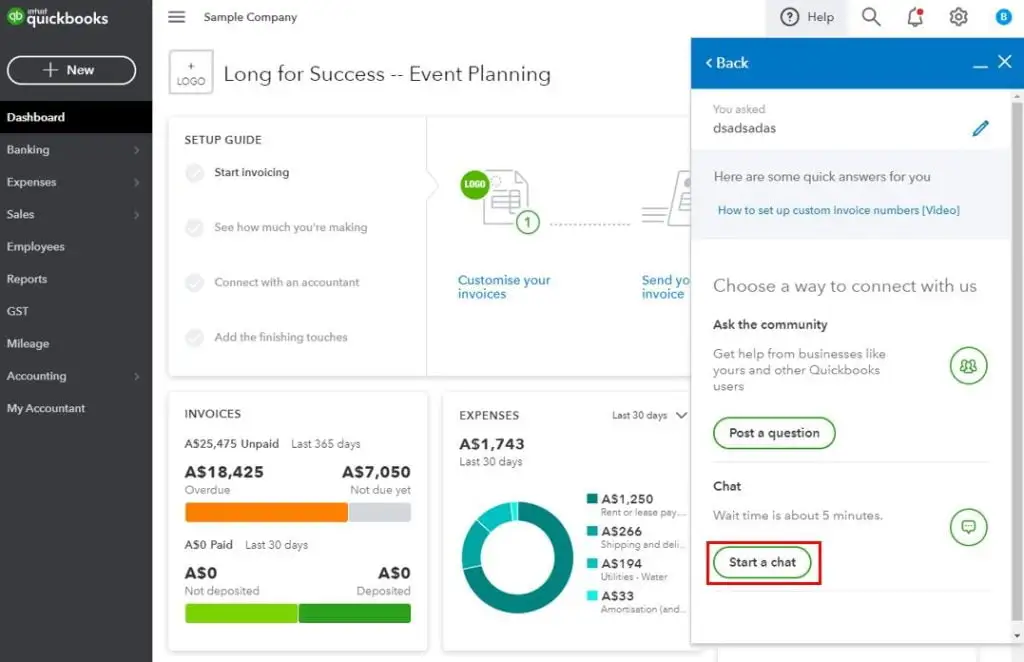
To identify if the issue lies with the bank’s server, try downloading transactions in a test company file using the following steps.
- Launch QuickBooks Desktop and head to the File menu.
- Choose New Company and click the Express Start or Start Setup.
- Now, set up bank feeds for the same account you are facing issues with.
- Afterwards, try downloading your transactions.
- If you get the error, it states that the issue lies with the bank. Contact your bank or QuickBooks support. After the consultation, share a copy of your bank feed logs.
Learn More:- QuickBooks Not Syncing With American Express
Solution 2: Verify if the file from your bank works with QuickBooks
The QuickBooks application only supports .qbo file extensions for downloading the transactions. If your financial institution uses a different format, QuickBooks fails to open the file.
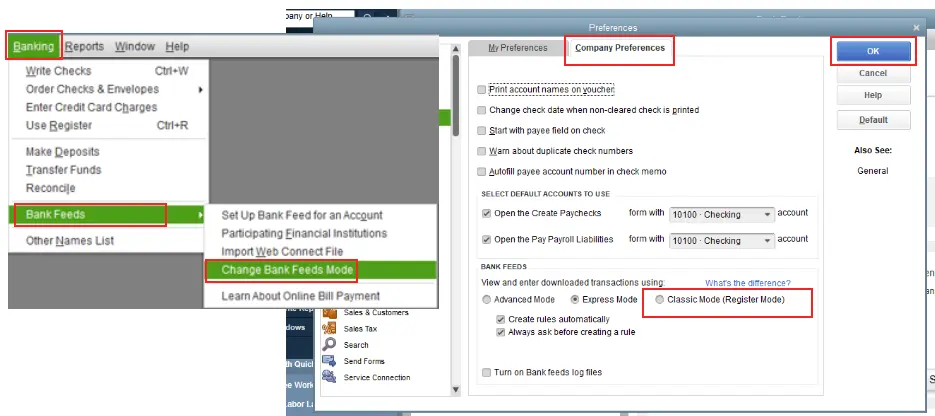
- Initially, log in to your bank’s website outside of QuickBooks.
- After this, search and download your transactions as a .qbo file.
- Now, import the transactions into QuickBooks.
- If the .qbo file fails to open, it states that the issue lies with your bank. So, to fix the issue, connect with your financial institution.
If you are able to log in successfully, import and view the transactions.
Solution 3: Refresh the connection with your bank
Use the following stepwise instructions to refresh the bank connection with QuickBooks.
- Move to the Company menu and click Charts of Accounts.
- Circle the checkbox of the Include Inactive option.
- Afterwards, look for an Inactive account with a lightning bolt.
If you see an account, use the following steps to disable online banking. Otherwise, you can set up QuickBooks bank feed and try to download your transactions.
- Initially, right-click on the inactive bank feeds account.
- After this, hit the Edit Account and click Bank Feed Settings.
- Choose the Deactivate All Online Services and tap on OK.
- Now, click the Save & Close tab.
- Exit from your company file and then open it again.
- Verify that there is no lightning bolt.
Important Tip: While setting up the bank feed, hold down the Ctrl key each time you choose a button, except when entering details. It will eventually refresh the connection with your bank account.
If you didn’t get an error, it means the issue is with your bank connection. If it’s fixed, you can download your transactions easily.
Learn More:- QuickBooks Error 103
Solution 4: Create & Merge Accounts
You must verify whether the problem lies with your company file. For that, create a copy of the account, and then merge it with the old one. Perform the following steps to create and merge bank accounts in QuickBooks.
- Firstly, click the Chart of Accounts and right-click on the affected accounts.
- Select the Edit account option and select the account name. Then, copy the account name.
- At the back of the account name, add an asterisk (*) sign.
- Choose the Bank Feeds Settings > Deactivate All Online Services and then the OK tab.
- After this, select the Save and then the Close option.
- Go to the Charts of Accounts and generate a new account.
Now, merge your bank account
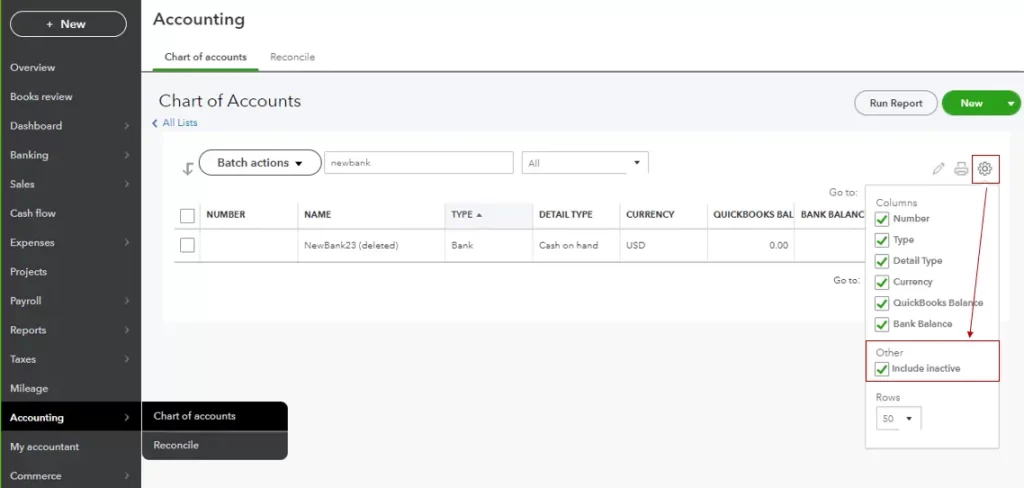
- Initially, move to the Charts of Accounts and right-click the account with an asterisk (*) sign.
- Now, hit the Edit Account tab and delete the asterisk sign.
- Choose the Save and Close option.
- Click the Yes option to merge the accounts.
- Thereon, start setting up the bank feeds.
- At last, try to download the transactions.
If you face issues while editing or merging the accounts, it states that your company file is corrupted.
Solution 5: Disable and Activate Online Banking Again
In case you are having multiple accounts associated with online banking, check if one specific account is creating the issue.
- Initially, browse to the Charts of Accounts and circle the Include Inactive checkbox.
- Now, disable and then enable the online banking again for each account.
- If you can’t disable the bank feeds for any account, connect with us for assistance.
If the issue continues,
- Contact your bank’s support team with your Bank Feeds log.
- After that, request that they escalate the issue via the OFX Connectivity page for a solution. Also, note down your case/ticket number.
Read More:- QuickBooks Online Bank Feeds
Solution 6: Update the Bank Login Details in QuickBooks
Use the following stepwise instructions to update bank login details in QuickBooks.
- Launch the QuickBooks application and hit the Banking menu.
- Choose your bank account and click the Edit menu. Then, pick the specific bank account.
- Now, head to the Edit Sign-In Information and enter the correct login credentials.
- Next, you must confirm the update in the pop-up window.
- At last, hit the “I am Done” option to complete the process.
Solution 7: Convert Bank File to a QuickBooks Compatible Format
- Initially, verify the current file format.
- After this, access your bank’s app or website for exporting the transaction data.
- Now, install a file conversion tool and then open the tool.
- Choose the exported file and select a compatible format such as QBO or QIF.
- Next, convert the file and verify its accuracy.
- You must save the converted file to a location where you can open it easily.
- Move to the QuickBooks Banking or File menu and hit the Import Transactions tab.
- Select the converted file and perform the steps given on the screen.
- Next, review the imported transactions to verify if they’re correct.
- Finally, match and then categorize the transactions.
Solution 8: Import Transactions Using Web Connect
Sometimes, while importing the file, users may face this issue, which prevents QuickBooks from reading the .qbo file properly.
A. Download Transactions
- Initially, sign in to your bank account.
- Now, download the transaction history in a .qbo format.
B. Import into QuickBooks
- Launch the QuickBooks application and hit the File menu.
- Choose the Utilities > Import > Web Connect Files tab.
- Now, select the downloaded .qbo file.
- Pick the correct bank account in QuickBooks for importing.
Solution 9: Switch to a Different Connection Method
Sometimes, switching to a different connection method may help resolve the Bank feed issues in QuickBooks.
Switch to the Direct Method
- Firstly, verify that your bank supports Direct Connect.
- After this, head to the Banking menu, click the Bank feeds, and set up bank feeds for an account.
- Provide your bank’s name and follow the steps as instructed on the screen.
- Connect with your bank for Direct Connect credentials if
Switch to Web Connect
- Initially, sign in to your bank account.
- Start downloading the transaction file in .qbo file format.
- Launch QuickBooks and import the file.
Conclusion
The QuickBooks bank feeds not working is a common issue that usually occurs when QuickBooks cannot establish a connect with your bank, preventing transactions from downloading. To resolve it, update your bank login details, check your internet connection, and verify your bank’s status.
If the issue persists, contacting your bank or with our BizBooksAdvice professionals can help you resolve it more efficiently.
Frequently Asked Questions (FAQ’s):-
Question 1: How do I fix a bank feed error in QuickBooks Online?
Ans. To resolve the bank feed error in QuickBooks Online.
- Move to the Banking menu and head to Transactions.
- Choose the Bank Accounts option and pick the account showing errors.
- Now, hit the Update option.
- If your bank feeds update automatically, review your transactions below the “For Review” tab.
Question 2: Why are QuickBooks bank feeds not working in 2024?
Ans. The QuickBooks bank feeds may stop working due to Intuit’s discontinuation policy. QuickBooks Desktop versions older than three years no longer support online services like bank feeds. To continue using this feature, you must upgrade to a supported version.
Question 3: What is the bank feed feature in QuickBooks?
Ans. The bank feed feature in QuickBooks is used to connect your bank account to QBO and then set up bank feeds to reduce errors. Thus, it allows you to download transactions automatically into QuickBooks.
Question 4: Why is my bank feed not matching in QuickBooks?
Ans. The bank feed does not match in QuickBooks when the transaction is older than 180 days. Also, it shows that the dollar amount in QuickBooks is different from what cleared the bank. Moreover, the transaction type is different in QuickBooks than at the bank.
Question 5: How to reactivate bank feeds in QuickBooks?
Ans. Perform the following steps to reactivate bank feeds in QuickBooks;
- Move to the Banking menu and click Bank feeds.
- Choose the Set Up Bank Feed for an account and provide your bank’s name.
- Select your bank from the Most Common or Matching Results and hit the Continue option.
About The Author

Jonathan Browns
Jonathan Brown is a trained QuickBooks professional with 10 years of experience in the accounting sector. Moreover, he is passionate about helping businesses reduce the stress of managing accounts. Also, he is proficient in assisting entrepreneurs and small business owners to use QuickBooks and enhance their accounting experience.
Recent Posts
-
9 DIY Troubleshooting Methods to Fix QuickBooks Error 15270
-
QuickBooks Data Conversion Services: Everything to Know
-
QuickBooks Point of Sale: Features, Setup, Pricing & Best Alternatives
-
QuickBooks Scheduled Backup Not Working: Common Causes & Easy Fixes
-
QuickBooks Credit Card Processing: How It Works, Fees & Benefits