


How to Fix QuickBooks Error 17337 (Payroll Update Issue)

- By Jonathan Browns
- Apr 29, 2026
- QuickBooks Payroll
- 7 min read
Updating QuickBooks payroll to the latest version is equally important as updating QuickBooks. With the latest payroll updates, you can compute payroll as per the latest tax table update without encountering errors. However, users may suddenly encounter QuickBooks Error 17337 while downloading the latest payroll update.
This issue may appear due to various reasons, including firewall restrictions, outdated Internet Explorer configuration, or blocked communication with Intuit servers.
In this post, we have mentioned all the possible causes that trigger Error Code 17337 in QuickBooks and the top methods to fix it.
QuickBooks Error 17337 occurs while downloading the latest payroll tax table update due to incorrect SSL settings. You can fix the issue by properly configuring the SSL settings.
What are the Major Reasons that cause QuickBooks Error Code 17337?
The QuickBooks Error 17337 mainly occurs due to the following causes, as discussed below.
- Incorrect configuration of the SSL settings in Internet Explorer.
- Windows Firewall or antivirus software blocking QuickBooks from downloading payroll updates.
- Using an outdated version of QuickBooks Desktop.
- Incorrect system’s date and time settings.
Here’s How to Fix QuickBooks Error 17337 in 8 Easy Methods
After understanding the causes behind Error code 17337 in QuickBooks, let’s explore the troubleshooting methods.
Method 1: Configure the Internet Explorer’s SSL Settings in QuickBooks
It’s essential to verify that the SSL settings in Internet Explorer are set properly for downloading the QuickBooks Desktop or payroll updates easily.
The following are the steps that will help you set the Internet Explorer’s SSL Settings in QuickBooks;
- Launch the QuickBooks application and click the Help menu.
- Move to the Internet Connection Setup and pick the appropriate internet connection.
- Choose the Advanced Connection Settings menu and head to the Advanced section of the window.
- Circle the checkboxes of
- SSL 2.0
- SSL 3.0
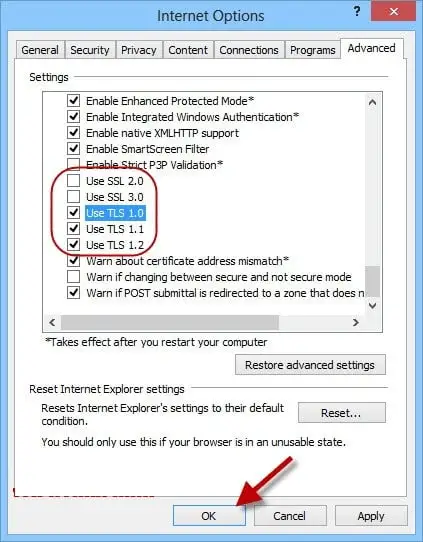
- Afterward, hit the Apply and then the OK option for the confirmation.
- Finally, restart the QuickBooks application and then download the latest payroll updates.
Method 2: Change the SSL Settings for Internet Explorer (Outside QuickBooks)
Use the following steps to change the SSL settings for Internet Explorer outside of QuickBooks.
- Firstly, go to the desktop and tap on Internet Explorer’s icon.
- Tap on the Tools tab or the Gear icon and then hit the Internet Options.
- Choose the Advanced tab and click the Settings option.
- Make sure to circle the SSL 2.0 and SSL 3.0 checkboxes from the Security tab.
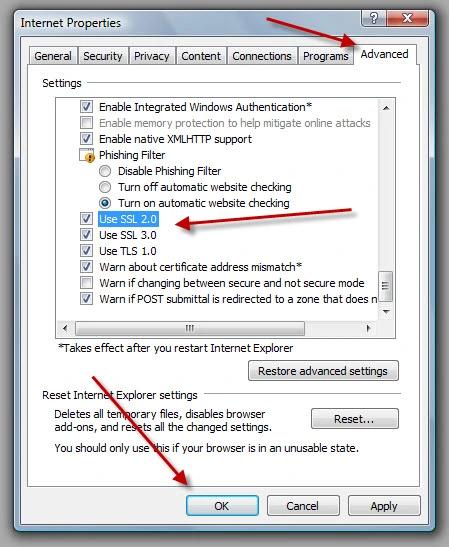
- Now, tap on the Apply option and exit from the Internet Options window.
- When you are done, hit the OK tab.
Method 3: Add Intuit as a Trusted Site
Users often encounter QuickBooks Payroll Error code 17337 if Internet Explorer isn’t set as a trusted site. Perform the following steps to add Intuit as a trusted site.
- Firstly, launch Internet Explorer and click the Security tab.
- Choose the Trusted Sites and hit the Sites option.
- Now, insert the following addresses into the “Add this website to the zone” field.
- https://*.intuit.com
- https://*.intuit.net
- https://*.quickbooks.com
- Tap on the Add option for each URL and hit the Close option.
- Head to the Custom Level option and scroll down to the Miscellaneous section.
- Head to the Enable below the Access data sources across domains.
- Hit OK and then click the Apply option.
- Once again, hit the OK tab. Then, it will exit from the Internet Options window.
- At last, open QuickBooks Payroll and try downloading the latest QuickBooks Payroll updates.
Method 4: Disable the User Account Control (UAC)
Turning off the User Account Control settings may allow QuickBooks to make the essential changes in the system files without encountering errors. Use the following step-by-step instructions to turn off User Account Control settings.
- Launch the Start menu and open the Run window.
- After this, insert “control panel” and hit the Enter key.
- From the Control Panel window, choose the User Accounts option.
- Now, head to the Change user account control settings and scroll the slider towards Never Notify. Then, hit the OK option to disable the UAC settings.
- To switch on the UAC Settings, set the slider to Always Notify and then hit the OK option.
- Relaunch your PC to make the required changes.
- Finally, try downloading the latest QuickBooks payroll updates and see if the issue is resolved.
Method 5: Rename the QuickBooks CPS Folder
Changing the name of the QuickBooks CPS folder may help fix the 17337 Payroll Error Code in QuickBooks. Here, we have provided the stepwise instructions to change the name of the CPS folder.
- Initially, hit the Ctrl+ Shift+ Esc keys together to launch the Task Manager.
- Head to the Processes tab, locate the CPS or CPS.exe file, and end the task.
- Now, browse to the CPS folder that is located in the following location;
- C:\Program Files\Common Files\Intuit\QuickBooks.
- After this, rename the folder and add OLD at the end of the folder’s name.
- Finally, relaunch your computer.
Method 6: Repair QuickBooks Desktop
By configuring QuickBooks Desktop, you can rectify any issue associated with missing or corrupted company files. Use the steps below to repair the QuickBooks Desktop.
- Launch the Start menu and open the Control Panel.
- After this, head to the Programs and Features or Uninstall a Program option.
- Locate QuickBooks from the list of installed apps and then click on it.
- Move to the Repair or Change option and then perform the steps given on the screen.
- After completing the repair process, relaunch your PC.
Method 7: Add Windows Firewall as an Exception in QuickBooks
At times, the blockage of Windows Firewall may create issues while installing the latest payroll updates. As a result, it causes QuickBooks Error Code 17337. Therefore, to fix the issue, try adding Windows Firewall as an exception in QuickBooks.
Method 8: Reinstall QuickBooks Desktop
Sometimes, reinstalling QuickBooks Desktop helps remove the issues with the QuickBooks program. This will help you fix the Error code 17337 in QuickBooks. Also, it will let you download the latest QuickBooks payroll updates without any issues.
Conclusion
Facing QuickBooks Error 17337 is quite frustrating when it prevents users from downloading the latest payroll tax table update. However, you can resolve the issue by adding Intuit as a trusted site, resetting SSL settings in QuickBooks, and outside of QuickBooks. Also, try configuring firewall settings, renaming the CPS folder, or disabling UAC settings.
If the error continues, reach out to your BizBooksAdvice professionals and get the right assistance for your query.
Frequently Asked Questions (FAQ’s):-
Question 1: When does QuickBooks Error 17337 occur?
Ans. Users often face QuickBooks Error 17337 in the following cases;
- Downloading the latest QuickBooks payroll updates.
- Using the online services with QuickBooks.
- Update QuickBooks to the latest version.
Question 2: What is QuickBooks Error 17337?
Ans. The QuickBooks Error 17337 mainly occurs when QuickBooks fails to connect to the internet. This issue is mainly related to incorrect SSL settings and Internet Explorer settings.
Question 3: What ports should be open to prevent the QuickBooks Banking Error 17337?
Ans. To avoid the QuickBooks Banking Error 17337, make sure that the following ports are marked in QuickBooks.
- Port 80 (HTTP)
- Port 443 (HTTPS)
Question 4: Why is QuickBooks not updating payroll?
Ans. The QuickBooks fails to update payroll due to various reasons, including poor internet connection, Firewall or antivirus software blockage, and outdated operating system.
About The Author

Jonathan Browns
Jonathan Brown is a trained QuickBooks professional with 10 years of experience in the accounting sector. Moreover, he is passionate about helping businesses reduce the stress of managing accounts. Also, he is proficient in assisting entrepreneurs and small business owners to use QuickBooks and enhance their accounting experience.

QuickBooks Desktop, Payroll or Enterprise
Advanced Support for QuickBooks Desktop, Payroll & Enterprise Solutions
From payroll tax setup, direct deposit issues to Enterprise performance tuning and Desktop upgrades - our QuickBooks experts provide accurate and stepwise assistance. Get dependable support designed to minimize downtime and maximize efficiency.
Recent Posts
-
QuickBooks Merchant Services: Everything You Need to Know Before You Sign Up
-
QuickBooks Payroll Assisted: Everything You Need to Know
-
How to Contact QuickBooks Online Customer Service Team 2026
-
QuickBooks Online Login: Sign in to Access your QB account
-
QuickBooks Desktop Enterprise: Features, Pricing, and How to Install and Set Up