


Facing QuickBooks Error 80040408? Here’s the Instant Fixes!

- By Jonathan Browns
- May 18, 2026
- QuickBooks Desktop
- 7 min read
Are you getting QuickBooks Error 80040408 while opening the QuickBooks Desktop or your company file? It may happen due to outdated software, wrong file path, or system-related issues. When this error appears, you may see the following message:
“Begin Session Failed. S0000 00000 [QODBC] QB Begin Session Failed. Error = 80040408. Could not start QuickBooks”
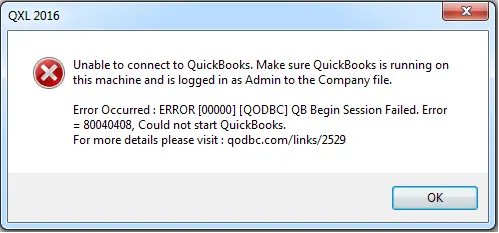
In this post, we explain the reasons behind this error. Also, we have elaborated the step-by-step solutions to fix it and regain access to your QuickBooks company file.
Still facing issues while fixing QuickBooks Error 80040408? Call Us : +1-866-408-0444 and get professional help today to regain access to your data file.
What is Error Code 80040408 in QuickBooks?
The QuickBooks Error 80040408, also titled “Could Not Start QuickBooks,” occurs when the third-party applications fail to connect with the QuickBooks Desktop application. It shows a session failure because of incorrect multi-user mode setup, the Quick Start feature, or a mismatched company file.
You may also see show the following message on the screen:
| “QBXMLSession_OpenConnection File named F:\QB Data\Rock Castle.QBW is not opened. |
| BeginSessionError Code: 80040408 Could not start QuickBooks.” |
Why am I Getting the 80040408 Error in QuickBooks Desktop?
QuickBooks Desktop Error 80040408 occurs when launching the software or opening the company file. It is usually caused by specific system or program-related issues. Multiple other factors can trigger this error.
- If QuickBooks is already opened in single-user mode.
- Your company file location was changed or renamed and it doesn’t match the name when it was added.
- Multiple Qquber synchronizers are running on the server or workstation.
- You are running QuickBooks under different Windows user profiles.
- Intuit QuickBooks Error Code 80040408 may occur if the QuickStart option is enabled and running on your system.
- This error may occur if the company file is in use or if you don’t have proper permissions to access the file.
How Can I Resolve QuickBooks Error 80040408 Immediately?
Once you understand the root causes of QuickBooks error 80040408, follow the step-by-step solutions below to resolve it. Before you begin, make sure QuickBooks Desktop and your Windows operating system are updated to the latest versions.
Solution 1: Disable the Quick Start Option in QuickBooks
Sometimes, the users may get the QuickBooks Desktop Error message 80040408 when the Quick Start option is enabled in QuickBooks. To fix the issue, you need to disable the option by using the following steps.
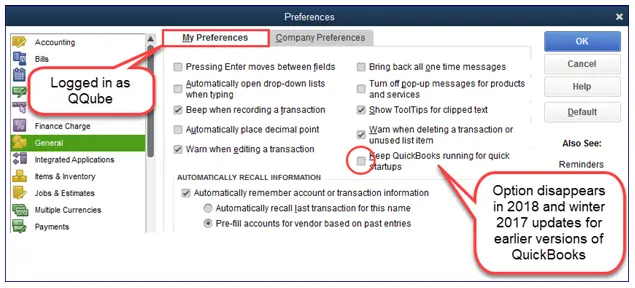
- Launch QuickBooks Desktop.
- Go to Edit Preferences from the list.
- Now, uncheck the Quick Start option if it is already selected.
- Shut down all the QuickBooks windows opened for all other users below the Task Manager.
- Move to the Processes and click View all user processes.
- Verify if the file paths in QODBC via the QODBC setup screen and hit the General tab.
- Check the QuickBooks company file path from the File Information window. For that, press the F2 key.
Solution 2: Ensure QuickBooks is Not Running As an administrator
The users must verify that they log in to QuickBooks as an administrator to prevent the QuickBooks company file error 80040408.
- Go to the desktop, and right-click on the QuickBooks icon.
- Choose the Properties option from the drop-down menu.
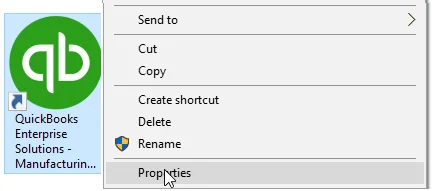
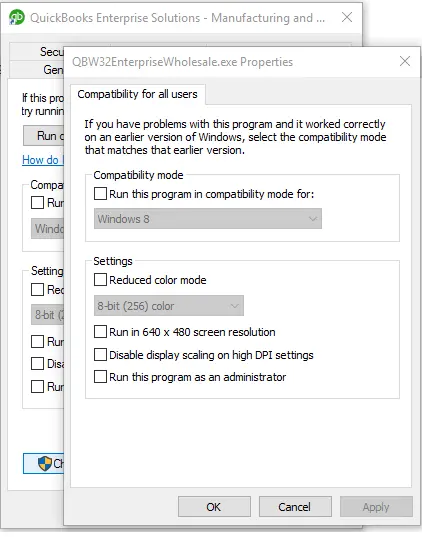
- From the pop-up on screen, verify that the Run as Administrator or Run this program as Administrator checkbox is unchecked.
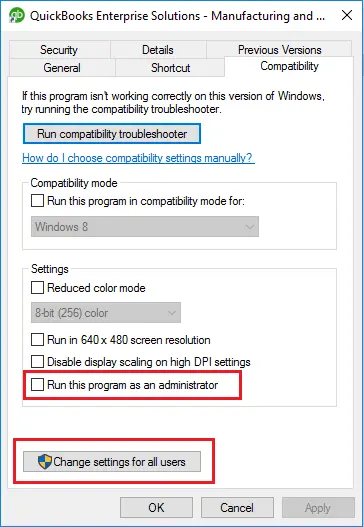
- Now, from the same pop-up, tap on the Change Settings for all users option.
- You will then get another pop-up, verify that you run as Administrator or run this program as Administrator from this window also.
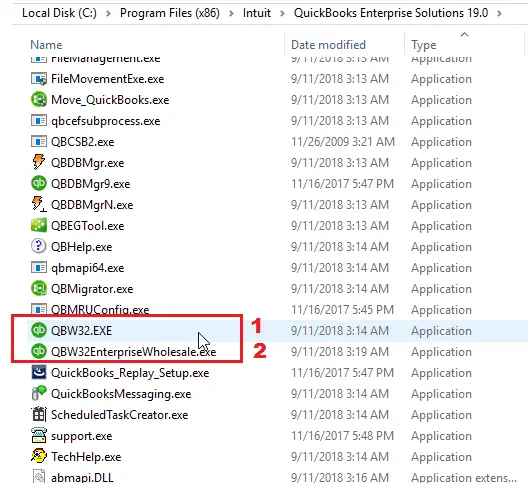
- Move to the QuickBooks folder.
- Right-click on the QBW32.exe file and other QB apps starting with QBW32.
- Herein, verify that the Run as Administrator or Run this program as Administrator is unchecked.
- Afterwards, choose the Change Settings for all users option.
- Ensure that the Run as Administrator box is not marked.
- Finally, relaunch the QuickBooks Desktop application. Then, sign in to your company file as a QuickBooks admin user.
Solution 3: Restore the Company File to Its Original Name
By renaming the QuickBooks company file, you can make it inaccessible and cause the 80040408 Multi-user mode error in QuickBooks. So, to resolve the issue, you need to rename the file back to its original name.
- Before starting, make sure to back up the QuickBooks company file.
- Check the location of your QuickBooks company file from the Home page.
- Next, hit the F2 or Ctrl + 1 keys to access the Product Information window. Then, you must copy the company file location to a safe place from the File Information field.
- Now, right-click on the Start button and open the File Explorer. Then, you must go to the specified location.
- Soon after this, right-click on the company file and tap on the Rename option. Then, you will see the name of the company file as [CompanyName].qbw or [CompanyName].
- You must change the file name and then press the Enter key.
- Finally, click the Yes option to confirm the action.
Furthermore, you must set up the QuickBooks Desktop application to use the new company file name.
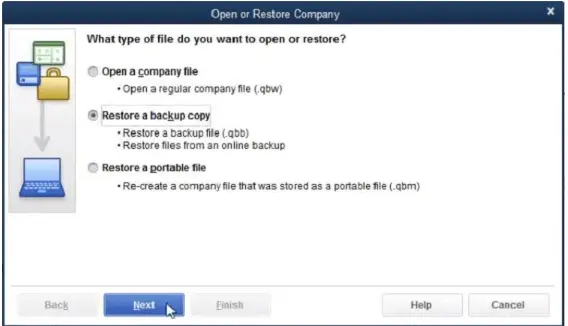
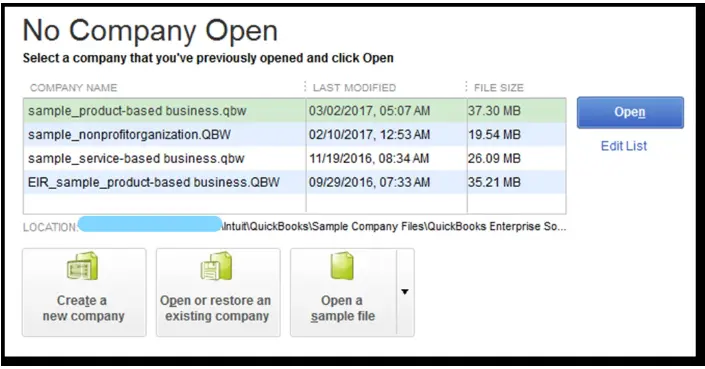
- You first need to go to the File menu and hit the Open or Restore an Existing Company.
- After this, move to the Open a company file and tap on the Next option.
- Now, browse to the Open tab after choosing the company file that you renamed.
Solution 4: Correct the Company File Path
Users often get the QuickBooks Pro Error 80040408 if they have moved the company file or changed its original path accidentally. So, to fix the issue, you need to restore your company file by applying the step-by-step instructions below.
- Launch the QuickBooks application and click the File menu.
- After that, choose the Open or Restore Company Files and hit the Restore a backup copy option.
- Now, pick the Local Backup option and then look for the company file backup on your hard drive. The file name will look like [Your company name].qbb.
- Click on the Next option and choose the folder that contains the .qbb file.
- At last, hit the Open and then tap on the Next option.
Solution 5: Logout of the Systems Running File in Single-User Mode
- Open the QuickBooks Desktop application and choose the Company option.
- After this, tap on the Users option and then hit the Manage Login Settings tab.
- Now, from the left panel, move to the General tab and pick the Company Preferences tab.
- When you are in the Manage Login Settings section, opt for the Keep user logged in and mention the login period.
- Once you are set, tap on the OK option.
With this, the users will automatically sign out of QuickBooks at the end of the login period set.
Read More:- QuickBooks Multi-User Mode Not Working
Solution 6: Do the Necessary Changes to Qqube Configuration Tool Settings
- Firstly, launch the Qqube Configuration tool window and select the Advanced tab.
- After that, pick the Database option and click the Show More option.
- At last, get the synchroniser and database manager options; you have to mark both of them.
Solution 7: Check and Rectify the Hosting Settings
At times, the incorrect hosting or server settings may trigger Error Code 80040408. Therefore, to fix the issue, you must change the hosting settings.
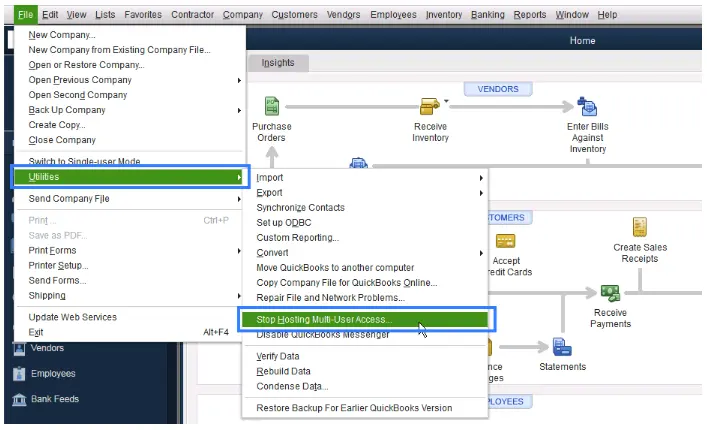
- Launch the QuickBooks Desktop on all your computers and click the File menu.
- Now, choose the Utilities option.
- If the Stop Hosting Multi-User Access option is available, click on it and disable hosting on all workstations.
- Move to your server computer and then enable the Hosting Multi-User Access option.
- In the end, relaunch QuickBooks and verify if the issue is resolved.
Solution 8: Test The Connection Between the Server & Your Workstation
QuickBooks Error 80040408 may occur due to a problem with the connection between the server and your workstation. Therefore, to rectify the issue, review the connection and make sure that the workstation can easily communicate with the server.
- On your server computer, launch the Run Window.
- In the Run window, insert “CMD” in the search box and click OK.
- A black screen with a blinking cursor will open. Herein, write “ipconfig/all” and hit the Enter key.
- Locate the Host Name and write it down.
- Now, go to the affected workstation and then open the Command Prompt window.
- Herein, type “ping[server name]” and hit the Enter key. Make sure not to insert brackets while typing the server name.
- If you get a reply for all packets without any loss, it means that the connection is working fine. Otherwise, you can connect with your IT experts to fix your network.
Solution 9: End the Third-Party Apps Running in the Background
At times, third-party apps running in the background may create issues while functioning properly in the QuickBooks Desktop. Therefore, to rectify the issue, close all the background running processes by performing these steps.
- Open the Task Manager on your computer. For that, hit the Ctrl + Alt + Del keys together.
- Move to the Task Manager and click the Processes tab.
- Now, pick various third-party apps that are presently running in the background.
- At last, hit the End Task option to end the background running processes.
Conclusion
We hope this guide has helped you understand and fix QuickBooks error 80040408, allowing you to open the application and company file without issues. If the error persists, ensure that QuickBooks Desktop is updated to the latest version and that you are connected to a secure internet connection.
For further assistance, you can contact our BizBooksAdvice experts via the toll-free number or live chat for quick and reliable support.
Frequently Asked Questions (FAQ’s):-
Question 1: When does QuickBooks Error 80040408 occur?
Ans. QuickBooks Error 80040408 may appear while opening the QuickBooks Desktop or while accessing the company file.
Question 2: How can I prevent QuickBooks Error Code 80040408 from occurring in the future?
Ans. To prevent the QuickBooks Error Code 80040408, do the following:
- Windows and QuickBooks are updated to the latest version.
- Consider scheduling the backup of the QuickBooks company file.
- Your Internet connection must be stable.
Question 3: Will renaming the company file help resolve QuickBooks Desktop Error 80040408?
Ans. Yes, changing the name of the company file to its original name or correcting its file path helps resolve the QuickBooks Desktop Error 80040408.
Question 4: Does network connection affect QuickBooks Company File Error 80040408?
Ans. Yes, unstable or incorrect network settings may restrict QuickBooks from opening the company file.
Question 5: Does Windows Update help fix QuickBooks Error Message 80040408?
Ans. Yes, working on the updated Windows operating system can help you resolve system-related issues that may cause the QuickBooks Error message 80040408.
About The Author

Jonathan Browns
Jonathan Brown is a trained QuickBooks professional with 10 years of experience in the accounting sector. Moreover, he is passionate about helping businesses reduce the stress of managing accounts. Also, he is proficient in assisting entrepreneurs and small business owners to use QuickBooks and enhance their accounting experience.
Recent Posts
-
9 Proven Ways to Fix QuickBooks Migration Error-1009
-
QuickBooks Error 401 Authentication Error: Complete Fix Guide
-
How to Fix QuickBooks Freezing or Not Responding
-
Fix Your QuickBooks Online Sync Problems: A Step-by-Step Guide
-
QuickBooks Online Canada: Complete Guide for Canadian Businesses