


Fix QuickBooks Error Code 80029c4a With Expert Tips

- By Jonathan Browns
- Oct 16, 2025
- Accounting
- 7 min read
Are you facing QuickBooks Error Code 80029c4a while trying to open the QuickBooks Desktop application? This error may occur due to corrupt or missing DLL files or an interruption of the antivirus software. However, when the error appears, it throws the following message stating “Problem: There was an unexpected error reported while trying to run QuickBooks with company file.”
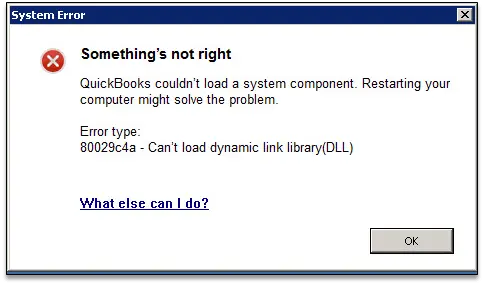
Unfortunately, this error prevents users from continuing with their ongoing business operations. In this post, we have discussed the possible causes along with the troubleshooting methods to fix QuickBooks Error 80029c4a.
What are the Reasons That cause QuickBooks Error 80029c4a?
Herein, we have described the possible root causes behind the occurrence of QuickBooks Error 80029c4a.
- Antivirus software installed on your system is blocking QuickBooks from loading crucial files.
- Presence of any sort of damage or corruption in the QuickBooks program.
- Problems with the installation of the QuickBooks Desktop.
- Running the obsolete version of the QuickBooks application.
- Sometimes, an outdated Windows Operating system may also create problems in running the program.
Considerations Before Applying the Troubleshooting Steps
The following are the key takeaways you must consider for resolving the QuickBooks Desktop Error 80029c4a easily.
- Verify that you must meet the system requirements for QuickBooks Desktop.
- Consider creating a backup QuickBooks company file to safeguard the crucial data.
- Make sure that you are working on the most current QuickBooks Desktop version.
Here’s How Do You Fix QuickBooks Error 80029c4a Startup
If you are having trouble opening the QuickBooks Desktop due to QuickBooks Error 80029c4a, then don’t panic. Read the troubleshooting methods listed below for fixing the issue and resume working on the QuickBooks program.
Solution 1: Review Your Antivirus Settings
At times, the antivirus software installed in your system blocks QuickBooks from loading the essential files. As a result, it might create trouble in opening the QB application, resulting in QuickBooks Desktop Error 80029c4a.
Furthermore, if you find that any of these programs given below is quarantined, you must assign permission to go through the firewall.
| AutoBackupExe.exe | QBGDSPlugin.exe |
| Dbmlsync.exe | QBServerUtilityMgr.exe |
| DBManagerExe.exe | QBCFMonitorService.exe |
| FileManagement.exe | QBLaunch.exe |
| FileMovementExe.exe | QBUpdate.exe |
| QuickBooksMessaging.exe | IntuitSyncManager.exe |
| QBW32.exe | OnlineBackup.exe |
| QBDBMgrN.exe |
Important Tip: You will find these files in the C:\Program Files\Intuit\QuickBooks (year). Whereas, files with the (x86) in the location, such as C:\Program Files (x86)\Intuit\QuickBooks 20XX, are 64-bit versions.
Solution 2: Reinstall QuickBooks Desktop to Refresh the Program
If the above solution doesn’t help, then try to reinstall QuickBooks Desktop. Reinstallation will refresh the program files that are causing QuickBooks Error 80029c4a.
Solution 3: Update QuickBooks to the Latest Version
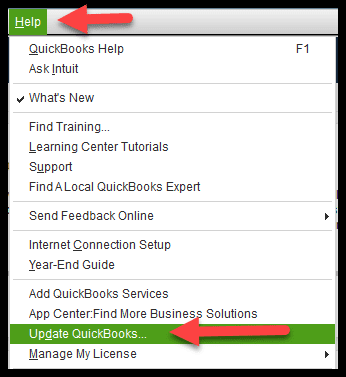
Users often experience QuickBooks error 80029c4a while working on the outdated version. So, it’s necessary to update QuickBooks Desktop to the latest release.
Solution 4: Use Quick Fix My Program to Repair the QuickBooks Application
To repair the damage or corruption in the QuickBooks program, you must run the Quick Fix My Program tool. Running this tool will refresh the application by closing all the background running processes.
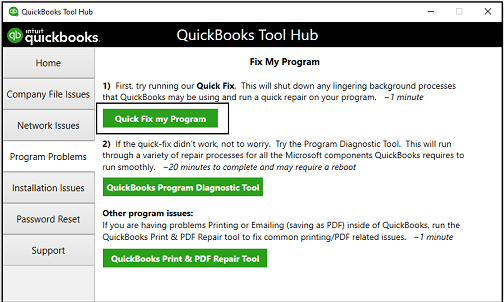
- Firstly, launch the QuickBooks Tool Hub 1.6.0.8.
- From the Tool Hub, choose the Program Problems tab and then click the Quick Fix My Program tab.
- Finally, launch the QuickBooks Desktop and then launch your data file.
Solution 5: Utilize the QuickBooks Install Diagnostic Tool
If something goes wrong with the QuickBooks installation, then it might create issues while running the application. Therefore, by running the QuickBooks Install Diagnostic Tool, you can address the QuickBooks Error Code 80029c4a.
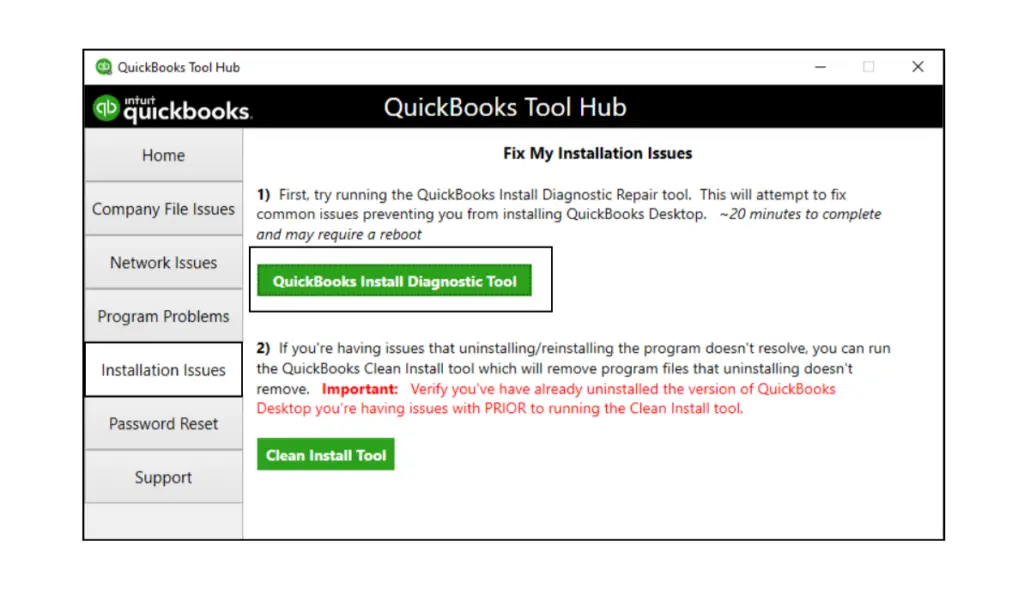
- Launch the QuickBooks Tool Hub and then hit the Installation Issues tab.
- Choose the QuickBooks Install Diagnostic tool and allow the tool to scan. Then wait for some time to repair the tool.
- Relaunch your Windows PC and launch QuickBooks Desktop to see if the issue persists.
Solution 6: Download & Install the Latest Windows Updates
Working on an older Windows operating system is another major cause that triggers the QuickBooks Error 80029c4a. Therefore, to address the issue, it is essential to get the latest Windows updates by performing the steps below.
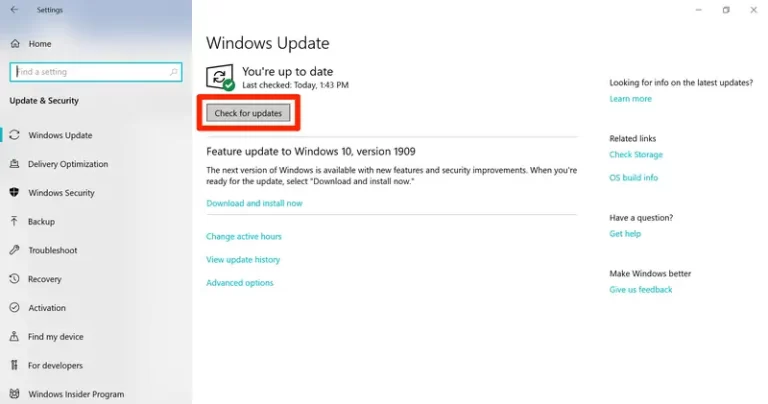
- Launch the Start menu and then type updates in the search bar.
- Now, tap on the Check For Updates option, and it will open a new window.
- Next, hit the Check For Updates tab, and it will start looking for the latest updates available.
- If any updates are available, download and then install them on your PC.
- Otherwise, if it’s already updated, it will prompt you with “You’re up to date” status.
- Finally, relaunch your PC and then try opening QuickBooks Desktop to see if the issue is resolved.
Conclusion
QuickBooks Error Code 80029c4a may prevent users from launching the QuickBooks application. Thus, it prevents users from carrying on with their ongoing business operations. Furthermore, if you still need any additional help, connect with our BizBooksAdvice professionals.
Frequently Asked Questions (FAQ’s):-
Question 1: What is Error Code 80029c4a in QuickBooks?
Ans. Users often face Error Code 80029c4a in QuickBooks when they fail to launch the QuickBooks Desktop program. Thus, it restricts the users from launching or loading the company files. So, to address the issue, it is essential to meet the system requirements to run QuickBooks and back up company files.
Question 2: How do I fix a corrupted file in QuickBooks?
Ans. The following are the stepwise instructions to repair a corrupted file in QuickBooks.
- Access the File menu > Utilities > Rebuild Data option.
- When you are in the Information window, hit the OK tab.
- Allow the tool to repair the file and click OK to complete.
- Once again, move to the File menu and let the tool resolve the data issues.
Question 3: Why is my QuickBooks Desktop update not installing?
Ans. The users often receive the ” QuickBooks won’t update issue due to network connectivity issues, firewall interruptions, incorrect system date and time, or corruption in installation files.
Question 4: How to fix the QuickBooks Desktop crashing issue?
Ans. You can resolve the QuickBooks Desktop crashing issue by performing the steps below.
- Firstly, right-click on QuickBooks and choose the Properties tab.
- From the Compatibility tab, tap on Run this program in compatibility mode for.
- Now, hit the Windows 7 and mark the Run this program as administrator checkbox.
- Finally, tap on Apply and then the OK tab for saving the changes.
Question 5: What is the current version of the QuickBooks Desktop?
Ans. As per the updates, the latest version available is QuickBooks Desktop 2024.
About The Author

Jonathan Browns
Jonathan Brown is a trained QuickBooks professional with 10 years of experience in the accounting sector. Moreover, he is passionate about helping businesses reduce the stress of managing accounts. Also, he is proficient in assisting entrepreneurs and small business owners to use QuickBooks and enhance their accounting experience.
Recent Posts
-
QuickBooks Company File Not Found: Top 7 Ways to Restore File Access
-
QuickBooks Won’t Open: Desktop, Online & Mobile Application
-
How to Fix QuickBooks Error 81624: Payment Authorization Failed
-
9 DIY Troubleshooting Methods to Fix QuickBooks Error 15270
-
QuickBooks Data Conversion Services: Everything to Know