


Fix QuickBooks Utility Application Popping Up Issue With Easy Tips

- By Jonathan Browns
- Nov 13, 2025
- Accounting
- 7 min read
Is the QuickBooks Utility application popping up issue flashing on your computer screen while opening the QuickBooks application? This issue usually takes place due to numerous causes, including software conflicts, improper permissions, corrupted files, or a damaged company file. Unfortunately, this issue prevents the users from running the application. Thus, it restricts users from performing their day-to-day business operations. In this guide, we have explained all the root causes and top methods to address this issue smoothly.
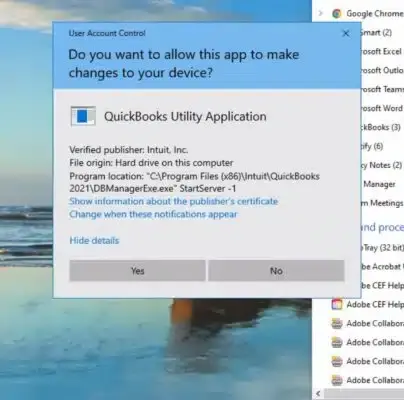
Why Does QuickBooks Utility Keep Popping Up Error Occurs?
Herein, we have elaborated on all the possible reasons that might trigger the QuickBooks Utility Keep Popping up issue.
- Interference of the background running processes in QuickBooks is applicable.
- Incorrect installation of the QuickBooks Desktop application.
- Having insufficient User Account Control rights.
- Running the company file that is completely damaged or corrupt.
- You are working on the Windows and QuickBooks application that is outdated.
Top Methods to Rectify the QuickBooks Utility Application Popping Up Issue
Are you still facing the QuickBooks Utility applicable popping up issue? Then, worry not and follow the solutions given below to address the issue smoothly.
Solution 1: Disable The User Account Control
Perform the instructions outlined below to turn off the User Account Control settings.
- Start the process by opening the Run window by pressing the Windows logo + R keys together.
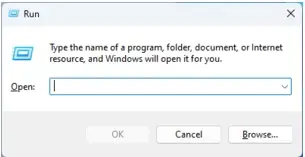
- In the search bar, type Control Panel and click on OK.
- Now, browse to the User Accounts to do the necessary account settings.
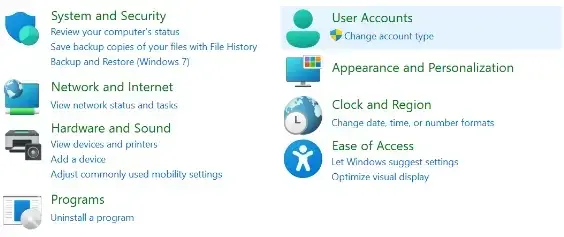
- When you are in the User Account window, hit the Change User Account Control Settings.
- Next, drag the slider towards Never Notify and tap on OK to confirm the changes.
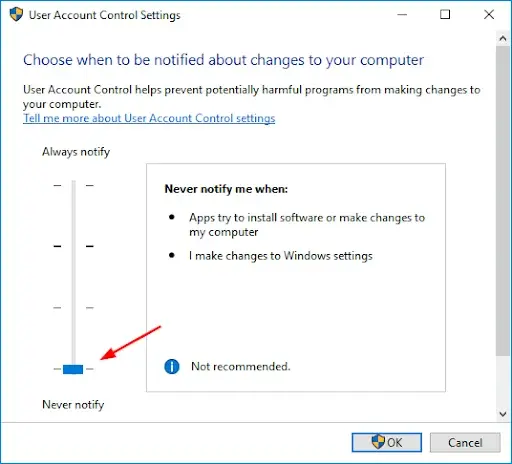
Finally, relaunch your computer and confirm the QuickBooks functions. If you are still encountering the same issue, then try another solution.
Solution 2: Access the QuickBooks Application With Admin Rights
Go through the following instructions to run the QuickBooks application with the proper administrative rights.
- On your desktop, locate the QuickBooks icon and then right-click on it.
- After this, opt for the Run as Administrator option.

Solution 3: Exit From the Third-Party Programs Running in the Background
Sometimes, the users might receive the ” QB Utility Application Pop Up issue due to the interruption of background running processes. So, to address the issue, you must close all those background apps. Use the following steps to close all the third-party apps interrupting the QuickBooks operations.
- Firstly, hit the Ctrl + Alt + Del keys altogether to launch the Windows Task Manager.
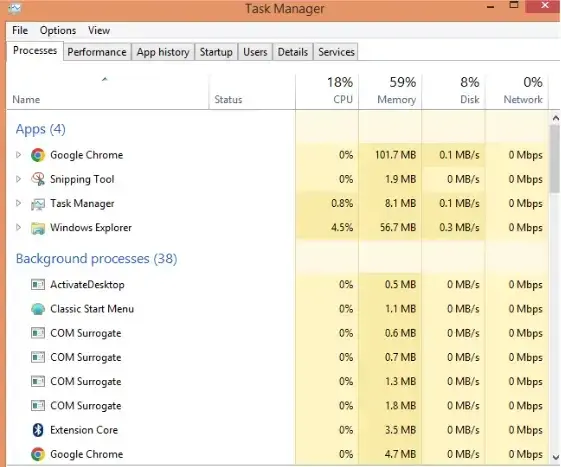
In the new window, head to the Processes tab.
- Now, locate the icons of any third-party applications that are interfering with QuickBooks Desktop. Select each of these icons and click End Task.
- This will stop all related background processes. After that, close the Windows Task Manager window.
- QB Utility Application Pop-Up Window
- Pop-up window for the QuickBooks Utility application.
Solution 4: Move Your Company File to Another Folder
At times, a damaged company file folder may also be the reason behind the QuickBooks Utility pop-up issue. So, to fix the issue, you need to repair the damaged folder by using these steps.
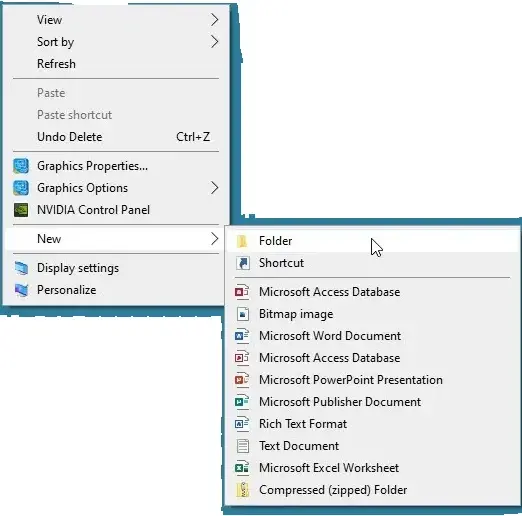
- Initially, right-click on the screen and tap on the New option.
- From the drop-down menu list, head to the Folder option and rename it as “QBTEXTFOLDER”.
- Now, browse to the default company file location C://Users/Public/PublicDocuments/Intuit/QuickBooks/CompanyFiles. Then, hit the Ctrl + C keys to copy the data file and paste it into the newly generated folder, i.e, QBTEXTFOLDER.
- After this, try making changes to the folder access permissions with these steps:
- Right-click on the QBTEXTFOLDER and opt for the Properties tab.
- Choose the Sharing tab and then click on the Share option.
- Make sure that you give Full Control access and then opt for the Share menu.
- Launch the QBTEXT FOLDER through the QuickBooks Desktop and start accessing your company file.
Solution 5: Run the Latest QuickBooks Install Diagnostic Tool
As discussed above, the QuickBooks Utility issues may also be caused by issues with the installation of the QuickBooks application. So, to configure the issue, run the QuickBooks Install Diagnostic Tool to install the software smoothly. Once you run this tool, it will scan for possible damage and then run a repair on the installation files to address the issue.
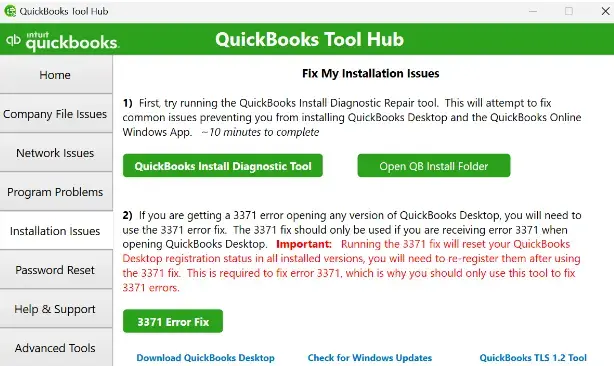
Solution 6: Check that You Are Running the Latest QuickBooks Desktop
Running the older version of the QuickBooks Desktop is a major problem that triggers the QuickBooks Utility application popping up issue. So, to fix the issue, it’s best to update QuickBooks Desktop to the latest release.
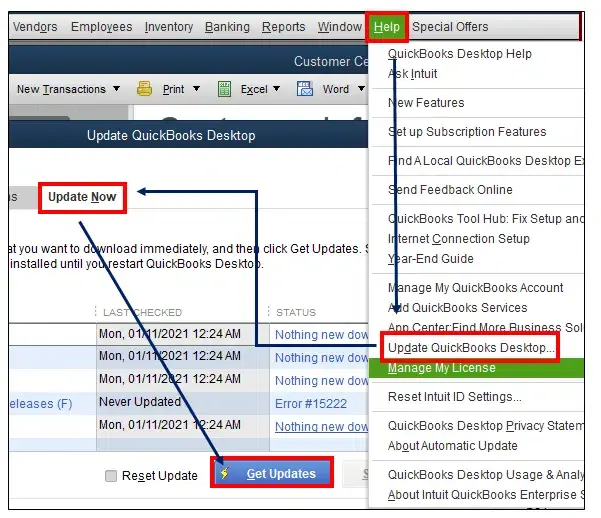
Solution 7: Start Updating Windows To the Latest Version
Using the obsolete version of the Windows operating system may result in this issue. So, it’s best to update Windows by performing these steps.
- Press the Windows logo key and access the Start menu.
- In the search bar, type Windows Update, and it will open a new screen.
- Now, if your Windows is not updated, click on the Check For Updates tab.
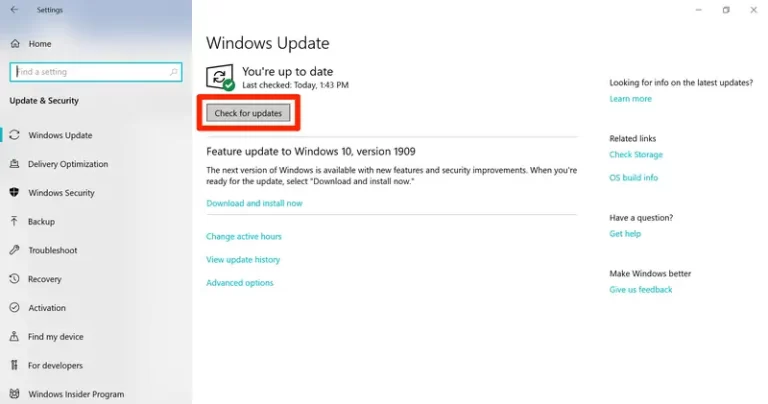
- If you are using the latest one, you will get the You’re Up-to-date message. If it’s not, then click on Check for Updates and wait unless the new updates are installed.
- Once the installation part is complete, restart your Windows PC.
- Now, try to run the QuickBooks Desktop to see if the issue still continues.
Solution 8: Reinstall Your QuickBooks Desktop Application
At times, the technical glitches present within the QuickBooks software might restrict you from running the application. Thus, it might start giving a QuickBooks Utility Application pop-up error message. Therefore, to address the issue, you need to reinstall QuickBooks Desktop.
Conclusion
The QuickBooks Utility Application popping up issue might appear on the screen while operating the QuickBooks application. But by applying the above solutions, you can get rid of the issue instantly. Thus, it will let you run the application without any hindrance. Furthermore, if you are having any issues, feel free to connect with our BizBooksAdvice professionals for quick resolution. You can talk to them either by placing a call or through the live chat facility for better results.
Frequently Asked Questions (FAQ’s): –
Question 1: What is the QuickBooks Utility application?
Ans. The QuickBooks Utility application is a component of the QuickBooks Desktop, which lets you verify data, handle the integrations, and help in performing background checks.
Question 2: Can incorrect Windows user permissions cause the QuickBooks Utility application to repeatedly issue?
Ans. Yes, if the user doesn’t have enough Windows permissions, then it might give rise to the pop-ups of the QB utility application repeatedly issuing.
Question 3: How can I prevent the QuickBooks Utility application from popping up every time I open QuickBooks?
Ans. You can avoid the QuickBooks Utility application popping up issue by operating QuickBooks with admin rights. Also, ensure that you are running the latest version of QuickBooks and the Windows operating system.
Question 4: Does the QuickBooks Utility application pop-up indicate a virus or security threat?
Ans. No, the QuickBooks Utility popping up issue isn’t directly related to a virus or a security threat. But, for the safer side, it’s essential to scan your computer for viruses or any other malicious attacks.
Question 5: How can you grant permissions to run the QuickBooks application?
Ans. The following are the stepwise instructions to grant permissions to run the QuickBooks application.
- Firstly, sign in to QuickBooks as your admin user, and switch to single-user mode. Then, launch the Web Connector.
- Now, look for the connection and hit the Remove tab.
- Choose the Pairing File when you get a certificate and hit OK to move ahead.
- At last, tap on Yes, always allow access even if QuickBooks is not running, and then start running QuickBooks again.
About The Author

Jonathan Browns
Jonathan Brown is a trained QuickBooks professional with 10 years of experience in the accounting sector. Moreover, he is passionate about helping businesses reduce the stress of managing accounts. Also, he is proficient in assisting entrepreneurs and small business owners to use QuickBooks and enhance their accounting experience.
Recent Posts
-
How to Fix QuickBooks Error 6177, 0: Complete Troubleshooting Guide
-
QuickBooks Online Payroll Not Working: Causes & Solutions to Fix It
-
How to Fix QuickBooks Error 6129, 0: Database Connection Failed
-
QuickBooks Outlook is Not Responding? Let’s Fix It Immediately
-
How to Fix QuickBooks Error Skipped 111 (Complete Guide)