


Trying to Fix QuickBooks Error 3180? Use these Top Methods

- By Jonathan Browns
- May 18, 2026
- Accounting
- 7 min read
Users often experience QuickBooks Error 3180 when the QuickBooks Desktop or QuickBooks Desktop POS cannot save or sync a transaction accurately. Mainly, this error may appear during the financial exchanges or when saving the sales receipts. It may happen due to numerous reasons, including inappropriate mapping, incorrectly configured tax accounts, or missing vendors for tax items. Whenever the error strikes, it pops up with an alert message notifying you.
“There was an error saving an Employees list, element “Employees Name.”
Unfortunately, the QuickBooks Error Code 3180 prevents users from accurately processing sales receipts or transactions. So, it’s crucial to timely resolve this error by implementing the solutions described ahead in this post. Let’s begin reading!
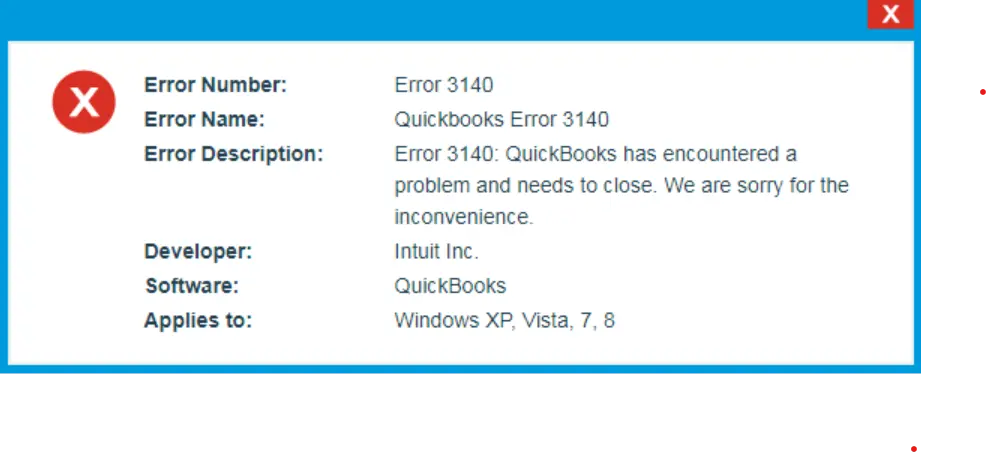
What is QuickBooks Error 3180?
The QuickBooks Error 3180 is basically a data synchronisation or saving error that is associated with sales tax settings or file corruption. Moreover, it mainly takes place when saving the receipts or syncing with the POS. Below, we have discussed the different warning messages that may appear upon the arrival of this error:
- Status Code 3180: An error message emerged when saving an employee list, element “Employee, Name”
- Status Code 3180: QuickBooks Error message: A/P or A/R detail line must have a vendor.
- Status Code 3180: Status message: Sales tax detail line should have a vendor
- Status Code 3180: An error is occurring when trying to saves a sales receipt
- Status Code 3180: A problem arose while saving the General Journal transaction
- Status Code 3180: QuickBooks Error message: The posting account is not valid.
Why Does QuickBooks Desktop Error 3180 Appear?
The users mainly come across QuickBooks Desktop Error Message Code 3180 while saving the general journal entries. In other instances, this error may appear due to multiple other causes explained below.
- Presence of damaged or an incorrect type of payment item on the list.
- It may occur due to the wrong account mapping of sales tax payable.
- Wrong account settings of unpaid sales tax accounts may trigger QuickBooks Desktop Status Code 3180.
- A payout was generated with the help of the sales tax payable account.
- Accessing the Sales tax payable account as the target account for multiple items on receipts.
- Also, this issue may arise if the company file is damaged or corrupt.
- When no vendor is signed into the sales tariff receipt.
- Sometimes, the presence of an antivirus or the Windows firewall blocking the program causes Error 3180 in QuickBooks.
Methods to Eliminate QuickBooks Status Error Code 3180 Swiftly
Now, when you are well-informed about the possible causes behind QuickBooks Status Error Code 3180, let’s look at the troubleshooting methods. Herein, we have outlined all the solutions to end this error asap.
Method 1: Verify & Assign a Vendor to the Sales Tax item
It is essential that each sales tax has a designated vendor. If there is any issue while assigning an item, it might lead to QuickBooks Desktop Error 3180. Perform the stepwise instructions outlined below to verify that each sales tax item is linked with an agency.
- Firstly, access the QuickBooks application and go to the Lists menu.
- Now, choose the Item option and click on Include Inactive.
- Browse to the Type header in order to categorize the list in alphabetical order.
- You must browse through the list and verify that every sales tax item has a tax agency attached to it.
Method 2: Merge Items in QuickBooks Desktop
You can only apply this troubleshooting method in QuickBooks Desktop Point of Sale. This issue may arise due to a damaged payment item or an incorrect payment type. Perform the following steps to merge the items correctly.
- Access the QuickBooks Desktop application and move to the Lists menu.
- Choose the Item List option and click the Include Inactive tab.
- Thereon, head to the Type header, and it will eventually sort alphabetically.
- Now, change the name of the items in the Point of Sale application.
- For renaming, right-click on the payment item having POS at the beginning.
- Choose the Edit items option and insert OLD at the end of the item name.
- When the changes are done, hit the OK tab.
- Start running a financial exchange from the Point of Sale application.
- Afterwards, you must merge the duplicate items in QuickBooks Desktop.
- To merge the duplicate items, right-click on each payment having OLD at the end and click Edit Item from the list.
- Delete the OLD from the payment and hit the OK tab.
- With this, you will notice that QuickBooks Desktop will raise a prompt for merging the items.
- Choose the Yes option for the confirmation.
Method 3: Verify that No Receipt Was Paid Using Sales Tax Payable
- Initially, run the QuickBooks Desktop Point of Sale application and click the Sales History tab.
- After this, right-click on any column and pick Customise Columns.
- Choose the QuickBooks Status option and start searching for the incomplete receipts.
- Now, pick any receipt that is paid out to sales tax payable and browse to the Reverse Receipts.
- Thereon, you need to regenerate the payout with the help of a non-sales tax payable account.
- Finally, start running a financial exchange.
Method 4: Choose Your Tax Preferences
Sometimes, inappropriate sales tax preferences might result in QuickBooks Error Code 3180. So, to resolve the issue, you must choose the correct tax preferences using the steps given below.
- Primarily, launch the QuickBooks Desktop Point of Sale application and choose the File menu.
- After this, move to the Preferences option and then hit the Company tab.
- Now, head to the Financial menu followed by the Accounts menu.
- Thereon, ensure that QuickBooks Sales Tax Payable is only mentioned in the Sales Tax list from the Basic and Advanced tabs. You must change it if it’s not listed, and then start running a financial exchange to see if the error still exists.
Learn More:- Form 1099 and 1096 in QuickBooks
Method 5: Rename the Payment Methods
Perform the steps instructed below to rename the payment method.
- Open the QuickBooks Desktop application and then move to the Lists heading.
- After this, pick the Customer & Vendor Profile Lists options under it.
- Thereon, opt for the Payment Method List there and tap on the Cash method option.
- Furthermore, browse to the Edit payment method.
- Afterwards, make sure that the payment method field contains the letter “X” at the beginning. If it does, then you must save your notifications.
- Next, right-click on the Cash methods and pick the New option.
- Herein, change the name by replacing it with Cash.
- Once again, carry on with the Financial Exchange and modify the name of all payment options if necessary.
Method 6: Repair the Damaged Payment Item
At times, the damage to a payment item while saving a receipt may give rise to Error 3180 in QB. So, to resolve the issue, you must repair the damaged payment item using the steps below.
- Firstly, launch the QuickBooks Desktop and move to the Lists menu.
- Choose the item section and then the option that includes inactive.
- Tap on the Type header for sorting the list, and then you are able to rename the Point of Sale payment items.
- Next, right-click on the option that is the Payment item, which begins with the point of sale.
- Pick the items that you need to edit and add Old to the item name.
- Now, run the financial exchange and then merge all the duplicate items in QuickBooks Desktop.
- Once again, pick the item for editing, and from the item name, remove the prefix OLD.
- Thereon, tap on the OK tab and then the Yes option for the confirmation.
Conclusion
QuickBooks Error 3180 is the most challenging issue that may interrupt while syncing or saving the transaction in QuickBooks Desktop Point of Sale. Also, it prevents users from saving receipts, and it may create trouble in performing ongoing business tasks.
Frequently Asked Questions (FAQ’s):-
Question 1: What is error code 3180 in QuickBooks?
Ans. The QuickBooks Error Code 3180 often arises while trying to sync the QuickBooks Desktop sales tax item. In other instances, this issue also arises due to incorrect mapping of the sales tax payable account.
Question 2: Can incorrect sales tax settings cause Error 3180 in QuickBooks?
Ans. Yes, the users may get Error 3180 QuickBooks when a sales tax is missing or if it is mapped to the wrong liability account.
Question 3: How to avoid QuickBooks Error Code 3180 from occurring in the future?
Ans. To prevent the QuickBooks Error Code 3180 from happening in the future, consider the following:
- Correctly assign the vendor to all sales tax items
- Timely conduct the backup of the company file
- Verify the account mappings after making changes
- Prevent accessing tax payable accounts incorrectly
Question 4: What are the scenarios when you get QuickBooks Error 3180?
Ans. The following are the instances when you get QuickBooks Error 3180.
- While saving a sales receipt or syncing with Desktop POS
- At the time of posting General Journal transactions
- processing financial exchange between POS and QuickBooks
Question 5: Does QuickBooks Error 3180 affect QuickBooks Desktop and POS?
Ans. Yes, the arrival of QuickBooks Error 3180 affects both QuickBooks Desktop and QuickBooks Point of Sale, especially during financial data exchange between the two applications.
About The Author

Jonathan Browns
Jonathan Brown is a trained QuickBooks professional with 10 years of experience in the accounting sector. Moreover, he is passionate about helping businesses reduce the stress of managing accounts. Also, he is proficient in assisting entrepreneurs and small business owners to use QuickBooks and enhance their accounting experience.
Recent Posts
-
QuickBooks Email Invoices Not Working: How to Fix It
-
How to Resolve QuickBooks Error 15214 (Step-by-Step)
-
OL and OLSU Bank Feeds Errors in QuickBooks Desktop: Causes and Fixes
-
QuickBooks Error 15212: Causes & How Can You Fix It
-
How to Recover Deleted Invoice in QuickBooks - Online & Desktop