


QuickBooks Error 6094: What It Is and How to Fix It Easily

- By Jonathan Browns
- May 18, 2026
- QuickBooks Desktop
- 7 min read
Are you stuck with the error message “An error occurred when QuickBooks tried to start the database server that manages access to the QuickBooks company file.” QuickBooks Error 6094, 0?
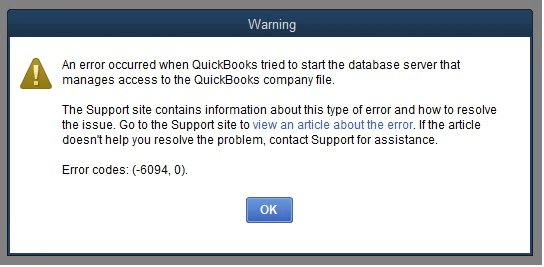
Well, this error mainly appears when security programs, including PC Tools Internet Security, AVG Antivirus, and SpyHunter, consider QuickBooks files as a threat and block them. This create issues while starting the QuickBooks Database Server Manager.
Let’s read this blog to understand what causes QuickBooks Error Code 6094, 0, and solutions to fix it.
Reasons Why Error -6094, 0 in QuickBooks Appears
Users may notice Error -6094, 0 in QuickBooks due to the following reasons.
- Interference from antivirus programs like Internet Security, AVG Antivirus, and SpyHunter which block QuickBooks from running properly.
- Issues faced while opening the QuickBooks Database Server Manager.
- Outdated security or antivirus software.
Best Possible Ways to Fix QuickBooks Company File Error 6094, 0
Perform the troubleshooting methods explained below to resolve the QuickBooks Company File Error 6094, 0. Before proceeding, ensure that you have created a backup QuickBooks company file to prevent data loss.
Solution 1: Verify that the antivirus software is up-to-date.
Solution 2: You must try to restore qbdmgr.exe and qbdmgrN.exe from the virus vault or quarantine.
Solution 3: Add Exceptions to Your Antivirus Software
You can prevent the QuickBooks Desktop directory from being scanned by adding exceptions to your antivirus software.
PC Tools Internet Security
For restoring the “infections” that are being quarantined.
- Go to the Settings menu and click the Quarantine option.
- Now, choose the required items to restore and then tap on the Restore option.
- Complete the process by clicking Yes and then the OK option.
Set up an exception to avoid the QuickBooks directory from being scanned
- Firstly, go to the PC Tools Internet Security menu and click on Settings.
- Choose the Global Action List and tap on the Add option to pick the files to exclude from scanning.
- When you are done, hit the OK tab.
- AVG Antivirus
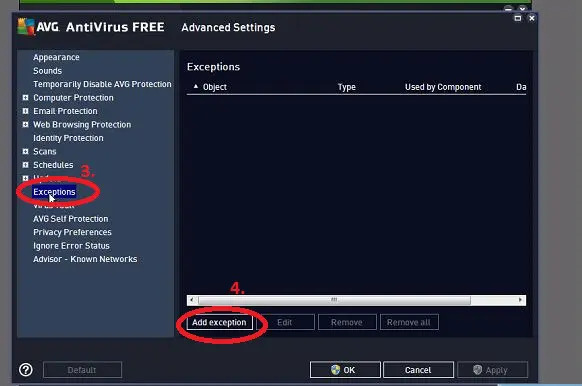
To avoid the QuickBooks directory from being scanned
- Exit from the QuickBooks Desktop and then open the AVG Antivirus interface.
- After this, double-tap on the Resident Shield and click Manage Exceptions.
- Choose the Add Path option and include the following path: “C:\Program Files\Intuit.”
- Important Tip: It is important to restore all QuickBooks files that AVG Antivirus has quarantined.
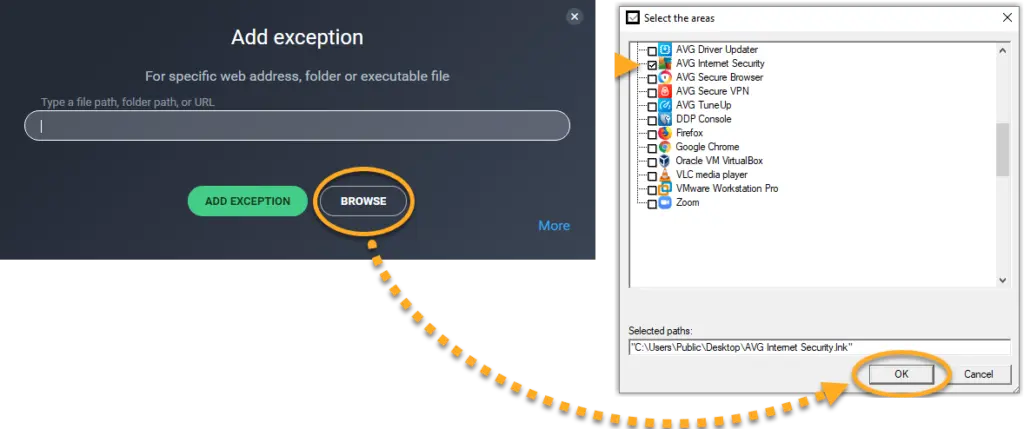
Verify if any of the QuickBooks files are quarantined.
- Launch the AVG Antivirus user Interface and then hit the History option.
- After this, click the Virus Vault option and search the QuickBooks files that have been quarantined.
- Example: qb.exe, qbw32.exe, qbdbmgr.exe, qbdbmgrn.exe
- Thereon, choose the necessary files and click the Restore > Close option.
- Finally, launch the QuickBooks Desktop application.
Review the renamed files within the installation directory.
- Exit from your QuickBooks Desktop.
- After this, look for the QuickBooks folder for any files available in the install directory that were renamed. You will get the QuickBooks folder in the following location:
- C:\Program Files\Intuit\QuickBooks
- Change the file name back to its original one.
- Finally, open the QuickBooks Desktop application.
SpyHunter Malware Software
- Initially, launch the SpyHunter software and then click the System Guard.
- Choose the User-Added tab and locate the QuickBooks files from the list.
- If you come across any QuickBooks file from the list of options, then set the status as Allowed.
- In case you can’t locate any QuickBooks file below the User-Added tab, return and check PUP.
- However, if you notice any QuickBooks files present under PUP, set the status to Allowed.
Solution 4: Repair the Damaged QuickBooks Desktop
To repair the damage to QuickBooks Desktop, you must run the Quick Fix My Program.
Step 1: Run Quick Fix My Program
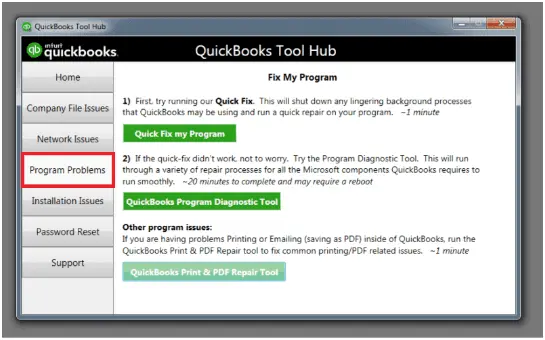
- First, check that you have installed the latest QuickBooks Tool Hub.
- Open the Intuit Tool Hub and click the Program Problems tab.
- Afterwards, pick the Quick Fix My Program tab.
- Now, launch the QuickBooks Desktop and then your company file.
Step 2: Operate the QuickBooks Install Diagnostic Tool
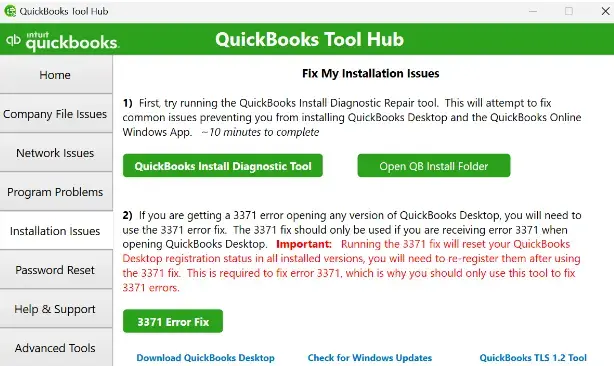
If you are still encountering Error 6094 in QuickBooks Desktop, then try running the QuickBooks Install Diagnostic Tool.
Solution 5: Reinstall QuickBooks Desktop
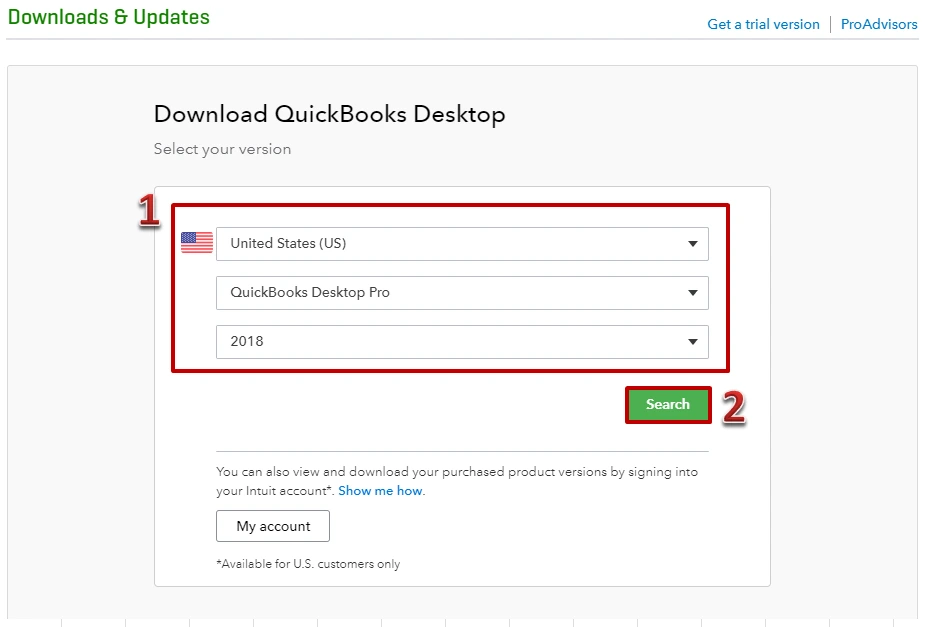
If the above solutions don’t work, then try to reinstall QuickBooks Desktop to fix the QuickBooks Desktop Error Code 6094 0. This removes corrupted files and install a fresh version of QuickBooks software.
Final Observation
QuickBooks Error 6094 may prevent you from opening the software due to interference from antivirus programs. Fortunately, the solutions described above can help restore access to QuickBooks Desktop. Ensure that you are using the latest version of antivirus software, and the QuickBooks software.
Frequently Asked Questions (FAQ’s):-
Question 1: Can QuickBooks Error 6094 occur while opening a company file?
Ans. Yes, QuickBooks Error 6094 may also appear while opening the company file when the third-party software or security apps interrupt background processes at the time of startup.
Question 2: Which antivirus programs are commonly linked to QuickBooks Error Code 6094?
Ans. The QuickBooks Error Code 6094 is mainly experienced due to the interference of antivirus programs such as AVG, Avast, Bitdefender, SpyHunter, and PC Tools Internet Security.
Question 3: What does QuickBooks Error 6094 mean?
Ans. The QuickBooks Error 6094 basically indicates a problem while running the software due to the blockage by third-party or security programs.
Question 4: How do I prevent QuickBooks Error 6094 in the future?
Ans. To avoid the QuickBooks Error 6094 from occurring in the future, consider the following pointers:
- Make sure that your QuickBooks Desktop is updated to the latest release.
- Prevent any unnecessary apps from running in the background.
- Always run QuickBooks as an administrator.
Question 5: Will reinstalling QuickBooks fix Error 6094?
Ans. Yes, reinstalling the QuickBooks Desktop, you can fix the Error 6094 if the issue is caused by corrupted or missing installation files.
About The Author

Jonathan Browns
Jonathan Brown is a trained QuickBooks professional with 10 years of experience in the accounting sector. Moreover, he is passionate about helping businesses reduce the stress of managing accounts. Also, he is proficient in assisting entrepreneurs and small business owners to use QuickBooks and enhance their accounting experience.
Recent Posts
-
9 Proven Ways to Fix QuickBooks Migration Error-1009
-
QuickBooks Error 401 Authentication Error: Complete Fix Guide
-
How to Fix QuickBooks Freezing or Not Responding
-
Fix Your QuickBooks Online Sync Problems: A Step-by-Step Guide
-
QuickBooks Online Canada: Complete Guide for Canadian Businesses