


QuickBooks FCS Service Is Damaged: Why It Happens & How to Fix It

- By Jonathan Browns
- Aug 22, 2026
- Bookkeeping
- 7 min read
Are you encountering the “QuickBooks FCS Service is damaged” error while updating QuickBooks Desktop or downloading payroll updates?
This error occurs when the Intuit File Copy Service is either disabled, damaged, or fails to communicate with QuickBooks. In this guide, you’ll learn why the QuickBooks FCS Service error occurs and how to fix it using practical troubleshooting methods.
What is the QuickBooks File Copy Service (FCS)?
The QuickBooks File Copy Service is a QuickBooks Desktop component used during product and payroll updates. If the FCS service is disabled or isn’t functioning correctly, QuickBooks may encounter problems when downloading or installing updates.
The service is commonly associated with the Intuit QuickBooks FCS component on Windows. When troubleshooting, you may see it listed as Intuit QuickBooks FCS in Windows Services.
Common Reasons Behind QuickBooks FCS Service Error
Th QuickBooks FCS Service error is caused when the File Copy service is disabled, stopped, or corrupted. A disabled or malfunctioning FCS can contribute to certain QuickBooks update and payroll errors, including QuickBooks error 15241. The following are the reasons that may trigger this error.
- Intuit File Copy Service is disabled or not running properly.
- Problem with the internet connectivity.
- A corrupt download or incomplete QuickBooks Desktop installation.
- QuickBooks updates are interrupted.
- Windows system files or registry entries are damaged.
- Blockage by antivirus or Windows Firewall from installing the latest updates.
Troubleshooting Methods to Resolve QuickBooks FCS Service Error
Before implementing the troubleshooting methods, it is best to create a backup of the company file.
Method 1: Enable the QuickBooks Desktop File Copy Service (FCS)
A disabled QuickBooks FCS is one of the major reasons behind the QuickBooks FCS Service is damaged error. Thus, to fix the issue, turn on the FCS service by following these steps.
- Open the Run window using the shortcut keys Windows + R.
- Type COMPMGMT.MSC into the search panel and press the Enter key.
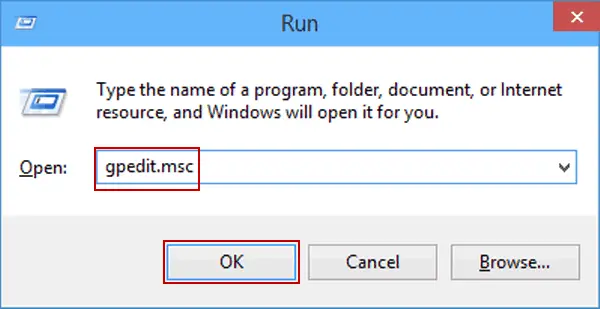
- This will open the Command Prompt window. Make sure not to shut down this window manually. Once the reboot.bat utility is completed, the window will close automatically.
- Restart your computer and see if the issue still exists.
Method 2: Re-Validate Your QuickBooks Subscription
Revalidating your subscription refreshes the QuickBooks service connection and can help restore the FCS Service. Thus, it also helps you resolve the QuickBooks FCS service is disabled issue. Perform the following steps to revalidate your QuickBooks subscription.
- Initially, browse to Employees at the top menu bar.
- Select My Payroll Service and click Activate Service Key.
- Highlight the current payroll below the Service Keys window and select Edit.
- Now, keep clicking Next until Finish comes up.
Method 3: Run Reboot.bat file to Re-Register QuickBooks Components
Running the Reboot.bat file re-registers the QuickBooks-related files and components in Windows. This help repair missing or damaged components that may be contributing to the FCS service error.
- Exit QuickBooks Desktop.
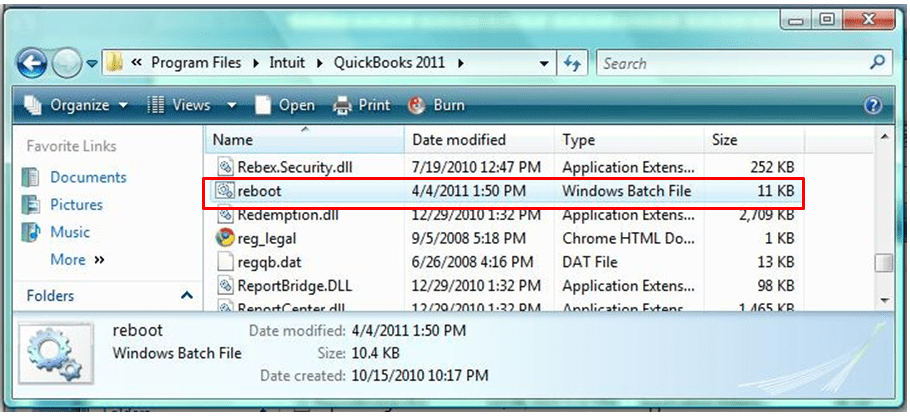
- Locate and open the folder containing the reboot.bat file.
- Right-click on the QuickBooks icon and choose Properties.
- Click the Open file location option.
- Now, right-click on the reboot.bat file and select Run as Administrator.
Note:
- Verify that you run reboot.bat file as a Windows administrator.
- The file will appear with the name reboot.bat or reboot according to your Windows Folder Options settings.
- This will open the Command Prompt window. Make sure not to shut down this window manually. Once the reboot.bat utility is completed, the window will close automatically.
- Restart your computer and see if the issue still exists.
Method 4: Update QuickBooks Desktop
Working on an outdated QuickBooks program is one of the reason that may cause Intuit FCS Service error. Therefore, to resolve the issue, you can simply update the QB program to the latest version available.
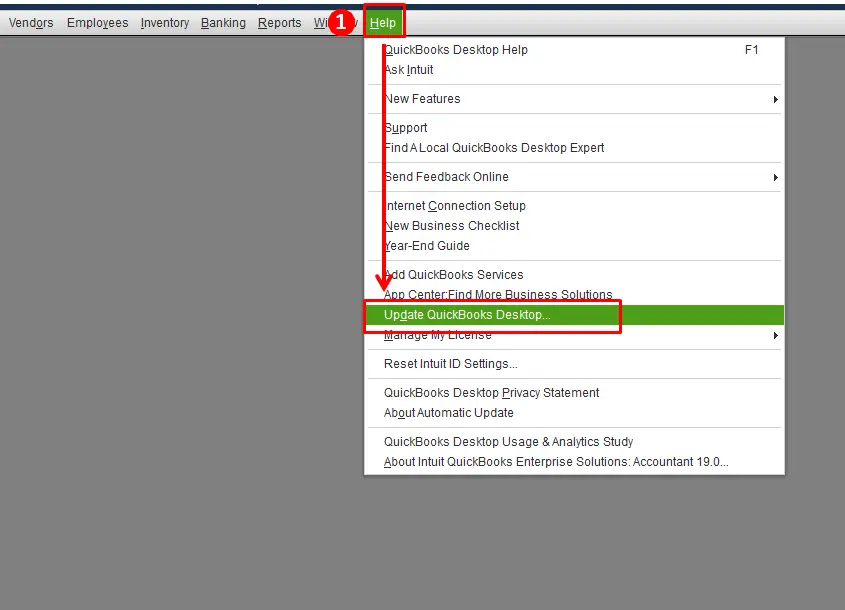
- Move to QuickBooks Help menu and click Update QuickBooks Desktop.
- Select the Update Now tab.
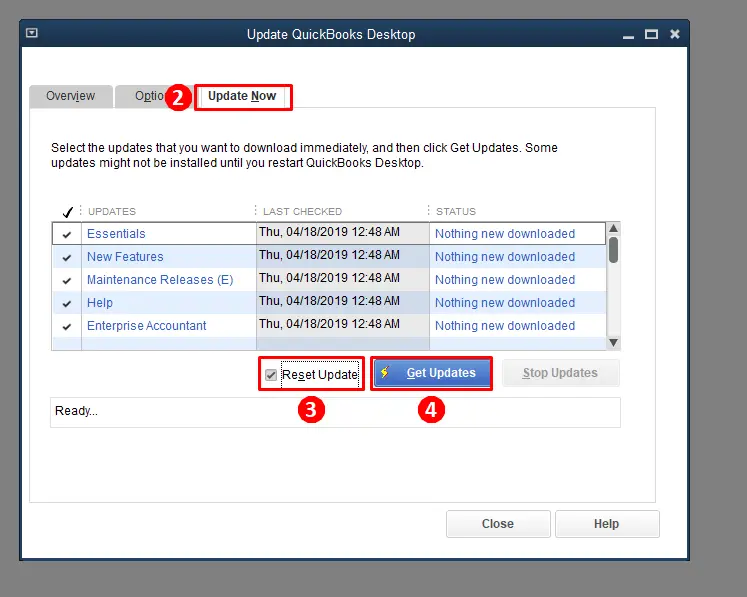
- Put a tick-mark in the Reset box to erase all the previous update downloads.
- Now, click the Get Updates tab.
- Restart QuickBooks Desktop and when asked accept the option to install the update.
Method 5: Update the QuickBooks Payroll Tax Table
If you’re experiencing the FCS error while downloading payroll updates, updating the payroll tax table after repairing the FCS service can help verify whether the issue has been resolved.
- Move to Employees menu and click Get Payroll Update.
- To identify your tax table version.
- Check the number beside the You are using tax table version.
- To find out if the version you are using is correct, see the latest payroll news and updates.
- To get more details regarding your tax table version, choose Payroll Update Info.
- To download the latest tax table version:
- Choose Download Entire Update option.
- Click Update option. An information window will appear once the download is completed.
Method 6: Repair QuickBooks Desktop
Repairing QuickBooks Desktop can replace damaged or missing program components that may be causing the FCS Service error. Use the QuickBooks repair option to fix installation issues without removing your company files.
- Close QuickBooks Desktop and other running programs.
- Press Windows + R, type appwiz.cpl, and press Enter.
- Select QuickBooks Desktop from the list of installed programs.
- Choose Uninstall/Change and select Repair.
- Click Next and follow the on-screen instructions to complete the repair.
- Restart your computer and open QuickBooks.
- Try updating QuickBooks again to check whether the FCS Service is damaged error is resolved.
Method 7: Reinstall QuickBooks Desktop
If the FCS components are damaged or missing and the previous troubleshooting methods don’t work, reinstalling QuickBooks Desktop can replace the affected program files and components.
Preventive Tips to Avoid QuickBooks FCS Service is Disabled Errors
To reduce the chances of QuickBooks FCS Service error from returning, consider the following points.
- Your QuickBooks program must be updated to the latest version.
- It is best to install the Windows updates regularly.
- Review that the security software is not blocking QuickBooks.
- You must create the company file backup regularly.
- Avoid interrupting QuickBooks or payroll updates.
- Repair QuickBooks when installation components is damaged.
Conclusion
The “QuickBooks FCS Service is damaged” error can prevent QuickBooks from completing updates. However, by enabling the FCS service, running Reboot.bat, updating QuickBooks, or reinstalling the program you can fix the issue and restore normal updates.
If the error continues, repair the QuickBooks installation or reinstall the program to replace damaged or missing components.
Frequently Asked Questions
What is the error code for QuickBooks FCS service damaged?
The QuickBooks FCS service damaged error displays error codes 15241, 15242, and 15243. This can be caused by problems with the installation file and the Windows registry.
How to fix if Intuit FCS service is damaged in QuickBooks?
You must run the reboot.bat file to re-register QuickBooks related extensions in MS Windows. Thus, it will help you resolve Intuit FCS service in QuickBooks is damaged issue.
What does QuickBooks FCS Service do?
The QuickBooks File Copy Service supports QuickBooks Desktop product and payroll update processes. If this service is disabled or stops functioning, you may face issues while downloading or installing updates.
Why won’t my QuickBooks payroll update?
Payroll updates may fail when the FCS service isn’t running correctly, QuickBooks installation is damaged, or an update is interrupted.
Can I fix the FCS Service without reinstalling QuickBooks?
Yes, by enabling the FCS service, updating QuickBooks, repairing the installation, or running QB Tool Hub can fix the issue. If these steps doesn’t work, then you must try reinstallation QB.
About The Author

Jonathan Browns
Jonathan Brown is a trained QuickBooks professional with 10 years of experience in the accounting sector. Moreover, he is passionate about helping businesses reduce the stress of managing accounts. Also, he is proficient in assisting entrepreneurs and small business owners to use QuickBooks and enhance their accounting experience.
Recent Posts
-
How to Fix QuickBooks Invoice Payment Error (A Complete Guide)
-
9 Proven Ways to Fix QuickBooks Migration Error-1009
-
QuickBooks Error 401 Authentication Error: Complete Fix Guide
-
How to Fix QuickBooks Freezing or Not Responding
-
Fix Your QuickBooks Online Sync Problems: A Step-by-Step Guide