


How to Fix QuickBooks Error 15241 During Payroll Update

- By Jonathan Browns
- Jul 22, 2026
- Accounting
- 7 min read
Payroll updates play a crucial role as they are required for accurate payroll calculations and for downloading the latest tax table updates. However, while downloading the latest QuickBooks payroll updates, users may encounter several update errors. QuickBooks Error 15241 appears when you try to update payroll and the QuickBooks File Copy Service is disabled. This issue displays the following error message:
[Error 15241]: The QuickBooks update did not complete successfully. The QuickBooks FCS Service is disabled.
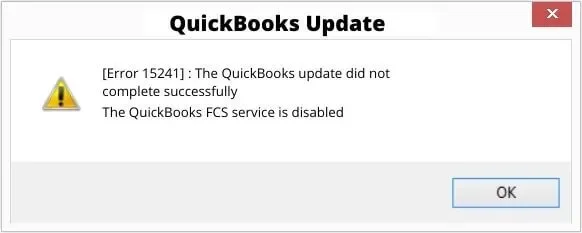
In this comprehensive post, we have explained the possible causes and effective troubleshooting methods to fix QuickBooks Error Code 15241.
An Overview of QuickBooks Error 15241
Let’s review at the table given below that provides a quick view of the update error 15241 in QuickBooks.
| Parameter | Description |
| Error Name | QuickBooks Error 15241 |
| Error Type | QuickBooks Update & Payroll Update error |
| Error Message | The QuickBooks update did not complete successfully. The QuickBooks FCS Service is disabled. |
| Root Cause | QuickBooks File Copy Service is disabled or not working |
| Affected Versions | QuickBooks Desktop Pro, Premier and Enterprise |
| Symptoms | Update failure, payroll update issue, error message appears |
| Quick Fix | Enable QuickBooks FCS, update QuickBooks, or repair installation files. |
Common Reasons Why You Encounter Error 15241 in QuickBooks
Below are the most common causes that trigger Error 15241 in QuickBooks to fix the issue smoothly.
- QuickBooks File Copy Service is disabled.
- If there is a missing or corrupt QuickBooks Desktop installation.
- A poor or unstable internet connection is interrupting the payroll update process.
- Windows Firewall or any third-party security application installed may also disturb the update process.
- Users don’t have enough administrator rights to perform the necessary update process.
- Another possible cause is outdated Windows components.
- QuickBooks is unable to verify the digital signature certificate required to prove the authenticity.
- Corrupted Windows system files may also cause update error 15241 in QuickBooks.
Best 9 Effective Solutions to Fix the Error Code 15241 in QuickBooks Update
To resolve QuickBooks Error 15241, turn on the QuickBooks File Copy Service, download updates as an administrator, configure the firewall settings, and run Quick Fix My Program utility. Below we have described the complete step-by-step instructions to fix this error and download the payroll updates efficiently. Before performing advanced troubleshooting, create a backup of your QuickBooks company file to avoid accidental data loss.
Solution 1: Enable the QuickBooks File Copy Service
If the QuickBooks File Copy Service is turned off, it may interrupt the payroll update process, resulting in QuickBooks payroll update error 15241. However, to fix the issue, you need to turn on the file copy services using the following steps.
- To open the Run window, press the Windows + R keys.
- Now, type COMPMGMT.MSC into the search box and click OK.
- This will open the Computer Management window, and select Services and Applications.
- Select the Services checkbox.
- Scroll down the list until you find Intuit QuickBooks FCS, then double-click it.
- After this, tap on Startup Type and click the Manual option.
- When the changes are done, tap on Apply and then OK.
Solution 2: Download your updates as an Administrator
It is essential to run QuickBooks as an administrator to download the latest QuickBooks payroll updates seamlessly.
- On the desktop, locate and right-click on the QuickBooks Desktop icon.
- Select the Run as administrator option.
- After this, click the Yes option on the Windows User Account Control (UAC) to open the software.
Solution 3: Repair QuickBooks Desktop Using QuickBooks Tool Hub
By repairing QuickBooks Desktop using the Quick Fix My Program and Install Diagnostic tool, you can fix the damaged program files and QB installation.
Note: Before running these tools, ensure you have the latest version of the QuickBooks Tool Hub.
a. Run Quick Fix My Program
Quick Fix My Program is a utility that automatically shuts down the background running processes that QuickBooks uses. It will run and repair the damage in the QuickBooks program so that you can download the payroll updates without any hindrance.
- Open the QuickBooks Tool Hub.
- Select the Program Problems tab from the left pane.
- Navigate to Quick Fix My Program.
- Next, wait for some time to complete the repair process.
- Lastly, reopen QuickBooks Desktop and open your company file again.
B. Run the Install Diagnostic Tool
Another major cause of QuickBooks Desktop Error 15241 is issues with the installation of the program. So, to detect and fix the installation problems, you can use the QuickBooks Install Diagnostic Tool.
Solution 4: Install the Digital Signature Certificate
An outdated or invalid digital signature certificate fails to verify the authenticity of the QuickBooks updates and results in QB error 15241 payroll update. Therefore, to fix the issue, you must install the updated version of the digital signature certificate.
- First, browse to the location where QuickBooks is saved.
- Location: C:\Program Files\Intuit\QuickBooks.
- Locate and right-click on QBW32.exe. Then, choose Properties.
- Now, click on Digital Signature and ensure that Intuit is selected in the signature list.
- Choose the Details option.
- Select the View Certificate option from the Digital Signature Details window.
- Similarly, tap on Install Certificate from the Certificate window.
- After this, click Next until Finish is displayed. Then, tap on Finish.
- Relaunch your computer after completing the process.
- Lastly, launch QuickBooks and try to download the update again.
Solution 5: Install the Latest QuickBooks Desktop Updates
By getting the latest QuickBooks Desktop updates, you can easily use the latest features, security enhancements, and bug fixes. Working on the outdated version of QuickBooks may hamper the application’s performance and can interrupt the QuickBooks update process. However, using an updated QuickBooks application can improve the software performance and allows you to download the updates seamlessly.
Solution 6: Reinstall QuickBooks Desktop
Reinstalling QuickBooks Desktop will remove all damage or corruption from the program. After this, it installs the fresh version of QuickBooks, which lets you install the latest payroll tax table updates. Follow the step-by-step instructions given below to reinstall QuickBooks.
Before you start
- Make sure you have downloaded the installer for your QuickBooks version.
- Be prepared with the license number. You can get it from the original packaging of the QuickBooks product. If purchased online, you can get it on your Purchase Confirmation email.
Step 1: Remove QuickBooks
- Open the Start menu and search for Control Panel to open it.
- Choose Programs and Features or the Uninstall a Program option.
- Now, choose the QuickBooks version that you want to uninstall.
- Click Uninstall/Change, Remove, and then Next to remove the QuickBooks application.
Step 2: Install QuickBooks Desktop
After successfully uninstalling QuickBooks, install the latest version of QuickBooks Desktop.
Solution 7: Allow QuickBooks Through Windows Firewall
Misconfigured Windows Firewall settings might block QuickBooks from performing some important tasks like installing the latest updates. Therefore, to fix the issue, create a firewall exception so that you can run QuickBooks smoothly.
Solution 8: Map the Network Drive on Windows
Sometimes, incorrect mapping of the File Explorer may cause problems while downloading the updates. Use the following instructions to map a shared drive in Windows.
- Open the Start menu, type File Explorer to open the File Explorer window.
- Now, click “This PC” from the left pane.
- After this, select the “More..” option from the top menu bar. Then, choose Map network drive.
- From the Drive section drop-down menu, pick any available letter.
- In the Folder section, note down the folder path or computer. Then, tap on Browse and pick the network folder.
- To verify that you are connected to a network drive every time you log in, click Reconnect at Sign-in.
- Lastly, click Finish to complete the process.
Solution 9: Run the Windows System File Checker (SFC Scan)
Windows File Checker is a tool that helps in resolving problems related to corrupted or missing system files that are stopping you from downloading the latest QB updates.
- Open the Start menu, type Command Prompt in the search bar.
- This will open the Command Prompt window.
- Now, click the Run as Administrator option and then select Yes from the User Account Control (UAC) prompt.
- As a result, the System File Checker will start checking and repairing the Windows system files.
- After completing the repair, open QuickBooks and try to download the QuickBooks and payroll updates.
Conclusion
QuickBooks Error 15241 mainly occurs when the QuickBooks File Copy Service (FCS) is disabled or QuickBooks cannot complete payroll updates. In most cases, enabling the FCS service, updating QuickBooks Desktop, repairing installation files, or reinstalling the application resolves the issue. To minimize future update errors, keep Windows and QuickBooks updated, use administrator privileges, and install payroll updates regularly.
Frequently Asked Questions
What if I get an error when downloading a QuickBooks Desktop update?
If you get an error while downloading a QuickBooks Desktop update, restart your computer and QuickBooks and then try to get an update. If the issue persists, use QuickBooks Tool Hub, or verify if the File Copy Service is enabled.
What is QuickBooks Error 15241?
QuickBooks Error 15241 is a payroll and software update error that usually occurs when the QuickBooks File Copy Service (FCS) is disabled. It prevents QuickBooks Desktop from installing the latest updates successfully.
What is the QuickBooks File Copy Service (FCS)?
QuickBooks File Copy Service is a Windows service that initiates QuickBooks to install the latest payroll updates and maintenance releases. If it is disabled, you may face issues while downloading the latest payroll updates and end up with QuickBooks Error Code 15241.
How can I prevent QuickBooks Error 15241?
To avoid QuickBooks Error 15241, ensure that QuickBooks File Copy Service is enabled, run QuickBooks as an administrator, and ensure Windows Firewall allows QuickBooks processes.
About The Author

Jonathan Browns
Jonathan Brown is a trained QuickBooks professional with 10 years of experience in the accounting sector. Moreover, he is passionate about helping businesses reduce the stress of managing accounts. Also, he is proficient in assisting entrepreneurs and small business owners to use QuickBooks and enhance their accounting experience.
Recent Posts
-
What Causes & How to Fix QuickBooks Error 15223 Efficiently?
-
QuickBooks Library Files Failed: How to Fix Error 80029c4a
-
How to Fix QuickBooks Error OL-301 (Bank Connection Issue)?
-
QuickBooks Email Invoices Not Working: How to Fix It
-
How to Resolve QuickBooks Error 15214 (Step-by-Step)