


Intuit Download Manager Error: The Complete Guide to Causes and Fixes

- By Jonathan Browns
- Aug 26, 2026
- Accounting
- 7 min read
If you’ve tried to download or update QuickBooks Desktop and the operation has halted, frozen, or ended with an error message, then you’ve most likely encountered the Intuit Download Manager error. It is one of the more common problems faced by QuickBooks users. Even though it can be very frustrating at the moment (especially if you’re in the middle of running payroll or trying to install an important tax table update), it is almost always possible to resolve it without professional help.
The guide provides a complete description of the actions performed by the Download Manager, all known causes of the error, a full step-by-step explanation of the solutions, the differences involved when troubleshooting on Windows 11, and how to prevent the problem from recurring. Whether you have encountered the error just once or it occurs every time you try to update, you will find what you’re looking for in this guide.
A Quick Overview of Intuit Download Manager Error
The summary given in the table below relates to the Intuit Download Manager error discussed in this article.
| What it is | A failure during the download or installation of QuickBooks/Intuit files via the Intuit Download Manager |
| Who it affects | QuickBooks Desktop users installing the software or updating products, payroll, or tax tables |
| Common triggers | Antivirus or firewall interference, unstable internet, corrupted installation files, damaged Windows components, insufficient permissions |
| User experience | Download stalls or stops, error codes appear, installer freezes, repeated failed restarts |
| Windows 11-specific factors | Stricter default firewall/SmartScreen rules, app permission prompts, driver or compatibility mismatches |
| Primary fix tools | QuickBooks Tool Hub, Install Diagnostic Tool, Windows Update, manual firewall/antivirus adjustments, Clean Install Tool |
| Estimated fix time | 15–60 minutes, depending on which step resolves it |
| Reinstall required? | Rarely — most cases resolve without a full reinstall. |
What is the Intuit Download Manager?
The feature built into QuickBooks is known as the Intuit Download Manager and its function is to securely transfer the installation files, product updates, payroll updates, and tax table files from Intuit’s servers to your computer; instead of downloading all the files at once as a single file, it transfers them in the background, checks the files after they have been received, and then passes them on to the installer or update process.
The Download Manager, which is situated between your computer and Intuit’s servers, can only carry out the transfer if several components are working properly at the same time (for example, your internet connection, the permissions and components of your operating system, and your security software); an error message appears each time any of these items is not functioning correctly because in such a case the Download Manager is unable to perform its task.
Why Does the Intuit Download Manager Error Happen?
The Intuit Download Manager error isn’t caused by just one thing; in most instances, it is one of the following, although it is not uncommon for two or three factors to occur simultaneously.
Security Software Interference
The antivirus software and the Windows Firewall are configured to be cautious whenever background programs contact external servers and write files to your computer, for example, the Download Manager. Depending on the way your security software is set up, it may quarantine the files as they are being downloaded, completely block the connection, or simply discard the transfer without providing any clear warning.
Unstable or Interrupted Internet Connection
You may end up with a corrupt or incomplete file if the connection is temporarily interrupted at any stage during the download, and the Download Manager might then continue to fail at that particular point if your Wi-Fi signal is unstable, if you are using a shared or metered network, or if a VPN is affecting the connection.
Corrupted or Incomplete Installation Files
If the previous download had been interrupted—for example, because of a power failure, a forced restart, or simply because the program had been closed too quickly—the partially downloaded files usually still stay in the QuickBooks installation folder and may cause further attempts to download them to conflict, leading to the same error reappearing.
Damaged Windows Components
QuickBooks depends on several underlying Windows components to install and run correctly, including:
- In order to enable a number of the core features of QuickBooks, the .NET Framework is required.
- MSXML, used for processing certain data files during installation
- Microsoft Visual C++ Redistributables are needed for the application to run properly
Should any of them be missing, out of date, or corrupt, the Download Manager may not be able to carry out the handoff to the installer.
Outdated QuickBooks or Windows Version
Using an older version of QuickBooks in conjunction with the current update files, or using a version of Windows that has not been patched, could lead to compatibility mismatches that the Download Manager is not able to deal with gracefully.
Insufficient User Permissions
The download may seem to have finished but will fail when the installation starts if QuickBooks is not being run with administrator privileges or if the Windows user account does not have the necessary permissions for writing to the folders that QuickBooks requires.
Third-Party Software Conflicts
Other programs that are running in the background (especially other security programs, backup software, or system optimization programs) may stop the Download Manager from accessing the network or from writing files.
Server-Side or Regional Connectivity Issues
It never entirely boils down to your fault; sometimes the issue is due to Intuit’s servers or to the method employed by the network in a particular area, which causes downloads to fail for a while no matter how your computer is configured.
Common User Experiences with the Intuit Download Manager Error
You’re likely dealing with the Intuit Download Manager error if you notice any of the following while downloading or updating QuickBooks:
- The download stops partway through with no clear explanation
- An error code or generic failure message appears on the screen
- QuickBooks freezes or becomes unresponsive during the download
- The update process repeatedly restarts without ever completing
- The download appears to finish, but installation fails immediately afterward
- You see messages referencing a “download failure,” “connection lost,” or an inability to verify the downloaded file
It is important to note that if you’re encountering the same particular error code together with these symptoms, the code will allow you or a support agent to identify exactly at which stage of the process the failure is taking place.
How to Fix the Intuit Download Manager Error: Step-by-Step
Carry out the steps listed below in order. Even if the majority of users find that the problem is resolved after the first three or four of these remedies have been tried, the full list is included here in case you need to go further.
Check and Stabilize Your Internet Connection
Begin with the basic principles before altering any of the settings.
- Make sure that your internet connection is on and stable.
- You might temporarily switch from Wi-Fi to a wired Ethernet connection in order to eliminate any problems caused by the signal.
- If you’re using a VPN, turn it off and then attempt the download once more, as certain VPNs can cause interference with the Download Manager’s connection to Intuit’s servers.
- Should you have come across any connectivity problems recently, then attempt to restart your router.
Run the QuickBooks Tool Hub
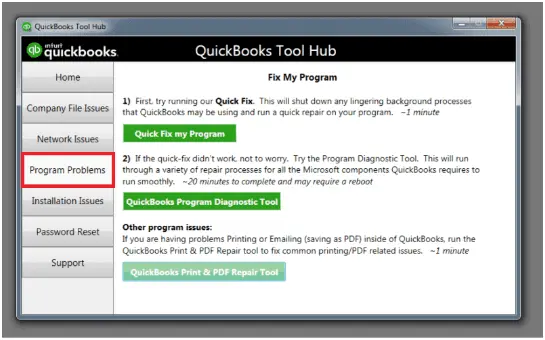
The Intuit QuickBooks Tool Hub provides a wide range of diagnostic and repair tools within a single application and is therefore the most reliable option when it comes to most download and installation problems.
- Close QuickBooks completely.
- Get the QuickBooks Tool Hub from the official Intuit website.
- Once the installation is complete, proceed with installing the Tool Hub and then open it.
- Select Program Problems and then run Quick Fix my Program. This will stop the background processes that QuickBooks employs and remove the minor conflicts.
- If the error keeps happening, visit the Installation Issues section of the Tool Hub and run the QuickBooks Install Diagnostic Tool; the tool may take as long as 20 minutes to finish, so make sure you let it complete rather than turning it off prematurely.
- When the program has been completed, restart your computer and then attempt the download once more.
Temporarily Adjust Your Antivirus or Firewall
It is reasonable to check the security software since it is one of the most frequent causes of this error.
- For the moment, turn off your antivirus software and then try the download again.
- The fact that the download works if the antivirus is switched off means that the antivirus must be the cause of the problem; hence, you should turn the antivirus back on and add QuickBooks, the Download Manager, and the folder containing the QuickBooks installation as exceptions.
- You should also examine the Windows Firewall settings by accessing the Control Panel, clicking on System and Security, then choosing Windows Defender Firewall and selecting ‘Allow an app through firewall’, and ensuring that the entries linked to QuickBooks are checked for both the private and public networks.
- If you are using a standalone third-party firewall or security package, you should check the logs of that program for any connections relating to Intuit or QuickBooks that have been blocked.
Repair Damaged Microsoft Components
Instead of reinstalling them one by one, since that could result in errors, you can use the QuickBooks Install Diagnostic Tool from Step 2 to automatically detect and correct these components. If you would rather check them yourself:
- To check whether you have the latest version of the .NET Framework installed, go to Settings > Apps > Optional Features.
- Make sure that the Microsoft Visual C++ Redistributables have been installed as shown in the Control Panel in the Programs and Features section.
- If it is discovered that any of them have been corrupted, they must be uninstalled and then reinstalled directly from Microsoft’s official website, not from a third-party source.
Install QuickBooks in Selective Startup Mode
Background programs may from time to time cause difficulties for the installer without any obvious sign, but this can be eliminated by carrying out the installation in a clean and minimal environment.
- Press Windows and R, type msconfig, and then press Enter.
- On the General tab, choose Selective Startup and make sure that Load System Services is selected.
- On the Services tab, select ‘Hide all Microsoft services‘ and then click ‘Disable all‘ for the other entries.
- Download QuickBooks again by restarting your computer and using this simpler environment.
- Once you have confirmed the fix has worked, go back to msconfig and change the setting back to Normal Startup before restarting again.
Update Windows
Because an operating system that is out of date can result in compatibility problems, the downloads will fail.
- In Settings, select Windows Update.
- Be certain to install the updates that are available, including the optional driver updates.
- When the updates are complete, restart your computer and then try the download once more.
Run QuickBooks and the Download Manager as Administrator
A common reason, although it is often overlooked, is the absence of permissions.
- To do this, right-click on the QuickBooks or Download Manager shortcut.
- Select Run as administrator.
- When the User Account Control window comes up, you must agree to the increased permissions.
- Download it once more since the increased permissions are now in effect.
Clear the Download Cache and Temporary Files
The partial files left over from earlier failed attempts could cause problems during new downloads.
- Go to the QuickBooks download or temporary folder (it is usually located at C:\Users\[Your Username]\AppData\Local\Intuit).
- Remove the files that have been partially downloaded or the temporary files associated with QuickBooks.
- Start the download process once more.
Check Your Date and Time Settings
This is easy to overlook, but connections to Intuit’s servers will fail if the system date or time is wrong since certificate verification depends on accurate timestamps.
- Go to Settings, choose Time & Language, and then select Date and Time.
- Make sure that the option for setting the time automatically is turned on.
- If the device is already switched on, sync it manually by selecting Sync now.
Perform a Clean Reinstall
If the problems haven’t been solved by any of the steps mentioned above, then a clean reinstallation should be carried out, as it will eliminate anything that repeated unsuccessful attempts might have damaged.
- Uninstall QuickBooks Desktop and rename the QuickBooks files as well as all the other related files.
- Restart your computer.
- Reinstall QuickBooks by using the latest installer from Intuit’s website, not one that has been saved earlier.
Intuit Download Manager Error on Windows 11
Windows 11 has some default settings that might cause this error to occur more often if you have not altered your settings. If you are working with Windows 11, you should pay particular attention to the following:
Stricter SmartScreen and Firewall Defaults
In Windows 11, the SmartScreen and firewall settings are generally stricter than in earlier versions of Windows regarding the detection of unknown background processes. It is possible for the Download Manager to be flagged in this manner, even though it is a genuine part of QuickBooks. This problem can usually be fixed by manually including both QuickBooks and the Download Manager as trusted exceptions, as shown in step 3 above.
App Permission Prompts
Windows 11 will frequently request explicit permission whenever an application wants to access the network, write files, or run in the background. In the event that you have ignored one of these prompts without knowing why, the Download Manager might have been blocked even though you were not aware of it. Therefore, you should go to Settings > Privacy & Security > App permissions and ensure that QuickBooks has the access it needs.
Compatibility Mode for Older QuickBooks Versions
You might encounter compatibility problems when downloading or installing QuickBooks Desktop if you are using an older version of the software that has not been completely updated for Windows 11.
- Click the QuickBooks installer file with the right mouse button.
- Select Properties > Compatibility.
- Run the program in compatibility mode and choose an earlier version of Windows, such as Windows 10.
- Make the change and then try the download once more.
When to Contact Intuit Support Directly
The steps mentioned above usually overcome instances of the Intuit Download Manager error. But if you want to do so, you should contact Intuit’s official support channels directly.
- The error persists after a clean reinstall.
- You suspect the issue is on Intuit’s server side rather than your local system.
- You’re seeing an error code that isn’t well documented
- The issue is affecting a multi-user network installation rather than a single desktop
You can obtain Intuit’s official support contact information directly from their website or by selecting the Help menu in the QuickBooks program. It is advisable to stay away from the phone numbers or ‘quick fix’ services listed on third-party blogs and forums since those services have no connection with Intuit and are usually associated with scam tech-support schemes.
How to Prevent the Error From Coming Back: Expert Tips
Once you’ve resolved the issue, a few habits go a long way toward keeping it from recurring:
- It is better to keep QuickBooks updated with the latest release rather than indefinitely postponing the updates.
- It’s best to regularly keep Windows up to date rather than letting the updates build up.
- Do not interrupt the downloads; you should not shut down your computer, put it to sleep, or close QuickBooks when an update is ongoing.
- Make sure to keep the exceptions set by your antivirus. When you reinstall or update your security software, you should re-add QuickBooks as an exception rather than assuming that the previous settings have been carried over.
- As routine maintenance, regularly run the QuickBooks Tool Hub, even if you are not currently encountering any errors.
- Make it a habit to regularly back up your company’s files in case a more serious installation problem ever occurs, so you don’t end up losing your data while you’re trying to troubleshoot the issue.
Final Words
All of this relates to the error in the Intuit Download Manager. We looked at a number of possible causes of the problem and examined what the typical user experience is. Additionally, we looked at the various solutions that have been tested for fixing the error. After you have sorted out the issue, you can follow some best practices to help avoid errors during everyday QuickBooks operations.
Frequently Asked Questions
What causes the Intuit Download Manager error?
The Intuit Download Manager error is usually caused by antivirus or firewall software blocking the download, an unstable internet connection, corrupted installation files, or damaged Windows components such as the .NET Framework or MSXML. Outdated software versions and permission issues can also contribute.
Can the Intuit Download Manager error happen again after I fix it?
Yes, the Download Manager error can recur if the underlying cause wasn’t fully resolved. For example, if corrupted files remain or security software continues blocking the connection. Keeping QuickBooks and Windows updated, along with maintaining your antivirus exceptions, helps reduce the chances of it happening again.
Does this error affect payroll or tax filings?
An Intuit Download Manager error can affect payroll or tax filings because it blocks product and payroll updates from installing. If you rely on QuickBooks for time-sensitive payroll runs or tax filings, it’s worth resolving the error promptly to avoid delays.
Is the Intuit Download Manager error specific to Windows 11?
No, the Download Manager error can occur on any supported version of Windows. However, Windows 11’s stricter default security and app permission settings can make it slightly more likely to appear if firewall exceptions and permissions aren’t configured correctly.
Do I need to reinstall QuickBooks to fix this?
Not usually. Most cases are resolved with the QuickBooks Tool Hub, a firewall or antivirus adjustment, or a Windows update. A clean reinstall is usually only necessary as a last resort, after other steps haven’t worked.
Why does the download keep failing at the same point every time?
This pattern often points to a corrupted file left over from a previous attempt or to a firewall rule that consistently blocks the connection at that stage. Clearing your temporary download files and rechecking your firewall exceptions usually resolves it.
Is it safe to disable my antivirus to test this fix?
Briefly disabling your antivirus to test whether it’s the cause is generally safe, as long as you’re not actively browsing risky sites or downloading files from unverified sources during that window, and you re-enable it immediately after testing.
Can a slow internet connection alone cause this error, even if it doesn’t disconnect?
Yes. A connection that’s simply too slow can cause the Download Manager to time out before the transfer completes, which produces the same failure symptoms as an actual disconnection.
About The Author

Jonathan Browns
Jonathan Brown is a trained QuickBooks professional with 10 years of experience in the accounting sector. Moreover, he is passionate about helping businesses reduce the stress of managing accounts. Also, he is proficient in assisting entrepreneurs and small business owners to use QuickBooks and enhance their accounting experience.
Recent Posts
-
QuickBooks Email Invoices Not Working: How to Fix It
-
How to Resolve QuickBooks Error 15214 (Step-by-Step)
-
OL and OLSU Bank Feeds Errors in QuickBooks Desktop: Causes and Fixes
-
QuickBooks Error 15212: Causes & How Can You Fix It
-
How to Recover Deleted Invoice in QuickBooks - Online & Desktop