


QuickBooks Desktop Invoice Missing? Top Methods to Fix It Now

- By Jonathan Browns
- Oct 14, 2026
- Bookkeeping
- 7 min read
Have you opened QuickBooks Desktop to check a customer invoice, only to find that it has disappeared? A QuickBooks Desktop Invoice missing issue can be frustrating, especially when you need to track payments, follow up with customers, or prepare financial reports. The missing invoice does not mean that your data is lost. This issue could also be caused by incorrect data filters, deleted transactions, customer selections, or issues with the company file.
In this detailed post, we have described how to locate missing invoices, troubleshoot common issues, and use the right steps to overcome the QuickBooks Desktop invoice not showing in the list issue.
First, Identify Why Your Invoice Is Missing
Before moving ahead, we have described different scenarios when your invoice goes missing, what the major causes are, and how to fix it.
| What You See | Major Cause Behind the Issue | Where to start |
| One recent invoice is gone | Deleted, or save as a draft on the mobile app | Audit log / deleted transactions report |
| Gaps in invoice numbers | Deleted invoices or a manual number jump | Transaction list sorted by number |
| Desktop list is blank or totals look wrong | Data damage in the company file | Verify & Rebuild Data |
| Invoices show on the phone app but not the browser | Sync or browser cache issue | Clear cache, try a private window |
| All old invoices disappeared | Date filter or wrong company file | Reset the date range to “All” |
| Invoices for one customer are gone | Customer made inactive or merged | Show inactive customers |
Why QuickBooks Desktop Data Missing?
In QuickBooks Desktop, missing invoices are usually caused by incorrect company files, inactive customers, or data damage. Let’s read about all the possible root causes below.
- Default Date Filters: The invoice list often represents a recent window, like the last 12 months. Anything older than this shows as gone.
- Status Filters: If your list is set to “Unpaid” or “Overdue”, paid invoices simply drop off the screen.
- Accidental deletion or voiding: This may also happen if someone has accidentally deleted or voided the invoice.
- Company file problems: Data damage or inconsistencies may prevent invoices from displaying correctly.
- Inactive or merged customers: When a customer is made inactive, their transactions can be hidden from the default customer view. Merging two customers also moves invoices to the surviving name.
- Wrong Customer selection: The invoice belongs to a different customer or sub-customer.
- Data damage: A damaged company file can hide transactions or show wrong balances.
Steps to Find Missing Invoices in QuickBooks Online
Here we have provided proper step-by-step instructions to find missing invoices in QuickBooks Online.
1. Ensure that you are in the right company
Choose the Gear icon or the name of your company at the top right and verify which company is open. If you are managing several companies, use Switch company and then look again later.
2. Clear Every Filter on the Invoice List
- Select the Sales menu and then click Invoices (or Get paid & pay > Invoices, depending on which menu view your account uses).
- Launch the Filter option and set Status to All.
- Also, set dates to “All Dates”.
- Remove if there is any customer name filter.
- Once the changes are done, click Apply.
3. Search by Invoice Number
Use the search icon at the top of the screen and enter the invoice number. If that returns nothing, select Advanced search and pick “Invoice” as the transaction type and set the date to “All Dates”. Advanced search also finds invoices that are linked to inactive customers.
4. Run the Invoice List Report
Navigate to the Reports menu, look for the Invoice List or Transaction List by Date, and then set the report period to “All Dates”. Apply the filter to the transaction type to “Invoice” and sort by number. This is one of the quickest ways to find the gaps because you can see exactly where the numbering gaps are.
5. Check Inactive Customers
Open Customers, tap on the gear icon, and mark the Include Inactive option. If you locate the customer, open their profile and make them active again. You will see that the invoices will reappear on the main list.
6. Clear your Browser Cache
If your invoices display on the mobile app instead of your browser, it means that the problem lies with your browser. In that case, launch QuickBooks in a private or Incognito window. If you notice that everything is normal, clear your browsing cache files and cookies.
7. Check the Audit Log
If none of the above steps work, browse to Settings (gear icon) and click Audit log. Then, apply the filters according to;
- Events: Transactions
- Date: The period where the invoice existed
- User: All users
After this, search for the entries marked as “Deleted” or “Voided”. Then, click View on the entry to see the history, including the customer, amounts, line items, and who removed it.
Read More:- QuickBooks Invoices Not Printing Correctly
How to Find Missing Invoices in QuickBooks Desktop
To find the missing invoices in QuickBooks Desktop, perform the following stepwise instructions closely.
1. Open the Find Window:
The first step is to press Ctrl + F (or go to the Edit and then Find menu). Choose the Advanced tab, and then apply the filter to Transaction Type = invoice, and look by number, customer, or amount. Then, configure the date as “All”.
2. Show All Customers in the Customer Center:
Move to the Customer Center, change the view drop-down menu from “Active Customers” to All Customers. When you are on the Transactions tab, apply the date filter to “All”.
3. Run the Voided/ Deleted Transactions Report
navigate to the Reports menu > Accountant & Taxes > Voided/ Deleted Transactions Detail. This will represent every deleted and voided transaction, the original values, the date of the change, and the user who made it. However, the Audit Trail report in the same menu provides fuller history.
4. Verify & Rebuild Your Data
If invoices are missing and your balances also look off, it shows that your company file is damaged. So, to repair the damaged file, you must run the Verify & Rebuild Data Utility in QuickBooks Desktop.
How to Resolve QuickBooks Desktop Invoice Missing Issue
After knowing the causes, let’s explore the troubleshooting methods to address the QuickBooks Desktop invoice missing issue.
Method 1: Check the Invoice List & Date Filters
Users may encounter a QuickBooks Desktop invoice not showing in the list problem due to incorrect filter settings. Therefore, to fix the issue, correct the filter setting by applying the steps instructed below.
To check the invoice list;
- Launch QuickBooks Desktop and browse to the Customers menu.
- Choose Customer Center and select the relevant customer.
- Now, go through the customer’s transaction list for the missing invoice.
- If you’re using an invoice or transaction list, review the date range and other available filters.
- Edit the date range to include the invoice date, or choose an appropriate all-dates option if required.
Also, ensure that you have chosen the correct customer and transaction type.
If you are able to see the invoice after changing filters, it shows that you don’t have a data loss issue. The transaction was simply hidden from the current view.
Method 2: Check the Audit Trail for Deleted Invoices
If you notice that someone has accidentally deleted or modified the invoice, use the Audit Trail for investigation.
- Open the Reports menu and choose Accountant & Taxes.
- Click on the Audit Trail option.
- After this, review the report for the relevant date range.
- Search for the missing invoice or a deleted transaction.
- Now, use the available report filters to narrow the results.
- Look at the recorded transaction details to identify what changed.
The Audit trail will help in identifying deleted invoice details, but it does not automatically restore the original transaction. If your invoice was deleted, then use the verified details from the report to recreate it.
Before you recreate the invoice, verify that it is not present anywhere in the company file and avoid duplicating an existing payment or receivable.
Method 3: Run a Transaction Report
If you fail to find an invoice in the customer list or Find results, then check a transaction report.
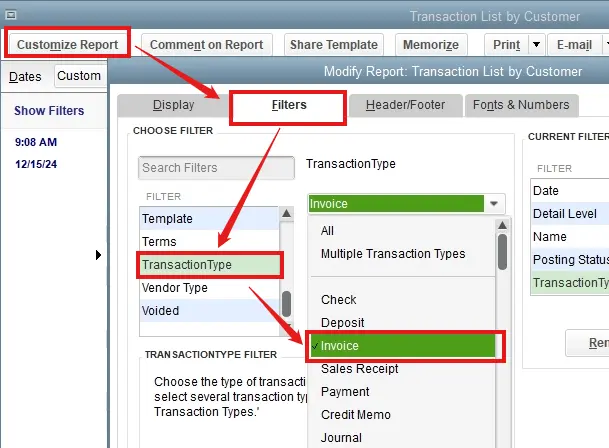
- Browse to the Reports menu, click Custom Reports> Transaction Detail.
- After this, set the date range to include the missing invoice.
- Launch the Customize Report.
- Choose Transaction Type and click Invoice below the Filters tab.
- Hit OK to generate the report.
- Check out the results and look for the invoice number, customer name, date, or amount.
- Alternatively, you can also use Reports > Customers & Receivables > Open Invoices to review the outstanding invoices.
- If the invoice appears in a report, open it to check the details. If it doesn’t appear, then try another solution.
Method 4: Change the Display Settings in QuickBooks
Here are the complete steps to edit the display settings in QuickBooks.
- At first, click on the Start menu and locate the QuickBooks Desktop icon.
- Right-click on the QuickBooks icon and choose Open File Location.
- Now, right-click on the QuickBooks.exe file and select Properties.
- You will get the Compatibility tab and choose Disable Display Scaling on High DPI settings.
- Once done, apply the selected settings after reviewing.
Method 5: Adjust View Preferences
The view preferences or the display settings might be the reason why you find the QuickBooks Desktop invoice missing message at the top. Therefore, you need to adjust the preferences.
- Once the above steps are completed, click on the Edit menu in QuickBooks.
- Choose the Preferences tab.
- After this, select the Desktop View > Preferences option.
- Tap on the One Window option in the View section and click OK.
- Close and then re-open QuickBooks. After that, verify the QuickBooks Desktop invoice missing message at the top.
Learn More:- Void An Invoice in QuickBooks
Troubleshoot QuickBooks Missing Invoices After Update
If invoices disappeared after updating QuickBooks Desktop, first verify whether the update coincided with a change in the company file, transaction filters, or data integrity.
- Open the correct company file: Move to the File menu > Open or Restore Company and verify that you are working in the file where the invoices are originally recorded.
- Check invoice filters: Launch the Customer Center and check the customer’s transaction history. Expand the date range and look for the available filters.
- Search transaction reports: Select Reports > Custom Reports > Transaction Detail and apply the filter on the results according to invoice type and date range.
- Check the update status: If you fail to complete the update, use the instructions given on Intuit to update QuickBooks Desktop.
- Back up the company file: Before performing the repair, create a new backup and save it separately from your existing backups.
Fix QuickBooks Invoice Missing After Company File Restore
You may encounter a QuickBooks invoice missing after company file restore issue when the restored backup was created before the invoice was entered.
- Initially, verify the date of the backup you restored.
- Verify whether the recent backup is available.
- After this, look for another authorized copy of the company file that contains the invoice.
- Now, compare the transaction history before making changes.
- Consult a QuickBooks professional if newer transactions must be recovered without overwriting current records.
Avoid restoring an older backup over your current company file without first making a separate backup of the current data.
How to Recover Missing Invoices in QuickBooks
The recovery process depends on whether the invoice is hidden, deleted, or absent from the company file.
If the invoice is hidden
- Open the Customer Center.
- Choose the relevant customer and expand the date range.
- After this, review the available transaction filters.
- Search using the invoice number, amount, or date.
If the invoice was deleted
- Initially, launch the Audit Trail report.
- Determine the deleted invoice and review its available transaction details.
- Review the original transaction that can’t be restored directly, and recreate it using the verified information.
- After this, look for related payments before saving the replacement invoice.
If the invoice is missing due to data damage
- Initially, you need to create a backup of the company file.
- Run the Verify & Rebuild Data utility.
Conclusion
A QuickBooks Desktop Invoice Missing issue does not always mean your accounting data is permanently lost. So, to fix the issue, check the date filters, customer records, and transaction reports. If the invoice was deleted or disappeared after a restore, review the Audit Trail and available backups before making changes. Always protect your current company file before attempting recovery. By following a systematic method, you can identify the cause, locate available invoice records, and reduce the risk of similar problems affecting your accounting workflow in the future. For any further assistance, connect with our BizBooksAdvice professionals for help.
Frequently Asked Questions
What happens if you miss invoices in QuickBooks?
Missing invoices in QuickBooks can lead to inaccurate financial reports, delayed payments, and wrong accounts receivable balances.
Why are my QuickBooks invoices not showing up?
Invoices may be hidden by date filters, linked to another customer, deleted, or affected by company file issues.
How to fix QuickBooks invoices disappearing?
Check invoice filters, customer records, and transaction reports. If invoices remain missing, review the Audit Trail and run Verify Data.
Does QuickBooks Desktop automatically restore missing invoices?
No! The correct recovery method depends on whether the invoice is hidden, deleted, or incomplete from your file. So, it is important to have a proper backup or verified transaction details for recovery.
Can the QuickBooks Audit Trail recover deleted invoices?
The Audit Trail helps you investigate changes and deletions. But it does not automatically restore a deleted invoice. You may need to recreate the transaction or use an appropriate backup.
About The Author

Jonathan Browns
Jonathan Brown is a trained QuickBooks professional with 10 years of experience in the accounting sector. Moreover, he is passionate about helping businesses reduce the stress of managing accounts. Also, he is proficient in assisting entrepreneurs and small business owners to use QuickBooks and enhance their accounting experience.
Recent Posts
-
A Guide On How To Upgrade QuickBooks Desktop To 2024
-
QuickBooks Desktop Invoice Missing? Top Methods to Fix It Now
-
QuickBooks Desktop 2024 R21_65 Update: Release Details and Installation
-
How to Fix QuickBooks Something’s Not Quite Right Error
-
How to Upgrade QuickBooks to a Multi-user License [Win/Mac]