


How to Export Chart of Accounts in QuickBooks Desktop & Online?

- By Jonathan Browns
- Oct 28, 2026
- Accounting
- 7 min read
Are you struggling to export Chart of Accounts in QuickBooks Desktop/ Online when you need to review financial records/ prepare reports? It can be easy to manage your company’s financial information when you know how to access and export your account list. QuickBooks provides different options to view/ download/ and print account details based on the version you use. However, it may be confusing to find the right export option for new users.
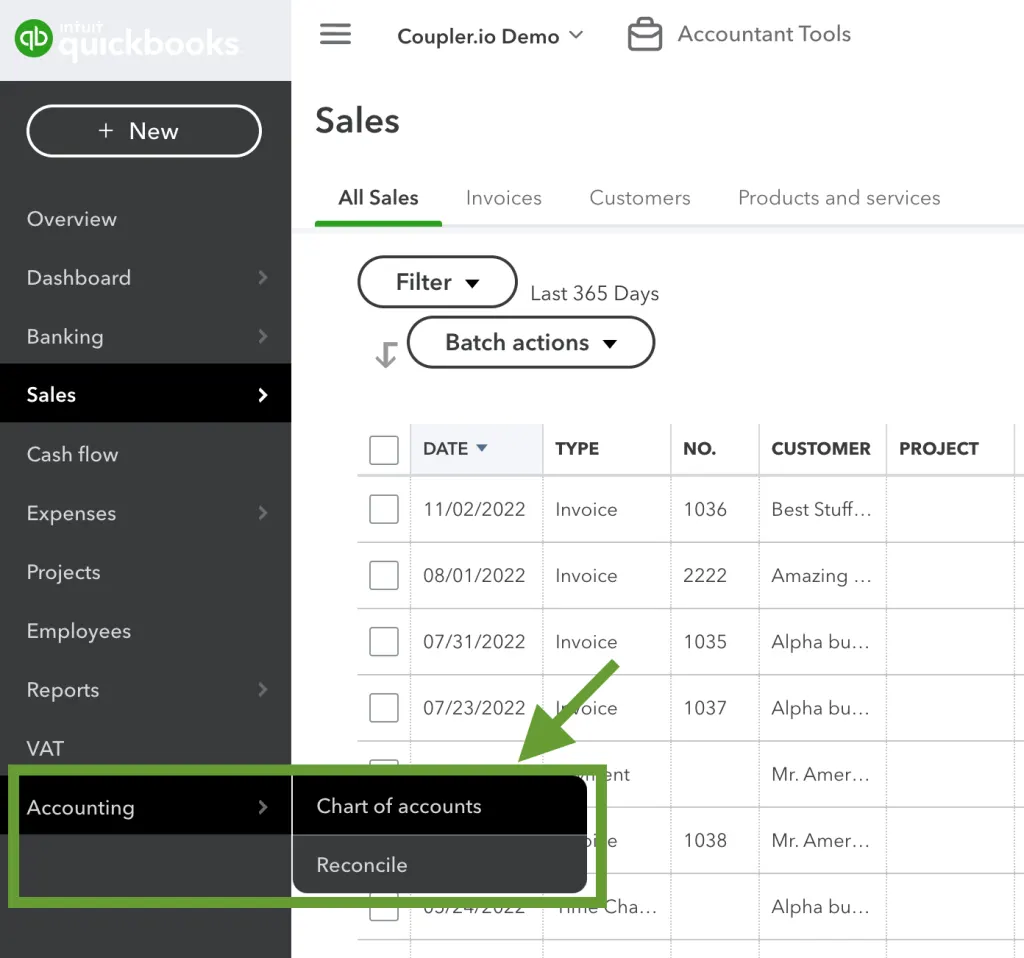
This detailed guide will explain how to export the Chart of Accounts in QuickBooks Desktop and Online. Explore available methods for download chart of accounts QuickBooks Online and discuss major export problems.
What Is a Chart of Accounts in QuickBooks?
It is a complete list of financial accounts. Businesses use a chart of accounts in QuickBooks to organize and track their financial transactions. It helps categorize income/ expenses/ assets/ liabilities/ and equity. This makes it covenient to monitor financial performance and prepare accurate financial reports. Each account includes an account name/ account type/ and detail type in QuickBooks Desktop and QuickBooks Online. Additional information may include an account number and balance.
For example, a business may have accounts for cash/ bank accounts/ accounts receivable/ sales revenue/ office expenses/ and loans payable. A properly organized Chart of Accounts helps business owners and accountants maintain accurate records.
Why Export Your Chart of Accounts? Applications & Benefits
It is possible to export chart of accounts Accounts from QuickBooks (whether Desktop/ Online) and it allows businesses to handle financial records with ease. QuickBooks Online enables users to export chart of accounts to Excel for analysis and share financial information.
| Benefit | Practical application |
|---|---|
| Financial recordkeeping | Maintain an external copy of account details. |
| Data analysis | Sort and review account names and types in Excel. |
| Accountant collaboration | Share account information with your accountant. |
| Audit support | Provide chart of accounts list export for financial reviews. |
| Account cleanup | Identify duplicate or outdated accounts. |
| System migration | Use QuickBooks account list report details to plan data transfers. |
| Reporting preparation | Review accounts before preparing financial reports. |
Note: The chart of accounts list export is not a complete backup of your QuickBooks company file.
How to Export Chart of Accounts in QuickBooks Desktop and Online?
Exporting the Chart of Accounts in QuickBooks lets you save the company’s account details in a spreadsheet/ a format to transfer accounting data. The process differs based on whether you are using QuickBooks Desktop/ QuickBooks Online.
Export Chart of Accounts in QuickBooks Desktop
Follow these steps to export your Chart of Accounts from QuickBooks Desktop:
- Open QuickBooks Desktop and sign in to your company file.
- Go to Reports → Lists → Account Listing.
- Review the account list displayed in the report.
- Click Excel at the top of the report.
- Select Create New Worksheet and choose the appropriate workbook option.
- Click Export.
- Choose a folder/ enter a file name/ and save the Excel file.
Export Chart of Accounts in QuickBooks Online
Follow these official Intuit steps to export your Chart of Accounts:
- Sign in to your QuickBooks Online account.
- Navigate to Reports → Standard reports.
- Search for Chart of Accounts list export and open the report.
- Review the QuickBooks account list report information displayed in the report.
- Click the Export/Print dropdown.
- Select export chart of accounts to Excel option.
- Choose the destination folder and click Save.
Note: Export chart of accounts report will be downloaded as an Excel file. You can open/ review/ sort/ and share it with authorized users.
QuickBooks Desktop Vs. Online: Which Should You Choose in 2026?
The selection between QuickBooks Desktop and Online depends on the business size/ accounting needs/ and work style. Here is a brief comparison based on the latest information.
| Feature | QuickBooks Desktop Enterprise | QuickBooks Online |
|---|---|---|
| Accessibility | Desktop software; cloud access options available | Access through a web browser or app |
| Internet | Internet needed for some services and updates | Internet required for normal online access |
| Best for | Businesses with complex inventory needs | Small and growing businesses |
| Inventory | Advanced inventory management | Available features depend on plan |
| Collaboration | Multi-user access; up to 40 users | Online collaboration and user limits depend on plan |
| Reporting | Advanced and industry-specific reports | Reporting features depend on plan |
| Updates | Software and subscription updates | Cloud service updates |
| Pricing | Subscription pricing; varies by edition | Monthly subscription; varies by plan |
| Remote access | May require additional cloud hosting | Built for access from different locations |
| 2026 recommendation | Choose for specialized inventory and desktop workflows | Choose for flexibility and online collaboration |
Which File Formats Can You Use to Export a QuickBooks Chart of Accounts?
You can export a Chart of Accounts from QuickBooks in different file formats, depending on your QuickBooks version and the purpose of the export.
- Excel (.xlsx) – Chart of accounts list export for sorting/ filtering/ and financial analysis.
- CSV (.csv) – Stores account information in a text format for spreadsheets and compatible accounting applications.
- PDF (.pdf) – Print chart of accounts QuickBooks report when PDF export/ printing is available.
- IIF (.iif) – Used to transfer supported export account list QuickBooks Desktop. It includes the Chart of Accounts between company files.
- Print format – Prints the account list for physical records.
Note: Available formats depend on the version and export method. QuickBooks Online allow export chart of accounts to Excel. IIF is a QuickBooks Desktop format.
What Information Is Included in an Exported Chart of Accounts?
An exported Chart of Accounts in QuickBooks Desktop or QuickBooks Online includes the following information, depending on the report and selected columns:
- Account Name – The name assigned to each account.
- Account Number – The account number or code, if assigned and included.
- Account Type – The main category/ such as assets/ liabilities/ income/ expenses/ or equity.
- Detail Type – A more specific classification of the account.
- Description – Additional information about the account, if available.
- Account Balance – The balance recorded for the account in the report.
- Currency – The account’s associated currency, when included.
Note: The exact fields depend on the QuickBooks version/ report settings/ and export format.
Common Issues When Exporting Chart of Accounts & How to Fix Them
You may face different kinds of issues while exporting a Chart of Accounts. Take a closer look at the table below to be familiar with these issues and learn their solutions as well.
| Common problem | Official solution |
|---|---|
| Export option is greyed out | Update QuickBooks Desktop and check Microsoft Office compatibility. |
| QuickBooks freezes/ crashes | Check software compatibility and repair damaged Office or QuickBooks installations. |
| Excel file shows missing data | Select Enable Editing in Excel if the file opens in Protected View. |
| Chart of Accounts report is difficult to find | In QuickBooks Online, go to Reports → Standard reports → Export Account list QuickBooks Desktop. |
| Exported report has too many columns | In QuickBooks Desktop, select Advanced and uncheck Space between columns, if available. |
| Excel export fails | Follow Intuit’s troubleshooting steps to update/ repair/ or reinstall the relevant software. |
How to Check and Organize Your Chart of Accounts After Exporting?
After exporting the Chart of Accounts from QuickBooks Desktop/ Online/ follow these steps to review and organize the data:
- Check account names/ account numbers/ types/ and detail types for accuracy.
- Look for duplicate/ named accounts that may need review QuickBooks chart of accounts CSV.
- Ensure accounts are assigned to the appropriate categories such as assets/ liabilities/ and expenses.
- Examine inactive accounts and confirm their status in QuickBooks to make changes.
- Use Excel filters/ sorting/ and clear column headings for analysis.
- Save the exported file and restrict access to authorized users.
- Make any required account changes in QuickBooks itself, rather than assuming edits to the exported spreadsheet.
Prerequisites to Export Chart of Accounts in QuickBooks
Ensure you meet the following criteria ahead export chart of accounts list in QuickBooks Desktop/QuickBooks Online:
- Active account access – Sign in to the correct QuickBooks company file/ account.
- User permissions – Ensure you have permission to access account lists and reports.
- Updated software – Use a supported/ updated version of QuickBooks.
- Export destination—Choose a folder where you can save the exported file.
- Compatible software – Install Microsoft Excel if you plan to export and work with Excel files.
- Stable connection – Ensure you have a reliable internet connection when using QuickBooks Online.
- Correct company file – Verify that the selected company contains the accounts you want to export.
Note: These prerequisites help ensure a smooth export process and reduce common issues like access and file saving.
Conclusion
The process to export Chart of Accounts in QuickBooks Desktop and QuickBooks Online is a simple. It is an essential process to manage financial records/ review account details/ and support accurate bookkeeping. You can export/ download/ and organize the account information in a suitable format for reporting/ analysis with the help of steps outlined in this guide. It is best to choose the appropriate export method and check your data afterward whether you use QuickBooks Desktop/ Online. It helps prevent common errors and improve recordkeeping efficiency.
If you encounter export issues/ need expert assistance with QuickBooks data management, let the BizBooksAdvice take the complexity off your plate! Contact our experts today at Call Us : +1-866-408-0444 and turn your accounting data into a well-organized asset.
Frequently Asked Questions
Can you export a chart of accounts in QuickBooks to Excel?
Yes! It is possible to export the Chart of Accounts from both QuickBooks Desktop and QuickBooks Online to Microsoft Excel. The exported file lets you review account names/ account types/ account numbers (if enabled)/ and other available information. It is applicable for reporting/ recordkeeping/ or accounting data migration.
Can you provide a list of charts of accounts?
A standard Chart of Accounts is divided into five core financial categories represented by numerical ranges: Assets (1000–1999) such as cash/ accounts receivable/ inventory/ and equipment. Liabilities (2000–2999) such as accounts payable/ salaries payable/ and loans payable. Equity (3000–3999) such as owner’s capital/owner’s drawings/ and retained earnings. Revenue (4000–4999) such as sales revenue and service income. Expenses (5000–5999) such as rent/ utilities/ salaries/ and depreciation.
How to extract a chart of accounts in QuickBooks?
Log in to your QuickBooks account and navigate to the Chart of Accounts section to extract a chart of accounts in QuickBooks. It is available under Settings/ Accounting based on the QuickBooks version. Review the list of accounts and select the Export option if available/ open the Reports section and search for the Account List report.
How do I export data from a chart?
Go to Reports → Standard reports/ search for Account List/ and open the report to export data from a chart of accounts in QuickBooks Online. Review the account details and select the Export/print chart of accounts QuickBooks. Choose Export to Excel to download the data to your computer.
How do I print the list of Chart of Accounts in QuickBooks Desktop?
Open the company file and go to the Lists menu to print the Chart of Accounts list in QuickBooks Desktop. Select Chart of Accounts. In the Chart of Accounts window, click the Account drop-down menu and choose Print List. Review the print settings, select your preferred printer, and click Print to get a hard copy of your accounts, including account names and types.
How do I download my Chart of Accounts in QuickBooks Online?
Sign in to your account and navigate to Reports → Standard reports to download your Chart of Accounts in QuickBooks Online. Search for Account List and open the report to view the company’s chart of accounts/ including account names/ account types/ detail types/ and other available information.
How do I get a list of Chart of Accounts in QuickBooks Online?
Sign in to your account to get a list of Chart of Accounts in QuickBooks Online. Click Settings → Chart of Accounts to view the accounts associated with your company. The list includes account names/ account types/ detail types/ account numbers (if enabled)/ and current balances where applicable.
Why can’t I export data from QuickBooks Desktop to Excel?
You may be unable to export data from QuickBooks Desktop to Excel because Microsoft Excel is not installed on your computer/ your QuickBooks Desktop version is outdated. Your Microsoft Office version is incompatible with QuickBooks. Damaged Office/ QuickBooks installations/ Windows security settings/ or problems with the company file.
About The Author

Jonathan Browns
Jonathan Brown is a trained QuickBooks professional with 10 years of experience in the accounting sector. Moreover, he is passionate about helping businesses reduce the stress of managing accounts. Also, he is proficient in assisting entrepreneurs and small business owners to use QuickBooks and enhance their accounting experience.
Recent Posts
-
How to Export Chart of Accounts in QuickBooks Desktop & Online?
-
How to Delete Invoice in QuickBooks Online (Step-by-Step Guide)
-
How to Fix QuickBooks Error 6000 83: Step-by-Step Guide
-
Edit Deposit QuickBooks Online: Complete Step-by-Step Guide
-
How to Fix QuickBooks Error 6189 816 & Restore Company File Access