


Troubleshooting QuickBooks ND File Error With Easy Steps

- By Jonathan Browns
- Feb 13, 2026
- QuickBooks Desktop
- 7 min read
QuickBooks ND files are configuration files that enable QuickBooks to open the company file in network or multi-user mode. However, users may encounter the QuickBooks ND file error when they fail to access the company file due to incorrect hosting settings, firewall configuration, or network settings. This error prevents access to your company file and disrupts business tasks.
Continue reading this guide and get a better understanding of what a QuickBooks ND file is, why the error occurs, and the effective solutions to fix it.
Unable to resolve QuickBooks ND File Error and need instant help? Ring us at Call Us : +1-866-408-0444 and talk to our QB professionals to get the step-by-step guidance immediately.
What is QuickBooks ND File?
Every time QuickBooks opens a company file in network or multi-user mode, a network data file, i.e., ND file, is created. The ND file is still available in QuickBooks even though you are currently working in single-user mode.
Moreover, the QuickBooks Database Server Manager generates the ND file, which identifies the database server the program will use.
Sample .ND File
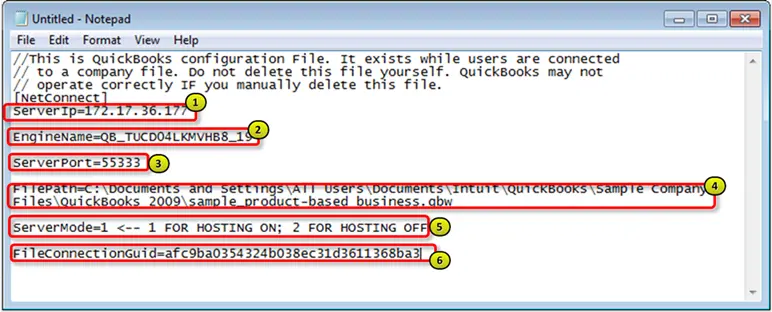
Legend
1. Server IP Address-
You can get the server IP address and compare it with the IP address mentioned in the .ND file.
2. Server Name and QB Year-
Get the server name from the bottom of the screen, and the QBDBMgrN version is listed at the end: 28=2018, 29=2019, 30=2020.
3. Port Used-
Make sure that the port is opened/added in the firewall settings.
4. Full path to company file-
Any other path than C must need some additional troubleshooting.
5. 1 for hosting On, 2 for hosting Off-
Make sure that the hosting is turned on for the file to be opened in a multi-user/network setting.
6. Usually Blank-
This field is usually blank, and you can ignore it.
How Does the QuickBooks ND File Function?
The QuickBooks ND files are generated in the same folder as the QuickBooks company file, but they are recognized with an .ND file extension. The file will be represented in the form of:
- MyCompanyFile.nd
- MyCompanyFile.qbw.nd
Moreover, even in single-user mode, if multi-user mode was previously enabled, the system may still contain the .ND files. The .ND file is typically 1KB in size. It is a text file that can only be accessed and edited in Notepad. You can identify by its text file icon.
The Network data file consists of the information that QuickBooks requires to communicate with the server. Majorly, it includes information such as IP address and port number. Moreover, you can also check if the data file is still in use.
Note: You can look for the server name along with the IP address through the Product Information window by pressing F2 or Ctrl + 1 keys.
Reasons That Trigger QuickBooks Error ND File Issue
The following are the causes that may lead to the QuickBooks Error ND File issue.
- A damaged or corrupted network data file.
- Windows Firewall is blocking QuickBooks from opening the company file.
- Issues while running the Database Server Manager on your computer.
- Incorrect server settings are another reason that causes the QuickBooks ND File error.
- Problem with the network connectivity.
- You may notice that the hosting is enabled on multiple computers.
How to Troubleshoot the QuickBooks ND File Errors
The users often encounter QuickBooks ND File errors if the file is either corrupt or damaged. It may also be caused when the .QBW file has moved without moving the .ND file. So, it’s necessary to restore the ND file to address the issue if you can’t open the data file.
Solution 1: Verify The Hosting Settings
QuickBooks error hosting is on or the .ND file doesn’t work right, which may appear when the hosting is enabled on multiple systems. So, to fix the issue, you must disable the hosting setting using the following steps:
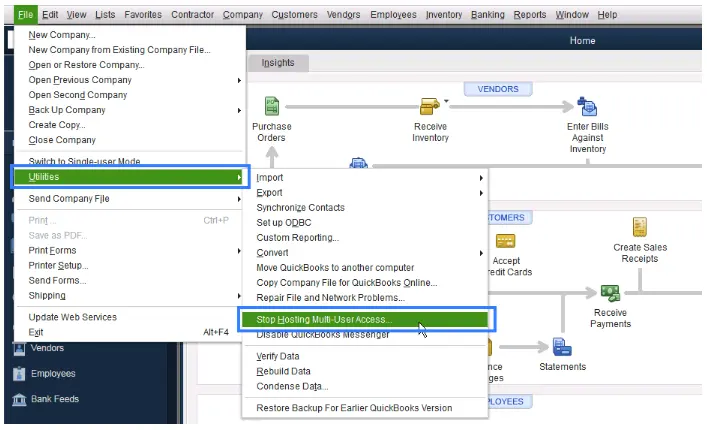
- Initially, launch the QuickBooks application on your system.
- Move to the File menu and click the Utilities option.
- If you get the Stop Hosting Multi-User Access option, tap on it.
- Also, you need to ensure that the server computer has enabled the hosting.
Solution 2: Test the Services on your server
You must verify that QuickBooks is running on your server computer. Perform the following steps to check QuickBooksDBXX and then use the same steps for QBCFMonitorService.
- Access the Start menu on the server computer and launch the Run window.
- Now, insert “services.msc” in the search bar and locate the QuickBooksDBXX from the list.
- Double-click on the QuickBooksDBXX and click the Automatic option next to Startup Type.
- Also, cross-check that Service Status is set to either Running or Started. If none of them is selected, go with the Start option.
- Move to the Recovery tab and click Restart the Services from the First Failure, Second Failure, and Subsequent Failure.
- Hit the Apply and then the OK tab to save the necessary changes.
- Finally, resume the same steps for QBCFMonitorService.
Solution 3: If the File is damaged, missing, or corrupt
To repair the damaged, missing, or corrupt network data file in QuickBooks, rename the file using the following steps.
- Open the QuickBooks company file folder having .ND file.
- If you can’t find the file, launch the QuickBooks company file on the computer where the file actually exists.
- After this, delete or rename the files. To rename the file;
- Right-click on the .ND file and click on Rename.
- Now, change the name of the file by inserting OLD, and it will show as (.NDOLD).
- Now, use the Database Server Manager for scanning the folders once again. It will automatically create new files.
- Finally, restart your PC and check if the ND file error still exists.
Conclusion
QuickBooks ND File error can be easily resolved by implementing the troubleshooting steps outlined above. This will let you run the QuickBooks company file in multi-user mode or on a network smoothly. If you are still stuck with this error, connect with our BizBooksAdvice experts for quick and reliable support.
Frequently Asked Questions (FAQ’s):-
Question 1: What does QBW ND mean?
Ans. QBW ND are basically the configuration files that give a description of your network. In short, it is basically a Network Descriptor file present in QuickBooks.
Question 2: What is QuickBooks ND file?
Ans. QuickBooks ND are the configuration files that allow QuickBooks to run the company file in multi-user mode and on a network.
Question 3: What are the different errors you can fix by recreating the ND file in QuickBooks?
Ans. You can fix the common QuickBooks errors:
- Error H101, H202, H303 and H505.
- Error 6189, 816
- QuickBooks error 80070057
Question 4: How can I change the names of QuickBooks .ND and .TLG files?
Ans. To change the name of the QuickBooks.Nd and .TLG files;
- Open the company file folder having .ND and .TLG files.
- Right-click on the files one after the other and choose Rename.
- After this, rename the file by adding .OLD at the end of the file name.
Question 5: How can I prevent QuickBooks Desktop and file errors in the future?
Ans. To prevent the QuickBooks Desktop and file error from occurring in the future, make sure:
- Hosting is set up properly
- Update the QuickBooks Desktop software regularly
- Test the network connectivity
Question 6: Can I delete a QuickBooks ND file?
Ans. Yes, you can delete the QuickBooks ND file, but it’s advised to rename it instead of deleting it.
About The Author

Jonathan Browns
Jonathan Brown is a trained QuickBooks professional with 10 years of experience in the accounting sector. Moreover, he is passionate about helping businesses reduce the stress of managing accounts. Also, he is proficient in assisting entrepreneurs and small business owners to use QuickBooks and enhance their accounting experience.
Recent Posts
-
QuickBooks Error 6131, 0 When Opening a Company File? Try These Fixes
-
QuickBooks Unscheduled Payroll Check: Step-by-Step Guide for 2026
-
QuickBooks Inventory Tracking: Setup, Manage & Monitor Stock
-
QuickBooks Company File Not Found: Top 7 Ways to Restore File Access
-
QuickBooks Won’t Open: Desktop, Online & Mobile Application