


A Guide On How To Upgrade QuickBooks Desktop To 2024

- By Jonathan Browns
- Oct 14, 2026
- Accounting
- 7 min read
Upgrading QuickBooks Desktop to 2024 is an important step for businesses that want to maintain accounting efficiency, improve software compatibility, and access the features available in the 2024 version. Whether you are using QuickBooks Desktop Pro, Premier, or Enterprise, preparing your company file and following the correct upgrade process can help ensure a smooth transition.
In this guide, you will learn how to upgrade QuickBooks Desktop to 2024, check system requirements, prepare your company file, install the new version, resolve common upgrade issues, and verify that your financial data is working correctly after the upgrade.
Why Upgrade QuickBooks Desktop To 2024?
Upgrading to QuickBooks Desktop 2024 helps businesses stay compatible with supported operating systems and related applications while offering the benefits of the improvements in the new release.
Here are some of the factors to consider when upgrading QB Desktop to 2024:
- Improved compatibility: Use a version designed to work with supported system configurations.
- Updated features: Access features and refinements available in your specific QuickBooks Desktop 2024 edition.
- Accounting efficiency: Continue managing invoices, expenses, payroll-related workflows, inventory, and financial reports using the appropriate edition.
- Data continuity: Migrate your existing company file to the newer version while preserving your accounting history.
- Business continuity: Reduce disruption by planning the upgrade and testing essential workflows before returning to regular operations.
Important: QuickBooks Desktop 2024 availability, features, licensing, and connected services depend on your product edition, region, subscription, and Intuit’s current policies. Verify that you have a valid license and that your required services are supported before upgrading.
Minimum System Requirements For QuickBooks Desktop 2024
Every software has requirements your computer must meet to run without issues. These specifications vary by software, version, and whether it’s desktop or cloud-based, and the same applies to QuickBooks Desktop. Verify the minimum system requirements for QuickBooks Desktop 2024 before you upgrade to ensure seamless operation.
Things To Do Before Upgrading QuickBooks Desktop To 2024 For Windows
Before upgrading QuickBooks Desktop to 2024 on Windows, take a few essential steps to prepare your system, protect your company data, and ensure a smooth upgrade process:
- Visit the QuickBooks Desktop homepage.
- Find and open your company file.
- Click on Upgrade QuickBooks.
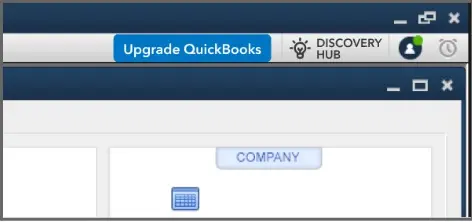
- Look for the most recent version of QuickBooks Desktop. Check out the latest features and improvements before upgrading.
- Review the system requirements to confirm your computer can support the upgrade.
How To Upgrade QuickBooks Desktop To 2024 For Windows
Upgrading QuickBooks Desktop to 2024 for Windows involves following a few straightforward steps to install the latest version, transfer your company data, and ensure the software runs properly on your system:
1. Upgrade now
Choose the Upgrade Now option to begin updating QuickBooks Desktop, allowing the software to install the newer version while keeping your company data ready for the transition.
- Select Upgrade now, then select Continue. Wait for the upgrade to install.
- Open your company file in the older version of QuickBooks and save a backup.
- The QuickBooks admin will open the company file in the new version.
- Once upgraded to the new version, uninstall the previous version. This completes the process.
2. Schedule an upgrade
If you prefer not to upgrade immediately, schedule the QuickBooks Desktop upgrade for a convenient time to minimize interruptions to your regular workflow:
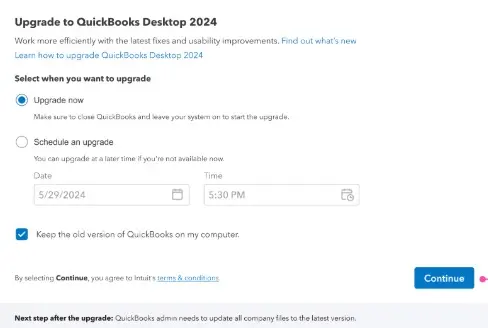
- Choose your preferred date and time to schedule the upgrade.
- Click Continue to receive a confirmation message with the upgrade details.
- If eligible, QuickBooks will send reminders seven days before, one day before, or on the scheduled upgrade date.
- Click Upgrade Scheduled to confirm your selection.
- To change the schedule, select a different date and time. You can also cancel the upgrade from the same window.
Note: Select Keep the old version of QuickBooks on my computer to retain the previous version on your system.
Find out what happens on the scheduled upgrade
Once the scheduled upgrade begins, QuickBooks Desktop will guide you through the update process, helping you install the new version and prepare your company files for continued use:
- Upgrade now to upgrade to the new version immediately.
- Reschedule to schedule the upgrade for a later date.
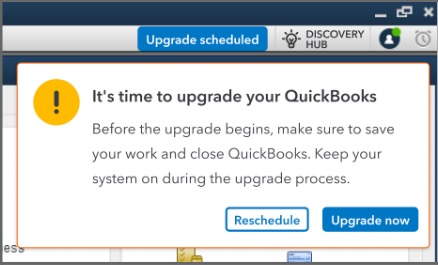
- If your computer’s on but you have your QuickBooks closed, the upgrade will start automatically. You’ll be able to see the progress of the upgrade.
- If the computer is off, you’ll get an option to upgrade now or schedule the upgrade later. The upgrade will happen the next time you open the company file.
Upgrade Your QuickBooks Desktop Mac Plus
In QuickBooks Desktop Mac Plus, you’ll find the Upgrade QuickBooks window when you open your company file. Here’s how to upgrade:
- Select Upgrade for Free.
- Select Let’s go. This will download and install the new version of QuickBooks.
- Once done, select Open QuickBooks.
- Register the new QuickBooks version.
Note: The upgrade may take some time, depending on your internet speed and the size of your company files. The old version will remain on your computer.
Use the Upgrade QuickBooks Menu To Upgrade
If you don’t see a prompt to upgrade your QuickBooks subscription, you can still upgrade. Here’s how.’
- Open your company file.
- Go to Help.
- Select Upgrade QuickBooks.
- Select Upgrade for Free.
- Select Let’s go. This will download and install the new version of QuickBooks.
- Once done, select Open QuickBooks.
- Register the new QuickBooks version.
What To Do After Upgrading QuickBooks Desktop To 2024
Completing the installation is only part of the upgrade process. You should also verify the accounting environment and ensure that your team can work normally.
1. Review financial reports
Compare key reports generated in the old version with those generated in QuickBooks Desktop 2024. Check account balances, outstanding invoices, vendor balances, and other critical figures.
Differences should be investigated before relying on the new installation for financial reporting.
2. Check integrations and connected services
Review any connected services used by your organization, including bank feeds, payment processing, payroll, and third-party applications.
Availability and compatibility may depend on your license, region, subscription, and the provider’s current policies. Test each essential integration separately.
3. Confirm user permissions
Verify that authorized employees can access the company file and perform their assigned tasks. Check user roles and permissions where applicable.
4. Keep your backup secure
Retain the pre-upgrade backup according to your organization’s data retention policy. Create a new backup after confirming that the upgraded company file is functioning correctly.
Maintain more than one secure copy when practical, and periodically verify that your backups can be restored.
Summing Up
Finally, this guide concludes with a step-by-step overview of how to upgrade QuickBooks Desktop to 2024. We have covered the system requirements, essential preparations, upgrade methods for Windows and Mac, and the steps to follow after installation to help ensure a smooth transition while protecting your company data.
If you encounter difficulties during the upgrade or need assistance with your company file, consider consulting a qualified QuickBooks ProAdvisor. Professional guidance can help you resolve installation issues, verify your financial data, and get QuickBooks Desktop 2024 ready for your business operations.
Frequently Asked Questions
How do I upgrade QuickBooks Desktop to 2024?
You can upgrade QuickBooks Desktop to 2024 by checking your system requirements, backing up your company file, and following the upgrade prompts in the software. Select Upgrade Now to start immediately or schedule the upgrade for a convenient time. Make sure your license supports the 2024 version before proceeding.
Can I upgrade QuickBooks Desktop to 2024 without losing my company data?
Yes, you can upgrade QuickBooks Desktop 2024 while keeping your existing company data. However, creating a backup before starting is essential. Once the upgrade is complete, open your company file in the new version and verify that your financial records, transactions, and reports are available.
What are the system requirements for QuickBooks Desktop 2024?
QuickBooks Desktop 2024 requires a compatible Windows operating system, sufficient RAM and disk space, and a supported processor and internet connection for certain features. Requirements may vary by edition, so review Intuit’s official system requirements before installing the upgrade.
Can I still use my old QuickBooks Desktop version after upgrading to 2024?
Yes, you may be able to keep the previous version installed if you select Keep the old version of QuickBooks on my computer during the upgrade. However, confirm that your license permits this and remember that company files converted to the 2024 format may not open in older versions.
How long does it take to upgrade QuickBooks Desktop to 2024?
The upgrade may take several minutes or longer, depending on your internet speed, computer performance, installation size, and company file size. Closing unnecessary applications and backing up your company file beforehand can help you prepare for the process.
Can I upgrade QuickBooks Desktop to 2024 for free?
It depends on your QuickBooks product, license, and subscription. If your eligible subscription includes the upgrade, you may see an Upgrade for Free option. Otherwise, you may need to purchase a compatible license or subscription to access QuickBooks Desktop 2024.
What should I do if QuickBooks Desktop 2024 upgrade fails?
First, restart your computer and check that it meets the system requirements. Install any required Windows updates, verify your internet connection, and run the QuickBooks Tool Hub if you encounter installation errors. Always keep a backup of your company file, and contact Intuit support if the problem continues.
About The Author

Jonathan Browns
Jonathan Brown is a trained QuickBooks professional with 10 years of experience in the accounting sector. Moreover, he is passionate about helping businesses reduce the stress of managing accounts. Also, he is proficient in assisting entrepreneurs and small business owners to use QuickBooks and enhance their accounting experience.
Recent Posts
-
QuickBooks Inventory Tracking: A Step-by-Step Guide for Small Business Owners
-
QuickBooks Outlook Sync: How to Connect and Manage Contacts
-
Reactivate Your QuickBooks Payroll Subscription: Online & Desktop
-
Import Credit Card Transactions into QuickBooks Online & Desktop: Step-by-Step Guide
-
How to Set Up Classes in QuickBooks Online and Desktop: DIY Guide