


How to Register or Activate QuickBooks Desktop (A Complete Guide)

- By Jonathan Browns
- Oct 06, 2026
- Accounting
- 7 min read
Register or Activate QuickBooks Desktop the software, verify product information, and connect it with the Intuit account. It is required to complete the registration process whether you need to install QuickBooks for the first time or reinstall the current version. This will enable to access the features available with a licensed product.
In this guide, you’ll learn how to register and activate QuickBooks Desktop, understand QuickBooks activation codes, avoid unofficial activation-code generators, manage user activity, and reactivate inactive accounts.
What is a QuickBooks Activation Code?
A QuickBooks Activation or validation code is a unique string of numbers and letters that confirms your QuickBooks purchase and verifies your license. This code is mainly generated at the time of activation and stored in the Registry, which helps during reinstallation, licensing issues, or troubleshooting activation problems. Moreover, it is important for authenticating your QuickBooks program and ensuring that you have legitimate access to its features.
Key Considerations Before Register or Activate QuickBooks Desktop
Before Register or Activate QuickBooks Desktop, get ready with the correct product information and a valid Intuit account. Checking these details in advance can help you prevent common activation and registration issues.
- Confirm that you have the correct QuickBooks Desktop edition and year installed.
- Stable internet connectivity is required to complete the activation.
- Keep your license or product details available during the activation.
- Make sure to use the correct Intuit account for registering QuickBooks.
- Also check whether QuickBooks is activated using the F2 or Ctrl + 1 keys.
- Your verification code must be valid.
- If you see any error message stating “The validation code is wrong”, then ensure that the validation code is correct. If the product number doesn’t match with your license number, correct the product number before moving further with the activation process.
How to Activate QuickBooks Desktop for Windows?
Once QuickBooks Desktop is downloaded and installed, QuickBooks will ask you to activate. However, you can also activate it manually with the following steps.
- Launch QuickBooks Desktop and click the Help menu.
- Choose Activate QuickBooks Desktop.
- Do according to instructions given on the screen to verify your information.
Once it’s done, QuickBooks is now activated, and you are all set to use it to manage your company’s finances.
How to Check If QuickBooks Desktop Is Activated?
To check if QuickBooks Desktop is activated, perform the following steps.
- Open QuickBooks Desktop and then open your company file.
- After this, press Ctrl + 1 or the F2 key to open the Product Information window.
- Thereafter, look for the License Number line.
- Now, check if it says Activated beside the License Number section. If it shows a blank or unregistered status, activation is required.
How to Register QuickBooks Desktop Using Your Intuit Account?
You can either activate QuickBooks Desktop using an existing Intuit account or create a new one with the activation screen. If you do not have an existing Intuit account, complete the necessary details in the Create Your User ID section to finish the activation process.
If you can’t remember your user ID or password, here’s how you can retrieve it.
- Visit quickbooks account.
- Now, choose the link “I forgot my user ID or password”.
- Provide your registered email, phone number, or user ID.
- Enter the code that you have received.
- Next, reset your password once your user ID appears.
- Lastly, try to log in to your QuickBooks account.
How to Register QuickBooks Desktop for Mac?
Once QuickBooks is installed successfully, register it before opening your data. QuickBooks will then ask you to register when you open it, but it can also be registered manually with these steps;
- Open QuickBooks and choose the Register QuickBooks option.
- After this, provide the License and Product numbers. Then, click the Next option.
- Note: If you are having trouble finding your license and product numbers, you can also obtain them via email.
- Choose how you want to register QuickBooks Desktop on Mac;
- Register by phone:
- Place a call at the phone number given on the screen.
- Enter the validation code provided and click Next.
- Register Online
- At first, log in to your Intuit account or create an account.
- Next, create a customer account (or select an existing one).
- You are required to enter the company and contact details while creating a new customer account.
- Choose the Save & Next option.
- Pick any payment method or select Add new to set up auto-renewal.
- Navigate to the Save and auto-renew option.
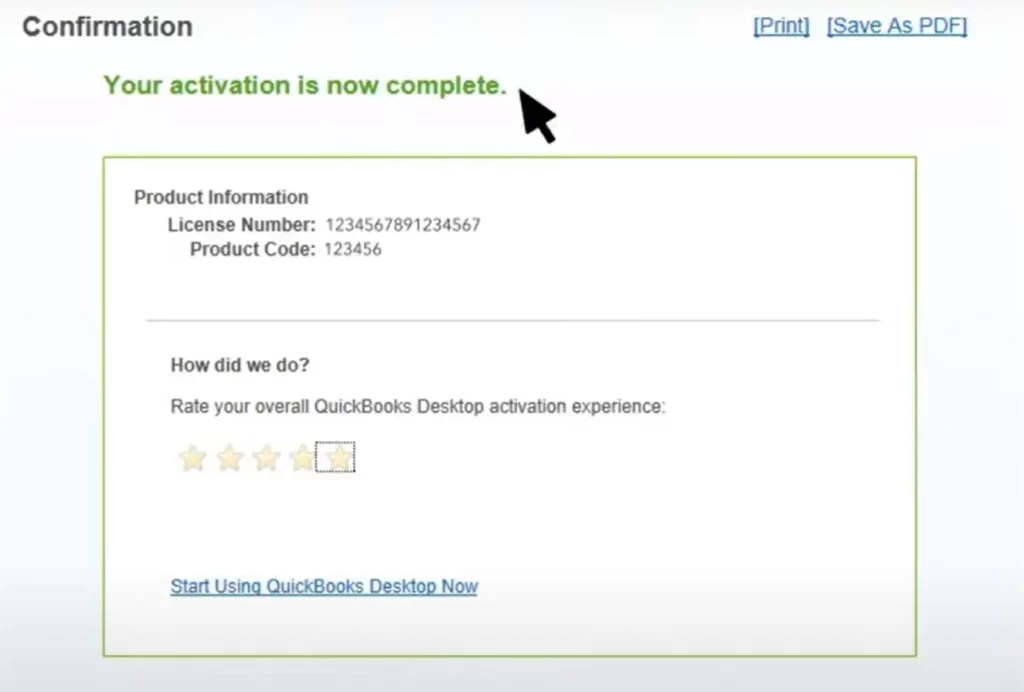
- Finally, have a look at the Confirmation screen and additional available actions.
- Click Print or Save as PDF to keep your Product Information on hand.
- Now, give the ratings for your QuickBooks Desktop activation experience.
- Close the window by selecting the Start using QuickBooks option.
Once the registration is completed, you can run QuickBooks and accomplish your accounting tasks.
How Do I Make an Inactive Account Active in QuickBooks?
If you have previously made an account inactive in QuickBooks Desktop, you can restore it from the Chart of Accounts.
- Initially, move to the Lists menu and tap on Chart of Accounts.
- Mark the checkbox for Include inactive at the bottom of the page.
- Right-click on the account you want to make active again. Then, hit the Edit Account option.
- After this, clear the checkbox beside Account is Inactive.
- Once the changes are made, click the Save & Close option.
- If the Include Inactive option is grayed out, it shows that you don’t have any inactive accounts. If that happens, from the Look for account name or number box, search for the name of the income account. Then, click the Search option.
What are the common QuickBooks Desktop Activation Problems?
The following are the common QuickBooks Desktop activation problems that users may face during the activation of the software.
- QuickBooks Activation Code isn’t working.
- QuickBooks keeps asking me to activate
- QuickBooks Says My License Number is Invalid
- QuickBooks Product Number Doesn’t Match
- QuickBooks won’t connect to the Activation service
- Activation fails after reinstalling QuickBooks
How to Fix QuickBooks Desktop Activation or Registration Errors
Here we have listed all the possible troubleshooting methods to fix QuickBooks Desktop activation or registration errors.
Method 1: Run Quick Fix My Program
QuickBooks might not activate because of a problem with its background processes. Download the QuickBooks Tool Hub and run a Quick Fix to close any open background processes. It’ll run a quick repair on your program.
- Launch the QuickBooks Tool Hub and choose Program Problems.
- Click the Quick Fix My Program option.
- Once the tool runs successfully, launch QuickBooks Desktop and open your company file.
- Finally, try to activate QuickBooks Desktop and see if the issue is resolved.
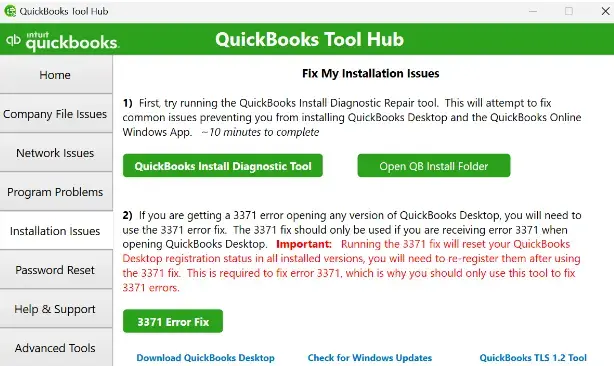
Method 2: Run the 3371 Error Fix via Tool Hub
- Exit the QuickBooks application.
- Open the QuickBooks Tool Hub and click Installation Issues.
- Choose QuickBooks Error 3371 Fix and click OK.
- Launch QuickBooks Desktop and then your company file.
Method 3: Run QuickBooks Install Diagnostic Tool
If anything goes wrong while installing QuickBooks, it might create trouble during activation. However, this issue can be resolved by running the QuickBooks Install Diagnostic Tool.
Method 4: Install QuickBooks Desktop again
If the above solutions don’t resolve QuickBooks activation errors, then try to install QuickBooks Desktop again.
Error: The validation code is incorrect, or this service is temporarily unavailable
Method 5: Correct your system’s time & date
- Exit the QuickBooks Desktop application.
- Next, right-click the time display on the Windows taskbar.
- Choose the Adjust Date/Time option.
- Now, check if your date and time settings are correct.
- Browse to the Date & Time tab, and set the date for the current year.
- Click Apply, and then click OK.
- Launch your QuickBooks Desktop, then go to Help.
- After that, click Activate QuickBooks, then tap on Begin Registration.
- Type the validation code, and click Next.
Method 6: Manage your QuickBooks License
Step 1: Find your license number
Log in to your Customer Account Maintenance Portal (CAMPs). After this, you will find the license and product number on the product packaging label or in the Purchase Confirmation email. After having the product details, proceed further.
Step 2: Activate QuickBooks Again
- Select the Help menu > Manage my license > Change my license number.
- Type the license number as all 0s and click Next.
- Make sure not to enter a validation code, and then choose Finish.
- Return to Help > Manage my license > Change my license number.
- Type your License number, select Next, and then Finish.
Error: Validation code screen doesn’t appear
If you haven’t been prompted to enter your validation code, you can try the following troubleshooting methods.
Method 7: Manually activate QuickBooks
- Keep your QuickBooks Desktop open and press Ctrl + P.
- This will launch a manual activation window.
- After this, enter your validation code.
Tips For Successful QuickBooks Desktop Registration
You must consider the following points before starting the QuickBooks Desktop registration process.
- Use the Intuit account associated with your QuickBooks purchase or subscription.
- Install the appropriate QuickBooks Desktop version.
- Make sure to have the legitimate license and product information available.
- Keep QuickBooks updated when updates are available for your supported product.
Conclusion
Learning how to Register or Activate QuickBooks Desktop helps ensure that your software is properly activated and ready to use. Before starting, keep your valid product information and Intuit account credentials available. Follow the appropriate Windows or Mac registration steps and use legitimate activation information.
If QuickBooks doesn’t activate, verify your product details and follow trusted troubleshooting guidance before contacting support.
Frequently Asked Questions
1. Do I need an Intuit account to activate QuickBooks Desktop?
Yes, you might be asked to sign in using an existing Intuit account or to create the account for QuickBooks Desktop activation.
2. How do I track user activity in QuickBooks Desktop?
You can use the audit and reporting available in QuickBooks Desktop. Whereas QuickBooks Online has a dedicated Audit Log for detailed user activity.
3. Why won’t QuickBooks Desktop activate?
This issue may occur due to incorrect product information, license numbers, validation codes, or registration-file problems. So, to fix the issue, verify your information and perform the activation steps.
4. Can I get lifetime activation for QuickBooks Desktop Pro Plus 2024?
QuickBooks Desktop Pro Plus 2024 was offered as a subscription product rather than a lifetime activation product. Be cautious of websites offering unauthorized “lifetime activation” codes.
5. How do I register QuickBooks Desktop?
For registration, open QuickBooks Desktop and choose the Help menu. Then, click the Activate QuickBooks Desktop option. Furthermore, you must sign in to your Intuit account when prompted.
About The Author

Jonathan Browns
Jonathan Brown is a trained QuickBooks professional with 10 years of experience in the accounting sector. Moreover, he is passionate about helping businesses reduce the stress of managing accounts. Also, he is proficient in assisting entrepreneurs and small business owners to use QuickBooks and enhance their accounting experience.
Recent Posts
-
How to Register or Activate QuickBooks Desktop (A Complete Guide)
-
How To Fix QuickBooks Enterprise Errors: Step-by-Step Guide
-
Why is QuickBooks Freezing and How to Troubleshoot It
-
QuickBooks Has Stopped Working? 10 Ways to Fix It
-
QuickBooks Desktop Enterprise: Pricing, Features, Download & Setup