


How to Eliminate QuickBooks Error 102 (Maintenance or Server Issues)?

- By Jonathan Browns
- May 18, 2026
- Accounting
- 7 min read
Are you stuck with QuickBooks Error 102 while downloading the bank transactions? Well, this issue mainly occurs due to the problems generated on your Bank’s end. It might be possible that the website is going under maintenance or server issues, which are preventing the online bank connection with the Bank. So, it’s crucial to rectify this error and resume downloading the latest bank transactions. Let’s have a deep dive into this post to understand the root causes that trigger QuickBooks Error Code 102 and solutions to fix them.
What are the reason that triggers Error Code 102 in QuickBooks?
At times, the users mainly end up with Error Code 102 in QuickBooks while downloading the bank transactions. It may happen due to numerous reasons, which we have highlighted below.
- Your bank is going under maintenance, or there are some server-related issues.
- Another reason is that you are using the wrong bank login credentials.
- Failure of network connectivity may prevent you from connecting to your bank’s website.
- Also, it may occur when you add a new bank account in QuickBooks, and online banking has not yet started.
- You have connected the wrong bank or credit card account in QuickBooks.
Effective Solutions to Fix QuickBooks Online Error Code 102
After knowing what exactly is causing QuickBooks Online Error Code 102, let’s fix this issue using the solutions outlined below.
Solution 1: Test Your Internet Connection
Before trying any other troubleshooting method, verify that your internet connection is working accurately. In case you are having issues downloading transactions, it means that your internet connection is slow or unstable.
To test the internet connectivity, try to access other websites or applications that need smooth internet access. If you notice that the site is slow or unable to load properly, it means there is an issue with your internet connection. You must connect with your ISP to get it fixed.
Solution 2: Update Your Bank Connection
By syncing your bank account with QuickBooks Online, you can easily resolve Error 102 QuickBooks. Perform the steps given below according to the product you are using.
QuickBooks Online
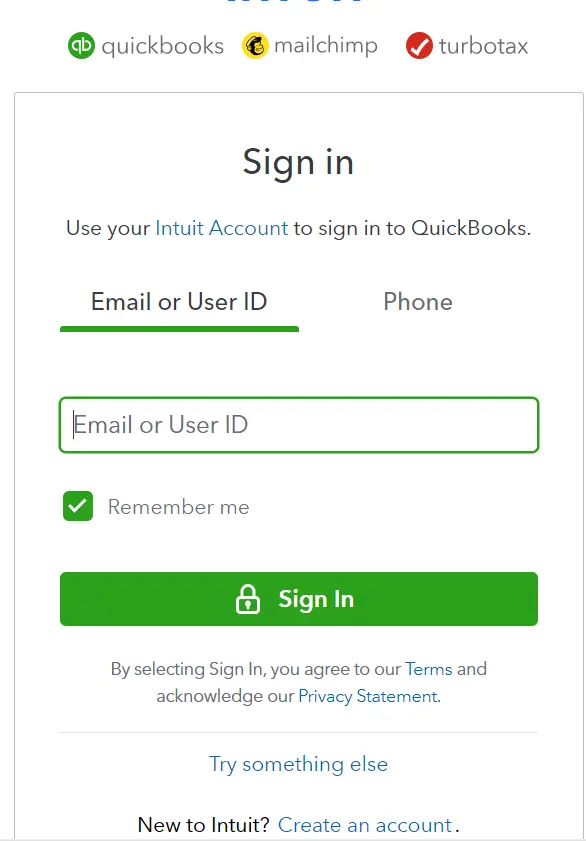
- First, you must sign in to your QuickBooks Online account.
- Now, choose the Update option.
QuickBooks Self-Employed
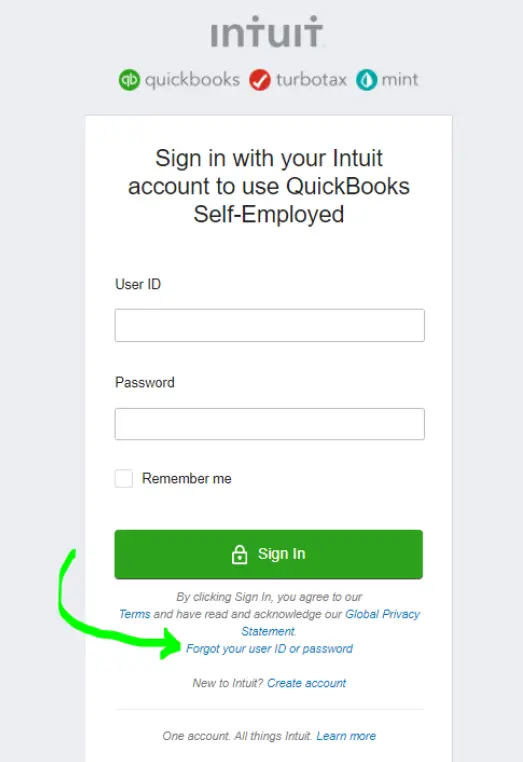
- Start the process by clicking the Settings icon and tapping on Manage Accounts.
- Choose the Refresh All option.
Read More:- Fix QuickBooks Self-Employed Login Issue
QuickBooks Sole Trader
- You must access the Accounting menu and click Bank Transactions.
- After that, choose the Refresh tab.
Note: If you are still getting the Error 102 QuickBooks, wait for around 2 to 3 hours and then try again after some time.
Solution 3: Verify Your Bank’s Website
You must go to your bank’s website to receive any extra information regarding the errors you are confronting.
- Initially, log in to your bank’s website using your correct sign-in details.
- Note: If you fail to reach your bank website, then reach out to your bank immediately.
- After this, start looking for any messages, notifications, or alert messages to check out whether there is a problem with your bank.
- Also, it’s essential to go through your account pages, history, and transactions. If you are unable to see any of them, it clearly represents that there is an issue with your bank.
Solution 4: Cross -Verify Your Bank Login Credentials
Sometimes, entering the wrong bank login details may fail to connect you with your bank account, resulting in a QuickBooks Banking error 102. So, to prevent the issue, it’s essential to double-check the login details using the steps instructed below.
- Firstly, look for your bank account’s name, especially if it’s not previously linked with QuickBooks.
- If you are already linked, tap on the Add Account option from the top-right corner of the screen. Then, start looking for your bank’s name.
- Now, provide the name of your financial institution and the login details for the same. Then, tap on the Continue option.
- When required, give the additional verification steps and choose the Connect Securely option.
- Thereon, choose the Bank Symbol from the left of the Account that you wish to connect with.
- Pick the account type by clicking on the drop-down menu to choose your bank or credit card account.
- After linking your bank account, QuickBooks will start downloading the bank transactions over the last 90 days. Also, it will download the banking and credit card transactions.
- Next, choose the Connect option, and then it will take a few minutes to connect.
- Furthermore, you will be redirected back to the banking page once you are done downloading the page.
- Finally, review the tab that comprises transactions downloaded from your bank.
Learn More:- QuickBooks Not Syncing With American Express
Solution 5: Set Your Bank To Update Automatically
If QuickBooks fails to update from your bank account, then you must try updating five additional times within the next five hours. Perform the steps instructed below to monitor the updates.
- Firstly, use the left sidebar to access the banking function.
- Afterwards, choose the Update option, and it will show you the latest date plus time.
- Now, initiate with the manual update and try to regain access to your banking services.
- Select the “Clear Unwanted accounts” option if you only have to update the accounts.
- Next, opt for the Update option, which is currently available.
- Following this, browse to the Continue option to receive the software upgrade after inserting the Multi-Factor authentication details.
- Later on, within 90 days, you can count on your updates to finish the process.
Solution 6: Verify that the Account isn’t new to the Bank
Most often, the users may experience Bank Error 102 and 105 in QuickBooks Online if your Account is new to the bank or credit card. The bank is so because some new accounts won’t work properly with the online banking. So, to overcome the issue, it’s essential to get in touch with your financial institution for help.
Solution 7: Allow Your Bank to Resolve the Error
Even after implementing the above solutions, you can’t fix the bank Error 102 QuickBooks, you must allow the bank to troubleshoot the problem. The bank may try to fix the issue regarding the server. It may take around 24 hours or more to figure out the problem.
Conclusion
Confronting the QuickBooks Error 102 and 105 may interrupt while syncing your Account and downloading the latest transactions. So, it’s essential to fix this issue quickly by applying the solutions discussed above in this post.
Frequently Asked Questions (FAQ’s):-
Question 1: How to avoid the QuickBooks Bank Error 102 from occurring in the future?
Ans. To prevent the QuickBooks Error 102 from occurring in the future, make sure to consider the following points:
- You must verify that your bank details are accurate and up-to-date.
- Try updating the QuickBooks application to the latest version.
- Also, check that your bank’s online services are functional before you try to connect with it.
- Besides this, test your internet connection.
Question 2: Can I still access my transactions if I encounter Error 102 in QuickBooks?
Ans. Error 102 in QuickBooks may prevent you from downloading the latest bank transactions, but you can access your existing transactions, as this error may only impact the bank feed feature in QuickBooks.
Question 3: What is error 102 in QuickBooks bank feed?
Ans. Error 102 in QuickBooks usually strikes when QuickBooks fails to connect with your bank account. It may occur due to the problems generated from the bank’s end, whether it’s a server issue or the bank is going under maintenance.
Question 4: How to fix a bank error in QuickBooks?
Ans. To resolve the bank error in QuickBooks, you must perform the following steps:
- You must try to sign in to your bank website to verify your access.
- Also, verify that your Account is active by testing the latest transactions.
- Besides this, look for any notifications received on your bank’s website.
About The Author

Jonathan Browns
Jonathan Brown is a trained QuickBooks professional with 10 years of experience in the accounting sector. Moreover, he is passionate about helping businesses reduce the stress of managing accounts. Also, he is proficient in assisting entrepreneurs and small business owners to use QuickBooks and enhance their accounting experience.
Recent Posts
-
9 Proven Ways to Fix QuickBooks Migration Error-1009
-
QuickBooks Error 401 Authentication Error: Complete Fix Guide
-
How to Fix QuickBooks Freezing or Not Responding
-
Fix Your QuickBooks Online Sync Problems: A Step-by-Step Guide
-
QuickBooks Online Canada: Complete Guide for Canadian Businesses